
It reads and writes
Most tools export a file and leave you to re-import it. The sheet is connected in both directions, so there is no CSV to download, fix, and upload again.
 Built for Shopify
Mixtable is an online spreadsheet that is connected to your Shopify store. Your products, orders, and customers load into the grid as ordinary rows and columns. You edit them the way you would edit anything in Excel, and nothing reaches Shopify until you review it and sync.
 Spring pricing Sync 2 changes
 Step by step
The same three rows, shown at each stage. Watch the cells change and you have the whole product.
Install a Mixtable app from the Shopify App Store and approve the connection. That is the whole setup. There is nothing to configure and nothing to schedule.
An empty sheet, connected to your store
Pick what each row should be, such as products, orders, or customers, then pick the columns. Your records fill the grid, and the sheet keeps itself current as your store changes.
Your records, in the columns you chose
Type in a cell, write a formula, fill down a column, find and replace, or paste from Excel. Everything you change is held as a pending edit, marked in the grid.
Edited cells, still only in the sheet
See every pending change in one list before anything leaves the sheet. When it looks right, run Sync to Shopify and the updates are written to your store.
Written to Shopify, on your command
Add an analytics column and pick a metric and a timeframe. Net Sales, orders, quantity sold, refunds, and margin are calculated from your store's orders and land next to the product they belong to.
Net Sales per product, last 30 days
Download the spreadsheet as a real .xlsx file, or the worksheet you are on as a CSV. The Excel file keeps your column widths, colors, and number formats, so it opens looking the way you built it.
Downloaded as .xlsx, formatting intact
Then you leave it. The sheet stays connected, so next month you open the same one and it already has this month's numbers in it.
Why a spreadsheet
Most tools export a file and leave you to re-import it. The sheet is connected in both directions, so there is no CSV to download, fix, and upload again.
Formulas, fill down, sorting, filtering, find and replace, copy and paste, and cell formatting all behave the way they do in Excel. There is no new syntax to learn.
Edits sit in the sheet as pending changes until you sync them. Cell history and row history show what changed, when, and who changed it.
The apps
All three are the same spreadsheet. They differ in what they let you do with it, and each is billed on its own, so you only pay for what you use.

Bulk edit products, prices, inventory, metafields, customers, and more, then sync the changes to Shopify.
Net Sales, orders, average order value, and margin, calculated from your store's orders and laid out your way.
Load any Shopify data into a spreadsheet, shape it your way, then export it to Excel or CSV.
Features
Everything below works on your live Shopify data.
A spreadsheet interface that behaves just like Excel does, but everything runs in your browser.
When data changes in your store, your spreadsheet will update almost immediately. You don't need to do manual syncs.
When you are ready, preview your pending changes and click Sync. Mixtable writes them to your Shopify store.
Read the guideMixtable supports most Excel formulas. No need to learn something new.
Add, subtract, multiply, or change numbers by a percentage across a whole column. Saves you from manually modifying individual cells.
Read the guideFind and replace content in cells in seconds.
Read the guideInstead of editing cells, use Add tags and Remove tags in the Bulk Edit menu to change tags on many products fast.
Read the guideAdd multiple images to your products from files or from a set of image URLs.
Read the guideSee everything Mixtable has saved for a row's Shopify record, including fields that aren't columns in your worksheet
Read the guide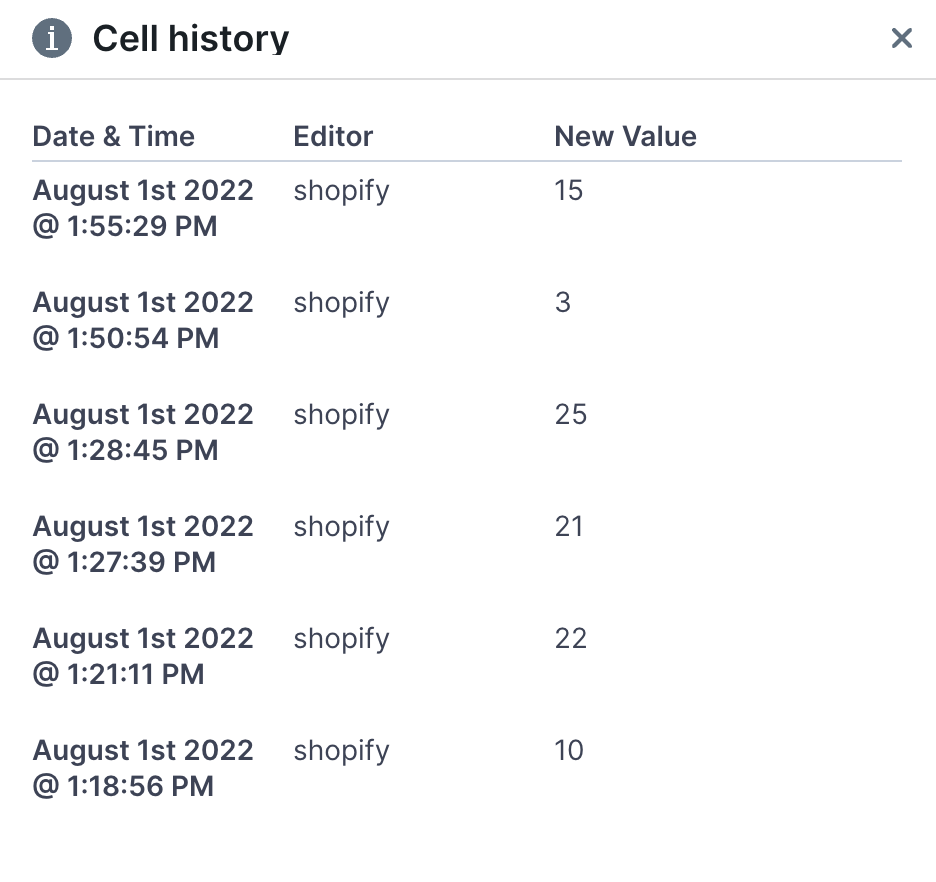
See how a cell's value has changed over time
Read the guide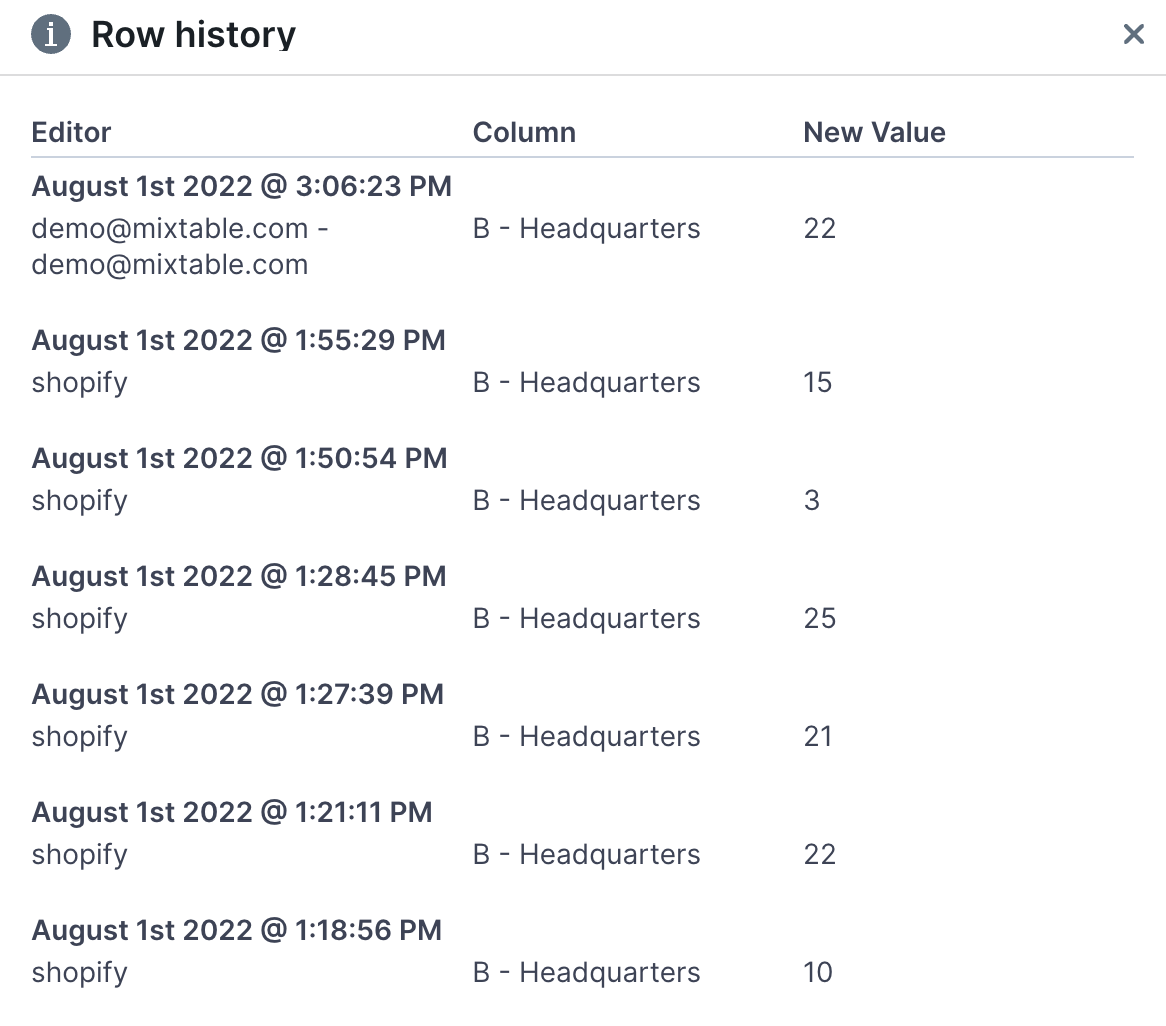
See how a row's Shopify fields have changed over time
Read the guideSort your worksheet as you would in Excel
Want to only see products by a certain vendor? Use our Excel-like row filter
Lock the top row and left-hand-most column so they stay put while you scroll
Most merchants have their first sheet loaded within a couple of minutes of installing.