
Matrixify vs Ablestar vs Mixtable: Bulk Tag Editing Compared
 Spreadsheet Editor Updated October 16, 2026
 On this page
Tags hold a Shopify store together. They drive collections, filters, discounts, B2B pricing rules, and half the automations a merchant sets up. They also rot quietly: capitalization drifts, seasonal tags outlive their season, and a store ends up with “Sale”, “sale”, and “SALE” doing the same job.
Shopify’s own tools handle small tag changes fine and become impractical at scale. This article compares three apps that fix that at scale: Matrixify, Ablestar Bulk Product Editor, and Mixtable.

High-level comparison of bulk tag editing apps
| Matrixify | Ablestar | Mixtable | |
|---|---|---|---|
| Application interface | File-based (Excel, CSV, or Google Sheets) | Graphic UI | Online spreadsheet |
| Bulk add tags | Yes | Yes | Yes |
| Bulk remove tags | Yes | Yes | Yes |
| Bulk rename tags | Yes | Yes | Yes |
| Bulk edit using spreadsheets | Yes, by exporting and re-importing a file | Yes, by importing a spreadsheet | Yes, directly in the live sheet |
| Formula-based tagging | In your own spreadsheet, before import | UI rules, plus Liquid code snippets for complex logic on higher plans | Yes, with formulas in the connected sheet |
| Tag customers and orders | Yes | No, products only | Yes |
| Schedule or automate tag edits | Yes | Yes | No |
| Undo after the fact | Re-import a previous file | One-click undo, history from 60 to 180 days by plan | No rollback. Changes are reviewed in a preview before they are sent |
| What is metered | Items per job. Demo allows 10; Basic 5K products; Big 50K; only Enterprise is unlimited | Free plan allows 10 products per edit, import, or export. Paid tiers meter recurring edits, sync jobs, scheduled exports, and history length | Paid editing plans have no caps on products, rows, or edits |
| Price |
|
|
|
| App store links | Matrixify | Ablestar Bulk Product Editor | Mixtable |
Bulk editing tags with Matrixify
Matrixify treats your store as a large, manageable file. For tags, you export product data, change it in Excel or Google Sheets, and re-import. More steps, but a great deal of control, and the right architecture when the job is enormous.
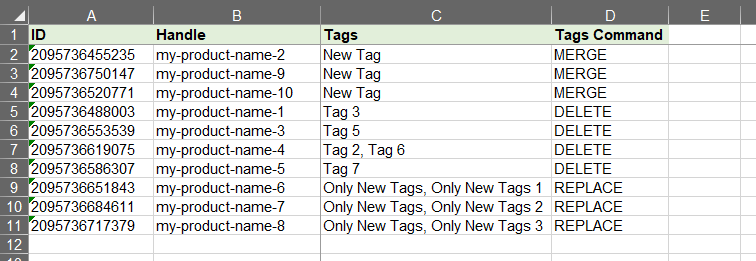
- Command-based tag manipulation. The Tags column accepts MERGE, DELETE, and REPLACE commands, so you can add tags without disturbing existing ones, remove specific tags, or overwrite a product’s tags entirely in a single import. This is the most precise tag syntax of the three apps.
- Scheduled and repeating jobs. Add a “sale” tag on promotion day and strip “new arrival” tags a month later, on a schedule, without opening the app.
- Flexible data sources. Import and export via direct upload, Google Sheets, Dropbox, or FTP and SFTP.
- Everything in one file. Tags can be updated in the same import that changes metafields, variants, customers, and orders.
Bulk editing tags with Ablestar
Ablestar Bulk Product Editor is the most guided of the three. You pick products, choose a tag operation, preview the result, and apply it.
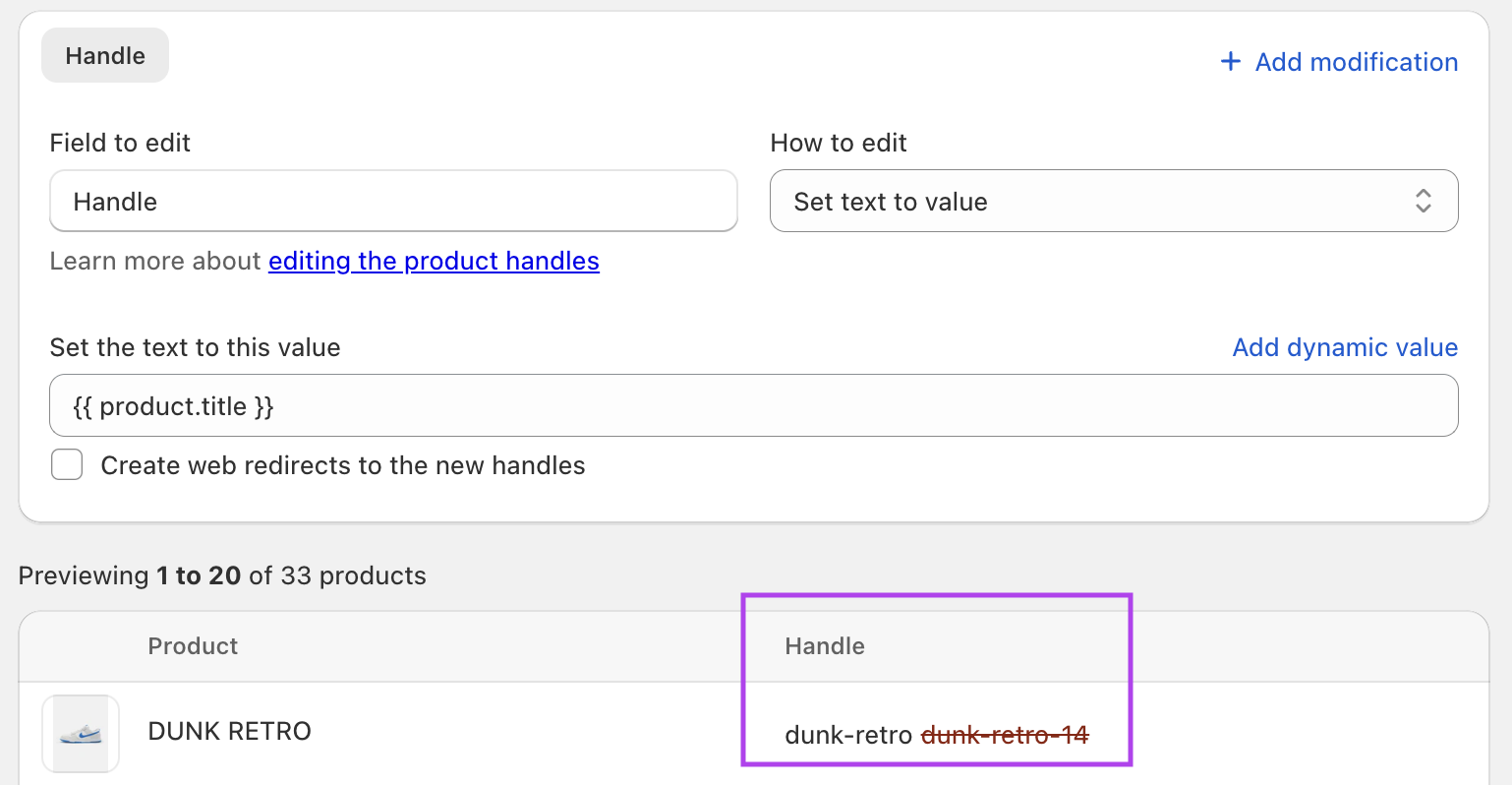
- Add, remove, rename, and overwrite tags through a UI that requires no syntax at all.
- Search and replace inside tag names, which is the fastest way to fix capitalization drift across a catalog.
- One-click undo, with edit history running 60 days on Basic, 90 on Advanced, and 180 on Professional.
- Scheduled and recurring edits on paid plans.
- Liquid code snippets for conditional and cross-field logic on higher plans
One limitation to note: Ablestar does not edit orders or customers, so it can tag products only. If you need to tag customers, it is not a candidate.
Bulk editing tags with Mixtable
Mixtable puts a live spreadsheet in front of your store data. For tags, that means you can filter your products, apply formulas to decide what gets tagged, and see the result in the grid before anything reaches Shopify.
- Live, Excel-like grid. Tags sit in a column you can copy, paste, and fill down like any spreadsheet. You can also sort and filter by tag to see exactly which products carry what.
- Formula-based tagging in the grid. Add “clearance” where inventory is above 50 and the compare-at price exceeds the price, build a tag from a vendor code and a season, or use a lookup table to map supplier categories onto your own tag vocabulary. Ablestar can express complex logic with Liquid snippets on higher plans, while Mixtable keeps the formula and its inputs visible beside the result
- Action columns. Type a tag into an “add tag” or “remove tag” column and Mixtable performs exactly that operation on sync, leaving the product’s other tags untouched. It is the same precision as Matrixify’s MERGE and DELETE commands, without a file.
- A dedicated tag editor for adding or removing tags in bulk, with a preview of what will change.
- Tags on customers and orders too, which matters if you use tags to drive wholesale pricing or segmentation.
Edits are held as drafts, and the sync preview lists every affected row, field, and pending value, including values produced by formulas, before you run Sync to Shopify.
What Mixtable does not do: there is no scheduler and no automation engine, and no rollback after a sync. Matrixify and Ablestar both beat it on those. Mixtable’s safety net is the preview beforehand, not a restore point afterward.
Bulk edit tags within the Shopify admin
Before installing anything, it is worth knowing what Shopify already does. For small changes, this is enough.
Using the bulk editor
- Navigate to the resource: go to Products, Customers, or Orders.
- Select items: check the boxes next to the items you want to edit.
- Open the bulk editor: click Bulk edit.
- Add or remove tags for the selected items.
- Save changes.
Using CSV files
- Export data from the relevant section as a CSV file.
- Edit the Tags column in a spreadsheet program.
- Import the updated file back into Shopify.
Both work well up to a few dozen items. They break down when you need to decide which products to tag based on data the admin will not show you side by side, or when the list runs to thousands of rows.
Which app should you choose?
Choose Matrixify if your tag work is large, scheduled, and file-shaped, or if you want the precision of MERGE and DELETE commands across an enormous catalog.
Choose Ablestar if you want the most guided experience with a real undo button, and you only ever tag products.
Choose Mixtable when the hard part is not applying the tag but deciding which products deserve it. In Matrixify, multi-field logic is built in an exported file. In Ablestar, standard UI rules cover common operations and Liquid snippets can handle more complex conditions on higher plans. In Mixtable, the formula sits in a column beside the source data, where you can inspect it before previewing and syncing the result.
All three have a free way to start, so try whichever description sounded most like your catalog.