
Shopify Dynamic Price
On this page
Dynamic pricing in e-commerce is a strategy where you can adjust prices in real time based on different conditions. Here are some examples:
-
Daily price fluctuations based on cost: e.g., if you sell gold jewelry, and product prices depend on the daily cost of gold.
-
Price increase based on conditions:
- If products are low on inventory, in order not to run out of stock before restocking.
- If a certain product gets viral because of some promotion, there is a huge surge in demand.
-
Price decrease: For goods whose expiration dates are approaching to clear stock.
You can set dynamic pricing with Mixtable spreadsheet formulas and below we’ll show you how.

With spreadsheet formulas, every product price recalculates the moment you update an input, such as today’s price of gold. You enter the new metal price once, review the recalculated prices, and sync them to Shopify when you’re ready.
Dynamic product prices with formulas
Price fluctuations
Here’s an example formula you can use for calculating dynamic prices for jewelry:
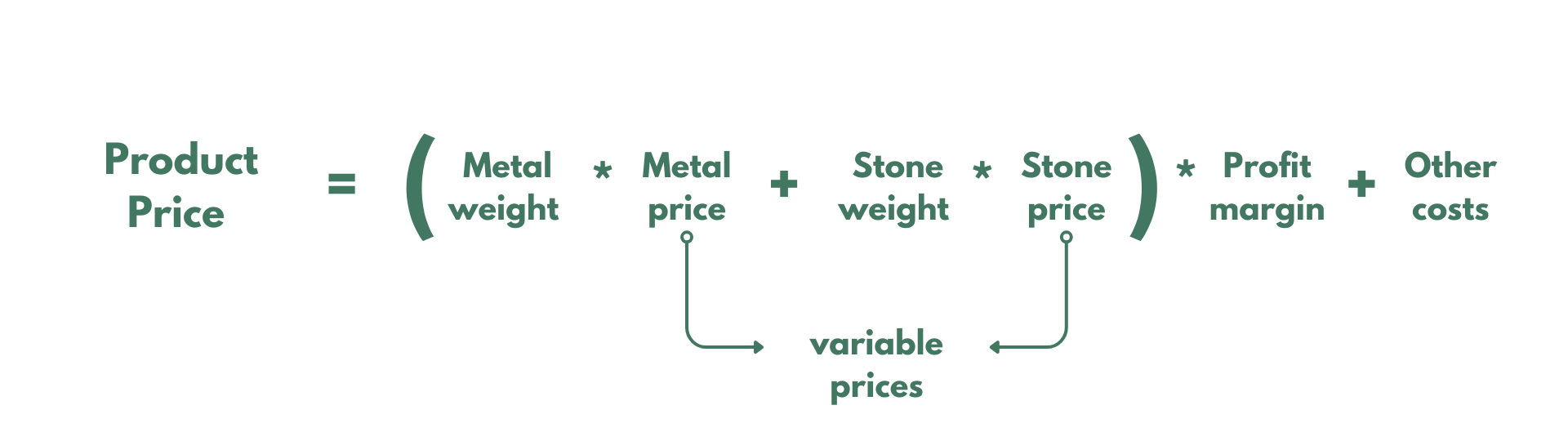
Final Price = (Metal Weight * Metal Price + Stone Weight * Stone Price) * Profit Margin + Other Costs
Where:
- Metal weight: The weight of the precious metal in the piece of jewelry (e.g., grams of gold). You might already have this in a metafield
- Metal Price: The current market price of the metal per unit of weight (e.g., price of gold per gram). It’s crucial to keep this updated
- Stone Weight: The weight of the precious stone(s) (e.g., carats of diamond). You might already have this in a metafield
- Stone Price: The price per unit weight of the stone (e.g., price per carat of diamond). Again, you’ll need to keep this updated
- Profit Margin: The multiplier that adds your profit on top of the metal and stone cost. To add 47% on top of that cost (a 47% markup), use “1.47”. A markup is not the same as a margin: if you want your profit to be 47% of the price instead, divide by 0.53, which is the same as multiplying by about 1.89
- Other Costs: This includes manufacturing costs, labor, setting fees, packaging, etc. This could be a fixed value or calculated based on other factors
Price increase
Example formula: 20% price increase if the inventory level drops below 10 units:
=IF(C2<10, A2*1.2, A2)
Where:
- C2: This cell contains the current inventory level for the product.
- <10: This is the condition. The formula checks if the inventory level is less than 10.
- A2: This is the cell with the original price.
- A2*1.2: This is the value if the condition is true. It calculates a 20% price increase (i.e., multiplying the original price by 120%).
- A2: This is the value if the condition is false. The price remains the same (original price).
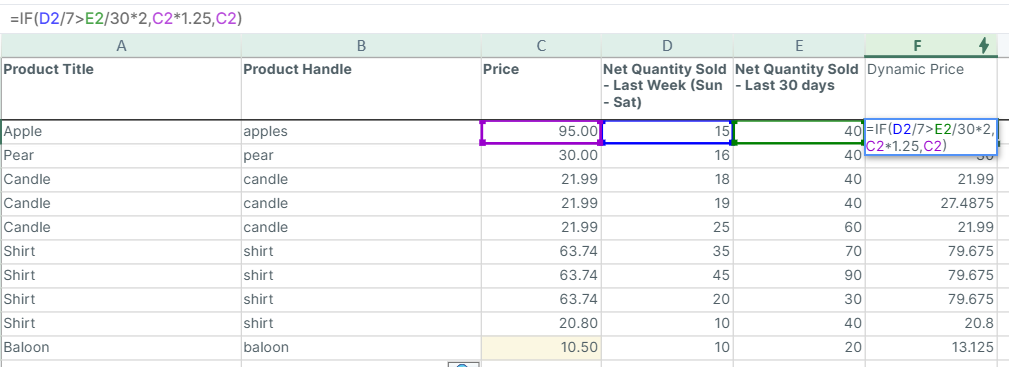
Example formula: 25% price increase if average daily sales (Net Quantity Sold) for last week are more than double the average daily sales for the last 30 days.
=IF(D2/7>E2/30*2,C2*1.25,C2)
Where:
- D2: Represents the dynamic value for Net Quantity Sold for last week (with a Rolling period in Mixtable you calculate the Net Quantity Sold for a dynamic time period in the past, e.g., last week, last 30 days. If you select this option, the Net Quantity Sold will be recalculated daily as the date range window moves forward.)
- E2: Represents the dynamic value for Net Quantity Sold for the last 30 days.
- The condition here is that if the average number of quantities sold per product variant for the last week is higher than double the average quantity sold for the last 30 days, we increase the price by 25%.
- C2: This is the cell with the original price - if the condition is true, we increase the price by 25%, if false, we keep the original price.
This dynamic price can be set up in Mixtable using Analytics and Bulk editing features. Here’s how to do it:
-
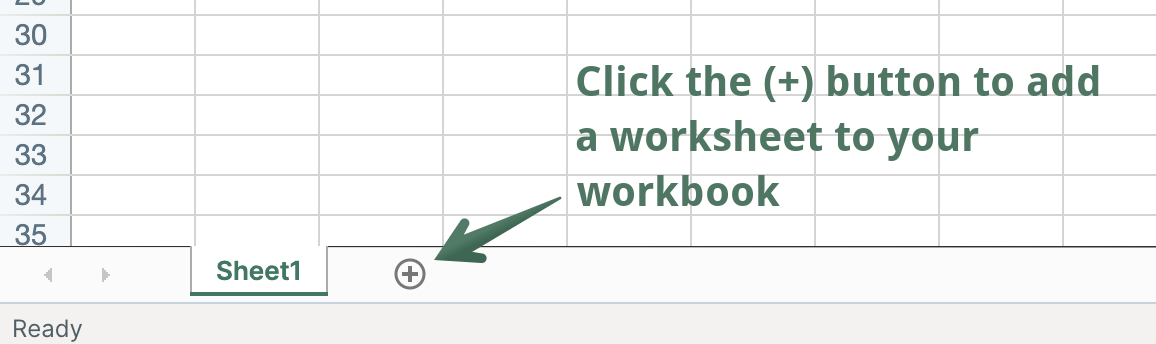
In an existing Mixtable spreadsheet, click the + button at the end of the worksheet tabs, at the bottom of the screen, to add a new worksheet.
-
To load more Shopify data, click + Shopify data in the header row of an empty column, such as the one right after your last column. You can also choose Column > Add Shopify data… from the menu bar. The field picker opens and asks What should column E show?, with your column's letter in place of E. It lists everything the worksheet can show from Shopify, grouped into sections the way your Shopify admin groups them. Type in the search box at the top, or click a section on the left, to find the field you want.

In the worksheet, pull the following data:
- Product title (Column A)
- Product handle (Column B)
- Price (Column C)
- Analytics > Net Quantity Sold > Rolling period: Last Week (Sun - Sat) (Column D)
- Analytics > Net Quantity Sold > Rolling period: Last 30 days (Column E)
- Add the formula to Column F and drag it down to all products.
Price decrease
Example formula for a 30% discount if the item expires in 30 days or less, and no discount otherwise:
=IF(B2-TODAY()<=30, A2*0.7, A2)
- Breakdown of the Formula B2: This is the cell containing the expiration date.
- TODAY(): This function returns the current date.
- B2-TODAY(): This calculates the number of days remaining until the product expires.
- <=30: This is the condition. The formula checks if the days remaining are 30 or fewer.
- A2: This is the cell containing the original price.
- A2*0.7: This is the value if the condition is true, which calculates a 30% discount (i.e., multiplying the original price by 70%).
- A2: This is the value if the condition is false. The price remains the same (original price).
To discount more as the expiration date gets closer, put a second IF inside the first one. This formula takes 50% off when 7 days or fewer remain, 25% off when 8 to 30 days remain, and keeps the original price otherwise:
=IF(B2-TODAY()<=7, A2*0.5, IF(B2-TODAY()<=30, A2*0.75, A2))
How to set dynamic prices with the Mixtable Shopify spreadsheet app
To use such a formula for setting up your product prices and to change the corresponding variable price components in one place, you can use the Mixtable spreadsheet app.
-
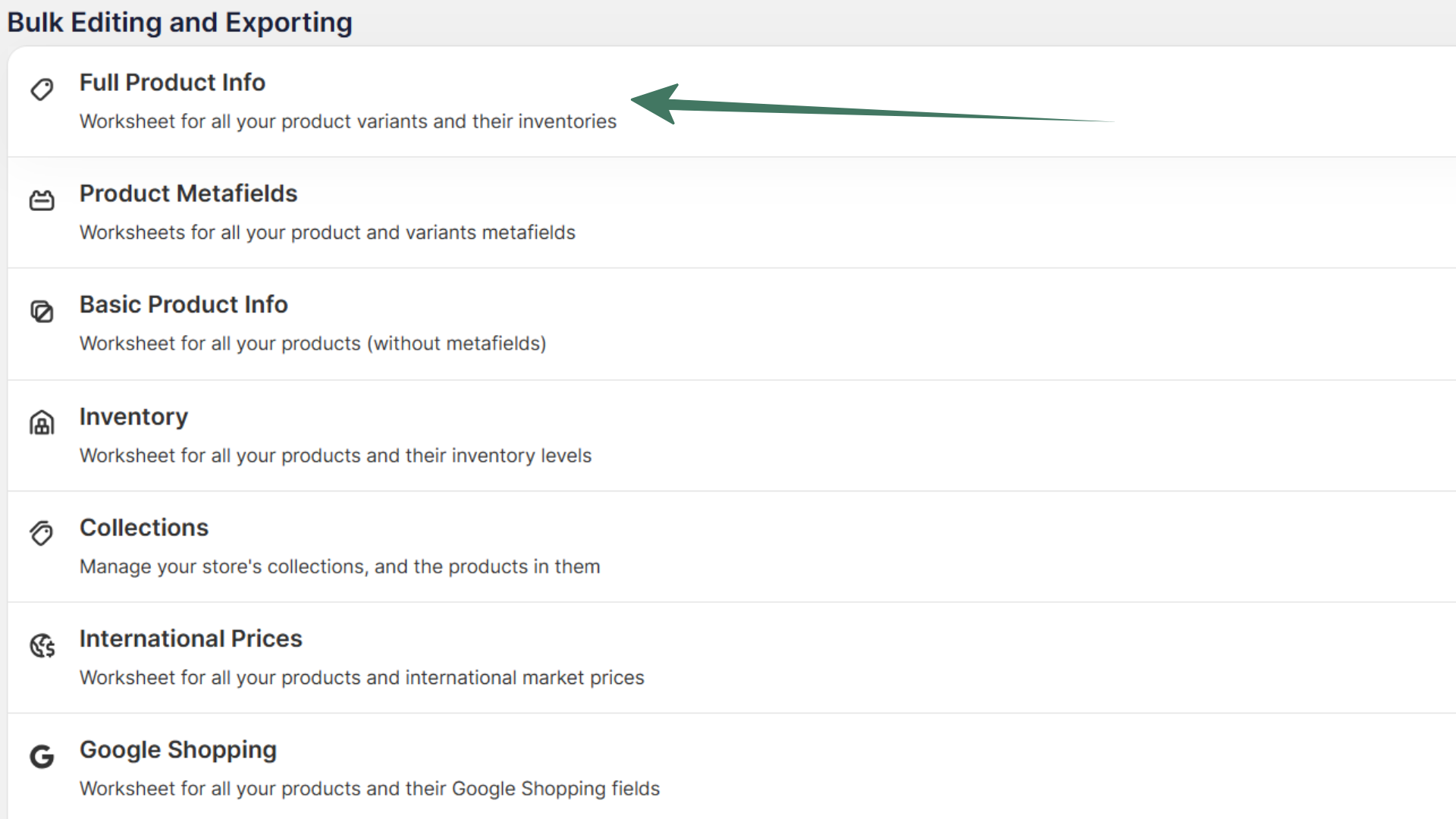
After installing the Mixtable Spreadsheet Editor app, click the Create spreadsheet button. Now, load the Full Product Info template.
-
You will find all Product Variant data here, including prices and metafields.
-
Now, you can bulk edit the fields for your Shopify products and use a formula for the price calculation.
-
If you have information related to the product details (e.g., weight, etc.) in metafields, you can use it for formula calculation.
-
For the variable prices, such as the precious metal prices, you can add additional fields and change the values when necessary. That will automatically change the product prices for all products, as in an Excel spreadsheet.
The recalculated prices are pending changes in your spreadsheet. Nothing changes in your Shopify store until you sync.
When you are ready, look at the sync control at the top right of the spreadsheet, next to Share. It shows how many edits are waiting, for example Sync 12 changes. Click Sync to open the Preview changes window and review them, then click Sync in the window. Mixtable sends the updated price data to Shopify. It may take a few seconds for the changes to appear in your store.
Mixtable records every price you sync, so you can follow how a variant’s price moved as your inputs changed. Right-click its Price cell and choose View cell history to see each change, with the old and new price and when it happened. See Shopify product price history.
