
View Shopify product price history
 Spreadsheet Editor Updated October 21, 2026
 On this page
Want to know what a product was priced at last month, or when a sale price started? Mixtable keeps a price history for the variants in your Shopify store. It records each change to a variant’s price, cost, fixed market prices, and fixed B2B catalog prices, whether the change was made in Shopify or synced from a Mixtable spreadsheet, and you can open that history right from your worksheet.
What Mixtable records
Mixtable records some prices for every variant in your store, and others while one of your worksheets shows them.
Prices recorded for every variant
Mixtable records these prices for every variant, whether or not a worksheet shows them:
- Price
- Cost per item
- Each fixed price the variant has in a market
- Each fixed price the variant has in a B2B catalog
The oldest entry for each one reads First recorded value: the price when Mixtable started its history, usually when it first downloaded your products.
Prices recorded while a worksheet shows them
These prices have a history from the time one of your worksheets shows them in a column:
- Compare-at price
- A market’s Compare-at price
- A B2B catalog’s Compare-at price
What each change shows
Each change shows the old and new price, the time, and where it came from: Shopify for a change made in Shopify, or the name of the person who clicked Sync in Mixtable, with the spreadsheet, worksheet, and cell it was synced from.
Mixtable doesn’t record:
- Market and B2B prices that Shopify works out automatically, from your base price, a price adjustment, and exchange rates. They can move with every exchange rate update, so only fixed prices have a history
- Edits you haven’t synced yet. Typing a new price in a cell doesn’t add to history: the change is recorded once it’s synced to Shopify
Step 1: Show the price in a worksheet
Prices belong to variants, so use a Products (with variants) worksheet, which has one row per variant. If your worksheet already has a Price column, go straight to step 2. If not, add one:
In a spreadsheet, create a worksheet that shows your Shopify product variant data.
-
Click + Shopify data in the header row of an empty column, or choose Column > Add Shopify data… from the menu bar. The field picker opens so you can choose the data you want to pull in

-
Type the field's name in the search box at the top, then click Price in the list. The panel on the right explains the field and shows an example value from your worksheet
-
Click Save Column. The column fills with the Price values from Shopify
Step 2: Open the price’s Cell history
- Click the Price cell of the variant you want to check
- Right-click the cell and choose View cell history. You can also right-click the row number and choose Cell history, or choose Row > Cell history from the menu bar
- The Cell history window opens. It shows the variant’s Current value and, under Changes, each recorded price change, newest first and grouped by day. It lists the latest 1,000 changes. For older ones, contact support
For everything a history entry can show, see Shopify product change history.
Tip: To see all of a variant’s current prices at once, including its cost per item, compare-at price, and market prices, click a cell in the variant’s row and click Details in the toolbar. Learn more about the Details panel.
See cost and compare-at price history
The same steps work for the other price fields. Add the column to your Products (with variants) worksheet, then open the Cell history of a cell in it:
- Cost per item: Mixtable records every variant’s cost, just like its price, so the history is already there when you add the column. Learn more about Shopify cost per item
- Compare-at price: changes are recorded while one of your worksheets shows this column, so add it before a sale starts. Learn how to bulk edit compare-at prices
To see a variant’s price, cost, and other fields together, right-click its row number and choose Row history. Row history lists the changes to every tracked field your worksheet shows for that variant, each labeled with its column, such as F · Price.
See market price history
Each fixed price a variant has in a Shopify market has its own history. Mixtable records it for every variant, so the history is already there when you add the column. To see it:
- Click + Shopify data in the header row of an empty column, or choose Column > Add Shopify data… from the menu bar. The field picker opens and asks What should column E show?, with your column’s letter in place of E
- Click Pricing in the list of sections on the left. Each market has its own row under Market prices, such as Price in France
- Click the market’s row. Under Which price?, keep Price, then click Save Column
- Right-click a cell in the new column and choose View cell history
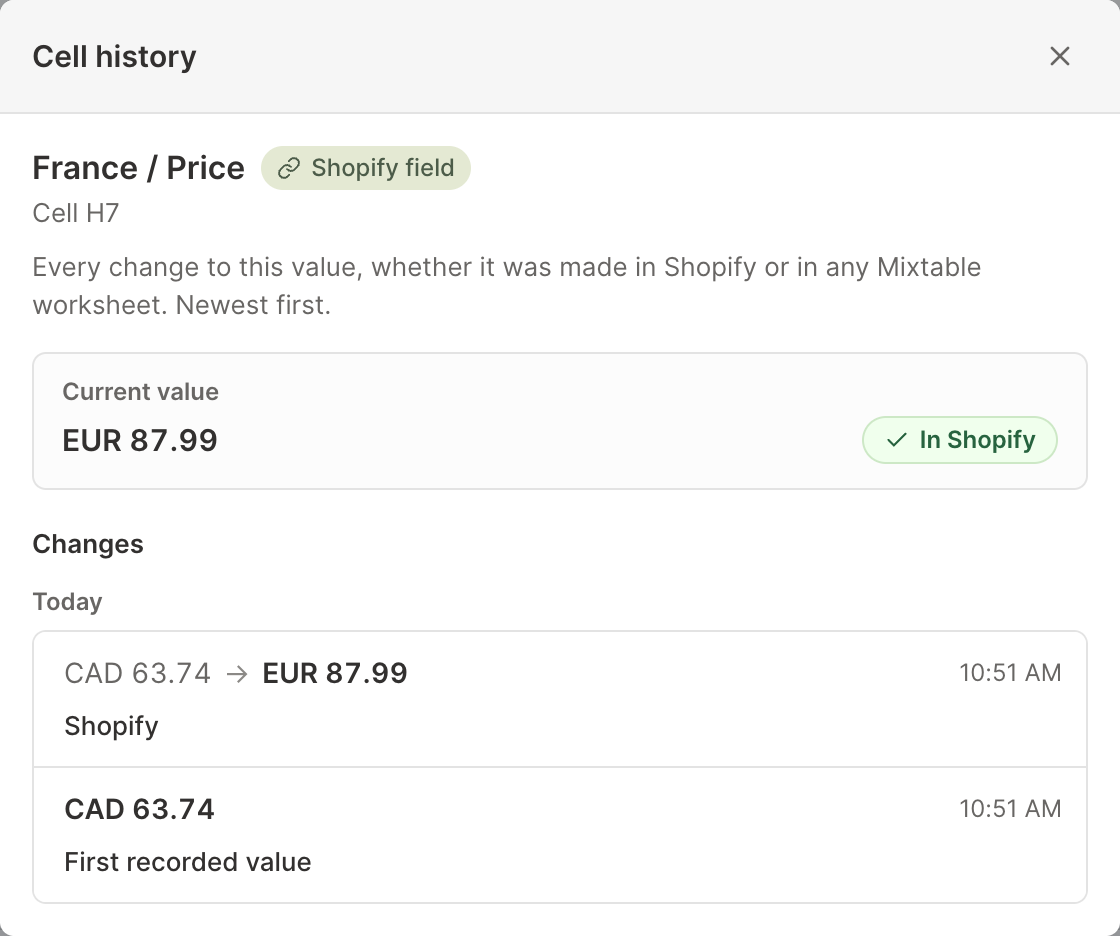
To follow a market’s compare-at prices too, add another column and choose Compare-at price under Which price? in step 3. Their history starts once the column is in your worksheet.
A market price you change in the Shopify admin is recorded when the new price comes into Mixtable, and the change shows the time it came in.
Shopify doesn't send changes to market and B2B prices on its own, so download them when you need the latest. Click Download latest in the sync control at the top right of the spreadsheet (or choose Shopify Sync > Sync with Shopify…) to open the sync card. Under Download latest from Shopify, click Download next to Market & B2B prices.
If a variant’s price in that market follows your store’s price automatically, its cell shows No changes recorded yet, or only the changes from a time when the price was fixed. Learn how to set Shopify international pricing.
See B2B catalog price history
Each fixed price a variant has in a Shopify B2B catalog has its own history too. Like market prices, Mixtable records it for every variant, so the history is already there when you add the column. To see it:
- Click + Shopify data in the header row of an empty column, or choose Column > Add Shopify data… from the menu bar. The field picker opens
- Click Pricing in the list of sections on the left. Each B2B catalog has its own row under B2B catalogs, named Price in followed by the catalog’s name
- Click the catalog’s row. Under Which price?, keep Price, then click Save Column
- Right-click a cell in the new column and choose View cell history
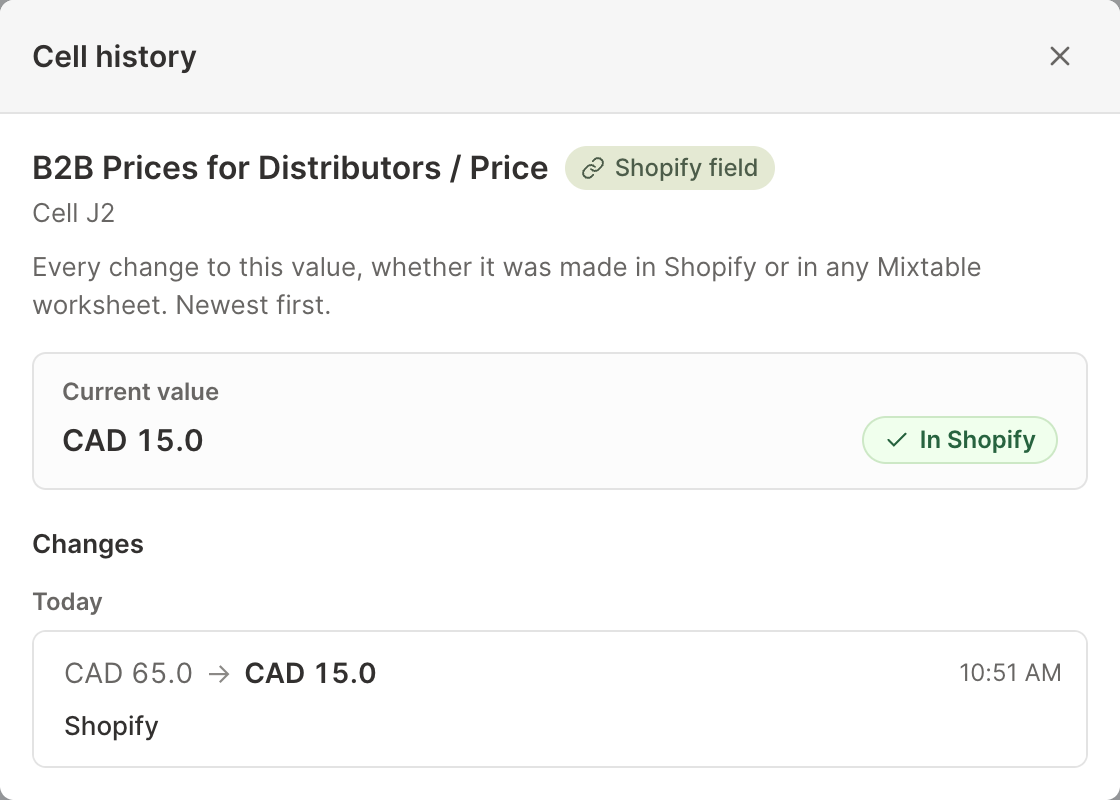
To follow a catalog’s compare-at prices too, add another column and choose Compare-at price under Which price? in step 3. Their history starts once the column is in your worksheet.
B2B prices you sync from Mixtable are recorded under the name of whoever clicked Sync. Like market prices, a B2B price you change in the Shopify admin is recorded when the new price comes into Mixtable, so download the latest Market & B2B prices from the sync card to bring it in.
A B2B price that follows the catalog’s percentage adjustment isn’t recorded. Only fixed B2B prices have history. Learn how to bulk edit B2B price catalogs.
When a price has no history yet
If Cell history shows No changes recorded yet, the price hasn’t changed since Mixtable started recording it. That’s common when:
- The column shows a compare-at price, which Mixtable records only while a worksheet shows it, and you added the column recently
- The market or B2B price follows your base price automatically, so it isn’t recorded
Change a price back
Price history is view only. To go back to an earlier price, type it into the variant’s Price cell, then click Sync at the top right of the spreadsheet, review your changes in the preview that opens, and click Sync again. Mixtable records the sync as a new change, so the history stays complete. To update many prices at once, see Bulk change Shopify product prices.