Export Shopify Orders’ Metafields
 Spreadsheet EditorExport: Excel & CSV Updated October 8, 2026
 On this page
To export your Shopify orders along with their metafields you’ll need to perform two quick steps. First, have a worksheet that shows your Shopify orders. Second, map one or more columns to show the data of the metafield(s) you want to export. Once this is done, just export the spreadsheet and you’ll be able to download all your order metafields data as an Excel file. Below are more details on each step.
Step 1 - Have a worksheet that shows your Shopify Orders
In an existing Mixtable spreadsheet, click the + button at the end of the worksheet tabs, at the bottom of the screen, to add a new worksheet.
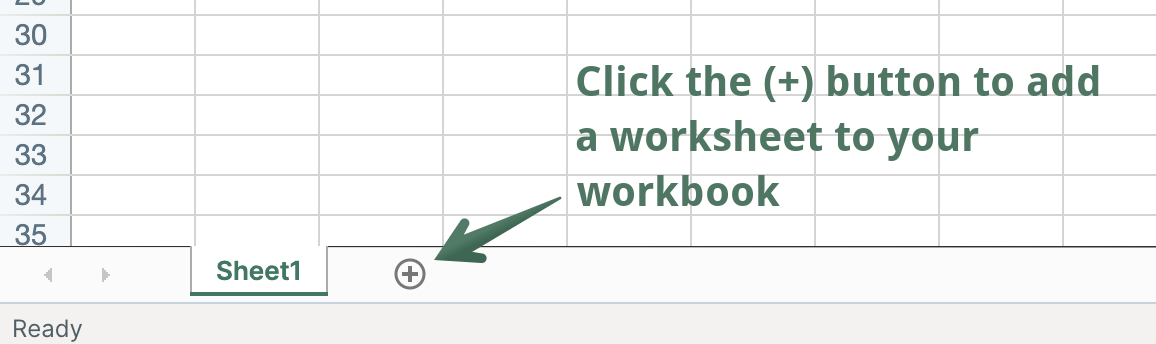
Choose Shopify data worksheet, click Continue, and then choose Orders (no line items). Pick the columns you want and click Continue. Choose how far back to load your orders, then click Create Worksheet. The new worksheet will be added, and you’ll see your Shopify orders data starting to populate in it.
Step 2 - Sync metafields to columns
Now that we have our Orders (no line items) worksheet, we need to get our metafields data to show up in it. All that’s involved is to configure columns to display the metafields you want to export. Here’s how:
To load more Shopify data, click + Shopify data in the header row of an empty column, such as the one right after your last column. You can also choose Column > Add Shopify data… from the menu bar. The field picker opens and asks What should column E show?, with your column's letter in place of E. It lists everything the worksheet can show from Shopify, grouped into sections the way your Shopify admin groups them. Type in the search box at the top, or click a section on the left, to find the field you want.

-
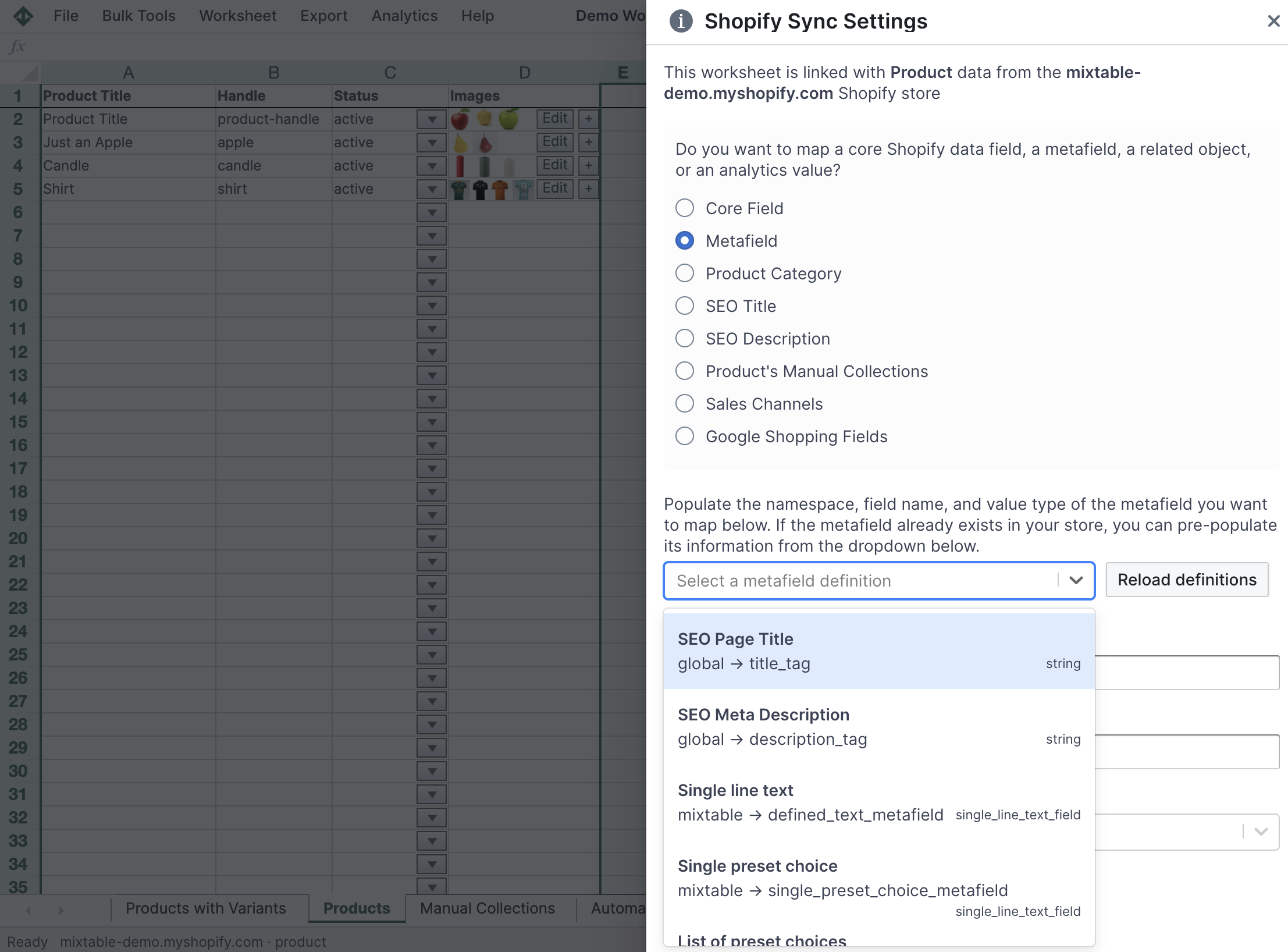
In the field picker, click Custom data in the list of sections on the left. It lists your store’s order metafields by name
-
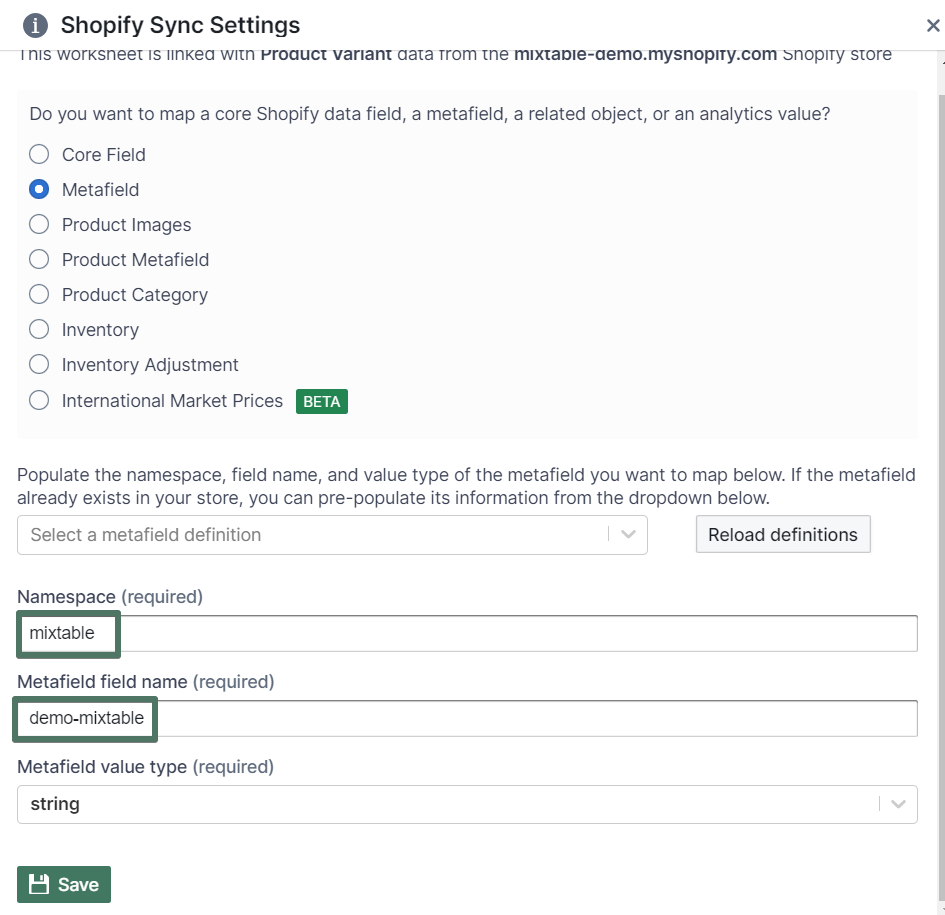
Click the order metafield you want to export. You can also type its name in the search box to find it quickly. If the metafield you need has no definition in Shopify, click Add a metafield that isn’t listed, the last row in the section, and enter its Namespace, Key, and Value type instead. Then click Save Column
-
You’ll now see Mixtable set up this new column with a heading (which you are free to change), and populate all the cells with any pre-existing data for the metafield you just set up
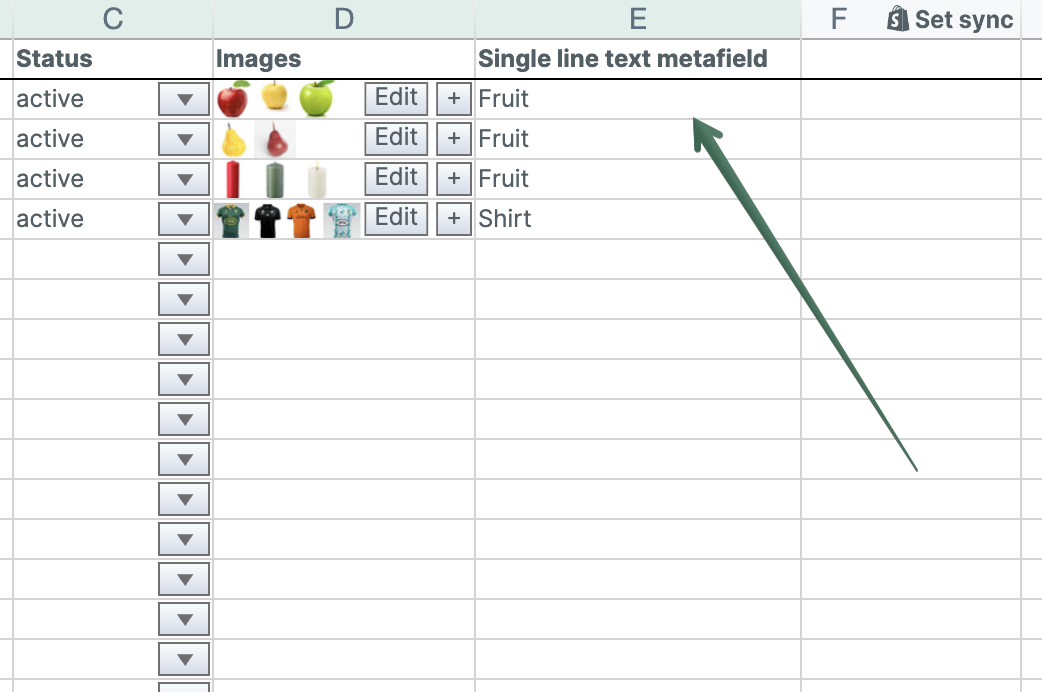
If the Custom data section shows a Metafields download incomplete warning, your store’s order metafields haven’t finished downloading into Mixtable yet, so some cells may come out blank. Click Download order metafields to fetch them before you export.
Add related data for Metafields to your Shopify Orders (no line items) worksheet
Connecting order details with Metafields information used to mean VLOOKUP formulas. Not anymore! Mixtable now puts this data directly within your reach. Here's how to do it:
If you have already created a Mixtable spreadsheet with your Shopify Order information, you can quickly add related data to it.
Note: The worksheet needs to show order information, e.g., you can use the Orders and Order Items template spreadsheet, or the Orders (no line items) or Orders (with line items) worksheets.
Click + Shopify data in the header row of an empty column, or choose Column > Add Shopify data… from the menu bar.
- In the field picker, click Products in the order in the list of sections on the left. It holds the details of the products in each order, such as Product vendors, Product types, Variant SKUs, and Product metafields. Fulfillment details, such as Fulfillment count, are in the Fulfillment section
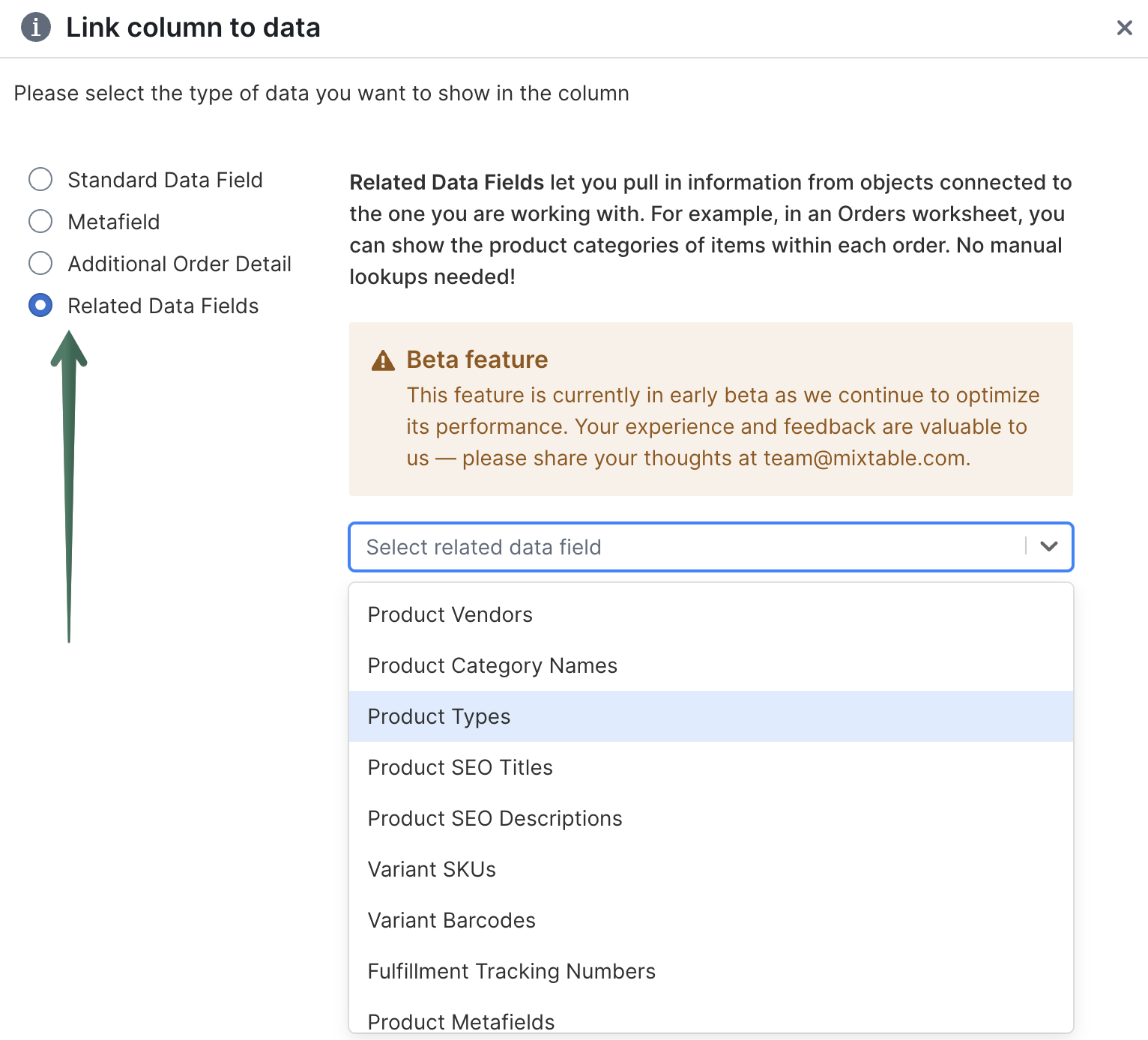
- Click the field you want. If the panel on the right asks how to combine the values, or which metafield to use, make your choice
- Click Save Column
- Allow some time for the data to appear in the column, and you are ready!
Find more about Related Data Fields functionality here.
Step 3 - Export your spreadsheet to an Excel file
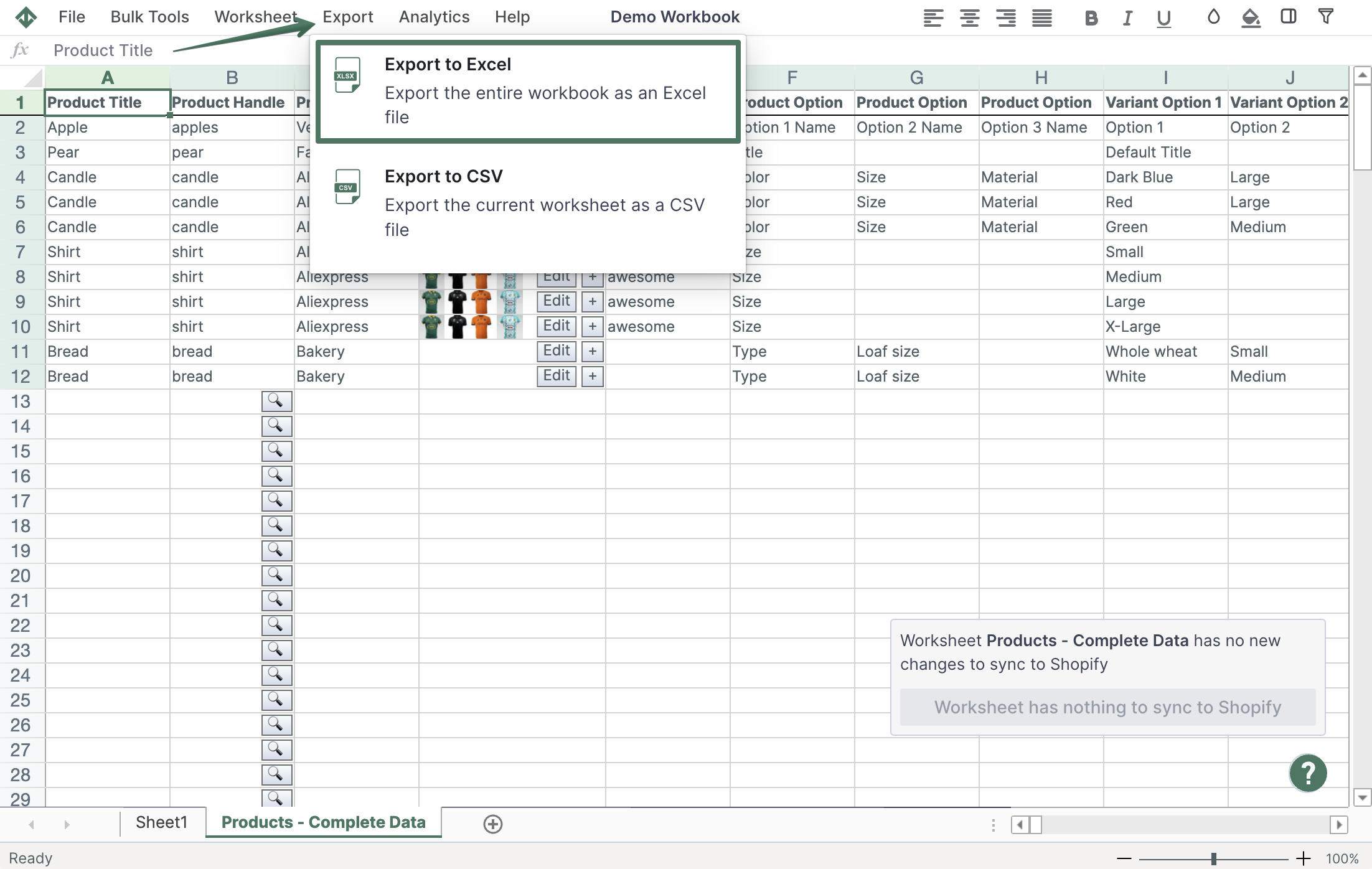
Now that we have our Orders metafields data in our worksheet, let’s export everything to an Excel file. Click Import & Export in the menu bar, then select Export to Excel. The file will be downloaded to your computer right away. And that’s it!