
Bulk edit Shopify metaobjects
 Spreadsheet Editor Updated October 21, 2026
 On this page
 Bulk edit Shopify metaobjectsVideo walkthrough
 Shopify metaobjects let you manage structured, reusable content (for example: size charts, care guides, store locations, authors, FAQs, or any other custom data you want to reference across your theme and storefront).
Mixtable makes metaobjects easy to manage in a spreadsheet: each metaobject definition becomes its own worksheet, existing entries load automatically, and edits can be synced back to Shopify in bulk.
Before you start
- Make sure your Shopify store is connected to Mixtable
- Set up your metaobject definitions in Shopify (Shopify admin → Settings → Custom data → Metaobjects)
Create a Metaobjects spreadsheet
The fastest way to get started is with Mixtable’s Metaobjects template.
Open your Mixtable dashboard and click Create spreadsheet at the top of the page. If you haven't created a spreadsheet yet, click Browse all templates below the dashboard's suggestions instead. In the Create spreadsheet window, find Metaobjects under Organization, or type its name in the search box, and click it. Mixtable creates the spreadsheet and fills it with data from your Shopify store.
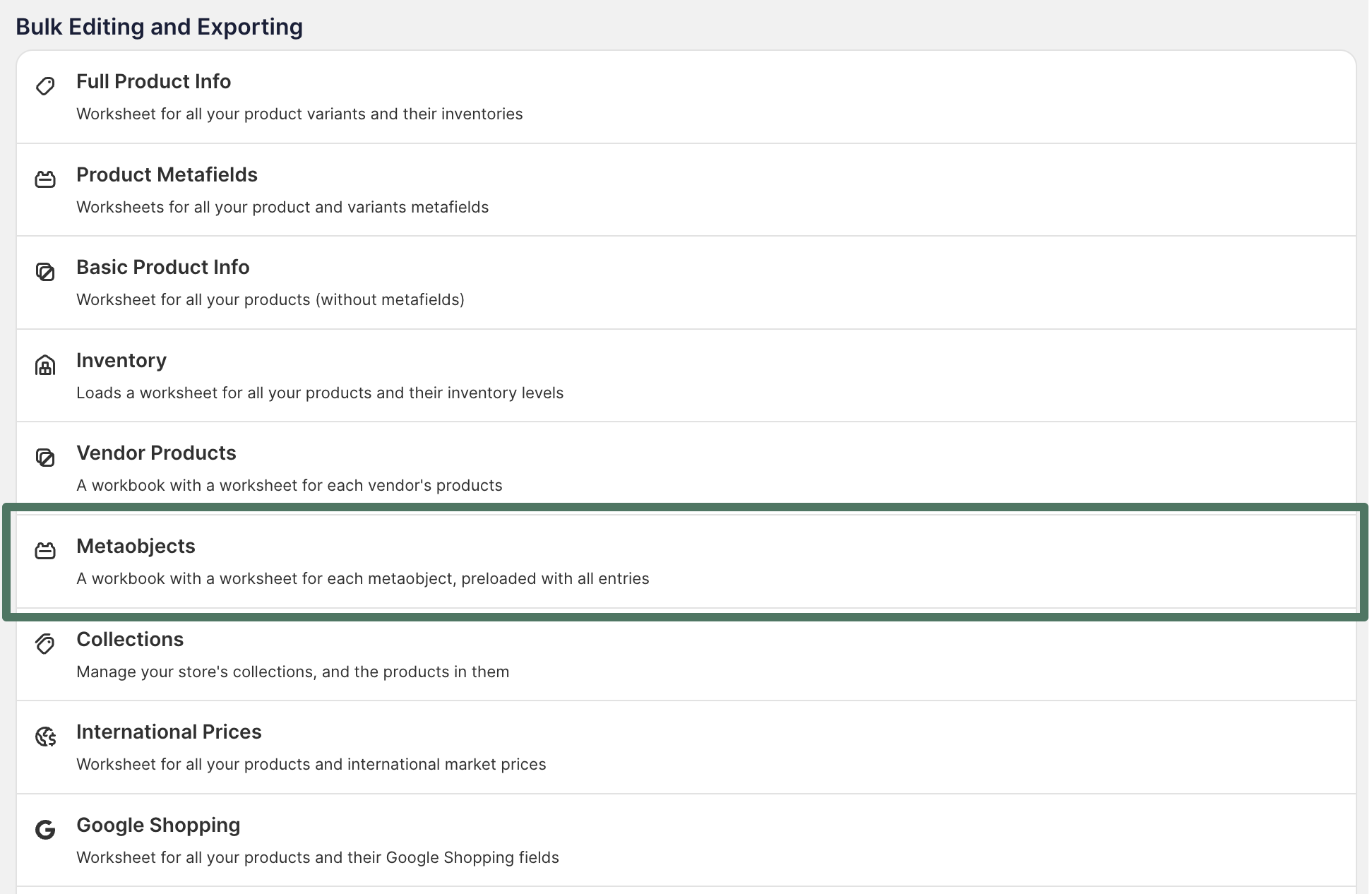
Mixtable creates one worksheet for each metaobject definition, named after it (for example, “Metaobjects - Size chart”), and loads your existing metaobject entries into each one.
Add a new metaobject entry
-
Open the worksheet for the metaobject definition you want to add an entry to
-
Find an empty row
-
Fill in the required fields for the entry
- Copy the Metaobject Type value from an existing row and paste it into your new row, so the new entry is created under the same metaobject definition
-
Click Sync at the top right of the spreadsheet, review your changes in the preview that opens, then click Sync again to create the entry in Shopify
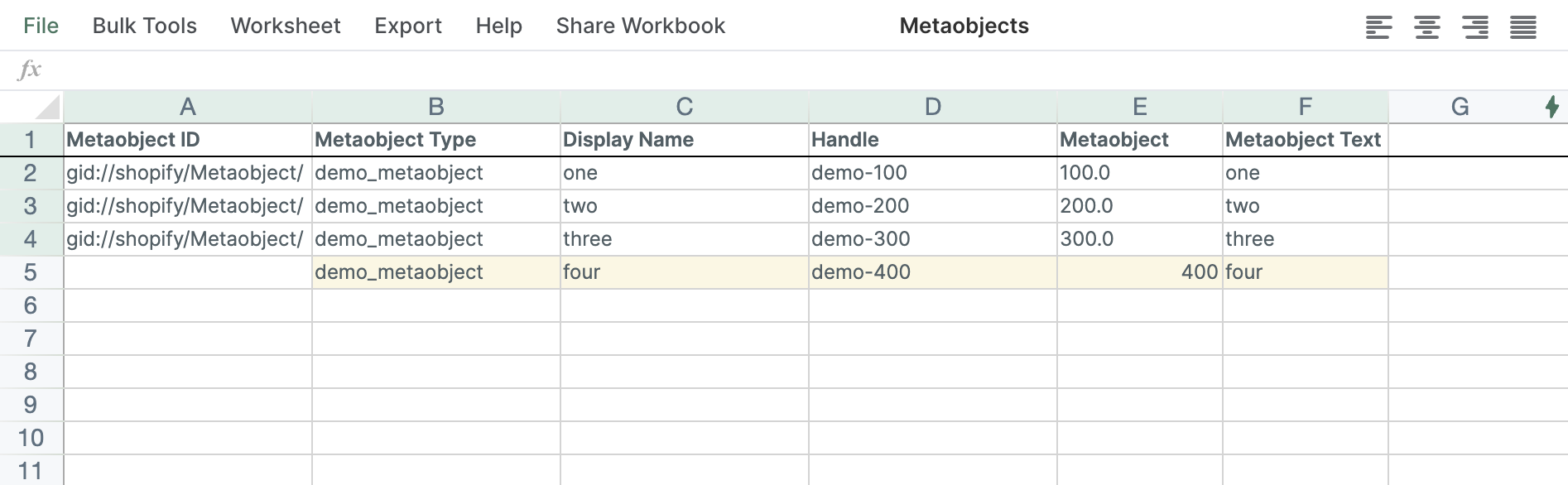
Edit metaobject entries (in bulk)
- Update any cells you want to change (you can paste, fill down, and edit many rows at once)
- Click Sync at the top right of the spreadsheet, review your changes in the preview that opens, then click Sync again to send them to Shopify
Keep Mixtable and Shopify in sync
Mixtable automatically keeps your metaobject worksheet in sync with Shopify:
- If an entry is added in Shopify, the data for the new entry will appear on the next empty row
- If an entry is edited in Shopify, the updated values will appear in your worksheet
- If an entry is deleted in Shopify, the corresponding row may become empty
If you have the spreadsheet open when changes arrive from Shopify, Mixtable holds them so nothing shifts around while you're working. The sync control at the top right of the spreadsheet shows how many are waiting, for example Apply 3 updates. Click it to bring them in right away, or close the spreadsheet and they'll come in on their own.

If you see empty rows after metaobjects are deleted in Shopify, you can leave them in place, delete them manually, or click the Worksheet menu and select Remove Empty Rows.
Troubleshooting
- I don’t see a worksheet for my metaobject: Confirm the metaobject definition exists in Shopify. Then add a worksheet for it: click the + at the end of the worksheet tabs, choose Shopify data worksheet, click Continue, and select Metaobjects. Pick the definition under Which metaobject definition?, then click Continue and Create Worksheet. You can also create a new Metaobjects spreadsheet
- My changes aren’t showing in Shopify: After editing, click Sync at the top right of the spreadsheet and wait a few seconds, then refresh the relevant page in Shopify admin
- Rows don’t update after changes in Shopify: If the sync control at the top right shows updates waiting from Shopify, for example Apply 3 updates, click it. Otherwise, give Shopify a moment to send the update, then reload the spreadsheet if needed