
Shopify Total Refund Amount Excluding Tax Analytics
 Analytics Spreadsheet Updated October 2, 2026
 On this page
Total Refund Amount Excluding Tax is the money you gave back to customers, with the refunded tax component left out. Excluding tax is what makes it comparable with Gross Sales and Net Sales, which also exclude tax.
How Shopify Total Refund Amount is calculated
Total Refund Amount Excluding Tax = Money refunded - Refunded tax
Leaving tax out is what makes this figure comparable with Net Sales and Gross Sales, which also exclude tax.
Why refund value belongs in your sales reports
Refunds are one of the few costs most stores never put on a report, and they are rarely spread evenly. A single product line, vendor, or group of customers can account for a disproportionate share of everything you hand back.
Tracking refund value tells you:
- Which products cost you the most after the sale, not just before it
- Whether a high-revenue vendor still looks strong once refunds are counted
- Which parts of your catalog or customer base carry the highest refund cost, so you know where to look first
- How much of a strong month you should expect to give back later
Refund value is where the expensive cases show up. A high-priced product refunded occasionally can cost more than a cheap one refunded constantly, and only the amount reveals that.
Note: This metric measures money refunded in Shopify. A refund does not always mean goods came back, since orders can be refunded for damage, shipping problems, price adjustments, or goodwill. Use Shopify’s return data when you need to know what was physically returned.
Add Total Refund Amount to a Shopify data worksheet
-
Open a supported Shopify data worksheet
-
Click + Shopify data in the header row of an empty column, or choose Column > Add Shopify data… from the menu bar. The field picker opens
-
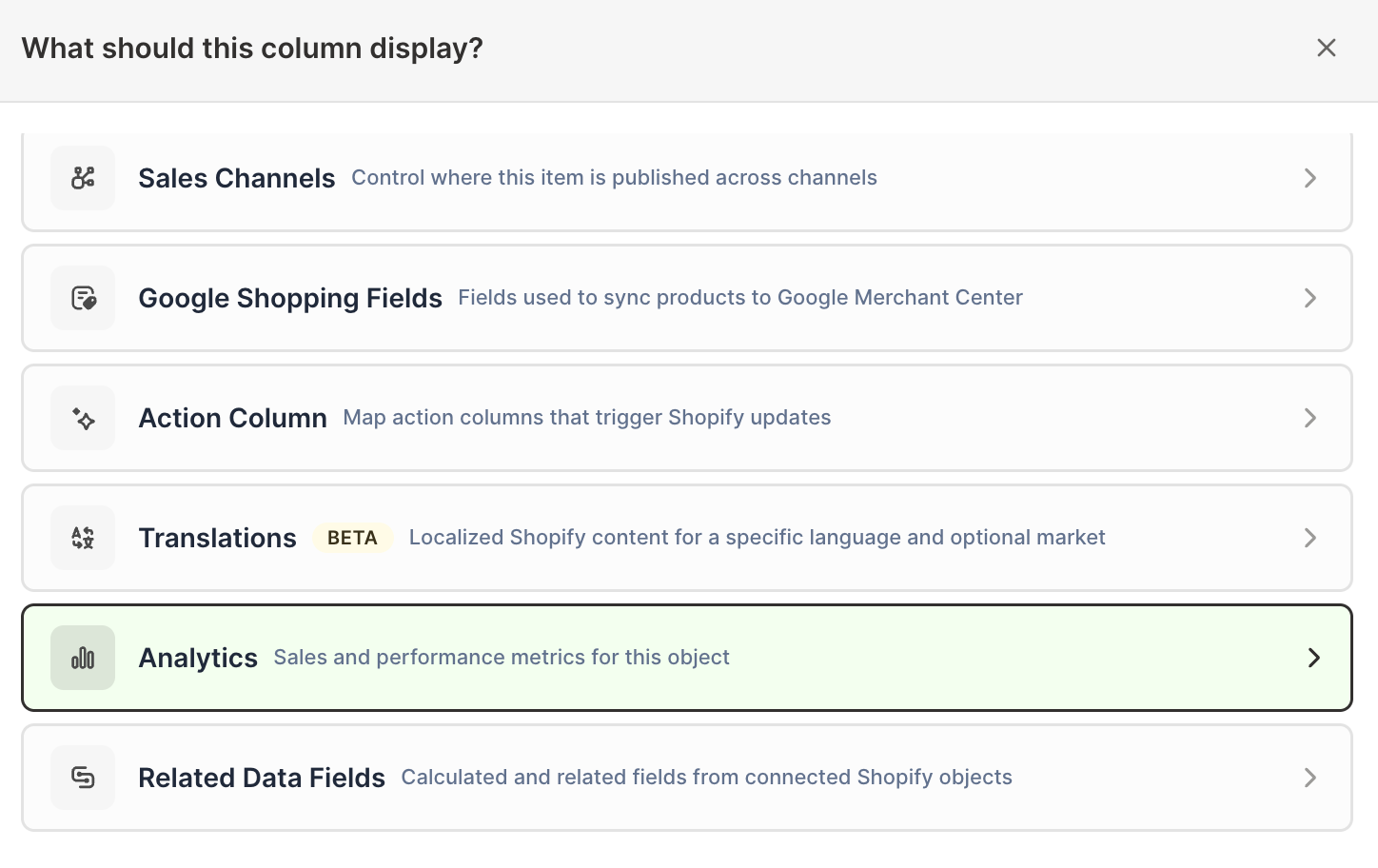
Click Sales & analytics in the list of sections on the left, or type the metric's name in the search box
-
Click Total Refund Amount Excluding Tax. The metric's settings open with it already chosen under Which metric?
-
Under Over what time period?, choose All time, Fixed dates, Rolling period, Calendar year, or Calendar month
-
Under Limit which orders count, add any optional filters supported by the metric
-
Click Save Column
The metric can be calculated beside Shopify products, variants, customers, collections, companies, and company locations. On Customers, Company, and Company Locations worksheets, the metric list calls it Total Refunded Excluding Tax.
Compare refund amounts with a Pivot Table worksheet
- Click the + button beside the worksheet tabs
- Select Reporting worksheet, then click Continue
- Select a ready-made report under Pivot table, or choose Blank pivot table, then click Continue
- Under Break down by, choose the breakdown
- Add Total Refund Amount Excluding Tax under Metrics
- Under Time period, choose the period
- Click Create Worksheet
Combine the amount with Refund Count, Percent of Orders Refunded, Refunded Quantity, Net Sales, and Orders Count. That combination separates many small refunds from a few large ones, which is the first thing you need to know before deciding what to investigate.
Track refunds over time
Total Refund Amount Excluding Tax is available in Time Series worksheets for store, vendor, product type, market, customer segment, and marketing channel breakdowns.
- Click the + button beside the worksheet tabs, select Reporting worksheet, then click Continue
- Choose a report under Time series, or select Blank time series, then click Continue
- Under Break down by, choose the rows you want. Then select Total Refund Amount Excluding Tax under Metrics (for Store rows) or Measure (for any other rows)
- Under Time periods, choose By day (up to 90 days), By week (up to 52 weeks), By month (up to 36 months), or By year (up to 10 years), and how many recent periods to include
- Click Create Worksheet
Refunds typically lag the orders they relate to by weeks, so a refund spike often lands one or two months after the sales spike it follows. Charting refunds and sales on the same timeline makes that offset easy to see.
Refund analytics and exported refund records
This metric summarizes refund value. If you need the underlying Shopify refund records for accounting or reconciliation, use Export Shopify Refunds instead.