Manage your Shopify variant images
 Spreadsheet Editor Updated October 21, 2026
 On this page
Mixtable’s spreadsheet interface simplifies the process of choosing an image for a specific product variant. You can either pick one of the images the product already has, or point the variant to a new image by its URL.
Manage Shopify Variant images in a spreadsheet
First, ensure you have a Products (with variants) worksheet in your spreadsheet for the Shopify store whose variants you’re modifying. With this worksheet in place, you’ll need to designate a column for the variant image.
To load more Shopify data, click + Shopify data in the header row of an empty column, such as the one right after your last column. You can also choose Column > Add Shopify data… from the menu bar. The field picker opens and asks What should column E show?, with your column's letter in place of E. It lists everything the worksheet can show from Shopify, grouped into sections the way your Shopify admin groups them. Type in the search box at the top, or click a section on the left, to find the field you want.

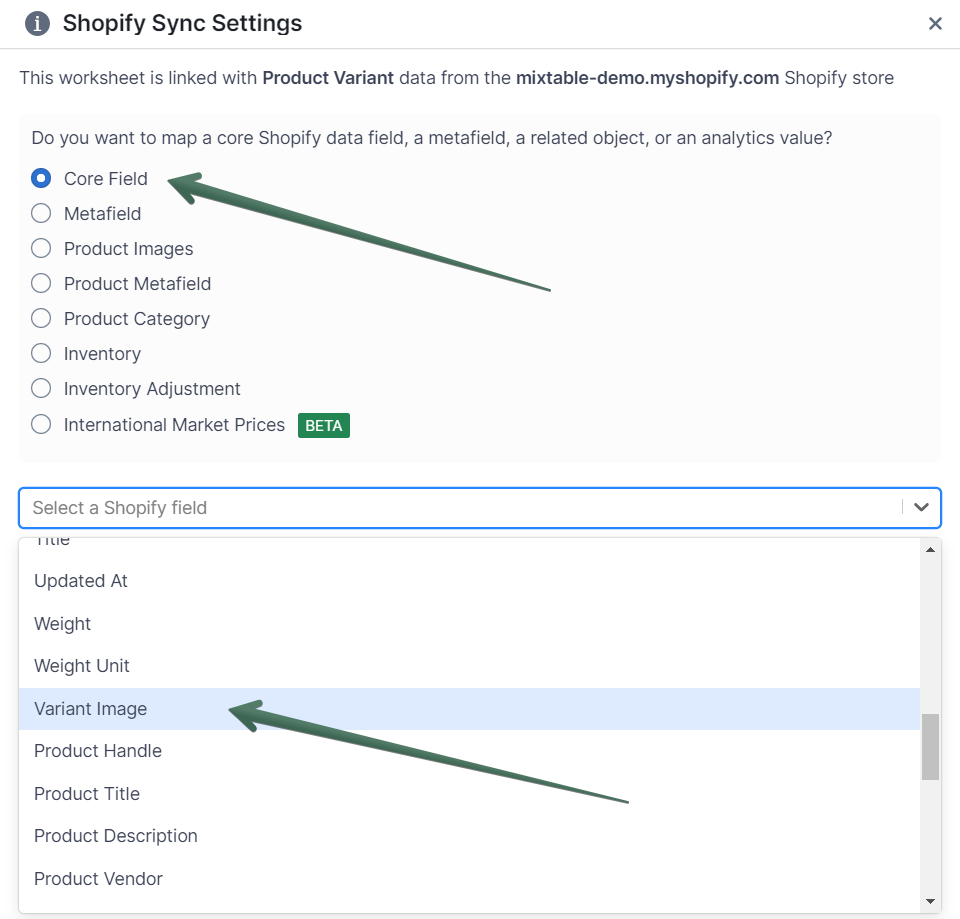
Click Images in the list of sections on the left, then click Variant image. Under Show as, leave Thumbnail selected, then click Save Column.
You’ll see the new column start populating almost immediately with thumbnails of any images currently assigned to your variants. Mixtable populates the cells in the column using the IMAGE function, which holds the URL of the image as a parameter.
Want the web address of each variant’s image instead of a thumbnail? Choose Image link under Show as. The new Variant image link column is handy for exports and product feeds. It’s view only, so edits to it don’t sync to Shopify.
Use the IMAGE function to set a variant’s image
Leveraging the power of the Excel-style IMAGE function in Mixtable allows users to efficiently manage Shopify product variant images within the convenience of their spreadsheets. By using a URL as a parameter, the IMAGE function enables seamless display and updating of images within cells.
How to use the IMAGE function in Mixtable to set product variant images
- In the Variant image column, input the IMAGE function with the image URL enclosed in parentheses. For instance, if the image URL is
https://example.com/image.jpg, the function appears as:=IMAGE("https://example.com/image.jpg") - The specified image appears within the cell, allowing you to visually see the variant image directly in the Mixtable spreadsheet
- To replace the image, modify the URL within the IMAGE function to another publicly accessible image link. For example, to use a new image located at
https://example.com/new-image.jpg, update the function accordingly:=IMAGE("https://example.com/new-image.jpg") - Click Sync at the top right of the spreadsheet, review your changes in the preview that opens, then click Sync again. Mixtable uploads the image from the new URL to the product in Shopify and sets it as the variant’s image
Use the Change button to set a variant’s image
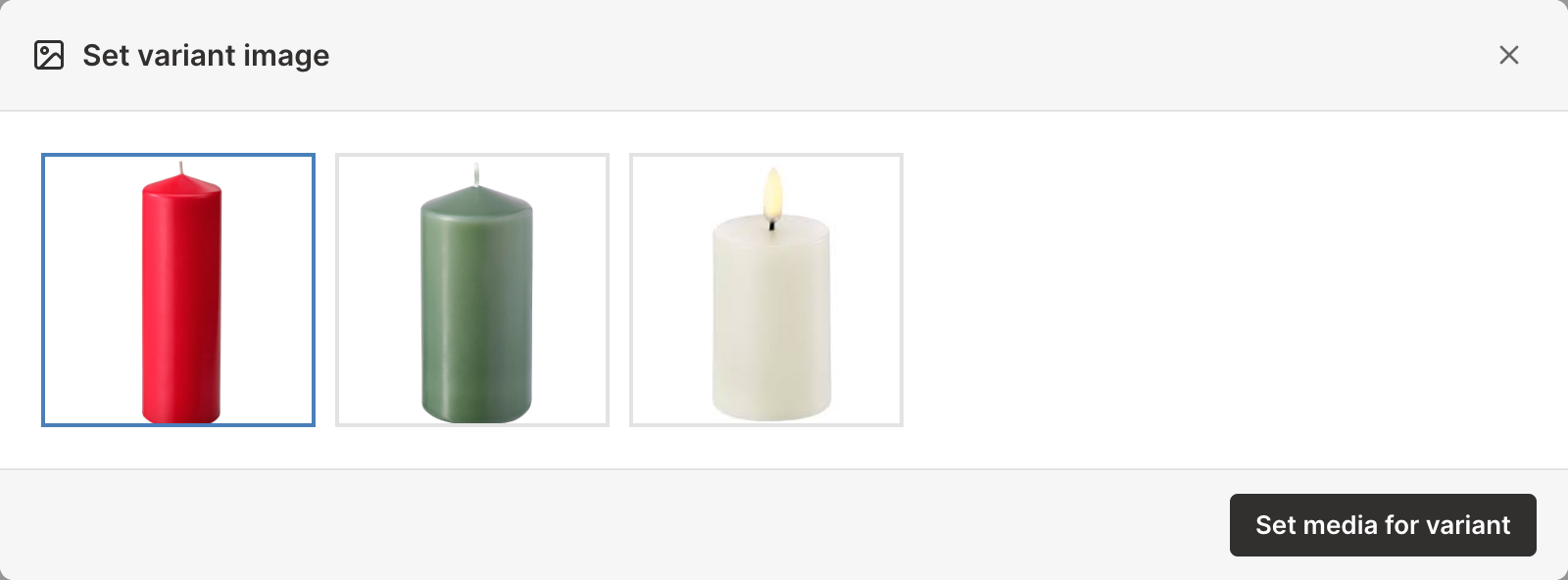
The Change button visible in each variant image cell lets you set the variant’s image to another image the product already has. Clicking the button opens the Set variant image window, which shows the product’s images. Click the image you want, then click Set media for variant. Mixtable sends the change straight to Shopify, without a sync, and the cell updates shortly after.
To use a brand-new image, first add it to the product (see Manage your Shopify product images), or put its URL in the cell’s IMAGE function and sync, as described above.