
Adjust the inventory quantity for your Shopify products
 Spreadsheet Editor Updated October 21, 2026
 In addition to being able to directly set your Shopify products inventory to a specific value, with Mixtable you can also adjust inventory quantity up or down.
Inventory adjustments are useful to ensure that a given product doesn’t end up with an incorrect inventory value when multiple users/apps are modifying it.
For example, if an order is placed at the same time that Mixtable is setting the inventory to some specific value, you may end up with more or less inventory recorded in Shopify than you do in reality.
Setup Shopify product inventory for a location
Shopify keeps stock on variants, so adjustment columns live on a Products (with variants) worksheet, where each row is one variant. A Products (no variants) worksheet doesn’t offer them. To set up a column that adjusts the inventory at one location:
- Open a Products (with variants) worksheet. If your spreadsheet doesn’t have one yet, add it with the + at the end of the worksheet tabs, or choose Worksheet > Add worksheet…
- Click + Shopify data in the header row of an empty column, or choose Column > Add Shopify data… from the menu bar. The field picker opens and asks What should column E show?, with your column’s letter in place of E
- Click Inventory in the list of sections on the left
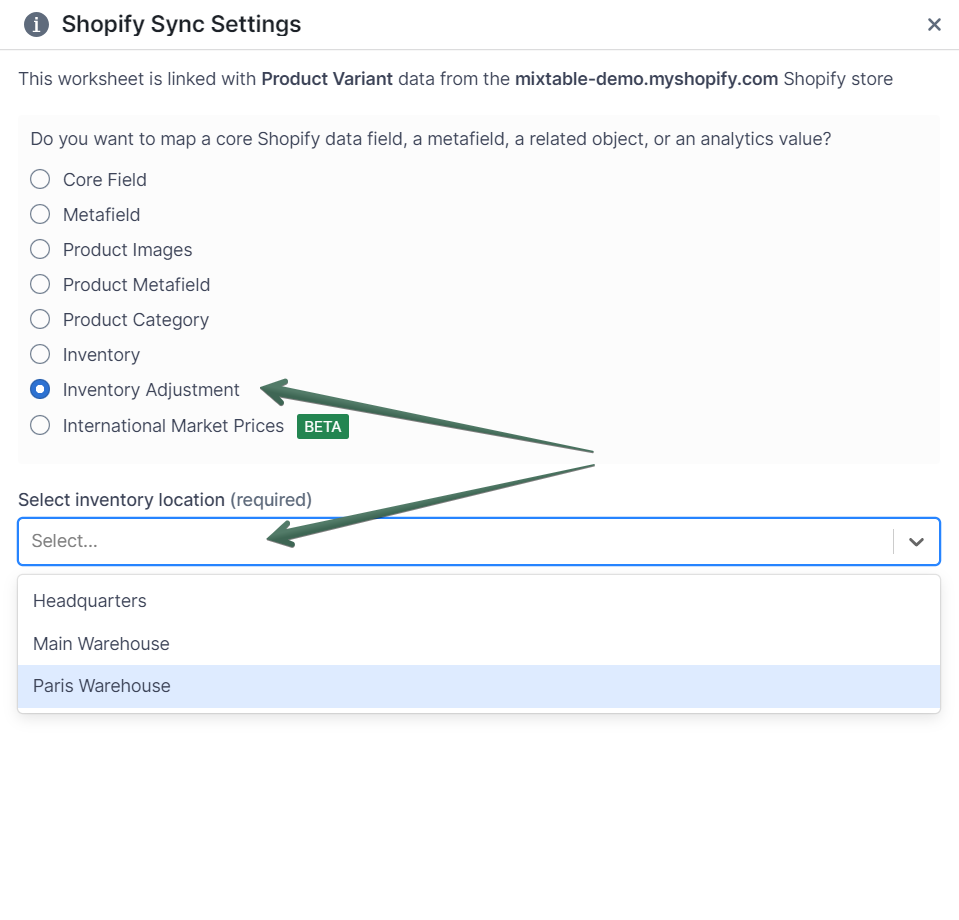
- Under By location, click Add or remove stock at followed by the location whose stock you want to adjust, such as Add or remove stock at Headquarters. If you added the location in Shopify recently and don’t see it, click Refresh in the Inventory heading
- Click Save Column
- The window closes and the new column appears, headed Adjust stock at followed by the location’s name. Its cells start out empty
- Repeat these steps for any other location whose inventory you’d like to adjust
To put the column in a particular spot, insert an empty column there first: right-click the letter of the column it should go before and choose Insert column to the left. The new column gets its own + Shopify data button to click in step 2.
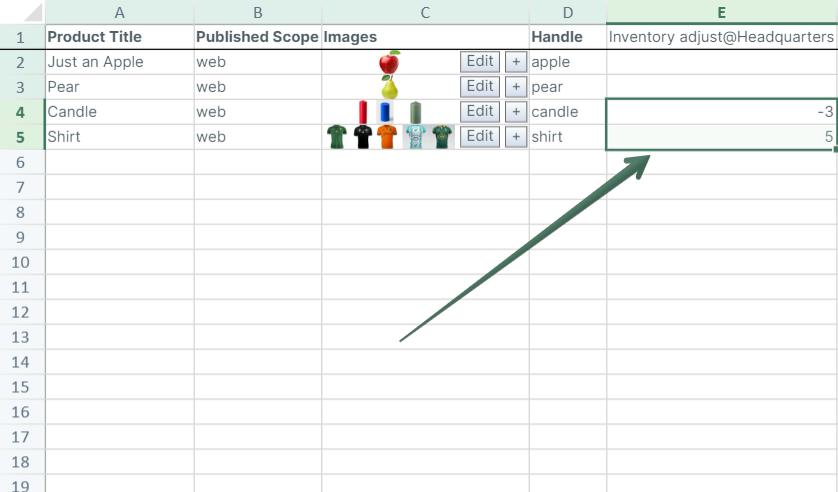
Adjust the inventory for a product
Now, to adjust the inventory for a variant, find its cell in the adjustment column and enter the change as a whole number.
- A positive number increases the stock at that location by that amount
- A negative number decreases the stock at that location by that amount
The adjustment is applied to the variant’s Available quantity at the column’s location. If a variant doesn’t have inventory tracking turned on yet, Mixtable turns it on during the sync.
Once you’ve entered the adjustments for all your products, click Sync at the top right of the spreadsheet, review your changes in the preview that opens, then click Sync again. Mixtable asks Shopify to apply each adjustment to whatever the stock is at that moment. Once Shopify has adjusted a variant’s inventory, Mixtable clears the cell you typed the adjustment into, so you won’t send the same change twice by accident.
Note: Cell history and Row history don’t record inventory quantities. To see how a variant’s stock moved day by day, add a Stock Change or Closing Stock column with Mixtable Analytics Spreadsheet. See the inventory analytics guide.
Tip: To decide how big an adjustment should be, it helps to know how fast an item moves. Mixtable Analytics Spreadsheet can add a net quantity sold column right beside your inventory columns, over the last 30 days or any timeframe you pick.