
Export Shopify products
 Spreadsheet EditorExport: Excel & CSV Updated October 8, 2026
 On this page
 Export Shopify productsVideo walkthrough
 Shopify’s own product export gives you a CSV with a fixed set of columns. That is fine for a quick backup, but it falls short as soon as you need cost per item, metafields, inventory by location, or the collections a product belongs to, and it never produces a real Excel file.
With Mixtable your products load into a live spreadsheet instead. You choose which fields become columns, arrange them how you like, and download the result as an .xlsx or CSV file whenever you need it. Exporting is free with Mixtable Export: Excel & CSV, with no row limits.
This guide covers products and variants. For a wider look at your options, including Google Sheets and BI tools, see Shopify to Excel.
Use the Full Product Info template
Step 1: Create a spreadsheet from the template
Open the Mixtable Export: Excel & CSV app and create a spreadsheet from the Full Product Info template:
Open your Mixtable dashboard and click Create spreadsheet at the top of the page. If you haven't created a spreadsheet yet, click Browse all templates below the dashboard's suggestions instead. In the Create spreadsheet window, find Full Product Info under Products, or type its name in the search box, and click it. Mixtable creates the spreadsheet and fills it with data from your Shopify store.
On your first visit, the Export products card on the dashboard creates the same template in one click.
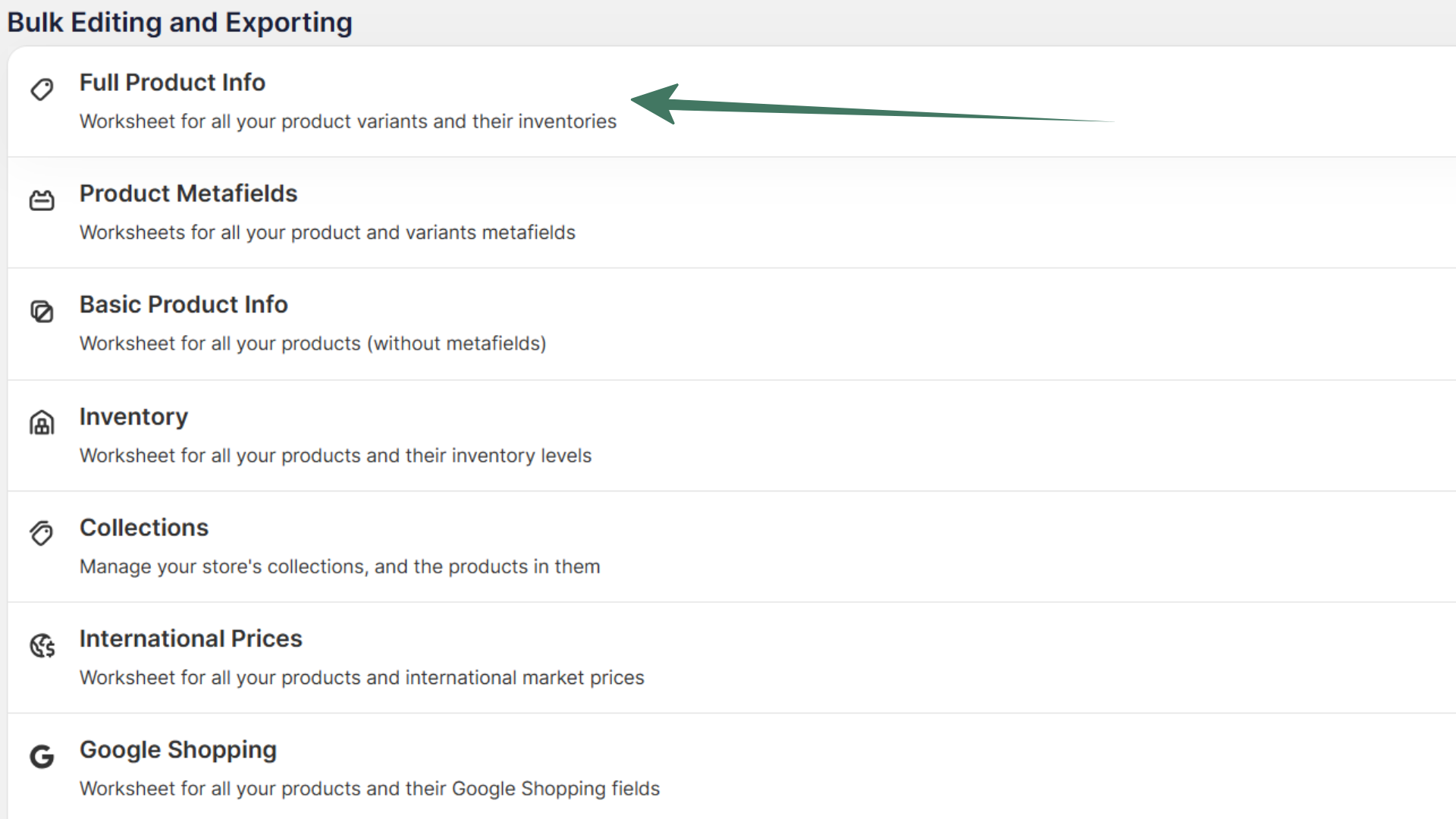
If you only need the basics, such as titles, descriptions, tags, and SEO fields, the Basic Product Info template is a lighter starting point.
Note: The initial download takes a minute or two on a large catalog. Once it finishes, the worksheet stays up to date with Shopify automatically, so you never have to run it again.
Step 2: Add the columns you want to export
To load more Shopify data, click + Shopify data in the header row of an empty column, such as the one right after your last column. You can also choose Column > Add Shopify data… from the menu bar. The field picker opens and asks What should column E show?, with your column's letter in place of E. It lists everything the worksheet can show from Shopify, grouped into sections the way your Shopify admin groups them. Type in the search box at the top, or click a section on the left, to find the field you want.

This is where a Mixtable export goes beyond what Shopify admin can give you. Alongside the standard product fields you can add:
- Metafields, for specs, materials, care instructions, and anything else your store keeps
- Inventory, broken out by location
- Collections each product belongs to
- Cost per item, so the file can carry margin alongside price
- Product and variant images
- Analytics columns, such as gross sales or quantity sold, if you have Mixtable Analytics Spreadsheet installed
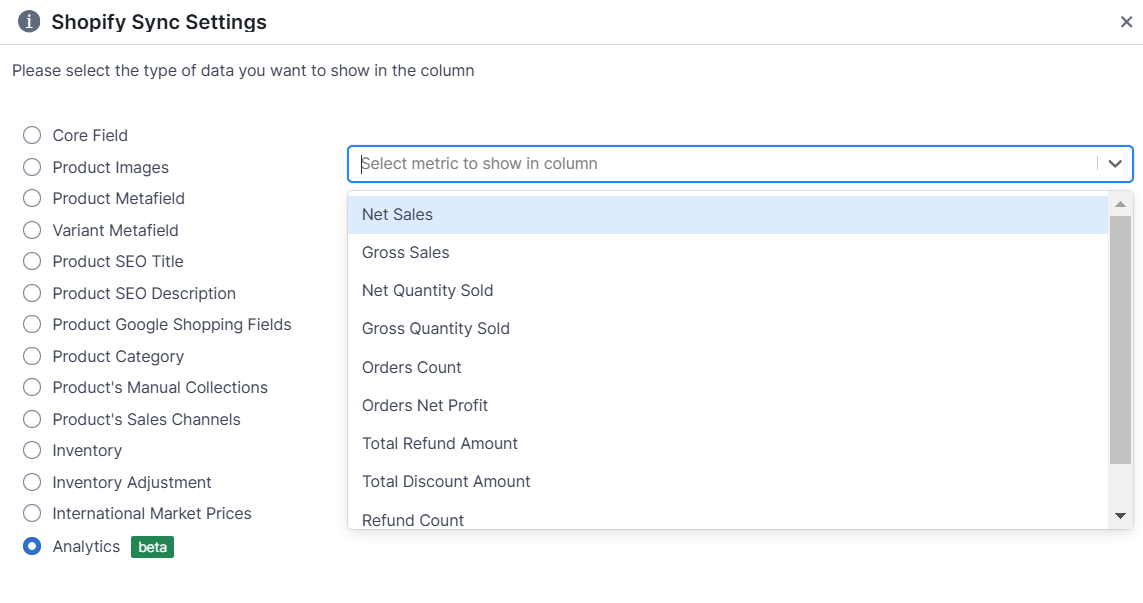
Image columns can show thumbnails or image links, and an export usually needs the links. When you add an image column, click Product images in the Images section (or Variant image on a Products (with variants) worksheet). Then, under Show as in the panel on the right, choose Image link instead of the thumbnail. For product images, also pick the Image number, from 1 to 10, and add one column for each image you need. Image link columns are view only.
Products or variants: which worksheet to use
Shopify stores a product and its variants as separate records, so pick the worksheet that matches the shape of file you need.
- A Products (no variants) worksheet gives you one row per product. Best for catalog overviews, SEO audits, and vendor lists
- A Products (with variants) worksheet gives you one row per variant, with the parent product details repeated on each row. Best for price lists, stock reports, and anything a supplier needs to read at SKU level
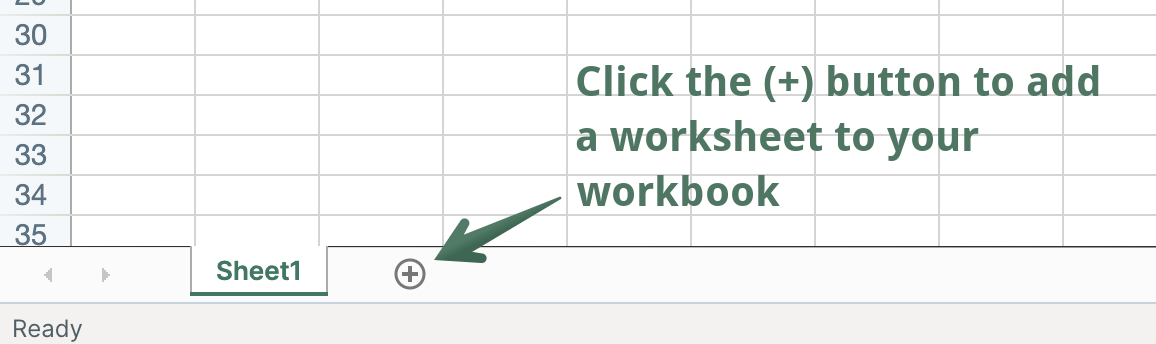
In an existing Mixtable spreadsheet, click the + button at the end of the worksheet tabs, at the bottom of the screen, to add a new worksheet.
Choose Shopify data worksheet, click Continue, and then choose Products (no variants) or Products (with variants). The columns step starts with the most-used fields selected. Keep them or pick your own, click Continue, and then click Create Worksheet. You can add more columns at any time.
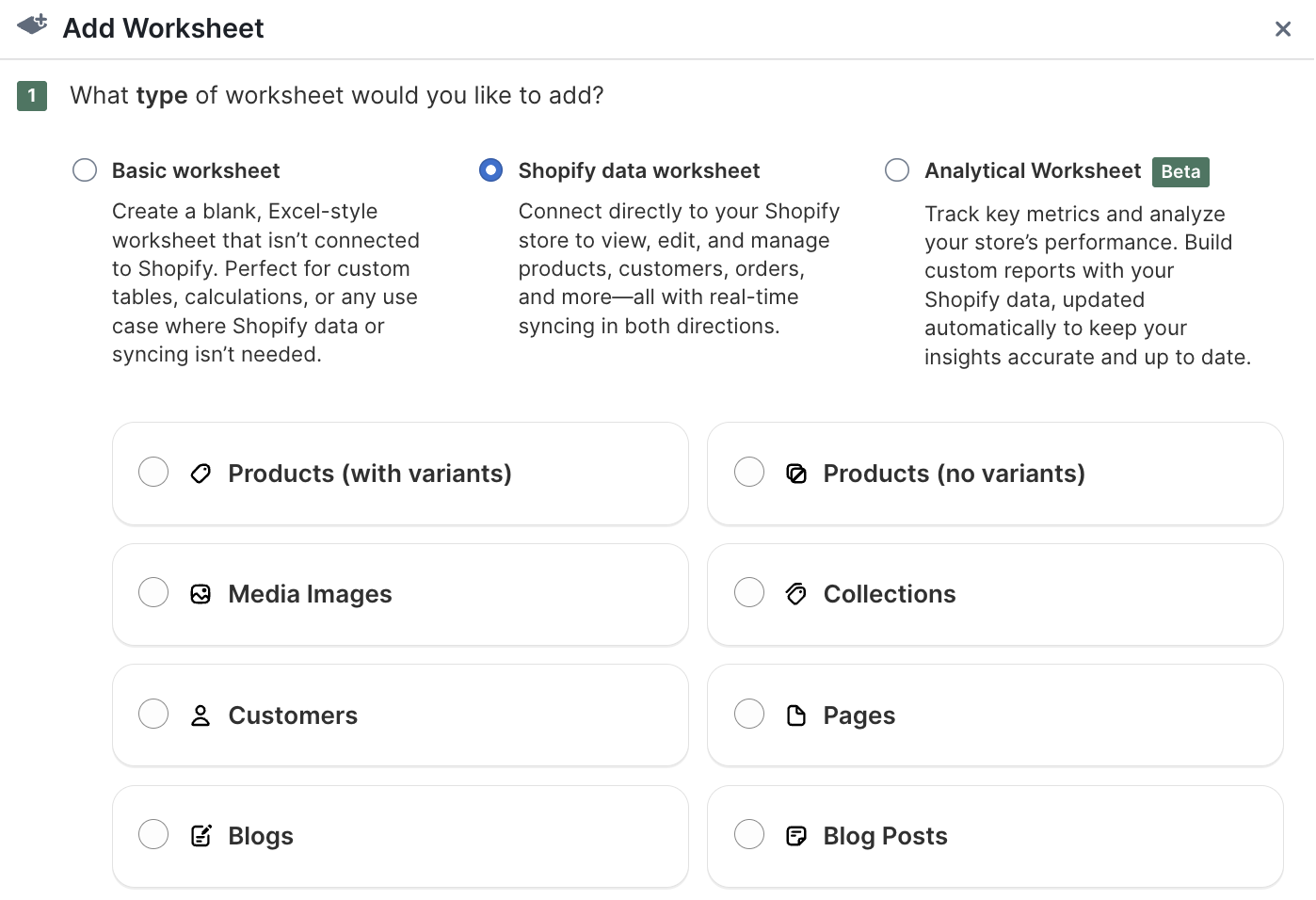
You can keep both worksheets in the same spreadsheet. An Excel export puts each one on its own tab in a single file.
Export only some of your products
If you need a file covering one vendor, one product type, or a single collection rather than the whole catalog, set up a Conditional Worksheet. It loads only the rows that match criteria you choose, so the export is already filtered before you download it.
If a product later stops matching those criteria, its row can be left empty. To tidy up before exporting, open the Worksheet menu and select Remove Empty Rows.
Export your Shopify products
Step 1: Check the worksheet
Because the worksheet stays up to date with Shopify, there is nothing to re-download. If the sync control at the top right shows updates waiting from Shopify, for example Apply 3 updates, click it first so your export includes them. Then take a moment to confirm the columns you need are present and in the order you want them, since the file mirrors the sheet exactly.
Step 2: Export to Excel (.xlsx)
Click Import & Export in the menu bar and choose Export to Excel. You will be prompted to pick a save location, and the file downloads right away.
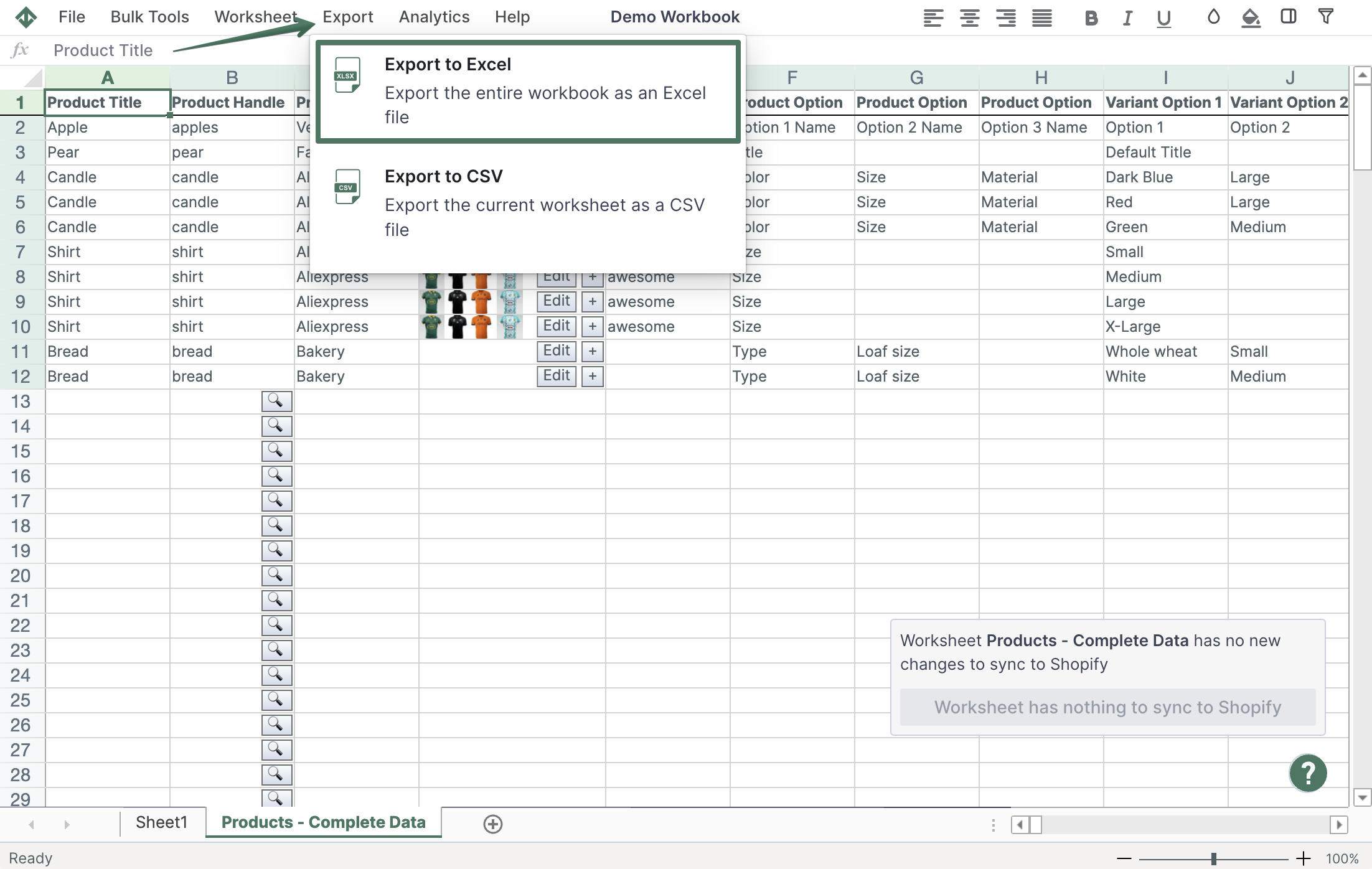
Your values, formulas, images, and formatting all carry across, and every worksheet in the spreadsheet lands in the same Excel file.
Step 3: Export to CSV instead
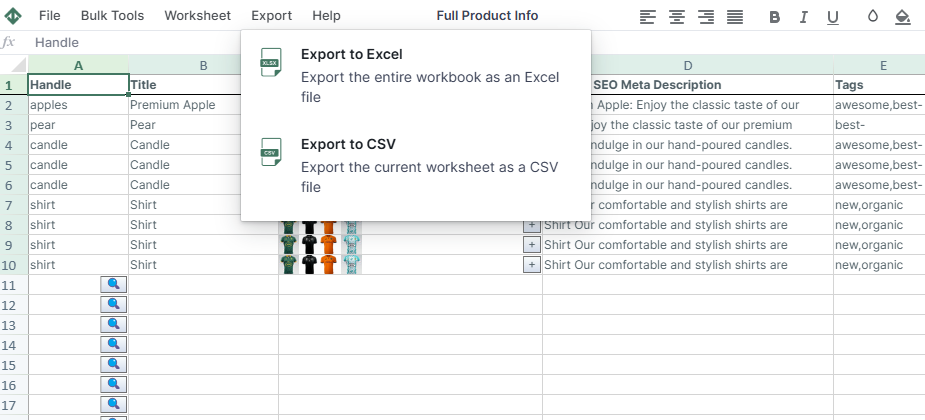
For a plain CSV, choose Export to CSV from the same Import & Export menu. A CSV holds a single sheet, so it covers the worksheet you are currently on. To get every worksheet as CSV, export them one at a time.
Related export guides