
Re-download all Shopify product data to Mixtable
 Spreadsheet Editor Updated October 6, 2026
 On this page
Mixtable keeps your Shopify data syncing automatically in the background, so your worksheets usually stay up to date. But sometimes you need a fresh pull of everything, especially if you’ve just added new Shopify metafields or started syncing new fields that aren’t showing up yet.
When that happens, you can trigger a full re-download of all product data from Shopify into Mixtable.
Tip: If the sync control at the top right of the spreadsheet shows updates waiting from Shopify, for example Apply 3 updates, you don’t need a full re-download to get them. Just click it.
When to re-download your product data
Common reasons to re-download Shopify product data:
- You added new Shopify metafields and want them to appear in Mixtable
- You started syncing a new product field and want to refresh what Mixtable has
- A product worksheet looks out of date and you want to pull everything fresh
- A Media Images worksheet shows blank product or variant columns
Re-download all product data from Shopify
- Open any Mixtable spreadsheet connected to your Shopify store
- In the menu bar, click Shopify Sync
- Choose Re-download store data…
- In the Shopify Sync window that opens, find the Shopify store you want to refresh
- Click Download all product data
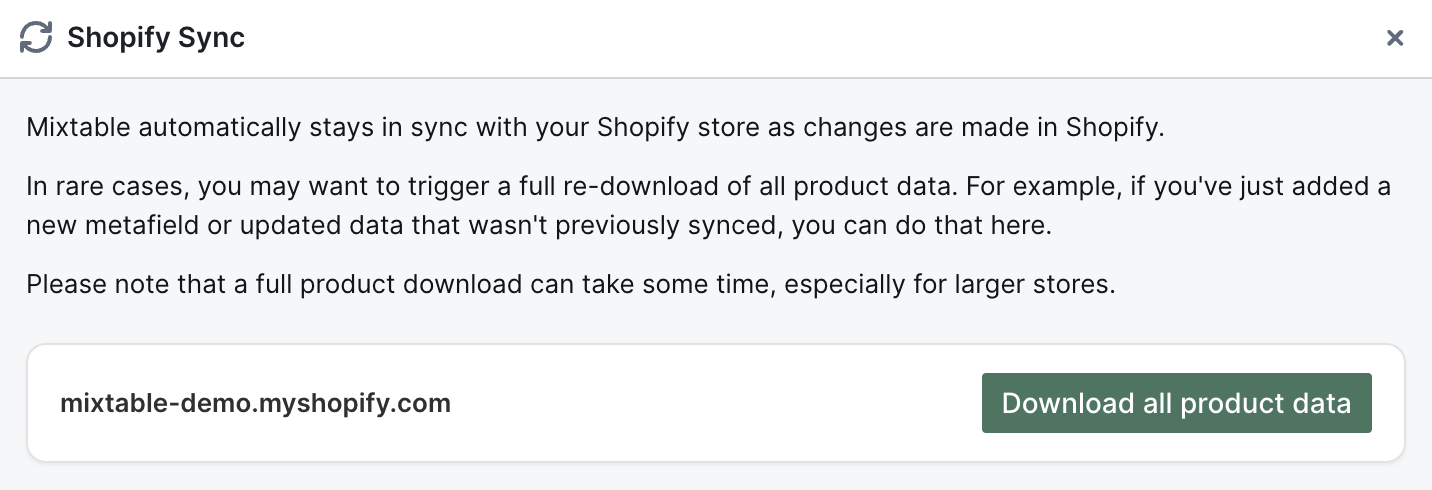
Mixtable will queue the re-download and start pulling product information from Shopify in the background.
Note: Re-download store data… is not the same as Sync with Shopify…, the first item in the Shopify Sync menu. That one opens the sync card, where you send your edits to Shopify and bring in waiting updates.
The same Shopify Sync window also has buttons to re-download all of your customer, order, and discount data, if one of those worksheets ever needs a fresh start.
What to expect
- Nothing in your Shopify store changes, because a re-download only reads data
- Mixtable replaces its own copy of your Shopify data, rebuilding your products, variants, images, and the links between them
- A full download can take a while on larger stores
- You can keep working in Mixtable while it runs
- Worksheets using that data update on their own as the fresh data arrives
Troubleshooting
I don’t see my Shopify store in the list
Make sure your Shopify store is connected to the workspace you’re currently in, then choose Shopify Sync > Re-download store data… again.
The data still looks the same
The download takes time to complete. Wait a few minutes, then refresh your browser tab and check again.