
Shopify Product Analytics with Mixtable
 Analytics Spreadsheet Updated October 6, 2026
 On this page
Shopify product analytics helps you decide what to promote, replenish, improve, or discontinue. Mixtable places product fields and performance metrics together with a spreadsheet, so a sales ranking can include vendor, product type, category, status, tags, refunds, and returns instead of showing revenue alone.
Start with Product sales & return rate
The ready-made Product sales & return rate report creates a Products worksheet with:
- Product Title
- Vendor
- Product Type
- Status
- Category Name
- Net Sales
- Net Quantity Sold
- Orders Count
- Return Request Rate
- Total Refund Amount Excluding Tax
This is the quickest starting point when you want both commercial performance and after-sale problems in one Shopify product report.
- Click the + at the end of the worksheet tabs, or choose Worksheet > Add worksheet…
- Select Reporting worksheet, then click Continue
- Under Shopify data worksheet with analytics columns, choose Product sales & return rate
- Click Continue
- Review the selected Shopify fields, analytics columns, and row-loading rules
- Click Create Worksheet

Choose the metrics that explain product performance
A useful Shopify product scorecard usually contains several kinds of metrics.
Sales and demand
- Net Sales
- Gross Sales
- Orders Count
- Gross Quantity Sold
- Net Quantity Sold
Orders Count tells you how often a product appears in an order. Quantity metrics tell you how many units moved. A product can have a modest order count and high quantity when customers commonly buy several units at once.
Discounts and refunds
- Total Discount Amount
- Discount Code Order Count
- Allocated Discount Amount
- Total Refund Amount Excluding Tax
- Refund Count
- Percent of Orders Refunded
- Refunded Quantity
These metrics reveal products that look successful before deductions but require heavy promotions or generate unusual refund activity.
Fulfillment and returns
- Fulfillment Count
- Fulfilled Quantity
- Return Request Count
- Return Request Rate
- Return Quantity
- Return Reason Count
- Open Return Count
Return requests and refunds are different. A Shopify return can be requested before money is refunded, and a refund can occur without a physical return. Use both metric families when product quality or customer expectations are under investigation.
Inventory
- Closing Stock
- Sell-Through Rate
- Out-of-Stock Variants
- Last In-Stock Date
- Dead Stock Units
These come from your store’s stock history rather than its orders, and they sit under the Inventory heading at the end of the Which metric? list. Read Sell-Through Rate beside Net Quantity Sold before you replenish, and check Dead Stock Units before you discount or discontinue. See the Shopify inventory analytics guide for all 15 inventory metrics a Products (no variants) worksheet offers.
Add analytics to an existing Products worksheet
-
Open a Products worksheet
-
Click + Shopify data in the header row of an empty column, or choose Column > Add Shopify data… from the menu bar. The field picker opens
-
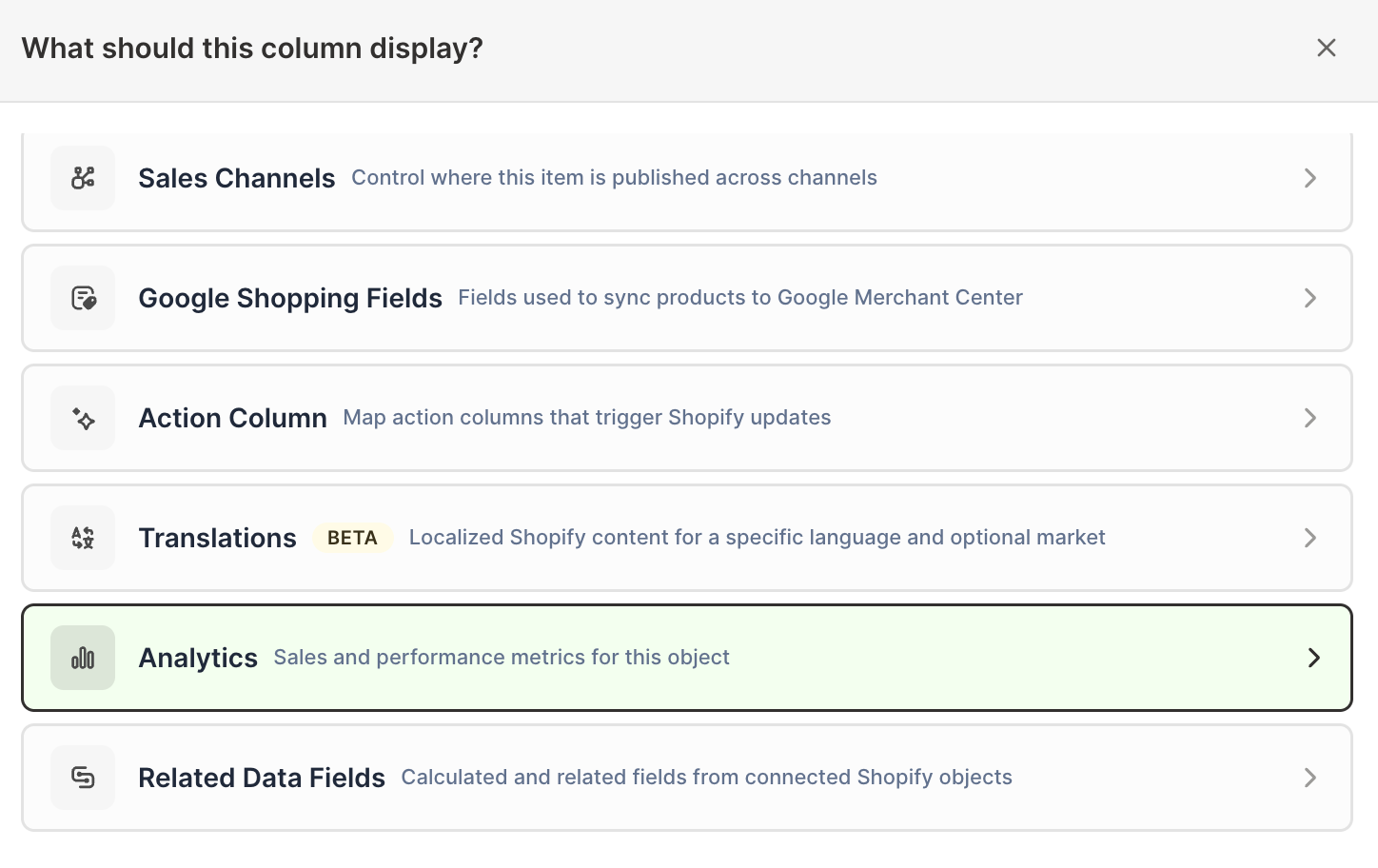
Click Sales & analytics in the list of sections on the left, or type the metric's name in the search box
-
Click the product metric you want. The metric's settings open with it already chosen under Which metric?
-
Under Over what time period?, choose All time, Fixed dates, Rolling period, Calendar year, or Calendar month
-
Under Limit which orders count, add any optional filters supported by the metric
-
Click Save Column
Add the same metric more than once to compare timeframes or audiences. For example, add Net Sales for all time and the last 60 days, then sort the recent column to find products gaining momentum.
Product analytics and variant analytics are different
A Products worksheet rolls all variants into one product row. It is best for assortment, merchandising, vendor, and category decisions.
A Product Variants worksheet keeps each SKU or option combination separate. Use it when size, color, SKU, inventory, price, cost, or margin can differ between variants. A strong product total can hide one unprofitable or high-return variant.
See Shopify Product Variant Analytics for SKU-level reporting.
Compare product groups
Use a Pivot Table worksheet when you need to move above individual products and compare:
- Vendors
- Product types
- Shopify product categories
- Product tags
Collections are not a Pivot Table breakdown. To compare collections, use the Collection sales & refund rate report, which adds analytics columns to a Collections worksheet. See Shopify Collection Analytics.
For example, an individual Products worksheet finds the products with the highest refund value. A vendor Pivot Table worksheet reveals whether those products share a supplier. A category report shows whether the issue is concentrated in one kind of merchandise.
See analyze Shopify sales by product attributes.
Track products over time
For product-by-period reporting, use the reporting templates:
These templates create repeated yearly, monthly, or seasonal analytics columns for every product.
Turn the report into decisions
Useful spreadsheet additions include:
Discount rate = Total Discount Amount / Gross SalesRefund share = Total Refund Amount / Gross SalesRecent sales share = Recent Net Sales / All-time Net Sales- A notes column for product-page, supplier, quality, or replenishment actions
- Shopify fields for inventory, status, category, vendor, tags, or product type
Sort by the metric tied to the decision. Net Sales is useful for revenue contribution, Net Quantity Sold for replenishment, Return Request Rate for product quality, and recent growth for promotion planning.
For a ready-made lifetime product scorecard, see the Product Sales Metrics template.