Increase Shopify prices in bulk
 Spreadsheet Editor Updated October 21, 2026
 On this page
Mixtable’s spreadsheet interface, combined with its Bulk number changes tool, gives you a number of ways to increase the prices of your Shopify products in bulk. Here we’ll only look at increasing prices in bulk, and for more price editing tips see our full help page on how to bulk update your shopify prices.
Shopify keeps prices on variants, so both options below work on a Products (with variants) worksheet with a Price column, such as the one the Full Product Info template creates.
Option 1 - Use Bulk number changes
Bulk number changes performs mathematical changes, allowing you to perform the same mathematical operation on a number of cells (e.g., increase by 10%). You specify the type of calculation to perform, and the tool will do it for you, applying the operation on the existing values in the cells. If a column has a mix of numbers and text values, only the cells with number values will be updated.
To open it, choose Bulk Edit > Bulk number changes in the menu bar. Or right-click your Price column’s letter and choose Bulk number changes…, which opens it with that column already chosen. In the Bulk Edit Numbers window that opens you’ll see a few inputs:
-
Select column - this is how you choose which column in the current worksheet the change will work on. Choose your Price column. The change applies to every visible row in that column, so filter the worksheet first if you only want to raise some prices
-
Select operation - this is where you select what type of mathematical operation will be performed. The options are:
- Add - Adds the value you’ve given to every number
- Subtract - Subtracts the value you’ve given from every number
- Increase by % - Takes each number and increases it by the specified percent
- Decrease by % - Takes each number and decreases it by the specified percent
- Multiply - Multiplies each number by the specified value
- Divide - Divides each number by the specified value
-
Value - The actual value you want to use in the mathematical update
-
Preview first 10 rows - if enabled this will preview the numerical operation on the first 10 visible rows in the active worksheet. This way you can preview what the output will be before you make it real
-
Round results - rounds every result to a whole number. For prices, that removes the cents: 19.99 increased by 10% becomes 22 instead of 21.989. There’s no setting to round to the cent, so leave this off for prices with cents, and use a formula with
ROUND(Option 2) when you want new prices rounded to the cent
When the preview looks right, click Update Spreadsheet. The changed cells turn light yellow, which means they’re ready to sync but haven’t reached Shopify yet. Click Sync at the top right of the spreadsheet, review your changes in the preview that opens, then click Sync again.
Option 2 - Use Excel formulas
Mixtable works just like Excel, and if that’s your comfort zone, you can use Excel formulas to update your prices. Formulas also let you round each new price to the cent.
- Copy the current prices from your Price column and paste them into an empty column, for example column H. That column isn’t linked to Shopify, so it keeps the old prices exactly as they are
- In the first Price cell, enter a formula that works from the copied price, for example
=ROUND(H2*1.1, 2)to increase the price by 10% and round it to the cent. Then fill the formula down the rest of the column - You’ll see the formula cells turn light yellow, indicating they are ready to sync with Shopify. Click Sync at the top right of the spreadsheet, review your changes in the preview that opens, then click Sync again, and Mixtable will sync the updated price values to Shopify
Tip: Always point the formula at a column that isn’t linked to Shopify, like the copy from step 1. If it points at another Price column, that column picks up the new price after the sync, the formula recalculates, and the price goes up a second time as a new change waiting to sync.
Check the old prices after an increase
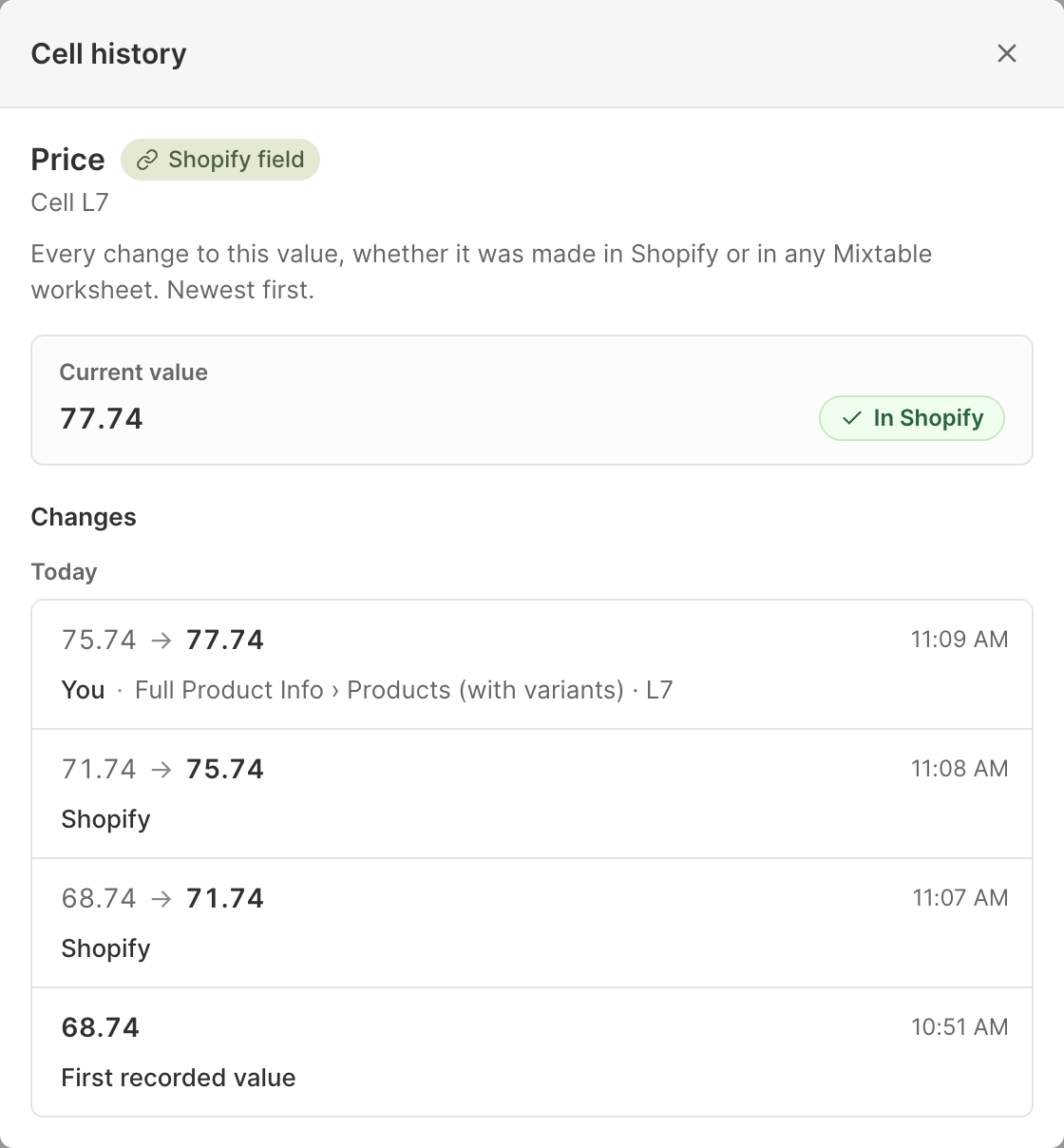
Mixtable records each price change once it’s synced, with the old and new price and the name of whoever clicked Sync. To see what a variant cost before the increase, right-click its Price cell and choose View cell history. To go back, type the old price into the cell and sync again. See Shopify product price history.