
Bulk Edit Shopify B2B Price Catalogs
 Spreadsheet Editor Updated October 21, 2026
 On this page
B2B pricing in Shopify enables you to set custom prices and manage product availability through catalogs, tailoring the buying experience for different B2B customers.
With Mixtable you can now set fixed prices and compare-at prices for your Shopify B2B price catalogs directly from a Products (with variants) Mixtable worksheet.
Map B2B prices to a column
In a spreadsheet, create a Products (with variants) worksheet. This worksheet shows Product and Variant information together on one worksheet.
- Next, you’ll load the B2B prices from a catalog you’ve set up in Shopify into a new column
- To load more Shopify data, click + Shopify data in the header row of an empty column, such as the one right after your last column. You can also choose Column > Add Shopify data… from the menu bar. The field picker opens and asks What should column E show?, with your column's letter in place of E. It lists everything the worksheet can show from Shopify, grouped into sections the way your Shopify admin groups them. Type in the search box at the top, or click a section on the left, to find the field you want.

- Click Pricing in the list of sections on the left. Under B2B catalogs, click the catalog whose prices you want to edit, such as Price in B2B Prices for Distributors. If a catalog is missing, click Refresh in the Pricing heading. Under Which price?, choose Price or Compare-at price, then click Save Column
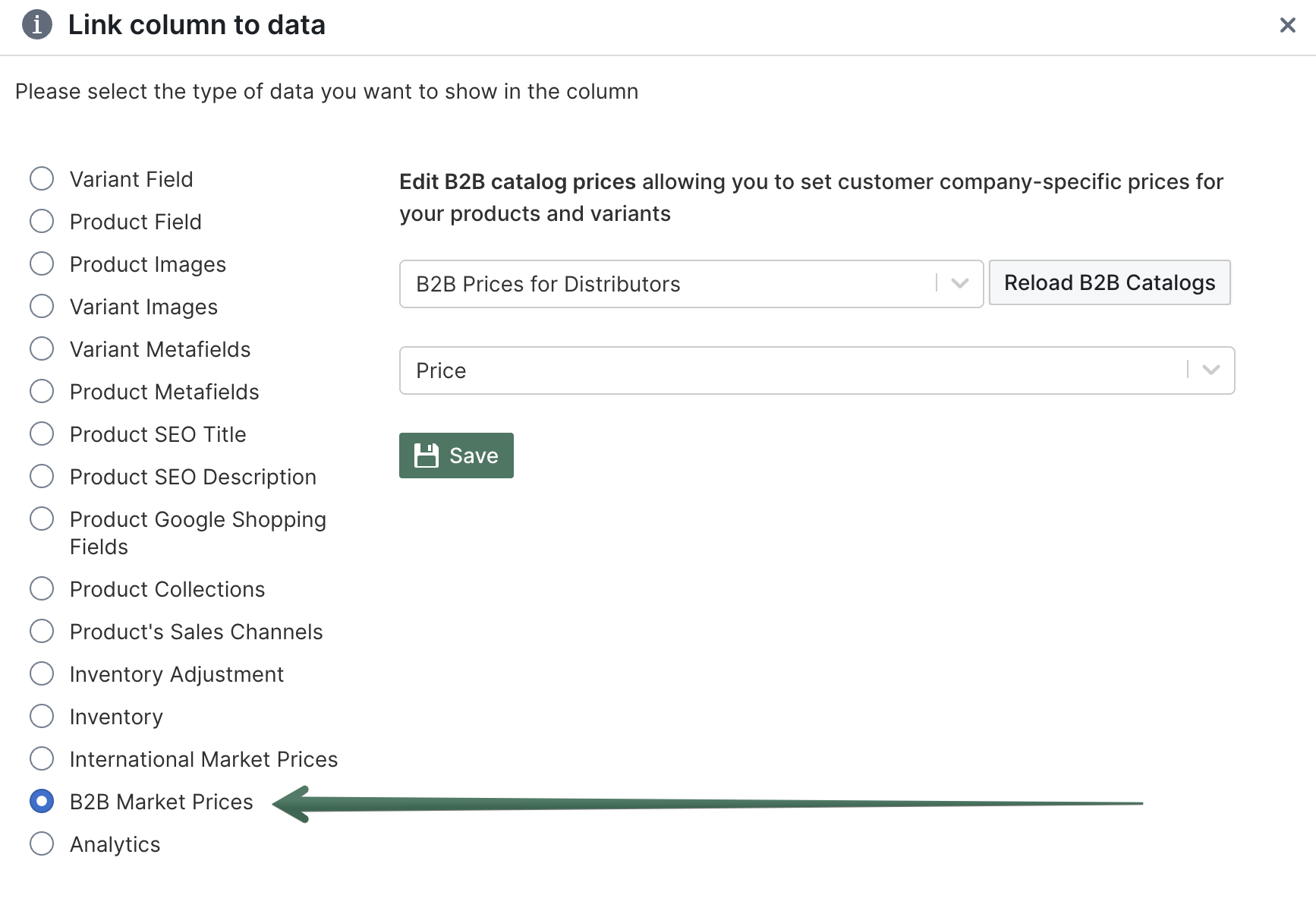
- You’ll now see the column populate with the B2B prices for your variants for the specific catalog
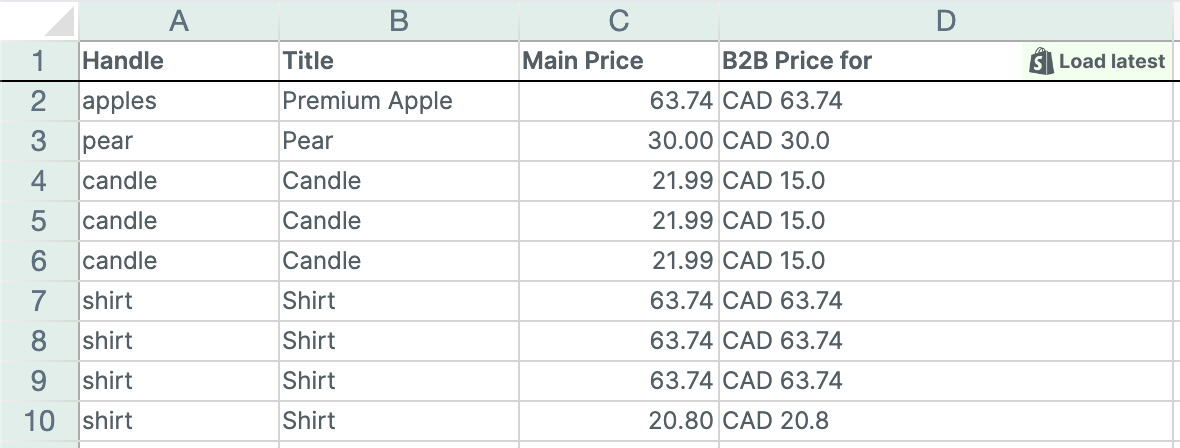
- Now, find the variant whose B2B price you’d like to change, and update it. Type the currency code before the price, for example “USD 15.99”
- When you’re done, click Sync at the top right of the spreadsheet, review your changes in the preview that opens, then click Sync again to send the new prices to Shopify
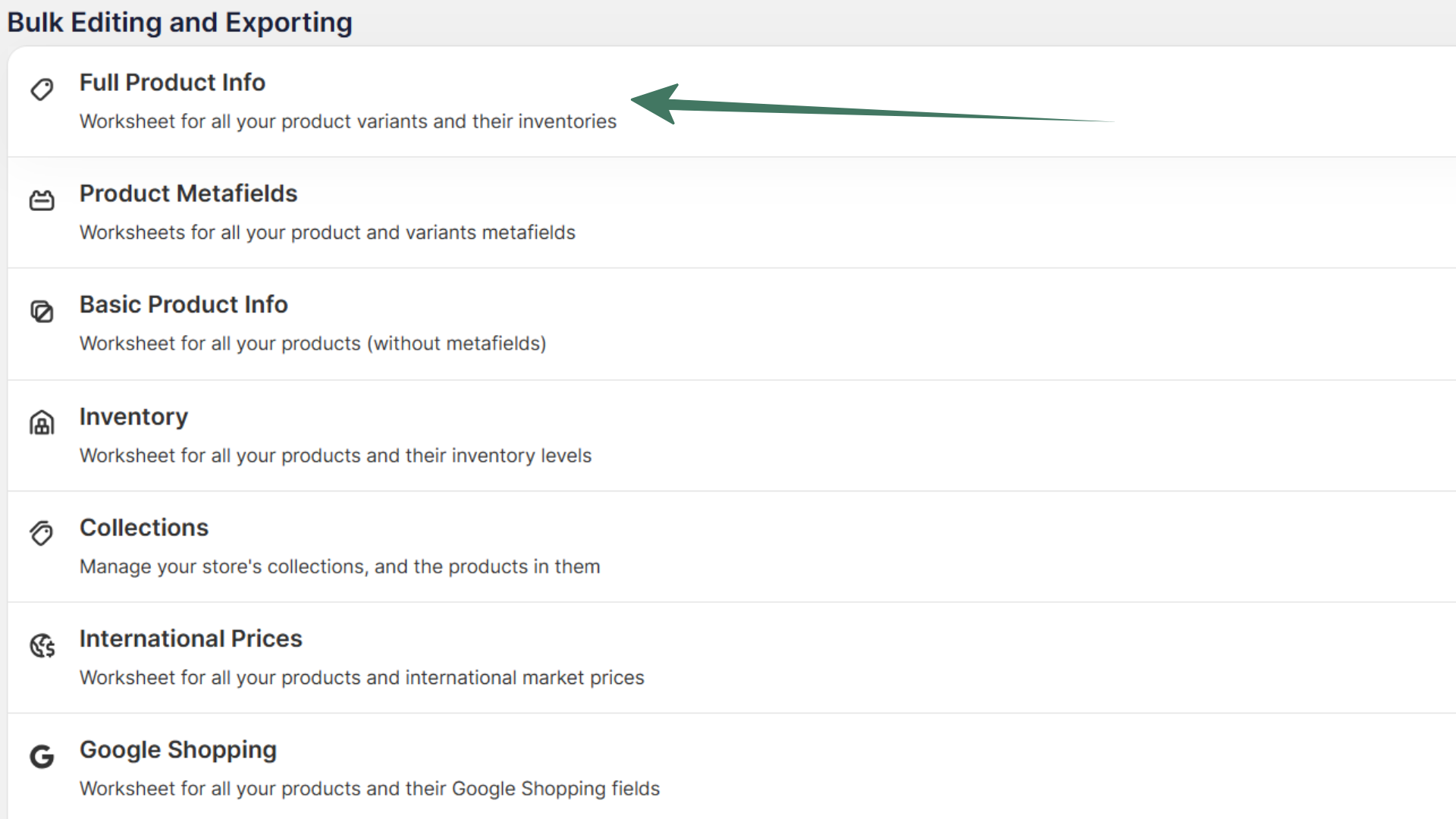
Pro Tip: Start with the Full Product Info template
You can create a spreadsheet from the Full Product Info template, which will load Product Variant information, including price data:
With Mixtable you can also manage B2B company data and company location data.
Download the latest B2B prices from Shopify
Shopify doesn't send changes to B2B catalog prices on its own, so download them when you need the latest. Click Download latest in the sync control at the top right of the spreadsheet (or choose Shopify Sync > Sync with Shopify…) to open the sync card. Under Download latest from Shopify, click Download next to Market & B2B prices.
The Market & B2B prices row appears once the worksheet has at least one B2B price column. Mixtable then pulls the current catalog prices from Shopify and updates those cells in your worksheet.
See B2B price history
Mixtable keeps a history of each variant’s fixed B2B prices, whether or not a worksheet shows them, so you can check what a wholesale customer’s price was before you changed it. Each change shows the old and new price, when it happened, and whether it came from Shopify or from a Mixtable sync, with the name of whoever clicked Sync.
To see it, right-click a cell in a B2B price column and choose View cell history.
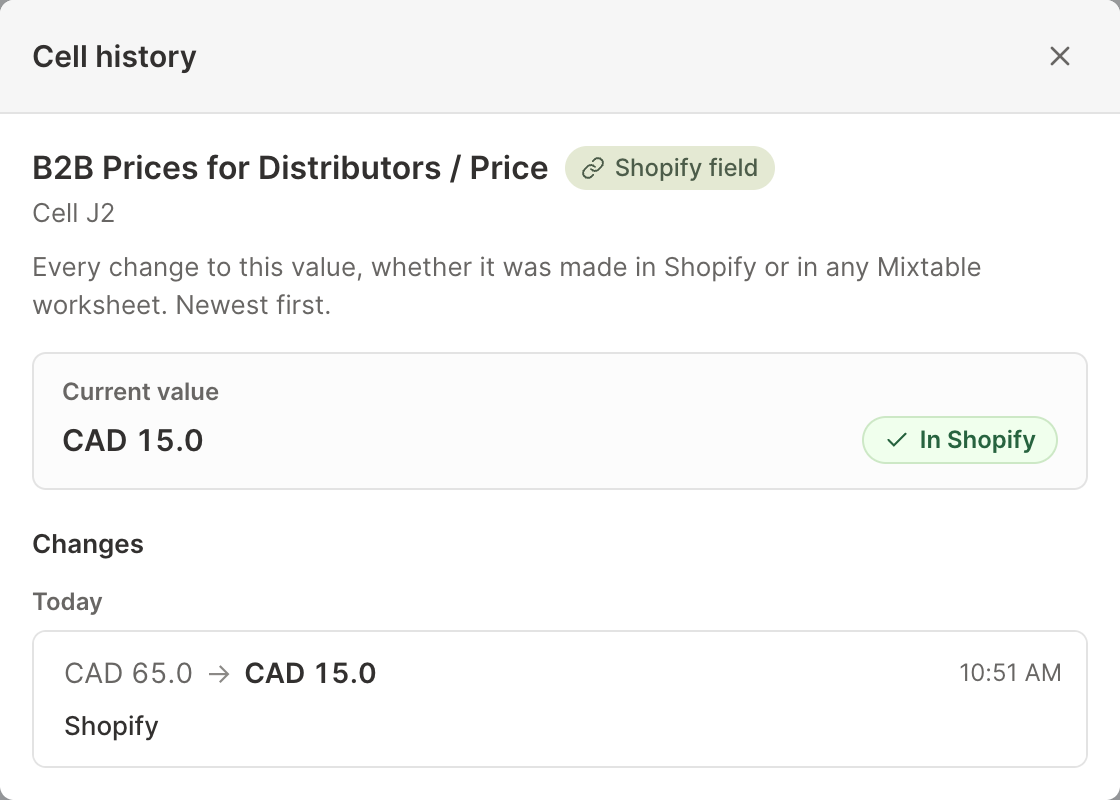
- A B2B price you change in the Shopify admin is recorded when it comes into Mixtable, for example when you download the latest Market & B2B prices
- Prices that follow the catalog’s percentage adjustment aren’t recorded. Only fixed B2B prices have history
- B2B Compare-at price columns have history while a worksheet shows them
See Shopify product price history for more on what Mixtable records.