
International Prices Template
 Spreadsheet Editor Updated October 21, 2026
 On this page
- What you can do with the International Prices template
- How to load the International Prices template
- What data is included in the International Prices template
- Edit market prices and Compare At prices
- Get the latest prices from Shopify
- Add more data to your International Prices spreadsheet
- Frequently asked questions
 Manage Shopify international market pricesShopify Admin does not even have an interface to add or edit international compare-at prices. This is where the Mixtable Spreadsheet Editor app comes in handy to simplify this process by allowing you to view and edit Shopify Markets Compare At Price in bulk.
 Selling in more than one Shopify market? The International Prices template in Mixtable Spreadsheet Editor shows the prices for all your markets side by side, with one row for each variant. You can review your pricing at a glance, change fixed prices in bulk, and set or remove the Compare At price for any market, all from one spreadsheet instead of editing products one by one in the Shopify admin.
What you can do with the International Prices template
- See every market price in one place: compare what each variant costs in each market, then update prices in bulk and sync them back to Shopify
- Spot unusual prices: find products whose price varies a lot between markets, or markets priced well above or below the rest
- Set Compare At prices for each market: show a sale price in one market without touching the others
- Compare discounts across markets: see where you discount more or less than elsewhere, and keep your pricing consistent from region to region
How to load the International Prices template
After installing the Mixtable Spreadsheet Editor app, create a spreadsheet from the template:
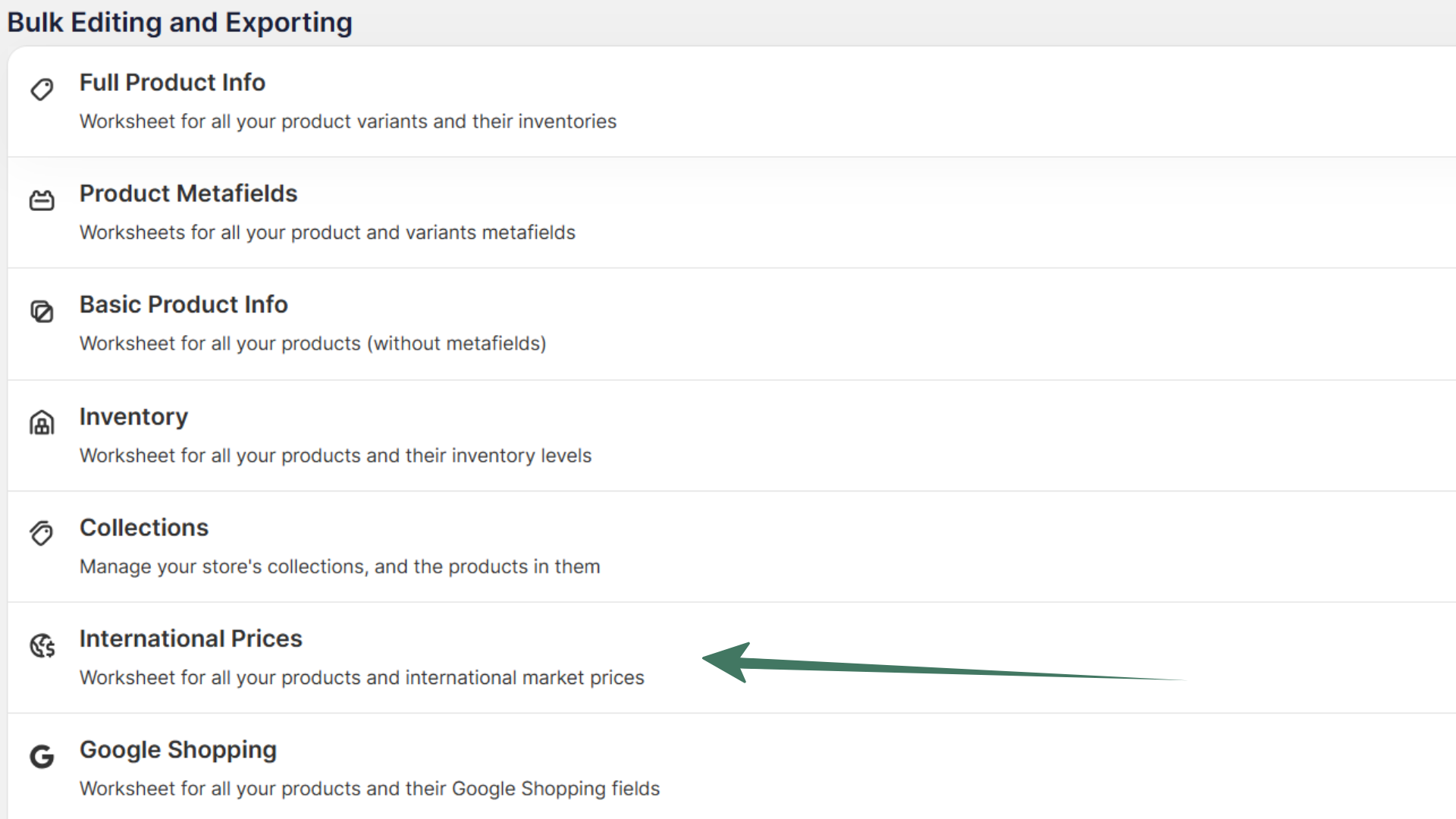
Open your Mixtable dashboard and click Create spreadsheet at the top of the page. If you haven't created a spreadsheet yet, click Browse all templates below the dashboard's suggestions instead. In the Create spreadsheet window, find International Prices under Inventory & Pricing, or type its name in the search box, and click it. Mixtable creates the spreadsheet and fills it with data from your Shopify store.
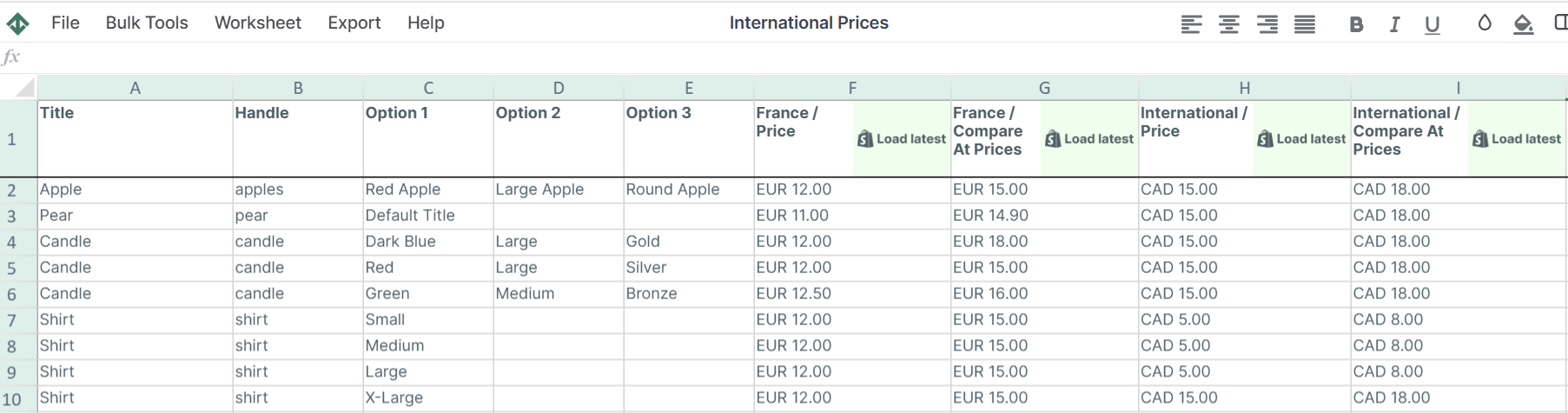
Once your data loads, each row shows a variant with its price and Compare At price in each of your markets.
What data is included in the International Prices template
The template creates a Products with international prices worksheet with these columns:
- Title
- Handle
- Option 1, Option 2, and Option 3
- A Price column and a Compare At Prices column for each of your market price lists, named after the market’s catalog (for example, Europe / Price)
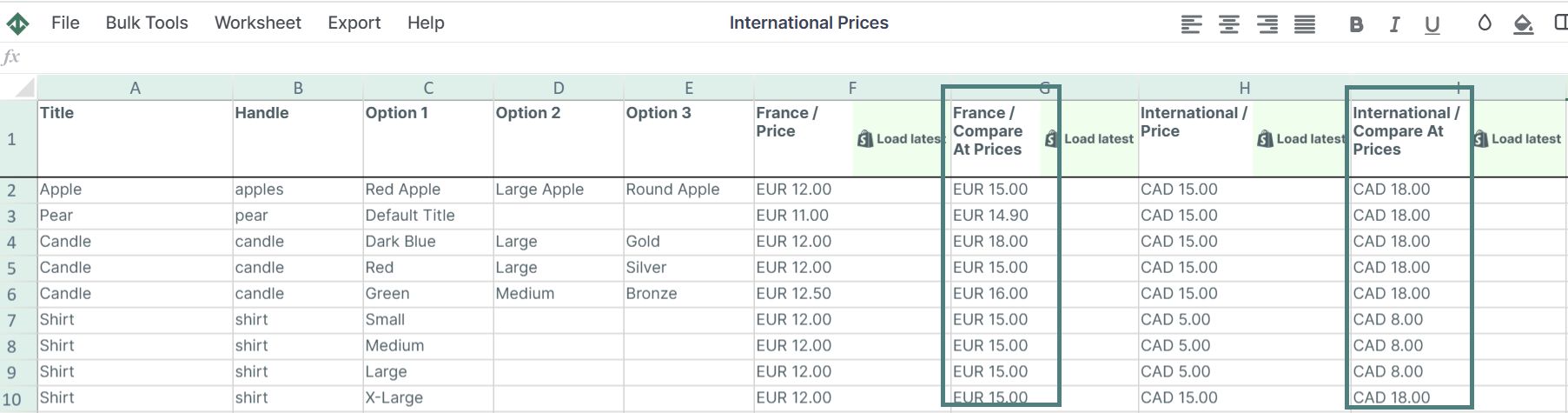
Edit market prices and Compare At prices
- Type the new price into the cell for that market. Include the market’s currency code, the way the cells show it, for example
EUR 39.90 - To remove a Compare At price, clear the cell
- Click Sync at the top right of the spreadsheet, review your changes in the preview that opens, then click Sync again to send them to Shopify
Note: You can set a Compare At price for a variant only if it also has a fixed price in that market.
To see how a market price changed, right-click its cell and choose View cell history. Mixtable keeps a history of fixed market prices and Compare At prices, with the old and new price and who synced each change. See market price history.
Get the latest prices from Shopify
Shopify doesn't send changes to market prices on its own, so download them when you need the latest. Click Download latest in the sync control at the top right of the spreadsheet (or choose Shopify Sync > Sync with Shopify…) to open the sync card. Under Download latest from Shopify, click Download next to Market & B2B prices.
Add more data to your International Prices spreadsheet
Beyond the default columns, you can add other data next to your market prices, such as:
- Your store’s default Price and Compare-at price
- Sales figures such as Net Sales or Gross Sales, with the Mixtable Analytics Spreadsheet app
How to add your default prices
-
To load more Shopify data, click + Shopify data in the header row of an empty column, such as the one right after your last column. You can also choose Column > Add Shopify data… from the menu bar. The field picker opens and asks What should column E show?, with your column's letter in place of E. It lists everything the worksheet can show from Shopify, grouped into sections the way your Shopify admin groups them. Type in the search box at the top, or click a section on the left, to find the field you want.

-
Click Pricing in the list of sections on the left, or type Price in the search box. Click Price, then click Save Column
-
Repeat these steps for Compare-at price
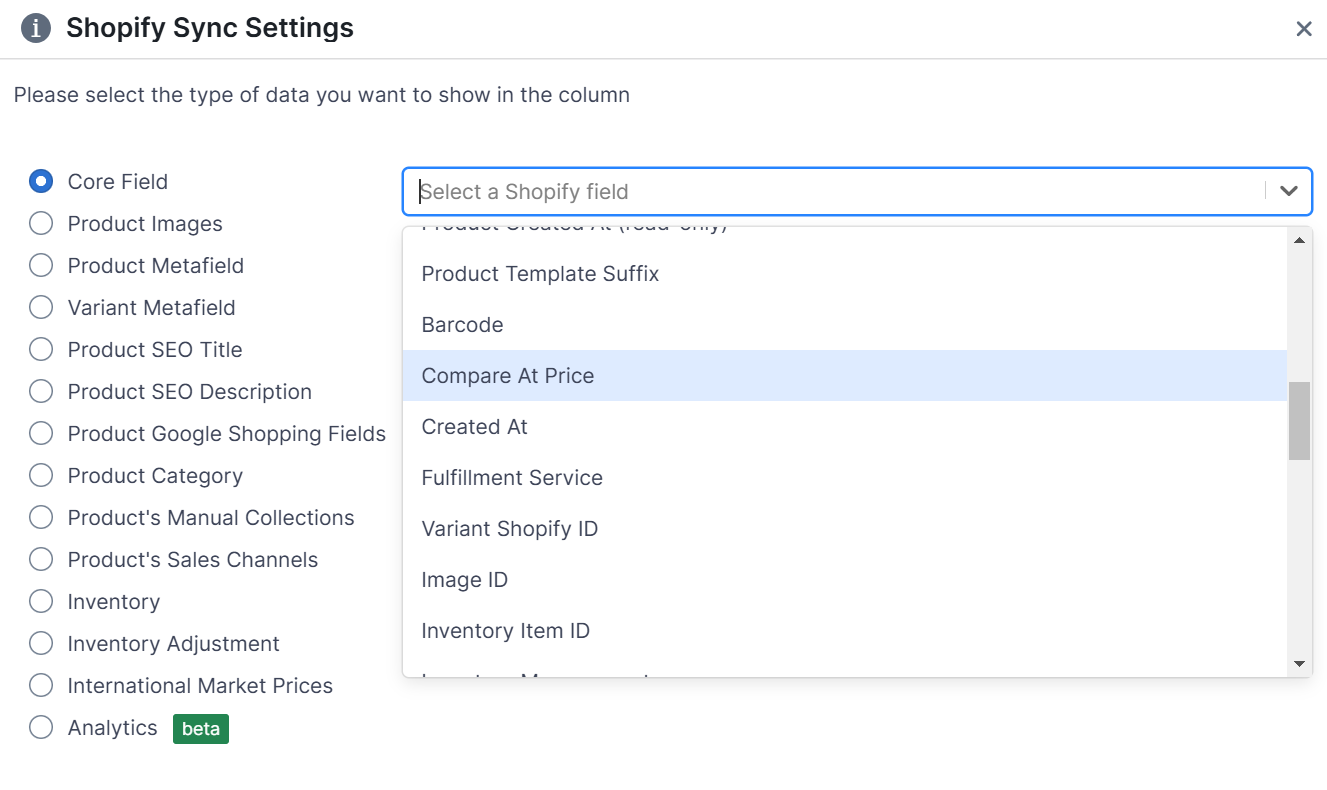
Now you can compare your international prices with your default prices. You can add any other Shopify data the same way.
How to add Net Sales data
Seeing sales next to your prices shows how each product performs at its current price, for example whether a discount actually sold more.
Note: To add Net Sales data to your International Prices spreadsheet, you need to install the Mixtable Analytics Spreadsheet app.
-
Open your Products with international prices worksheet
-
Click + Shopify data in the header row of an empty column, or choose Column > Add Shopify data… from the menu bar. The field picker opens
-
Click Sales & analytics in the list of sections on the left, or type the metric's name in the search box
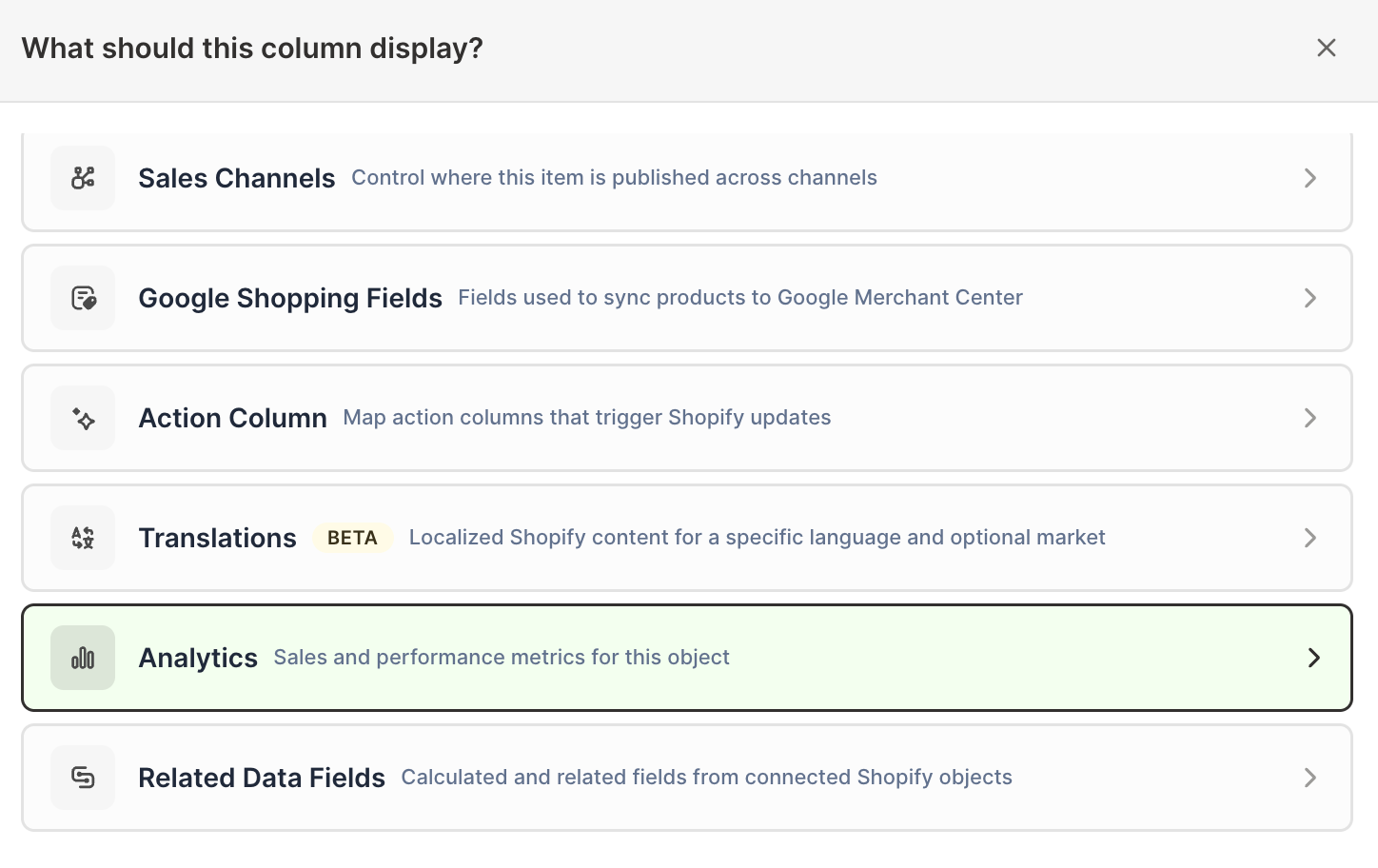
-
Click Net Sales. The metric's settings open with it already chosen under Which metric?
-
Under Over what time period?, choose All time, Fixed dates, Rolling period, Calendar year, or Calendar month
-
Under Limit which orders count, add any optional filters supported by the metric
-
Click Save Column
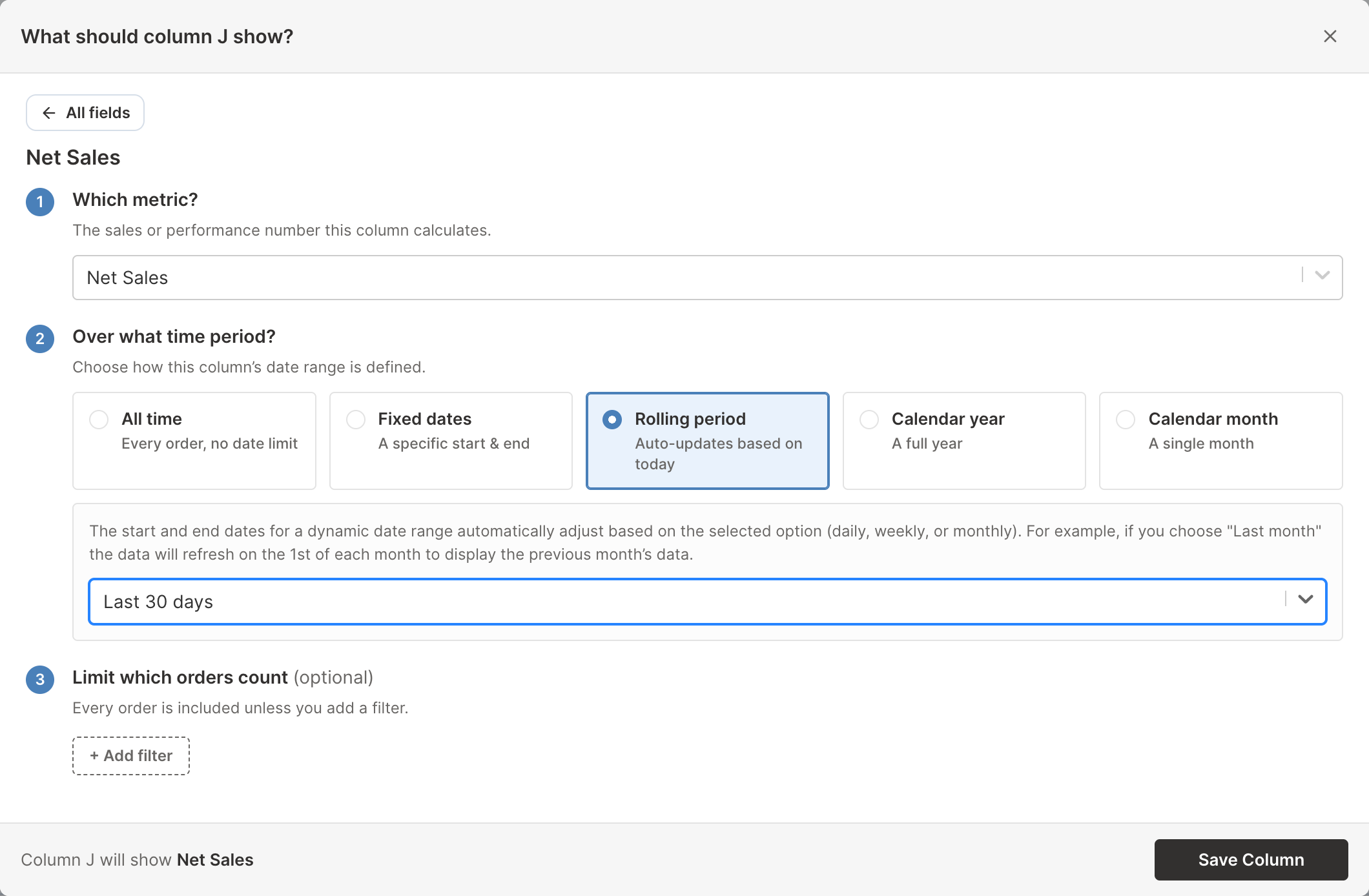
For the time period, Rolling period with Last 30 days always covers the most recent 30 days, so the column stays current on its own.
You can add other sales metrics the same way, such as:
- Net Quantity Sold or Gross Quantity Sold
- Orders Count
- Orders Net Profit
- Total Refund Amount
- Total Discount Amount
- Refund Count
- Percent of Orders Refunded
Frequently asked questions
How do I set a Compare At price for different markets?
The International Prices template is the quickest way to set Compare At prices for your Shopify markets:
- Load the International Prices template
- In each market’s Compare At Prices column, type the prices you want
- Click Sync at the top right of the spreadsheet, check the preview that opens, then click Sync again
For more detail, see how to set Shopify Markets Compare At prices.