
How to set Shopify international pricing
 Spreadsheet Editor Updated October 21, 2026
 On this page
 How to set Shopify international pricingVideo walkthrough
 Shopify Markets converts your prices for each country or region automatically, but many stores want fixed prices instead: €24.90 rather than whatever today’s exchange rate gives. Setting those one product and one market at a time in the Shopify admin is slow, and the bulk alternative is exporting a CSV, editing it, and importing it back.
With Mixtable Spreadsheet Editor, you set Shopify international prices with a spreadsheet instead. Each market gets its own price column beside your variants, so you can see every market’s price side by side, type or paste new fixed prices, calculate them from your base prices with formulas, and sync them all to Shopify in one go. Clear a cell and sync, and that variant goes back to Shopify’s automatic price.
Note: Keep in mind that markets can only be created within Shopify, not Mixtable.
International prices for Shopify variants in a spreadsheet
First, create a Products (with variants) worksheet in your Mixtable spreadsheet to manage your product variants and their respective international prices. To add a column for the prices of each market you want to edit, follow these steps:
- Open your Products (with variants) worksheet in Mixtable
- Click + Shopify data in the header row of an empty column, or choose Column > Add Shopify data… from the menu bar. The field picker opens and asks What should column E show?, with your column’s letter in place of E
- Click Pricing in the list of sections on the left. Under Market prices, you’ll see a row for each of the markets you have defined in Shopify, such as Price in France. Click the one whose prices you’d like to load into the column. If a market you added recently is missing, click Refresh in the Pricing heading
- Under Which price?, choose Price, then click Save Column
- Repeat steps 2 to 4 for each market you wish to edit
To put the column in a particular spot, insert an empty column there first: right-click the letter of the column it should go before and choose Insert column to the left. The new column gets its own + Shopify data button to click in step 2.
Pro-tip: Use the International Prices pre-built template
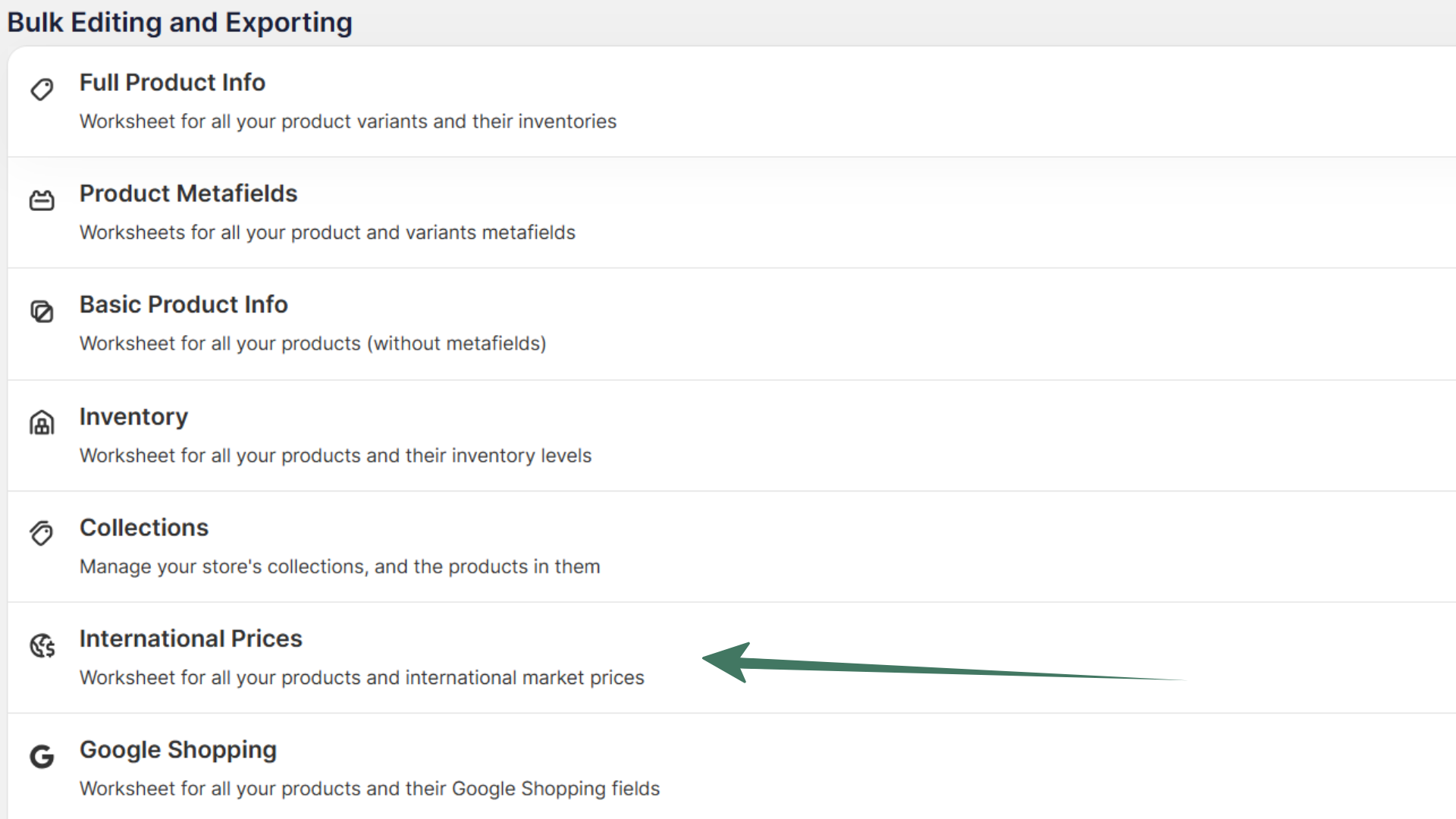
The pre-built template loads your international prices without any column setup.
Open your Mixtable dashboard and click Create spreadsheet at the top of the page. If you haven't created a spreadsheet yet, click Browse all templates below the dashboard's suggestions instead. In the Create spreadsheet window, find International Prices under Inventory & Pricing, or type its name in the search box, and click it. Mixtable creates the spreadsheet and fills it with data from your Shopify store.
Set a fixed international price for a variant
After creating columns for each market’s international prices, you can now set fixed prices for your product variants. To do this, enter the desired price directly into the corresponding cell in the respective market’s column. Type the price with the currency code of the market’s currency, the way the cells show it (for example, EUR 24.90).
To set many market prices at once, use a formula. For example, if column C holds each variant’s base price, ="EUR "&TEXT(C2*0.92, "0.00") converts it at a rate of 0.92 and rounds it to the cent. Fill the formula down the column, and every variant gets its new fixed price.
When you’re done, click Sync at the top right of the spreadsheet, review your changes in the preview that opens, then click Sync again. Mixtable will set the price for the given variant to its fixed value.
Reset Fixed International Prices to Automatically Calculated Prices
If you need to change a fixed international price back to an automatically calculated price, simply clear the value of the cell containing the fixed international price by pressing Backspace/Delete, for example. Once you sync the change to Shopify, the fixed price will reset back to the calculated one.
Cell history keeps the fixed price you cleared, so you can look it up later. See market price history below.
International price updates from Shopify to Mixtable
Changes to your Markets themselves come into Mixtable on their own, and Mixtable refreshes their prices at the same time. A price that changes outside of Mixtable is different, for example a fixed price you edit in the Shopify admin: Shopify does not notify Mixtable, so automatic updates are not available for international market prices.
Shopify doesn't send changes to market prices on its own, so download them when you need the latest. Click Download latest in the sync control at the top right of the spreadsheet (or choose Shopify Sync > Sync with Shopify…) to open the sync card. Under Download latest from Shopify, click Download next to Market & B2B prices.
The Market & B2B prices download appears on any worksheet with at least one market price column, and it updates the market price cells in that worksheet.
See market price history
Mixtable keeps a history of each variant’s fixed market prices, whether or not a worksheet shows them. Each change shows the old and new price, when it happened, and whether it came from Shopify or from a Mixtable sync, with the name of whoever clicked Sync.
To see a price’s history, right-click its cell in a market price column and choose View cell history.
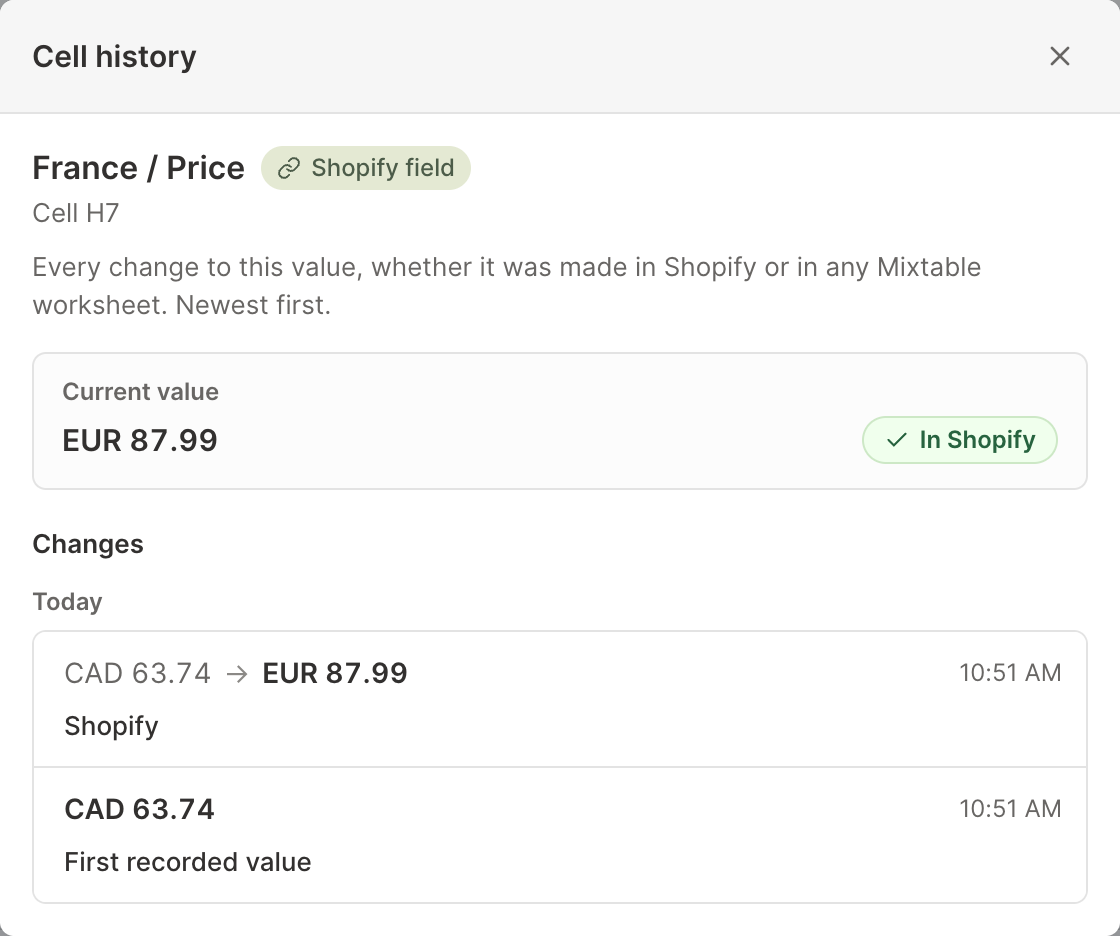
- Automatic prices, which Shopify works out from your base price, the market’s price adjustment, and exchange rates, aren’t recorded. Only fixed prices have history
- A fixed price you change in the Shopify admin is recorded when it comes into Mixtable, for example when you download the latest Market & B2B prices
- Market Compare-at price columns have history while a worksheet shows them
See Shopify product price history for more on what Mixtable records.