
Publish and unpublish Shopify products by sales channel
 Spreadsheet Editor Updated October 21, 2026
 On this page
 Publish and unpublish Shopify products by sales channelControl where Shopify products are published by managing sales channel visibility (Shopify channels, third-party channels, markets, and B2B catalogs) in a spreadsheet and syncing changes in bulk.
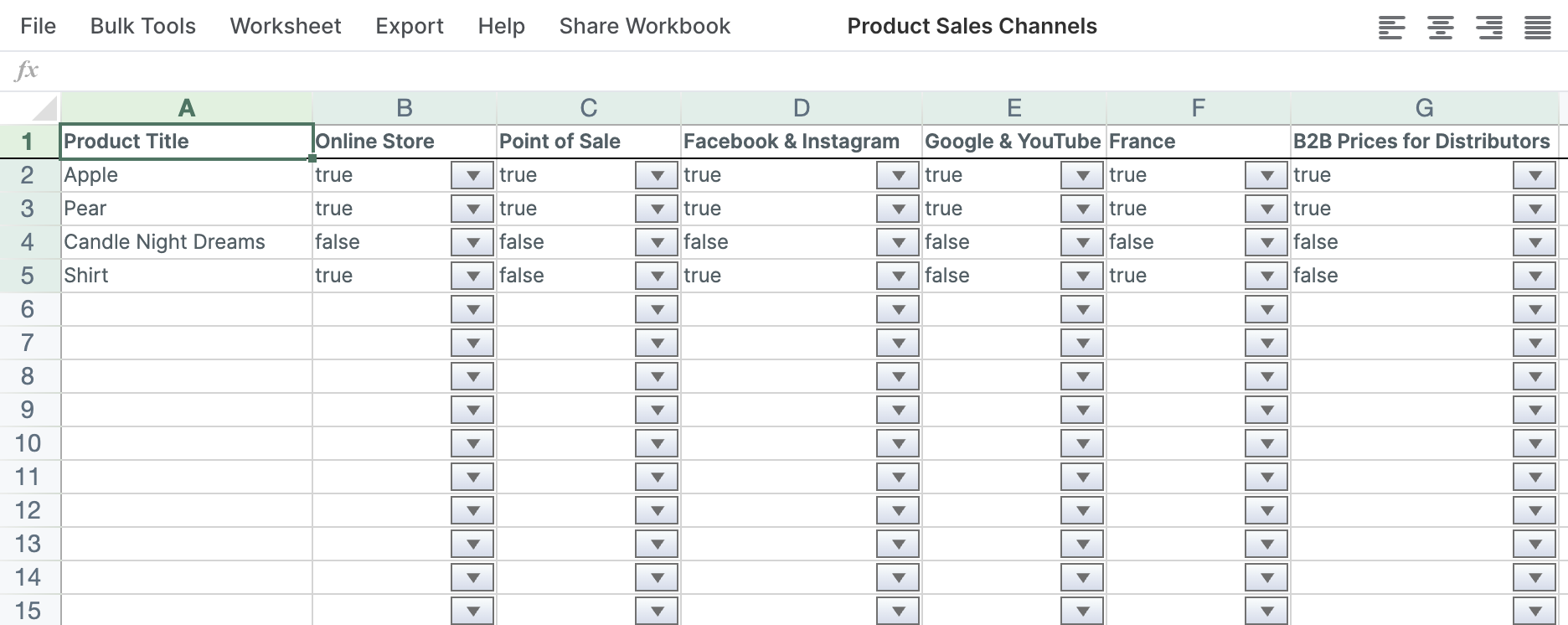
 Mixtable makes it easy to control which sales channels your products are visible in. You can publish or unpublish products per-channel in bulk, using simple true/false values in a spreadsheet.
Changes you make in Mixtable remain pending until you click Sync. Changes made directly in Shopify appear in Mixtable after that data is refreshed or synced from Shopify.
This works for:
- Shopify sales channels (for example: Online Store, Point of Sale)
- Third-party channels (for example: Facebook and Instagram, Google and YouTube)
- International market catalogs
- B2B catalogs and price lists
Before you start
- Make sure your Shopify store is connected to Mixtable
- Your products must be Active in Shopify to be available on sales channels. If you need to change product status in bulk, see bulk update Shopify product status
Create a Products spreadsheet
- Open your Mixtable dashboard and click Create spreadsheet at the top of the page. If you haven't created a spreadsheet yet, click Browse all templates below the dashboard's suggestions instead. In the Create spreadsheet window, find Basic Product Info under Products, or type its name in the search box, and click it. Mixtable creates the spreadsheet and fills it with data from your Shopify store.
- If you want a smaller worksheet, remove the columns you do not need: right-click a column’s letter and choose Remove column. This only changes your worksheet, not Shopify
Add sales channel columns
Each sales channel (or catalog) is mapped to its own column. Mixtable will then populate the column with true/false for each product, based on whether that product is published in that channel.
- To load more Shopify data, click + Shopify data in the header row of an empty column, such as the one right after your last column. You can also choose Column > Add Shopify data… from the menu bar. The field picker opens and asks What should column E show?, with your column's letter in place of E. It lists everything the worksheet can show from Shopify, grouped into sections the way your Shopify admin groups them. Type in the search box at the top, or click a section on the left, to find the field you want.

- Click Status & channels in the list of sections on the left. Your store’s channels are listed under Sales channels, with market and B2B catalogs in groups of their own
- Click the channel or catalog you want to control, such as Online Store, then click Save Column. On a Products (with variants) worksheet, leave Product (all variants) selected under Whose publishing? before you save
- Repeat for any other channels you want to manage
Publish or unpublish products (in bulk)
-
In a sales channel column, set:
trueto publish the product to that channelfalseto unpublish the product from that channel
-
Copy, paste, or fill down to apply the same value to more products or channel columns
-
Click Sync at the top right of the spreadsheet and review the pending updates in the preview that opens
-
Click Sync again to apply the changes
Mixtable sends the pending changes, and the product’s sales-channel availability updates in Shopify.
Product publishing and variant publishing
Product and variant publishing are separate controls. On a Products (with variants) worksheet, the field picker asks Whose publishing? when you pick a channel:
- Product (all variants) adds a column, such as
Product: Online Store, that controls the parent product - This variant adds a column, such as
Variant: Online Store, that controls the individual variant on each row
An individual variant is available on a channel only when the parent product is Active, the parent product is published to that channel, and the variant is also published to that channel.
For step-by-step instructions, see publish and unpublish Shopify variants by sales channel.
Troubleshooting
- A channel is missing: Make sure the sales channel or app is available in Shopify, then click Refresh in the Status & channels heading of the field picker
- A product will not publish: Confirm that the product status is Active
- A variant is set to true but is unavailable: Confirm that its parent product is Active and published to the same channel