
Format cells and columns in Mixtable
 All Mixtable apps
Updated October 21, 2026
All Mixtable apps
Updated October 21, 2026 On this page
Mixtable lets you change how your data displays and behaves in your spreadsheet. You can control how values appear, how they’re edited, and even turn columns into dropdowns for easier data entry.
When working with Shopify data, formatting makes your spreadsheet cleaner and helps prevent errors, which is especially useful for prices, inventory counts, dates, and SKUs.
Formatting comes in two kinds:
- Column formatting decides what kind of values a column holds and how they appear, such as currency, dates, or a dropdown list. It always applies to every cell in the column. You set it with Type & format… or the toolbar’s number format menu
- Cell formatting changes the look of the cells you select: font size, bold, italic, underline, text and fill colors, borders, and alignment. You set it with the formatting buttons in the toolbar
Formatting changes how values look and how you enter them in Mixtable. It doesn’t change the values themselves, and it isn’t sent to Shopify.
Format a column
Use Type & format… to choose a column’s type and format.
- Right-click the column’s letter (the A, B, C, and so on at the top of your worksheet)
- Choose Type & format…. The menu shows the column’s current format next to it, for example General or Currency
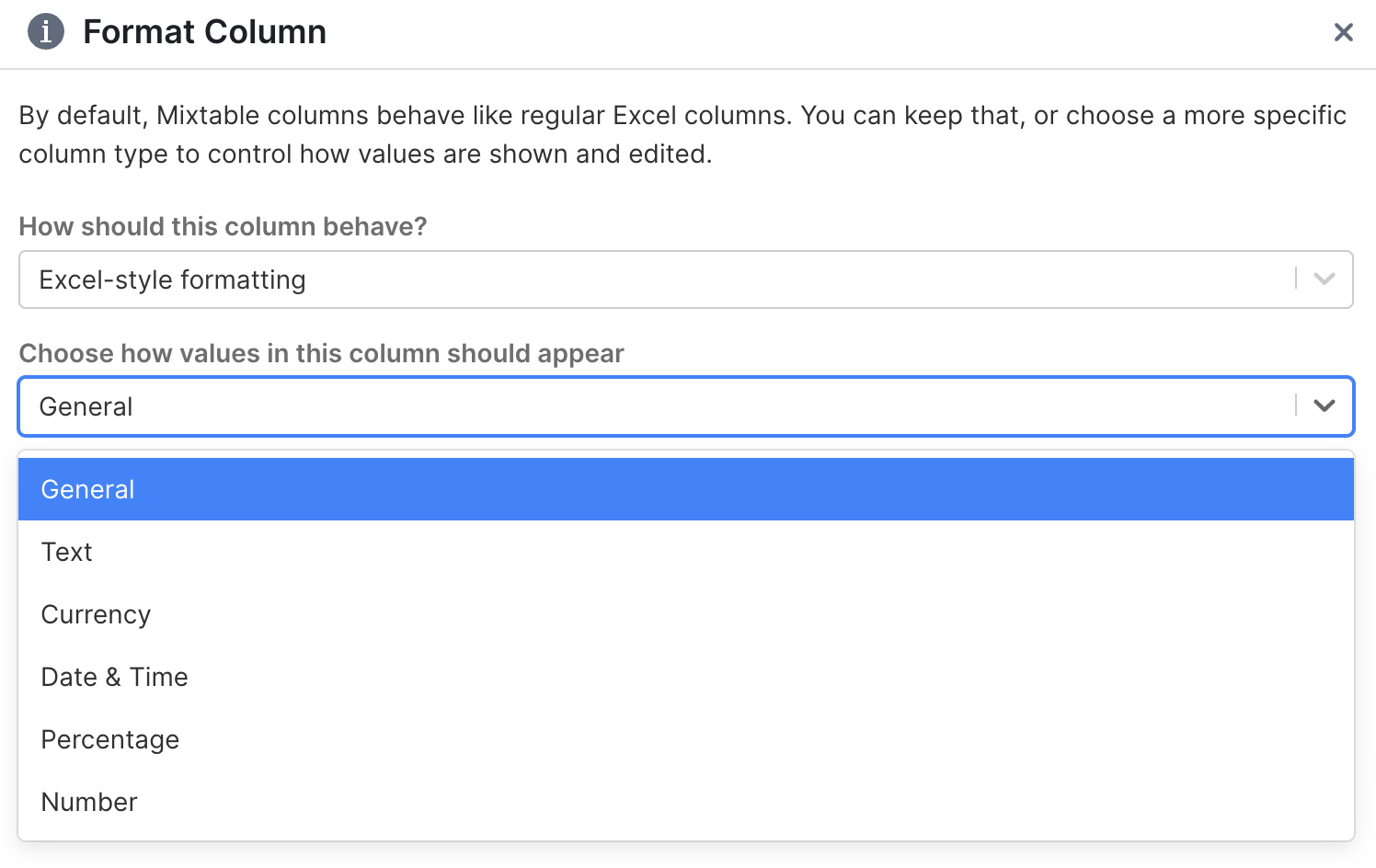
You can open the same window in other ways too:
- Click any cell in the column, then choose Column > Type & format… from the menu bar
- Click the number format button in the toolbar (it shows 123), then choose More formats…
- On a column linked to Shopify, click the column chip at the end of the formula box (it names the column’s kind, such as Product field), then click Change… next to Format
Choose your column type
In the Type & format window, a dropdown asks How should this column behave? with two main options:
- Excel-style formatting Use this when you want the column to look and act like a standard spreadsheet column, but with specific formatting like currency or percentages
- Select / Dropdown Use this when you want cells to show a list of options you can pick from
Choose one, set its options as described below, then click Save. Mixtable confirms with “Updated column type”.
Metafield columns skip this question, because their dropdown choices come from Shopify. See Metafield columns get their dropdowns from Shopify.
Excel-style formatting options
When you choose Excel-style formatting, pick a format under Choose how values in this column should appear:
General
This is the default spreadsheet behavior. Mixtable displays values naturally and treats numbers as numbers, which keeps formulas, sorting, and filtering working smoothly.
Use General when you don’t need special formatting and want standard Excel-like behavior.
Text
Text formatting treats everything as text, even if it looks like a number.
This is perfect for Shopify fields where you need to preserve the exact value you type, such as:
- SKUs with leading zeros (like
00123) - Zip codes or postal codes
- Order numbers like
#1001 - Product handles that shouldn’t be auto-converted
Currency
Currency formatting adds a currency symbol and keeps your decimal places consistent.
You can customize:
- Currency symbol: $ Dollar, € Euro, ¥ Yen, or £ Pound
- Decimal places: 0 to 10
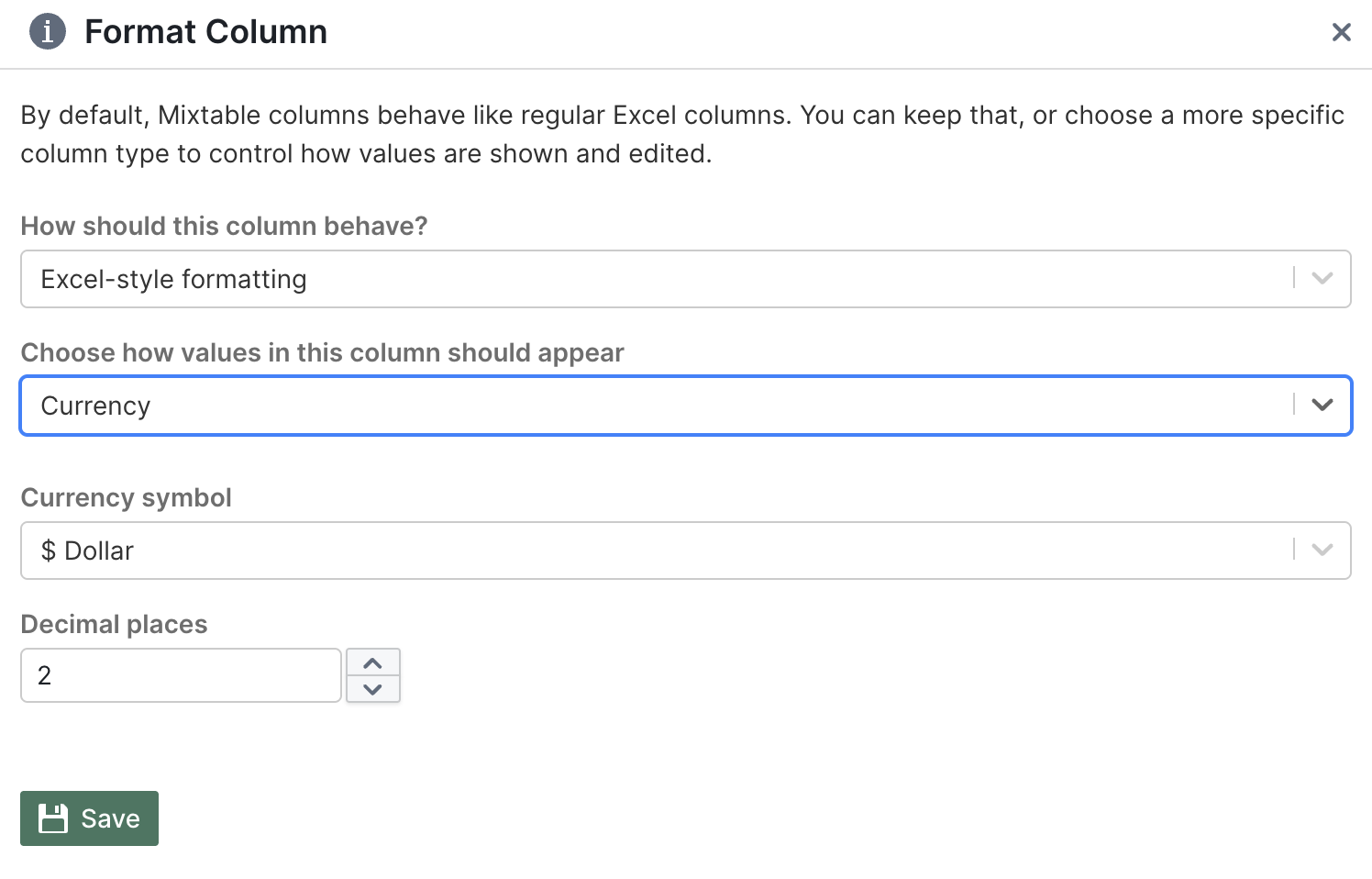
This is ideal for Shopify price columns, compare-at prices, product costs, and any other money-related fields.
Setting Decimal places to 0 only rounds what you see. A price of 12.99 shows as $13, but the cell still holds 12.99, and formulas, bulk number changes, and Excel exports all use the full value.
Date & Time
Date & Time formatting displays values in a human-readable date or time format. Choose the format that matches how you or your team prefers to read dates.
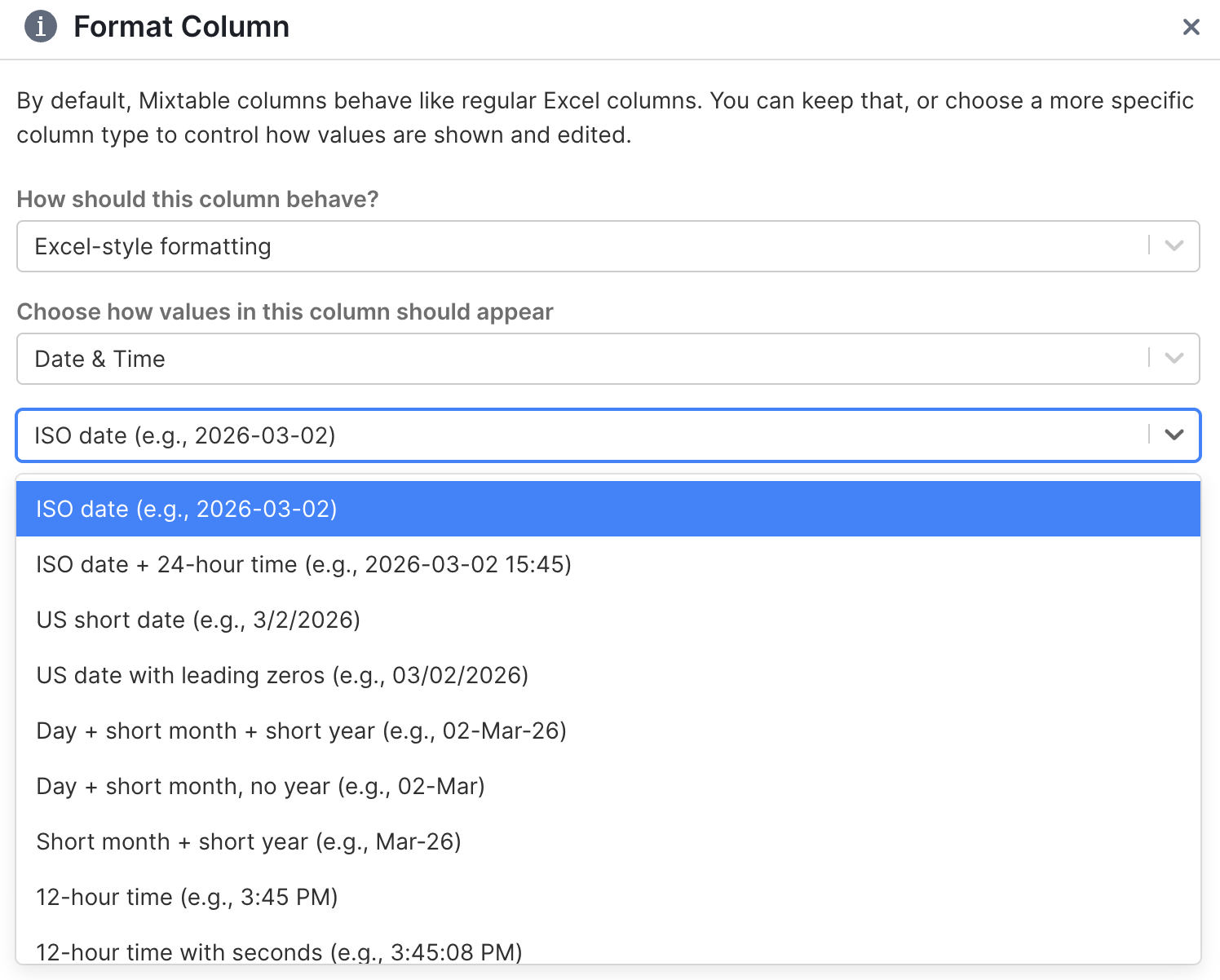
Date formats
| Format | Example |
|---|---|
yyyy-mm-dd (ISO date) | 2026-03-02 |
m/d/yyyy (US short date) | 3/2/2026 |
mm/dd/yyyy (US date with leading zeros) | 03/02/2026 |
dd-mmm-yy | 02-Mar-26 |
dd-mmm | 02-Mar |
mmm-yy | Mar-26 |
Date and time
| Format | Example |
|---|---|
yyyy-mm-dd hh:mm (ISO date + 24-hour time) | 2026-03-02 15:45 |
Time only
| Format | Example |
|---|---|
h:mm AM/PM | 3:45 PM |
h:mm:ss AM/PM | 3:45:08 PM |
hh:mm (24-hour) | 03:45 |
hh:mm:ss (24-hour with seconds) | 03:45:08 |
Use date formatting for Shopify fields like product creation dates, publish dates, or any custom date tracking columns in your workflow.
Tip: Shopify saves dates and times in UTC. A date format shows them in your computer’s time zone, so a teammate in another time zone can see a different date for the same late-night order. The value itself doesn’t change.
Percentage
Percentage formatting shows numbers as percentages.
You can customize:
- Decimal places: 0 to 10
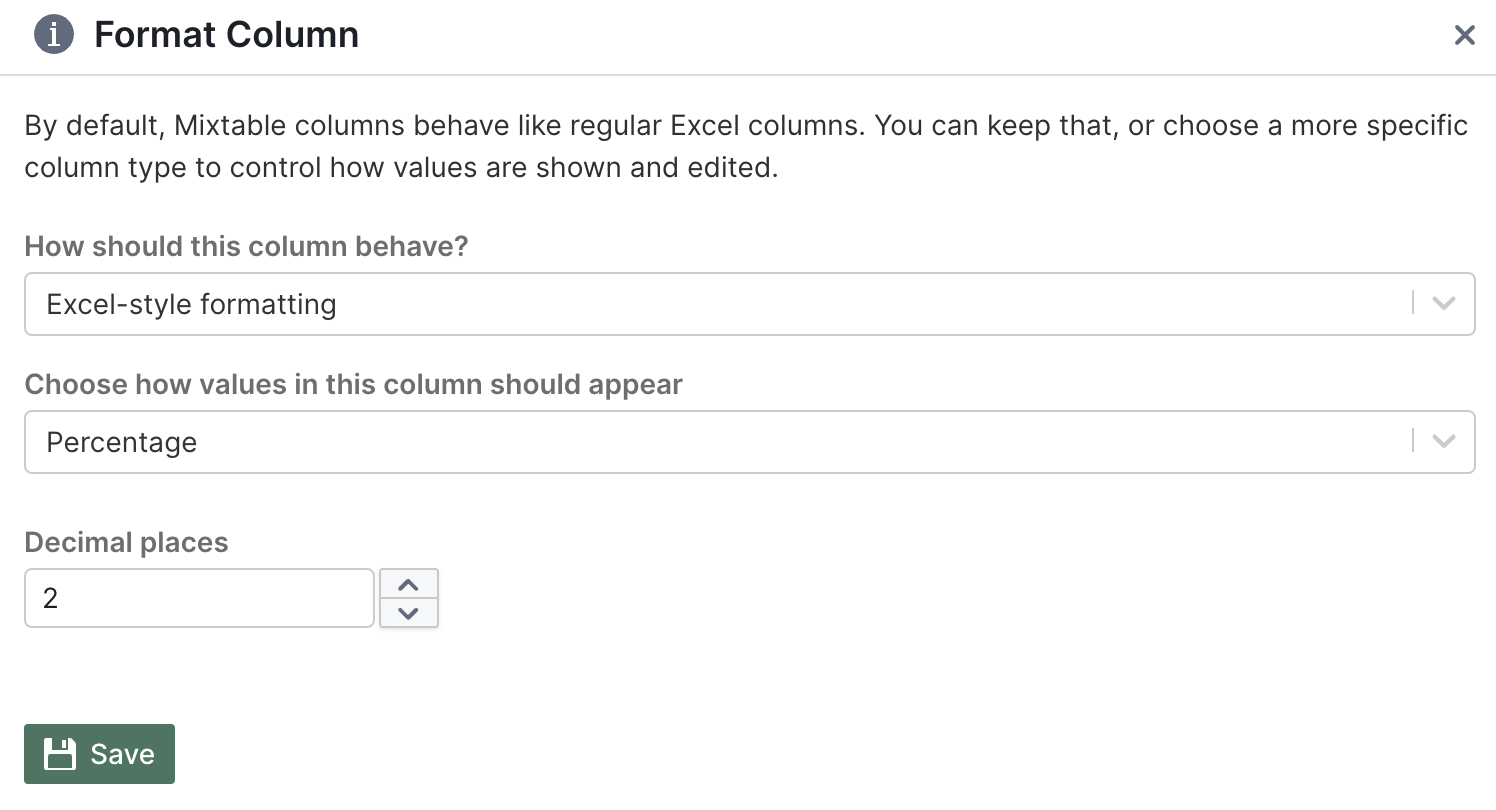
Tip: Percentages follow standard spreadsheet rules. For example, 0.25 displays as 25%. If you type 25, it will show as 2500%.
Number
Number formatting displays values as numbers with optional thousand separators and consistent decimals.
You can customize:
- Use 1000 Separator (,): adds commas like
1,000 - Decimal places: 0 to 10
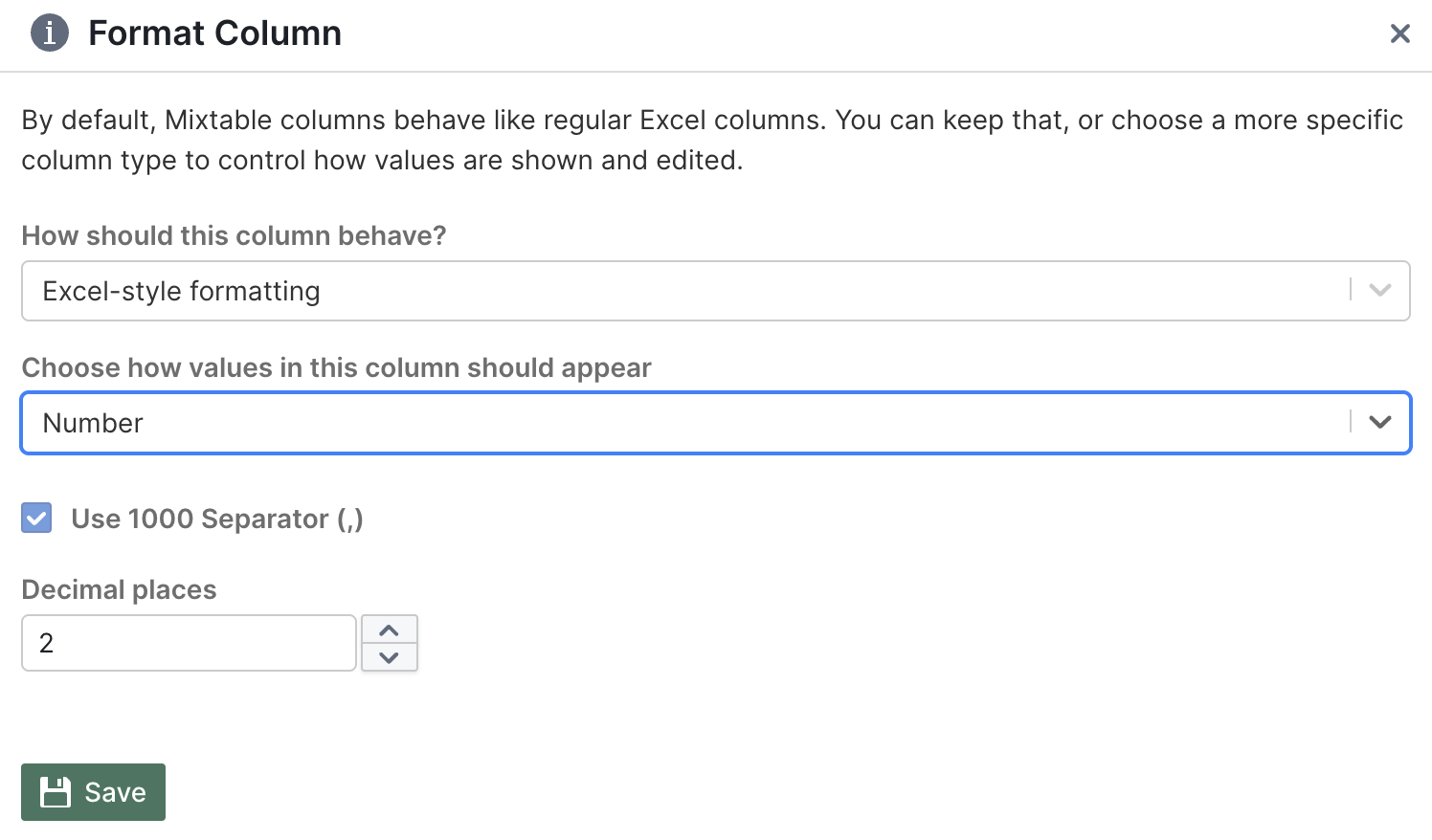
This works great for Shopify inventory quantities, units sold, order counts, and other numeric data.
As with Currency, setting Decimal places to 0 only rounds what you see: 12.99 shows as 13, but the cell keeps the full value.
Dropdown columns
When you choose Select / Dropdown, the column works like a picklist where you choose from predefined options.
You can set:
- What options would you like to have in the dropdown? Type each option and press Enter after it
- Allow multiple options to be selected? Turn this on if you want cells to hold more than one option at the same time
Click Save, and the cells in the column get a dropdown arrow you can click to pick an option.
Dropdown columns are perfect for workflow tracking alongside your Shopify data, such as:
- Review status tags:
Needs review,Approved,Ready to sync - Internal category labels
- Product flags like
Do not discountorCheck images
Metafield columns get their dropdowns from Shopify
On a metafield column, Type & format… doesn’t offer Select / Dropdown. The window explains why: “Dropdown choices for this metafield are managed in Shopify. Reload this spreadsheet after changing them.”
- When a single line text metafield is limited to preset choices in Shopify, the cells in the column show those choices as a dropdown. For a list of single line text, you can pick more than one
- To change the choices, edit the metafield definition in your Shopify admin (Settings > Custom data), then reload the spreadsheet. If the new choices don’t show up yet, reload it once more
- Google Shopping fields with a fixed list of values, such as age group, condition, and gender, use choices that Mixtable supplies
- You can still give a metafield column an Excel-style format, such as Number or Date & Time
For more on this, see Metafields with preset choices.
Change number formats from the toolbar
For the most common formats, you don’t need to open Type & format… at all. The number format button in the toolbar (it shows 123) formats a column in one click:
- Click any cell in the column you want to format. To format several columns at once, select cells across all of them
- Click the 123 button in the toolbar
- Choose a format: General, Number, Percent, one of the Currency formats (Dollar, Euro, Pound, or Yen), or one of the Date formats (ISO date, US date, Day, month, year, or Date and time)
Each choice shows an example of how values will look, and a check mark shows the column’s current format. The note at the top of the menu, “Applies to the whole column”, is a reminder that the format changes every cell in the column. Number, Percent, and Currency start with 2 decimal places. For other date formats or other settings, choose More formats… to open Type & format.
You can also choose Number format by right-clicking a column’s letter, or from the Column menu.
Next to the 123 button, Decrease Decimal Places and Increase Decimal Places remove or add one decimal place in every column your selection touches, anywhere from 0 to 10. They work on Number, Currency, and Percent columns, and a column that still uses General becomes a Number column. Date and text columns stay as they are, and Mixtable tells you: “Decimal places change only columns formatted as Number, Currency or Percent.”
The number format menu and the decimal buttons skip dropdown columns, so their lists stay intact. Mixtable lets you know with “Dropdown columns keep their settings, since a number format would remove their list.”
Format cells with the toolbar
The other formatting buttons change only the cells you select. Click a cell, or drag across a range of cells, then click a button. Point at a button to see its name.

- Align Left, Align Center, Align Right, and Justify line up the text in each cell
- Font Size shows the size of the selected cell (12 by default). Choose a size from 8 to 24. If a row is too short for bigger text, Mixtable makes it taller
- Bold, Italic, and Underline work just like in Excel. Their shortcuts are ⌘B, ⌘I, and ⌘U on a Mac, or Ctrl+B, Ctrl+I, and Ctrl+U on other computers
- Font Color and Fill Color color the text and the cell background. Pick a swatch from the palette
- Borders draws lines on the selected cells. First choose a Line (thin, medium, thick, or dashed) and a Color, then click where the lines go: All, Outside, Inside, Top, Bottom, Left, or Right. None removes the borders. Mixtable remembers your line and color while the spreadsheet is open
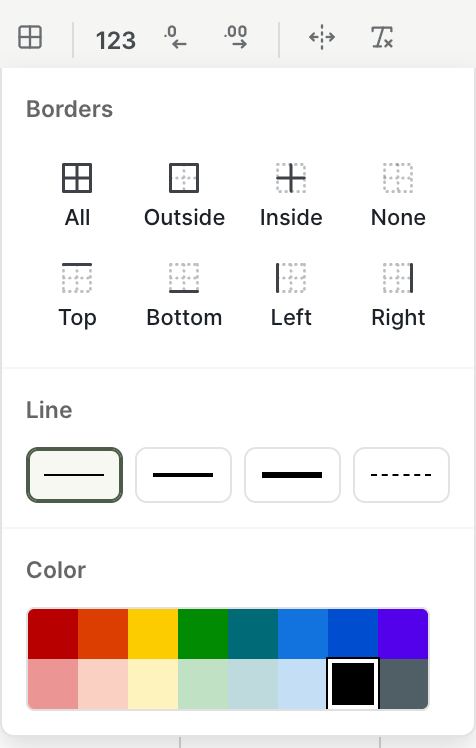
- Clear Formatting removes the cell formatting from the selected cells: bold, italic, underline, font size, text and fill colors, alignment, and borders. The column’s format and dropdown lists stay, and so do conditional formatting colors
These buttons don’t work while a whole column, a whole row, or the whole worksheet is selected, for example right after you click a column letter or a row number. To format all the cells in a column, click its first cell, then Shift-click its last cell.
Fit column widths and row heights
The Autofit button in the toolbar sizes columns and rows to fit what’s in them:
- Autofit column width resizes the selected columns to fit their longest value, up to 400 px wide
- Autofit row height makes the selected rows tall enough to show their wrapped text, up to 200 px tall. It fits up to 5,000 rows at a time
Select cells in the columns or rows you want to fit before you click Autofit. You can also choose Autofit column width by right-clicking a column’s letter or from the Column menu, and Autofit row height by right-clicking a row number or from the Row menu.
Color cells automatically
Want low stock to turn red, or missing SEO titles to stand out? Conditional formatting…, in the same column menu as Type & format…, colors cells based on their values and updates the colors when the values change. See Conditional formatting to set it up.
Quick formatting tips for Shopify data
Here are some common formatting setups that work well:
- Product prices and variant prices: Currency with 2 decimal places (the toolbar’s 123 menu does this in one click)
- Inventory quantities: Number with 0 decimals and thousand separator turned on
- Discount percentages: Percentage with 1 or 2 decimal places
- SKUs, handles, and barcodes: Text (prevents accidental number conversions)
- Created dates and publish dates: Date & Time (use
yyyy-mm-ddfor ISO, ormm/dd/yyyyfor US-style)
Troubleshooting common issues
My formulas aren’t calculating correctly
If your column is formatted as Text, values get treated as text instead of numbers. Switch the format to General or Number to fix this.
My percentages look way too big
Make sure you’re using spreadsheet-style values. In spreadsheets, 0.25 equals 25%, not 25. If you type 25, it will display as 2500%.
A formatting button doesn’t do anything
Check what’s selected. Cell formatting buttons don’t work while a whole column, row, or worksheet is selected, so select the cells themselves instead. If you can’t see the formatting buttons and an amber bar says the worksheet is locked, wait until Mixtable finishes. The buttons come back when the worksheet unlocks.
My CSV export shows dollar signs or rounded numbers
Import & Export > Export to CSV saves values the way the worksheet shows them, so a Currency column exports as $12.99, and a column set to 0 decimals exports rounded numbers. If you need plain numbers in the CSV file, switch those columns to General before you export. Export to Excel keeps the full values along with your formatting.