
Shopify Sales by Vendor Template
 Analytics Spreadsheet Updated October 21, 2026
 On this page
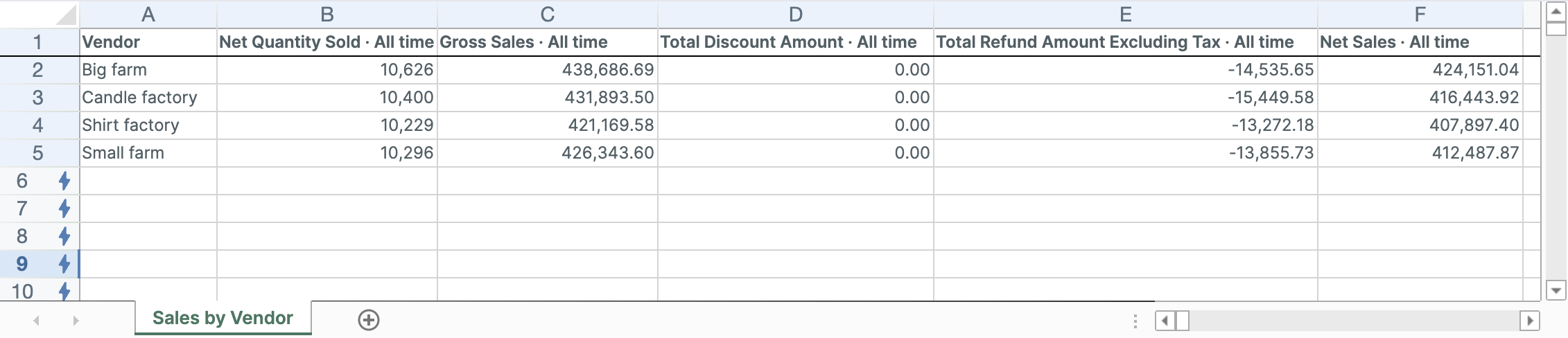
The Sales by Vendor template creates a Pivot Table worksheet with one row per Shopify product vendor. It helps compare supplier or brand performance across sales, units, discounts, refunds, and tax.
What vendor reporting tells you
Vendors are where a lot of money quietly leaks. Terms get agreed once and rarely revisited, and it is easy to keep reordering from a supplier out of habit rather than results.
One row per vendor makes the comparison concrete:
- Which suppliers earn the most, so you know where you have leverage on terms
- Which vendors need heavy discounting to sell, which is a margin problem disguised as a sales problem
- Which vendors’ products come back most often, since refunds are a supplier quality signal
- Which relationships have quietly gone flat and are worth reviewing before the next buy
Vendor is a single field on each product, so vendor rows do not overlap the way tag or collection rows can.
Metrics included
The template creates a Sales by Vendor worksheet with:
- Vendor name
- Net Items Sold
- Gross Sales
- Discounts
- Returns Excluding Tax
- Net Sales
- Taxes
The metrics use an all-time timeframe when the template is created.
Create the Sales by Vendor spreadsheet
-
Install Mixtable Analytics Spreadsheet
-
Open your Mixtable dashboard and click Create spreadsheet at the top of the page. If you haven't created a spreadsheet yet, click Browse all templates below the dashboard's suggestions instead. In the Create spreadsheet window, find Sales by Vendor under Analytics & Reporting, or type its name in the search box, and click it. Mixtable creates the spreadsheet and fills it with data from your Shopify store.
Rank vendors responsibly
Net Sales is a useful starting point, but it does not explain the whole result. Compare:
- Gross Sales to see original demand
- Discounts to see promotion dependence
- Returns Excluding Tax to see refund impact
- Net Sales to see retained merchandise revenue
- Net Items Sold to understand volume
A vendor with high Gross Sales and much lower Net Sales may depend on discounts or generate substantial refund activity.
Add order and stock context
Useful additions include:
- Orders Count
- Refunded Quantity
- Percent of Orders Refunded
- Stock metrics from the Inventory group, such as Closing Stock, Closing Value at Cost, Sell-Through Rate, Inventory Turnover, and Dead Stock Units
To add one, click + Analytics data in the header row of an empty column, or choose Column > Add Shopify data… from the menu bar. The column settings open right away: choose the metric and its time period, and click Save Column. The stock metrics show how much of each vendor’s stock is sitting unsold, which is the other half of a supplier review. See Shopify inventory analytics.
Average Order Value and the profit metrics show N/A on vendor rows. Average Order Value measures whole orders, but a vendor row only counts that vendor’s items, and one order can include products from several vendors. Profit metrics use each variant’s current Cost Per Item, so Mixtable calculates them variant by variant rather than for a whole vendor. To compare margins by vendor, add Gross Profit or % Gross Margin columns to a Products (with variants) worksheet and filter it by vendor.
Compare vendor trends
The template creates a lifetime Pivot Table worksheet. To see direction over time, add a Reporting worksheet and choose Vendor net sales by year, or create a Time Series worksheet with Vendor rows and By month columns.
A vendor can lead lifetime sales while declining recently. Keep both the total and trend views before changing a supplier relationship.
Clean vendor names in Shopify
Mixtable creates one row per distinct vendor value. Differences in spelling, capitalization, or whitespace can split one supplier across several rows.
Standardize the Shopify vendor field before using the report for purchasing decisions. If you edit vendor values with Mixtable, click Sync at the top right of the spreadsheet, review your changes in the preview that opens, then click Sync again.
To add a similar vendor report to an existing spreadsheet, add a worksheet, choose Reporting worksheet, and pick Vendor sales leaderboard under Pivot table. For more ways to compare vendors, product types, categories, and tags, see Shopify sales by product attributes.