
Customers Template
 Spreadsheet Editor Updated October 21, 2026
 On this page
The Customers template in Mixtable puts your Shopify customers into a spreadsheet, with one row per customer. It’s an easy way to get to know your customer base, find your best customers, and update customer details in bulk. Here are some ideas:
- Find your most valuable customers: sort by order count or total spend to see who buys the most, then tag them for a VIP segment, loyalty offers, or early access to new products
- Learn from your tags: if your tags record where customers came from or which campaign brought them in, compare them with order counts to see which sources bring back repeat buyers
- Win back quiet customers: add a Last order date column to see how long it’s been since each customer ordered, then group customers as active, at risk, or dormant for targeted win-back campaigns
How to load the Customers template
After installing the Mixtable Spreadsheet Editor app, create a spreadsheet from the template:
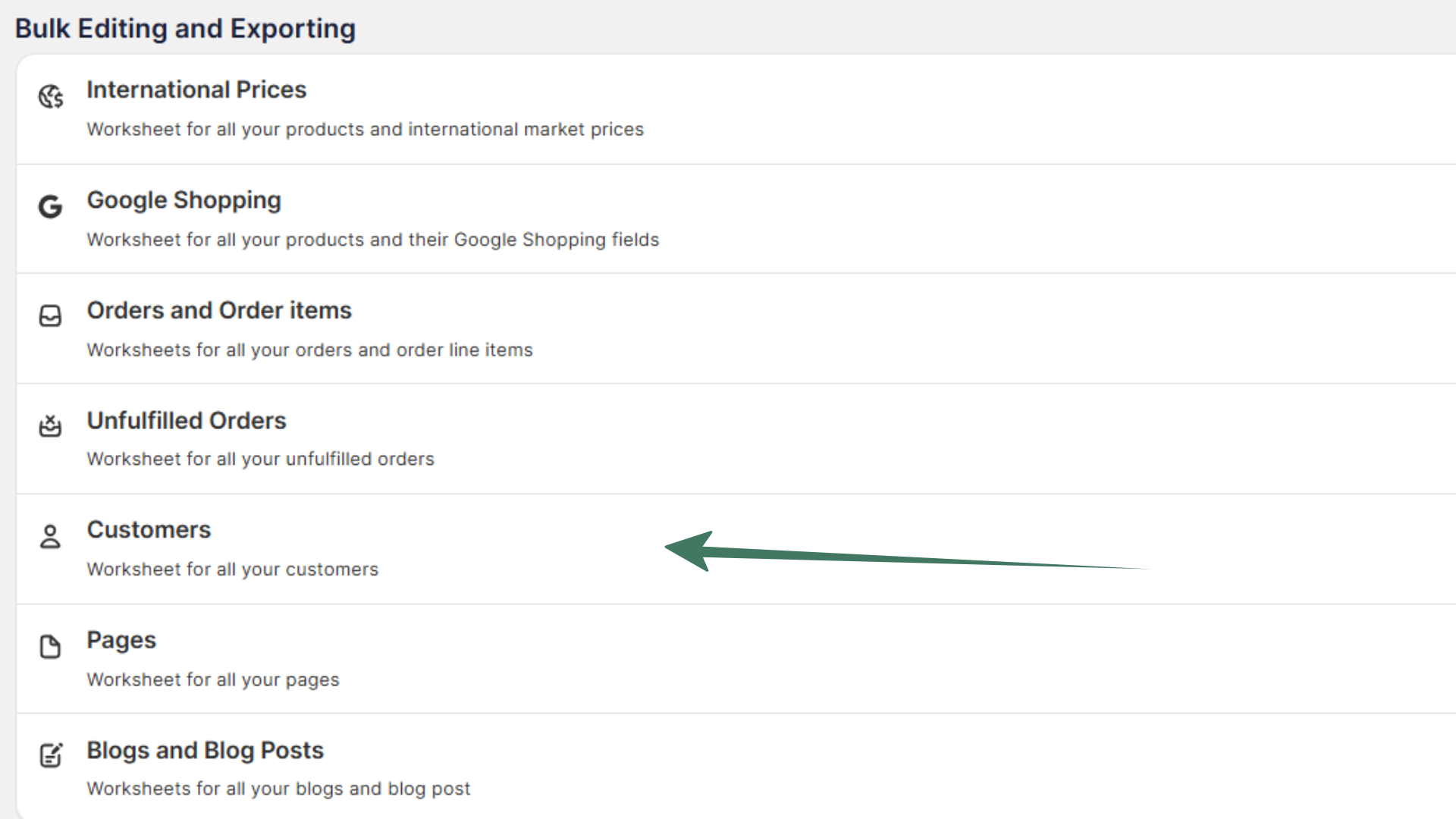
Open your Mixtable dashboard and click Create spreadsheet at the top of the page. If you haven't created a spreadsheet yet, click Browse all templates below the dashboard's suggestions instead. In the Create spreadsheet window, find Customers under Orders & Customers, or type its name in the search box, and click it. Mixtable creates the spreadsheet and fills it with data from your Shopify store.
What data is included in the Customers template
The template creates a Customers worksheet with these columns:
- Shopify ID
- First Name
- Last Name
- Language
- Total Orders
- Tags
Add more customer data
You can add a column for other customer details, such as Phone, Note, Amount spent, or the customer’s default address. The Orders & spending section also has the related data fields First order date and Last order date.
To load more Shopify data, click + Shopify data in the header row of an empty column, such as the one right after your last column. You can also choose Column > Add Shopify data… from the menu bar. The field picker opens and asks What should column E show?, with your column's letter in place of E. It lists everything the worksheet can show from Shopify, grouped into sections the way your Shopify admin groups them. Type in the search box at the top, or click a section on the left, to find the field you want.

Click the field you want, such as Phone in the Customer section or Last order date in Orders & spending, and click Save Column.
Add analytics for each customer
With the Mixtable Analytics Spreadsheet app, you can also add analytics columns that Mixtable calculates from each customer’s orders, such as:
- Total Sales
- Total Refunded Excluding Tax
- Order Count
- Segments Customer Is In
- Product Categories Bought
- Customer Lifetime Value, the customer’s net sales minus the estimated cost of what they bought
See all the customer analytics you can add.
How to add Total Sales data to your Customers spreadsheet
Total Sales for each customer shows who spends the most with you. Use it to decide where to focus your marketing, build segments for different kinds of customers, and find customers who might respond to a personalized offer. If you want profit per customer rather than revenue, add Customer Lifetime Value beside it.
Note: To add Total Sales data to your Customers spreadsheet, you need to install the Mixtable Analytics Spreadsheet app.
-
Open your Customers worksheet
-
Click + Shopify data in the header row of an empty column, or choose Column > Add Shopify data… from the menu bar. The field picker opens
-
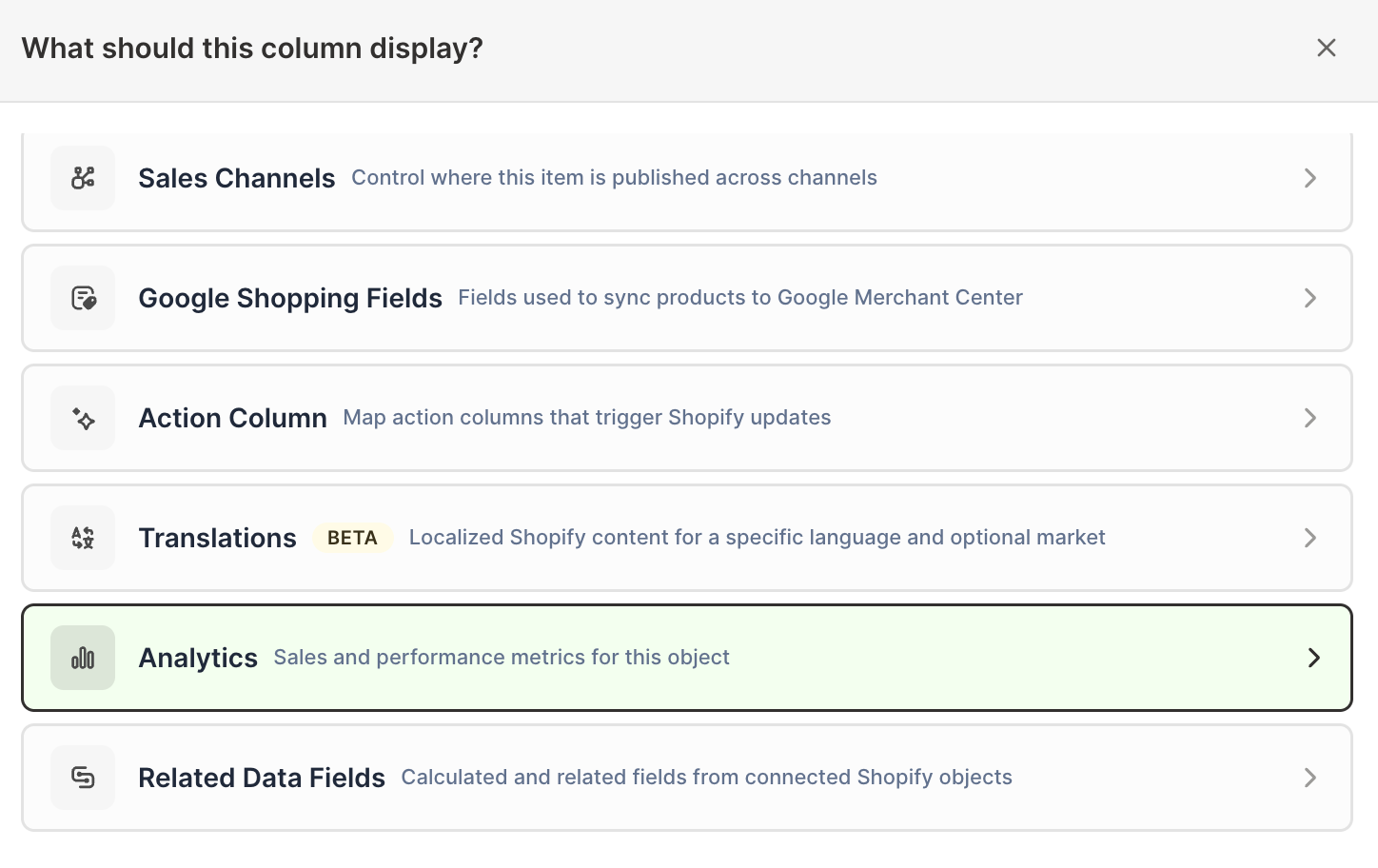
Click Sales & analytics in the list of sections on the left, or type the metric's name in the search box
-
Click Total Sales. The metric's settings open with it already chosen under Which metric?
-
Under Over what time period?, choose All time, Fixed dates, Rolling period, Calendar year, or Calendar month
-
Under Limit which orders count, add any optional filters supported by the metric
-
Click Save Column
For the time period, Rolling period with Last 30 days always covers the most recent 30 days, so the column stays current on its own. You can add other analytics columns the same way.
Frequently asked questions
Can I see which segment a customer is in?
Yes. With Mixtable Analytics Spreadsheet, you can add a column that lists each customer’s Shopify segments.
Note: To add Segments Customer Is In data to your Customers spreadsheet, you need to install the Mixtable Analytics Spreadsheet app.
-
To load more Shopify data, click + Shopify data in the header row of an empty column, such as the one right after your last column. You can also choose Column > Add Shopify data… from the menu bar. The field picker opens and asks What should column E show?, with your column's letter in place of E. It lists everything the worksheet can show from Shopify, grouped into sections the way your Shopify admin groups them. Type in the search box at the top, or click a section on the left, to find the field you want.
-
Click Sales & analytics in the list of sections on the left, or type segments in the search box
-
Click Segments Customer Is In. Its settings open with the metric already chosen. This metric doesn’t need a time period
-
Click Save Column
Each cell lists the segments that customer belongs to, separated by commas, for example: Customers who have purchased at least once, Customers who have purchased more than once.
Can I delete customers in bulk?
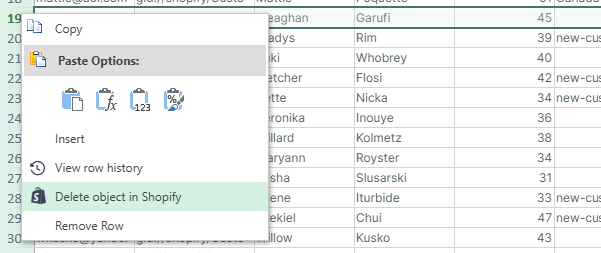
Yes. You can delete customers in Shopify right from your Customers worksheet. First, use filtering or sorting to find the customers you want to remove. To select several rows, click a row number and drag across the others, just like in Excel. Then:
- To delete one customer, right-click its row number and choose Delete customer in Shopify…. To delete several at once, select their rows, then right-click one of the selected row numbers (or open the Row menu) and choose the option, which shows the count, for example Delete 3 customers in Shopify…
- In the Delete Shopify Objects window, check the list of what will be deleted. This cannot be undone
- Click Delete, then click Are you sure?? to confirm
- Mixtable asks Shopify to delete the customer. Once Shopify has deleted it, Mixtable clears the row and leaves it empty. To tidy up, choose Worksheet > Remove Empty Rows
Only the spreadsheet's owner can delete in Shopify, and only on rows linked to Shopify. Deleting also needs Mixtable Spreadsheet Editor installed in your store: if your store has only Mixtable Analytics Spreadsheet or Mixtable Export: Excel & CSV, the window says "Deleting in Shopify needs Mixtable Spreadsheet Editor" and nothing is deleted. If the worksheet is filtered, hidden rows are left alone.
Shopify only lets you delete customers who have no orders. To delete a customer who has placed orders, delete their orders in Shopify first.