Shopify Orders Spreadsheet: the Orders and Order Items Template
 Spreadsheet Editor Updated October 21, 2026
 On this page
- How to load the Orders and Order Items template
- How to use the Orders and Order Items template
- Shopify data included in the Orders and Order Items template
- Add more data to the Orders and Order Items template
- Bulk edit Shopify orders from the spreadsheet
- Export or print your orders
- Analyze orders data with spreadsheet tools
- Frequently asked questions
The Orders and Order Items template in Mixtable Spreadsheet Editor puts your Shopify orders into a spreadsheet. It creates one worksheet for your orders and another for the individual items in them, and loads the date range you choose. New orders and changes made in Shopify come into the spreadsheet automatically, so it never goes stale.
With your orders in a spreadsheet, you can filter and sort them any way you like, bulk edit details such as tags and notes, and export exactly the columns you need to Excel or CSV.
How to load the Orders and Order Items template
After installing the Mixtable Spreadsheet Editor app, create a spreadsheet from the template:
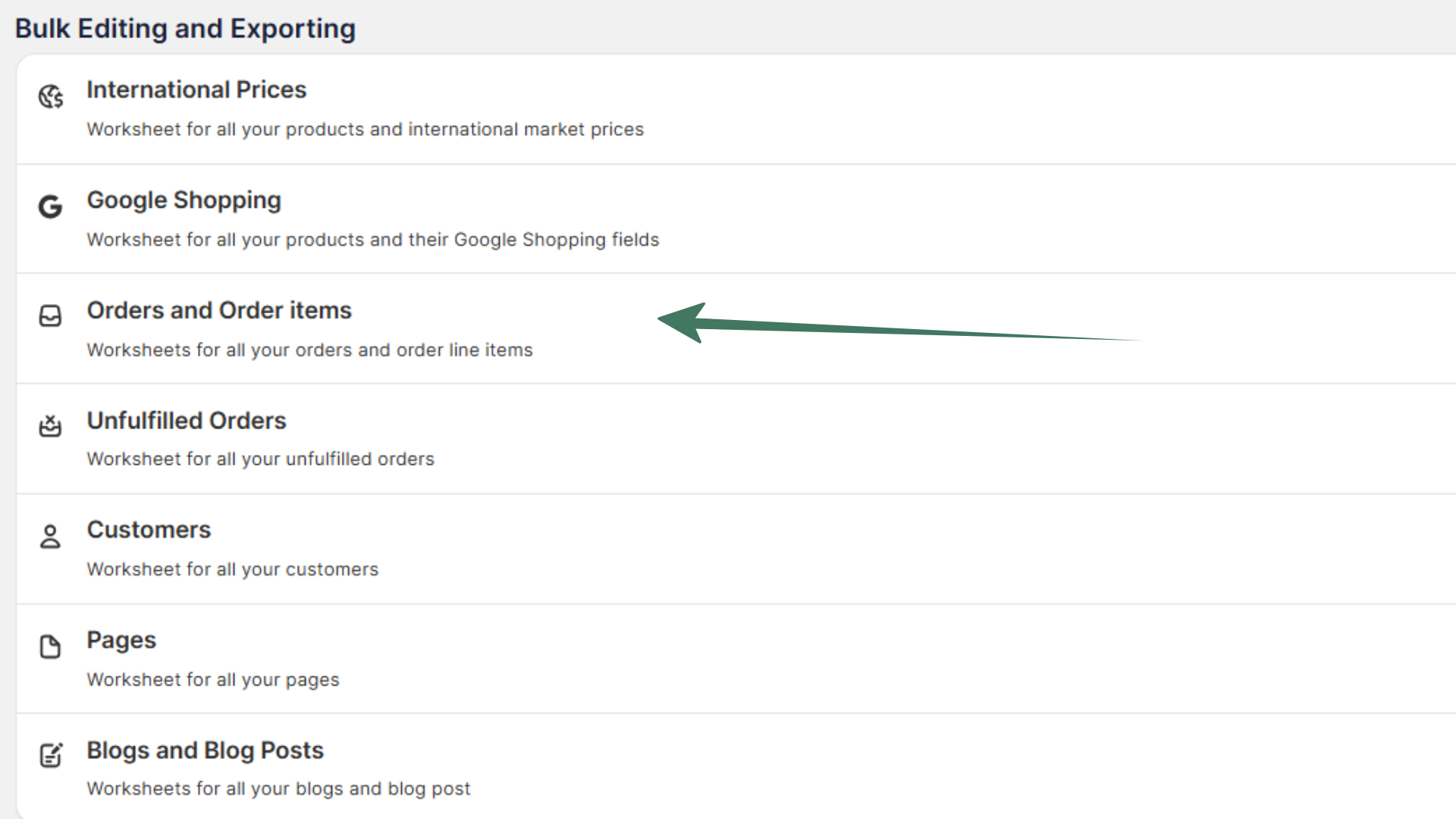
Open your Mixtable dashboard and click Create spreadsheet at the top of the page. If you haven't created a spreadsheet yet, click Browse all templates below the dashboard's suggestions instead. In the Create spreadsheet window, find Orders and Order Items under Orders & Customers, or type its name in the search box, and click it. Mixtable creates the spreadsheet and fills it with data from your Shopify store.
The template’s card has a start-date drop-down set to Since 1 month ago. To load older orders, choose an earlier date, or All orders, before you click the template. New orders are added automatically as they come in from Shopify.
How to use the Orders and Order Items template
Here’s what you can use the template for:
-
Order management: follow each order’s status as it changes, and update supported order details in bulk without opening each order in Shopify. At a glance, you can check:
- Financial status, such as paid, authorized, or refunded
- Fulfillment status, such as fulfilled or unfulfilled
-
Customer behavior:
- See whether customers tend to buy several items at once or one item at a time
- Keep an eye on fulfillment times, since delays are a common reason for unhappy customers
-
Inventory planning:
- Find your best-selling items so you can restock before they run out
- Spot items with few or no orders, which may need a markdown, a promotion, or removal from your catalog
-
Pricing: see which price points sell well and whether discounts lead to more sales
-
Seasonal trends: find your busiest and quietest periods
-
Sales by region: count how many orders come from each country, city, or postal code
Shopify data included in the Orders and Order Items template
The template creates two worksheets: Orders, an Orders (no line items) worksheet, and Line Items, an Orders (with line items) worksheet.
The Orders worksheet has one row per Shopify order. Its columns cover:
- Order name, Shopify ID, customer email, creation date, tags, and notes
- Financial status, fulfillment status, prices, discounts, and taxes
- Payment due date, payment-term length, overdue status, payment-term name, and payment-term type
- First Fulfillment Date, Delivery Date, Fulfillment Service, and Fulfillment Tracking Carriers
- Many more order details, such as discount codes, customer details, and shipping and billing addresses
The Line Items worksheet has one row for each item sold. Its columns cover:
- Order name, customer email, and order creation date
- Line item name, Shopify ID, product and variant IDs, price, and quantity
- Whether the item requires shipping, SKU, vendor, and discounts
- The order’s totals, financial status, fulfillment status, and payment terms
For a closer look at the payment-term fields, see track Shopify order payment terms.
Add more data to the Orders and Order Items template
You can add columns for any other order data your store needs, for example:
- Cost data, such as fees and shipping
- Tax data, such as estimated tax, included tax, and total tax
Here’s how:
-
Open your Orders or Line Items worksheet. To put the new column between existing ones, insert an empty column there first: right-click the letter of the column it should go before and choose Insert column to the left
-
To load more Shopify data, click + Shopify data in the header row of an empty column, such as the one right after your last column. You can also choose Column > Add Shopify data… from the menu bar. The field picker opens and asks What should column E show?, with your column's letter in place of E. It lists everything the worksheet can show from Shopify, grouped into sections the way your Shopify admin groups them. Type in the search box at the top, or click a section on the left, to find the field you want.

-
Click the field you want, then click Save Column. There are dozens to choose from, such as:
- Tax details, such as Customer tax exempt or Current taxes
- Fees, such as Current additional fees
- Discounts, such as Current discounts
- Payment terms, such as Payment due date and Payment terms overdue
- Customer details, such as the customer’s name, phone, and tags
Add related data for Metafields, Vendors, Product Types, etc. to your Shopify Orders (no line items) worksheet
Connecting order details with Metafields, Vendors, Product Types, etc. information used to mean VLOOKUP formulas. Not anymore! Mixtable now puts this data directly within your reach. Here's how to do it:
If you have already created a Mixtable spreadsheet with your Shopify Order information, you can quickly add related data to it.
Note: The worksheet needs to show order information, e.g., you can use the Orders and Order Items template spreadsheet, or the Orders (no line items) or Orders (with line items) worksheets.
Click + Shopify data in the header row of an empty column, or choose Column > Add Shopify data… from the menu bar.
- In the field picker, click Products in the order in the list of sections on the left. It holds the details of the products in each order, such as Product vendors, Product types, Variant SKUs, and Product metafields. Fulfillment details, such as Fulfillment count, are in the Fulfillment section
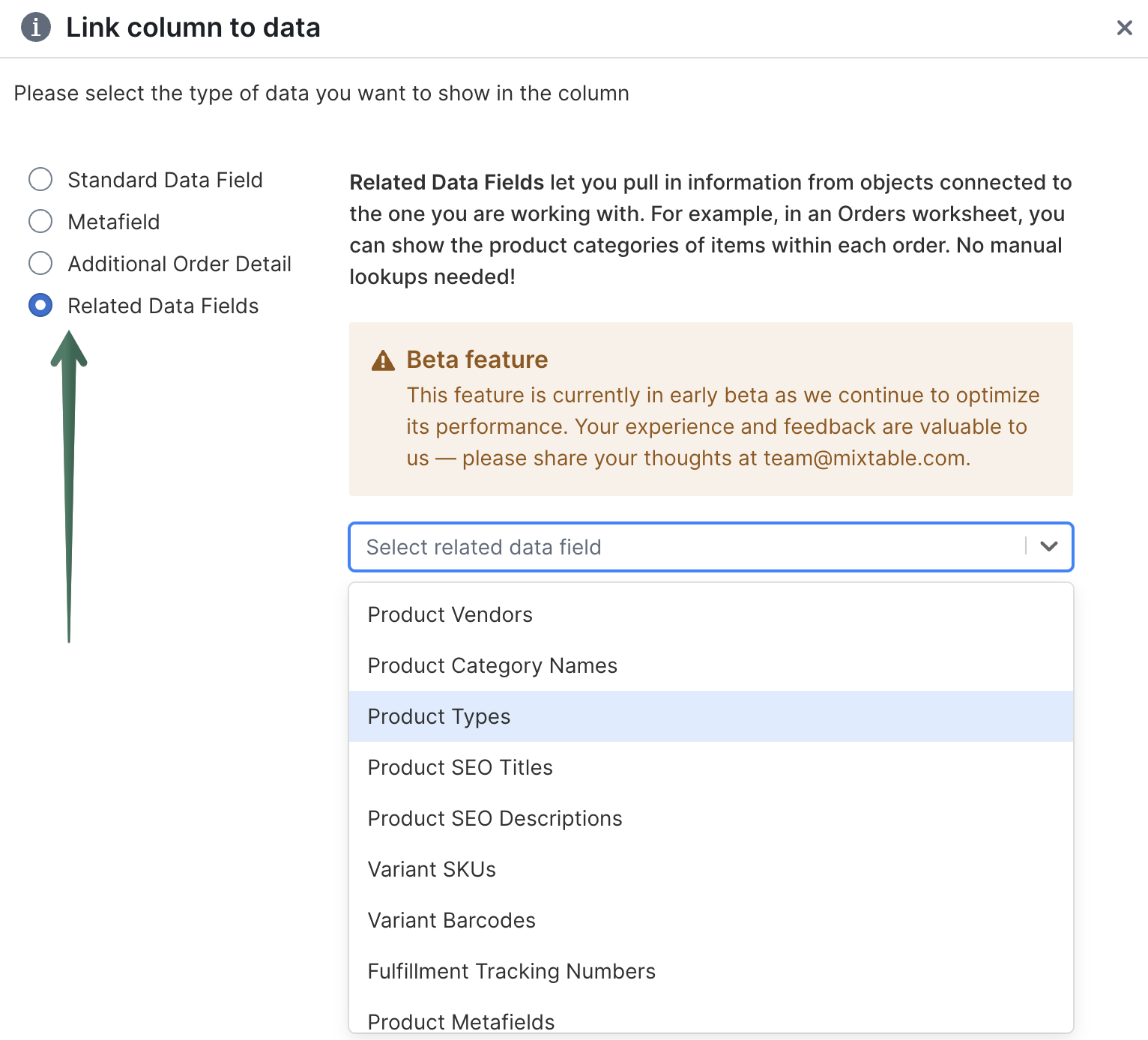
- Click the field you want. If the panel on the right asks how to combine the values, or which metafield to use, make your choice
- Click Save Column
- Allow some time for the data to appear in the column, and you are ready!
Find more about Related Data Fields functionality here.
Related data fields can also add the type, amount, or percentage of discounts applied to an order, from the Discounts section. See related data fields for the full list.
Bulk edit Shopify orders from the spreadsheet
Some order details can be changed right in the spreadsheet and synced back to Shopify:
- Order tags, with the Tags column or the Bulk Edit menu’s Add tags and Remove tags
- Order notes and the editable shipping address fields
- Order metafields, such as gift messages or delivery instructions
- The customer on an order, through the customer email column
- Payment status, by marking orders as paid with an Action column
Other details, such as financial status, fulfillment status, line items, and refunds, are read only: you can view, filter, and export them, but not change them. As with any edit in Mixtable, nothing reaches Shopify until you click Sync, check your changes in the preview that opens, and click Sync again.
Export or print your orders
To get your orders out of Mixtable, choose Import & Export in the menu bar. Export to Excel downloads the whole spreadsheet with both worksheets, and Export to CSV downloads the worksheet you have open. See export Shopify orders for the extra fields worth adding first, such as tracking numbers and line item properties.
Need a pick list for the warehouse? Choose File > Print… on the Line Items worksheet to print a pick list with a tick box on each row.
Analyze orders data with spreadsheet tools
Because your orders are in a spreadsheet, you can use familiar tools to work with them:
- Sort in ascending or descending order
- Find and replace text across a column
- Filter to show only the rows you need
- Use formulas, for example to add up totals or count orders
Frequently asked questions
Can I have a list of unfulfilled orders that drops each order once it’s fulfilled?
Yes. The quickest way is the Unfulfilled Orders template. To add the same kind of list to a spreadsheet you already have, create a conditional worksheet that only loads unfulfilled orders:
- Click the + button at the end of the worksheet tabs, choose Shopify data worksheet, and click Continue
- Select Orders (no line items)
- Choose and arrange the columns you need, then click Continue
- Select Only rows that match a condition
- Create the rule Order Fulfillment Status Equals Unfulfilled
- Click Create Worksheet
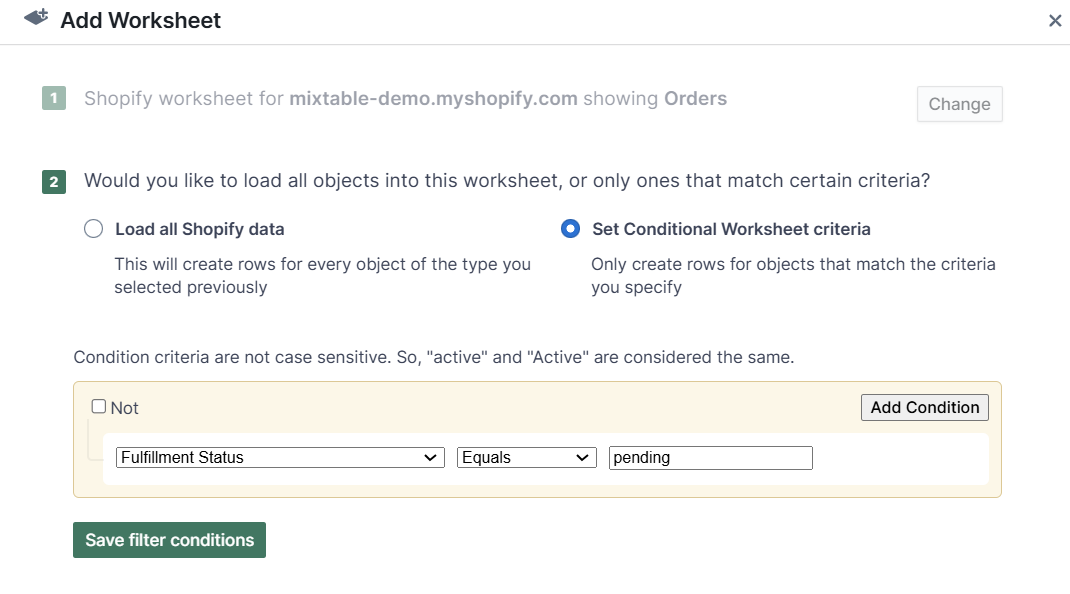
The worksheet now shows your unfulfilled orders. When an order is fulfilled, its row may become empty. To remove those rows, use the Empty rows detected notice or choose Worksheet > Remove Empty Rows. See find and remove empty worksheet rows for more information.
Can I view the orders placed by a particular customer?
Yes, and it’s easy:
- Open your Orders worksheet and turn on filtering
- In the Customer Email Address column, filter for the email address of the customer whose orders you want to see
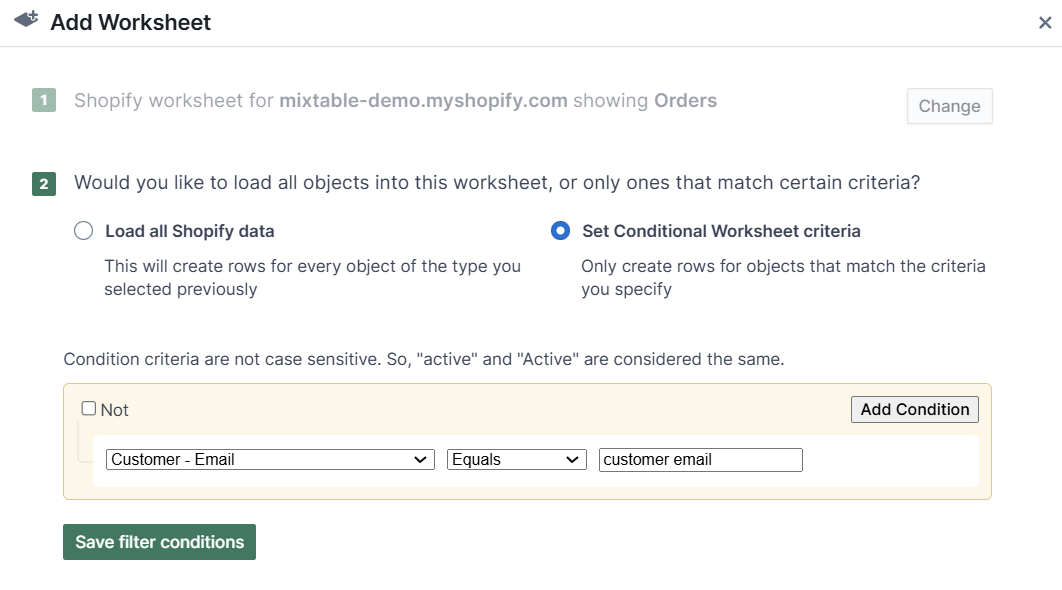
You can also add a conditional worksheet that only shows this customer’s orders:
- Click the + button at the end of the worksheet tabs, choose Shopify data worksheet, and click Continue
- Select Orders (no line items)
- Choose the columns you need and click Continue, then select Only rows that match a condition
- Create the rule Customer Email Equals the customer’s email address
- Click Create Worksheet
Can I see products that have no sales?
Yes. You can find products and variants with no sales using the Mixtable Analytics Spreadsheet app:
-
Install the Mixtable Analytics Spreadsheet app
-
Open your Mixtable dashboard and click Create spreadsheet at the top of the page. If you haven't created a spreadsheet yet, click Browse all templates below the dashboard's suggestions instead. In the Create spreadsheet window, find Product Sales by Month under Analytics & Reporting, or type its name in the search box, and click it. Mixtable creates the spreadsheet and fills it with data from your Shopify store.
Product Sales by Year works the same way, with one column per year instead
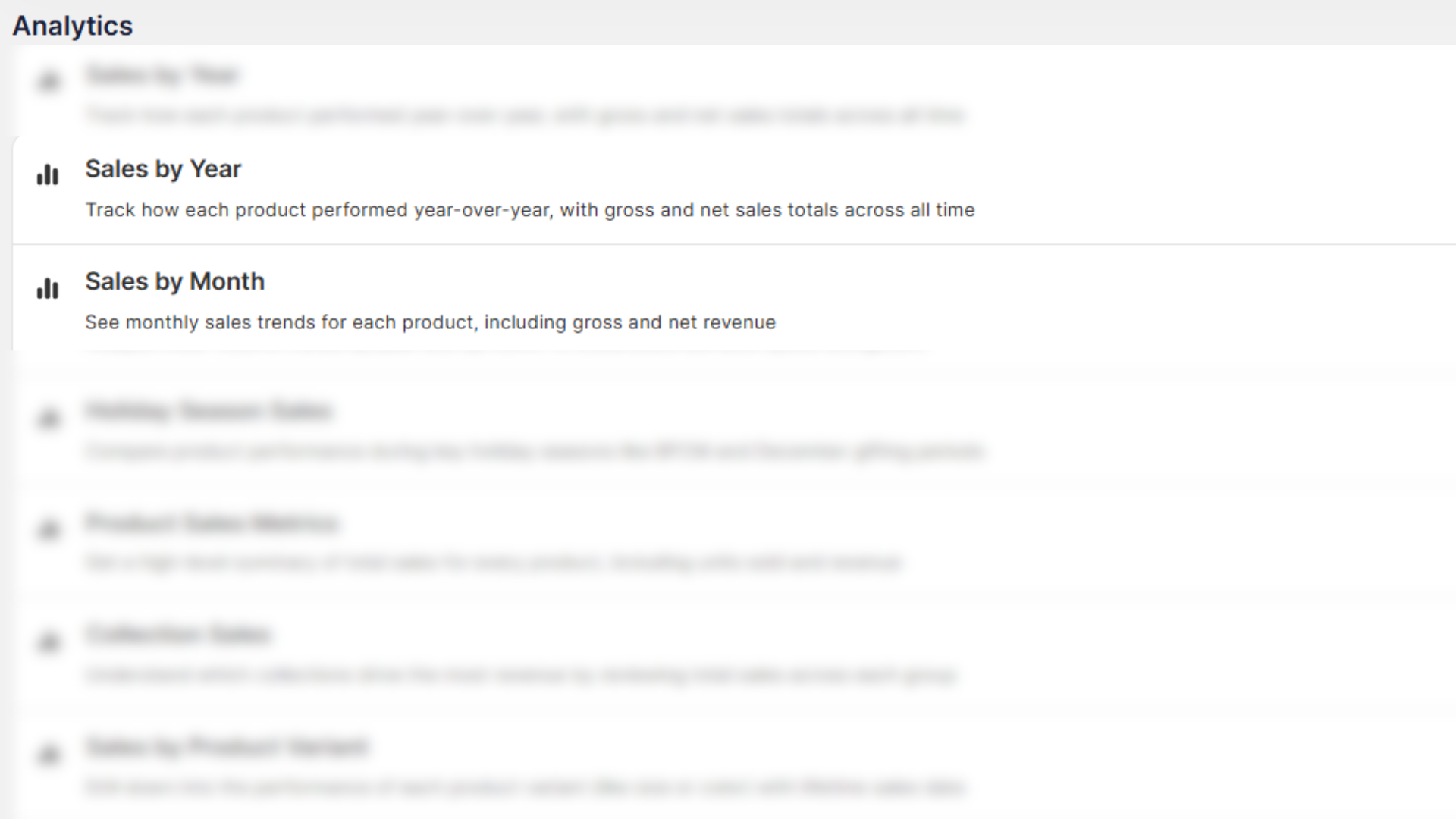
The template creates a Net Sales Report worksheet and a Gross Sales Report worksheet. Each one has these columns:
- Product Title
- Handle
- Net Sales (or Gross Sales) for all time
- Net Sales (or Gross Sales) for each of the last 24 calendar months, or for each year with Product Sales by Year
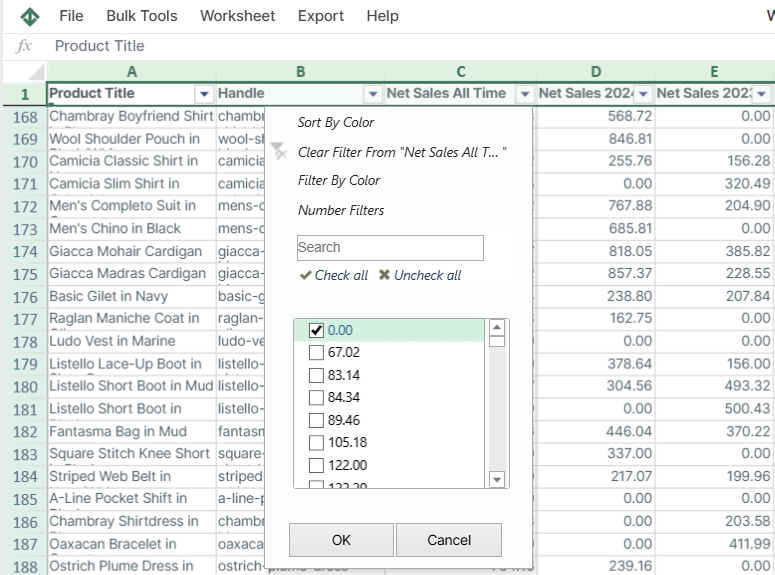
Now filter a Net Sales column for values equal to zero to see the products with no sales, either for all time or for a particular month or year.