
How to manage Shopify inventory in bulk
 Spreadsheet Editor Updated October 21, 2026
 On this page
- How Shopify stores inventory
- Set up your inventory spreadsheet
- Update stock levels in bulk
- Turn on tracking and set the inventory policy
- Import stock counts from a file or another system
- Work safely and keep the sheet current
- Everything you can do with inventory in Mixtable
- Mixtable or the Shopify admin?
- Go further: inventory value and stock history
- Frequently asked questions
 How to manage Shopify inventory in bulkVideo walkthrough
 To manage Shopify inventory in bulk with Mixtable Spreadsheet Editor, open your variants in a spreadsheet with a stock column for each location. Change the numbers by typing, pasting, filling down, or using formulas, then preview your changes and click Sync. Mixtable updates the stock in Shopify for every cell you changed, all at once.
That beats the two usual options. The Shopify admin’s bulk editor has no formulas or percentage changes, so you work out and enter every new number yourself, which is fine for ten SKUs and painful for a thousand. The CSV round trip, where you export, fix the file in Excel, and import it back, is slow and easy to get wrong.
This guide starts with how Shopify stores inventory, then walks through each inventory job in a Mixtable spreadsheet, in the order you’re likely to need them.
What this guide covers
- How Shopify stores inventory
- Set up your inventory spreadsheet
- Update stock levels in bulk
- Turn on tracking and set the inventory policy
- Import stock counts from a file or another system
- Work safely and keep the sheet current
- Mixtable or the Shopify admin?
- Go further: inventory value and stock history
How Shopify stores inventory
Three things are worth understanding before you change anything, because they explain the shape of every tool in this guide.
Inventory belongs to variants, not products. This is true even when a product looks like it has no variants, because Shopify always creates one behind the scenes. A t-shirt in three sizes and two colors has six variants and six independent stock numbers. Any tool that claims to set “the inventory of a product” is really setting the inventory of its variants.
Inventory is tracked per location. If you have a warehouse, a retail shop, and a third-party fulfillment center, each variant has a separate quantity at each one. Shopify decides what is sellable by adding up the locations that serve your online store.
Each variant and location pair has several quantity states, not one number. Shopify splits stock into states so you can tell the difference between goods you can sell and goods that are spoken for.
| Quantity state | What it means | Can Mixtable write it back to Shopify? |
|---|---|---|
| Available | Stock you can still sell | Yes |
| On hand | Everything physically at the location, including committed stock | Yes |
| Committed | Attached to orders that are placed but not yet fulfilled | Read only |
| Incoming | On its way to the location | Read only |
| Reserved | Held back from sale | Read only |
| Damaged | At the location but not sellable | Read only |
| Safety stock | Held as a buffer | Read only |
| Quantity control | Held for quality control | Read only |
The read only states still matter, because you can pull them into a spreadsheet alongside the ones you edit. Seeing Committed next to Available is what tells you whether a low number is a real problem or just a busy morning.
Note: Shopify only holds quantities for variants that have inventory tracking turned on. If tracking is off, the variant sells indefinitely and has no stock number at all. Turning tracking on in bulk is covered below.
Set up your inventory spreadsheet
Mixtable puts your Shopify store into a spreadsheet that stays connected to it. Stock levels arrive as columns, you edit them the way you would edit any spreadsheet, and nothing reaches Shopify until you click Sync.
That connection is the important part. This is not an export you fix up and re-import. The numbers in the sheet are the numbers in your store, and changes made in Shopify flow back into the sheet automatically.
Start from the Inventory template
The fastest way in is the prebuilt Inventory template.
Open your Mixtable dashboard and click Create spreadsheet at the top of the page. If you haven't created a spreadsheet yet, click Browse all templates below the dashboard's suggestions instead. In the Create spreadsheet window, find Inventory under Inventory & Pricing, or type its name in the search box, and click it. Mixtable creates the spreadsheet and fills it with data from your Shopify store.
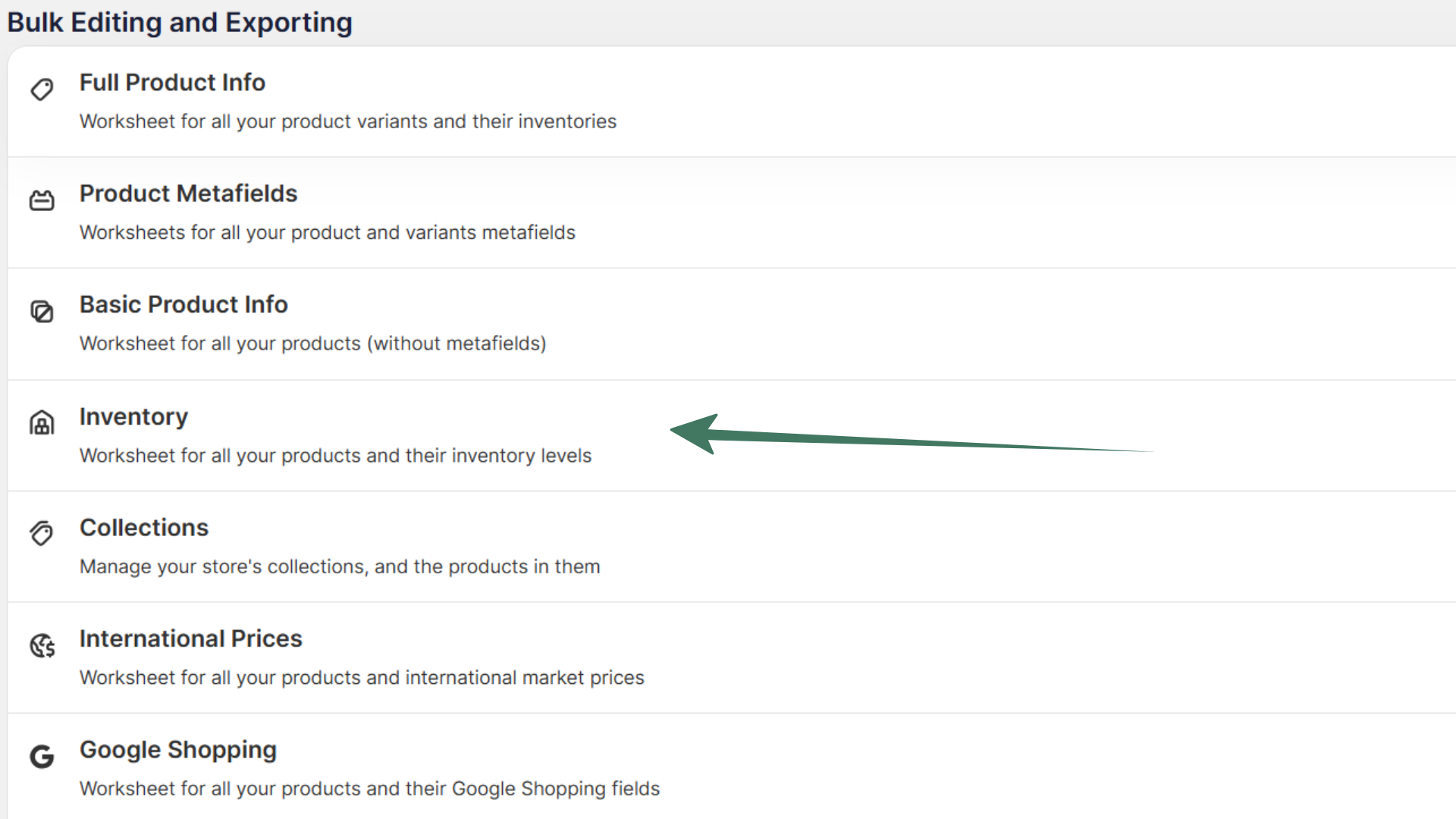
Mixtable builds a worksheet with one row per variant, containing the product title, handle, and up to three variant options, then adds an Available stock column for every location in your store, headed with the location’s name (for example Main Warehouse / Available). If you have four locations, you get four editable stock columns side by side.

For a fuller walkthrough of the template and the decisions it supports, see the Inventory template article.
Add inventory columns to any product worksheet
If you already have a worksheet you like, you can map inventory into a spare column instead of starting over. This works on any Products (with variants) worksheet, where each row is a variant, such as the one the Full Product Info template creates.
- Click + Shopify data in the header row of an empty column, or choose Column > Add Shopify data… from the menu bar. The field picker opens and asks What should column E show?, with your column’s letter in place of E
- Click Inventory in the list of sections on the left, or type stock in the search box
- Under By location, click Stock at followed by the location you want, such as Stock at Headquarters. If you added a location in Shopify recently, click Refresh in the Inventory heading to pull it in
- In the panel on the right, choose which count to show, for example Available or On hand. Click Show 4 more counts for the others, such as Damaged or Safety stock
- Click Save Column
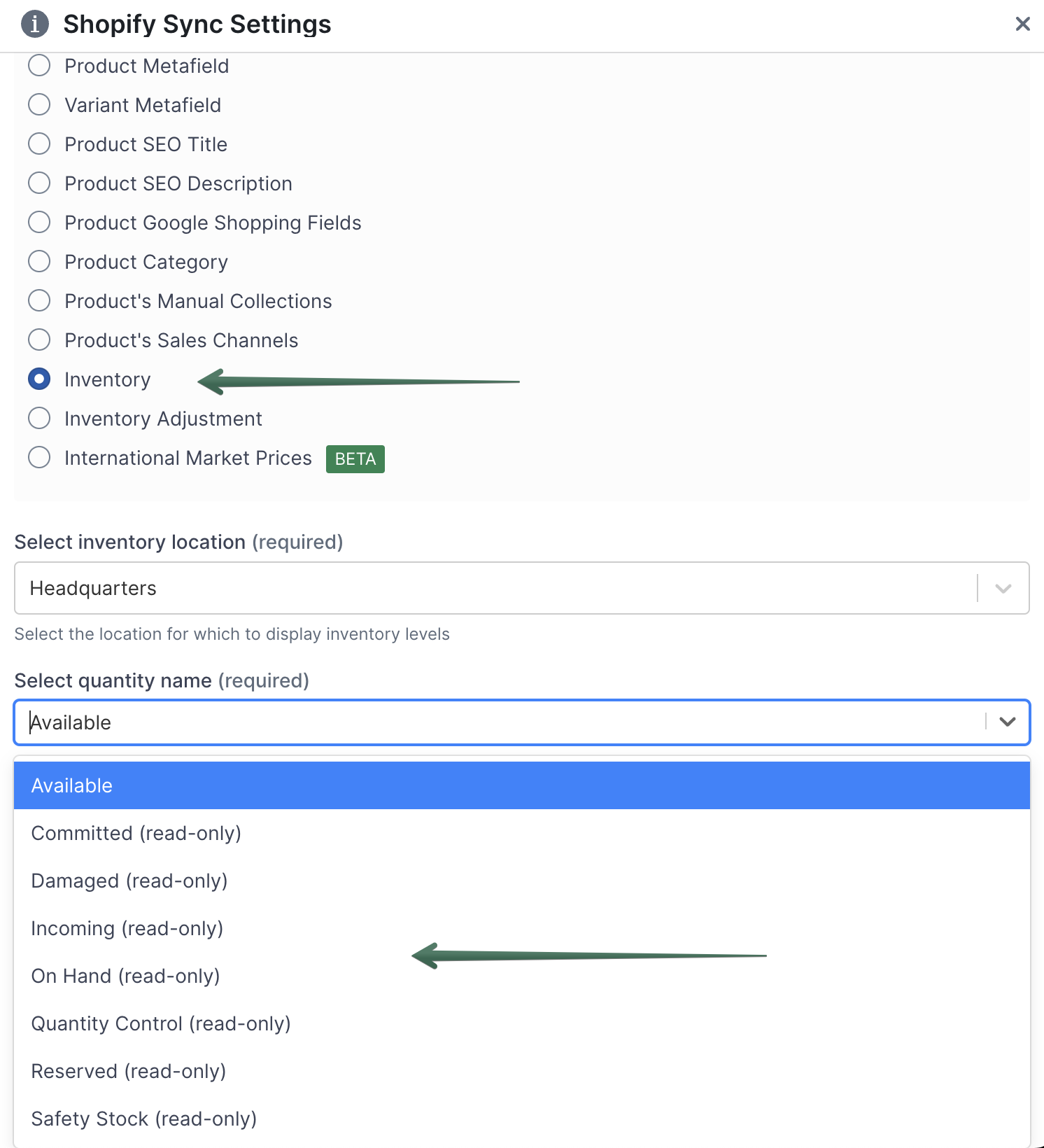
To put the column in a particular spot, insert an empty column there first: right-click the letter of the column it should go before and choose Insert column to the left. The new column gets its own + Shopify data button to click in the first step. And when you add a new Products (with variants) worksheet, the Choose your columns step already offers an Available inventory @ column for each of your locations.
The column fills with each variant’s stock at that location, headed with the location and the count, such as Headquarters / Available. Repeat for every location and quantity combination you want visible. There is no limit, so a sheet showing Available and Committed at three locations is six columns and perfectly normal.
Update stock levels in bulk
Set inventory quantities and sync them to Shopify
Once the columns exist, changing stock is ordinary spreadsheet work.
- Find the cell for the variant and location you want to change, and type the new number
- The cell turns light yellow, which means the change is saved in Mixtable but has not gone to Shopify yet
- When you are happy with everything you have changed, click Sync at the top right of the spreadsheet, review your changes in the preview that opens, then click Sync again
The yellow highlight is deliberate. You can edit fifty cells across three locations, walk away, come back, check your work, and only then push. Nothing is sent to your store until you ask for it.
Change many cells at once
Typing into cells one at a time is the slowest option available to you, and often not the right one. Everything a spreadsheet gives you for editing numbers in bulk works on inventory columns.
-
Bulk number changes applies one operation to every visible row of the column you choose: Add, Subtract, Increase by %, Decrease by %, Multiply, or Divide. Open it from Bulk Edit > Bulk number changes in the menu bar, or right-click a stock column’s letter and choose Bulk number changes… to open it with that column already chosen. To change only some rows, filter the worksheet first. Keep Preview first 10 rows on to see the result before committing, and turn on Round results to keep whole units
-
Copy and paste moves a block of numbers between locations, or brings a column in from a supplier’s spreadsheet
-
Click and drag fills the same value down a column, which is how you set every variant of a discontinued line to zero in one gesture
Adjust inventory up or down instead of setting it
Setting inventory to an absolute number has a race condition built into it. If a customer buys two units in the moment between you reading the sheet and clicking sync, your “correct” number is now wrong by two.
Adjustment columns solve this. Instead of stating what the total should be, you state the change, and Shopify applies it to whatever the current value is.
To set one up on a Products (with variants) worksheet, click + Shopify data in the header row of an empty column, click Inventory in the field picker’s list of sections, click Add or remove stock at followed by a location’s name, and click Save Column.
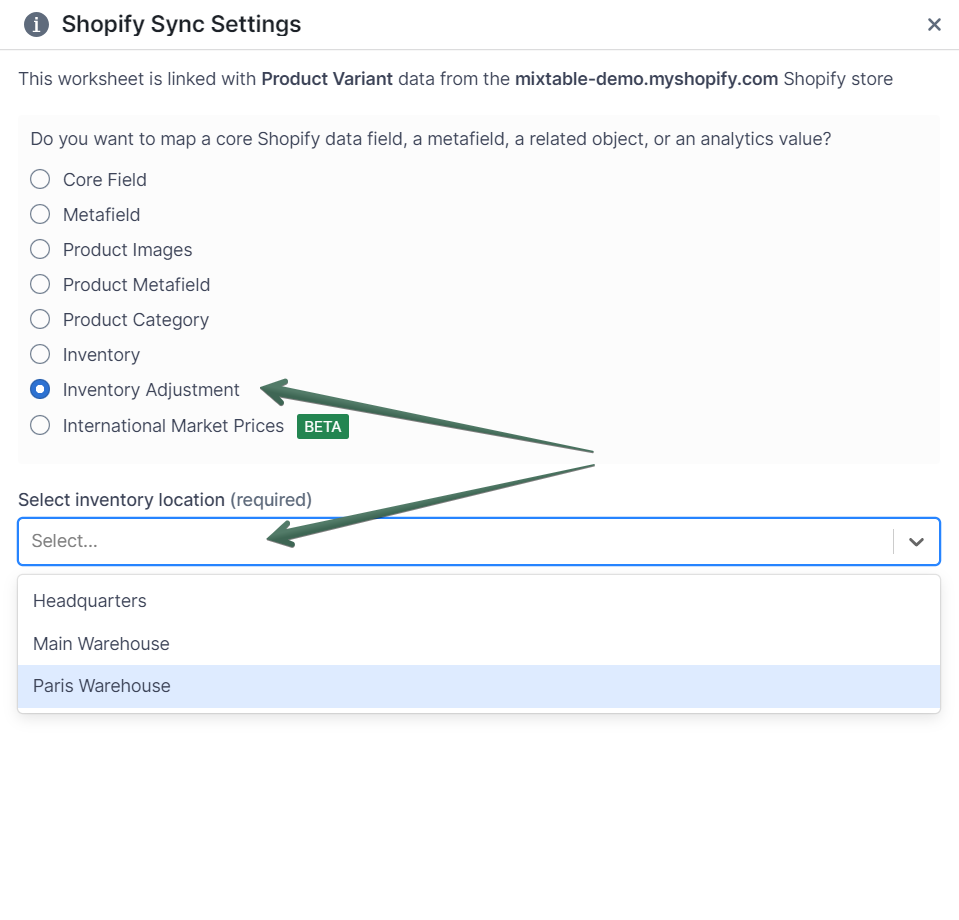
The column starts empty. Enter a positive number to increase stock and a negative number to decrease it, then click Sync.
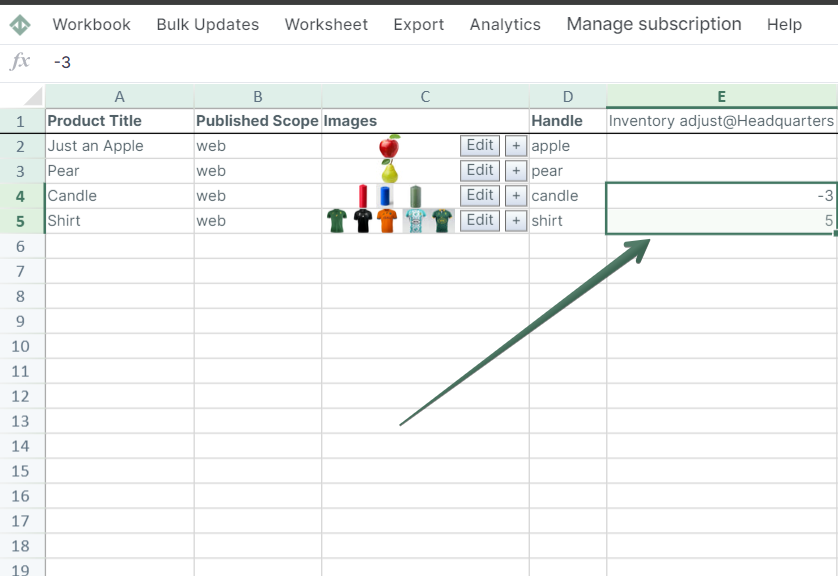
Once an adjustment has been applied, Mixtable clears the cell. That is the correct behavior for a column that describes a change rather than a state, and it means you can never apply the same delivery twice by accident.
Use adjustments when you are recording a real-world event: a delivery arrived, a stocktake found three extra, a pallet was damaged. Use direct values when you have an authoritative count and want the store to match it. There is more detail in Adjust the inventory quantity for your Shopify products.
Manage inventory across multiple locations
Multi-location is where the spreadsheet earns its keep, because your whole catalog sits in one grid with every location side by side, and formulas, paste, and fill down work across all of them.
Map a column for each location, as described above, and you get a matrix: variants down the side, locations across the top, quantities in the middle. From there you can compare stock across your network at a glance, spot the warehouse holding all of a slow seller, move a block of numbers from one location to another by copying and pasting, and edit several locations for the same variant in a single row before syncing once.
The dedicated guide is Bulk edit Shopify multi-location inventory.
Use formulas to work out the numbers for you
Inventory columns are real spreadsheet cells, so formulas work on them, and the result of a formula syncs to Shopify exactly like a typed number.
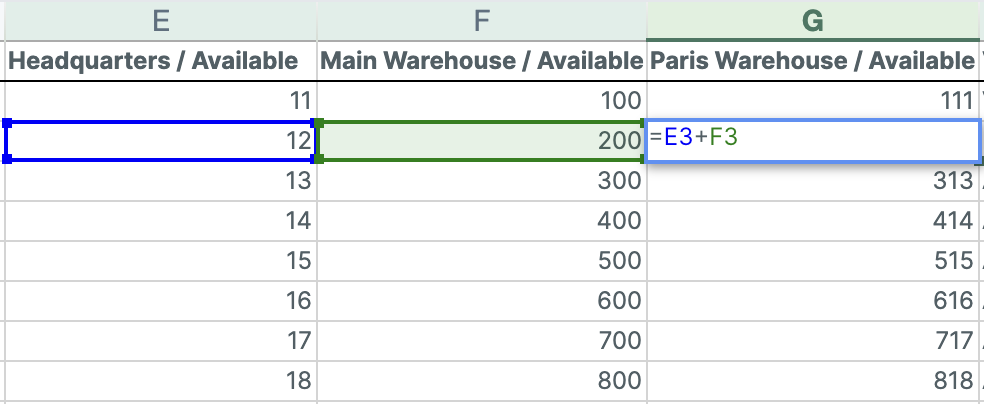
Supply satellite locations from a main warehouse. If two shops are stocked from a central warehouse, a formula can keep the warehouse figure honest as you allocate stock outward, instead of you doing the arithmetic in your head.
Flag what needs reordering. An IF formula in a spare column turns a wall of numbers into a short list of actions:
=IF(StockColumn<5, "Reorder", "In Stock")
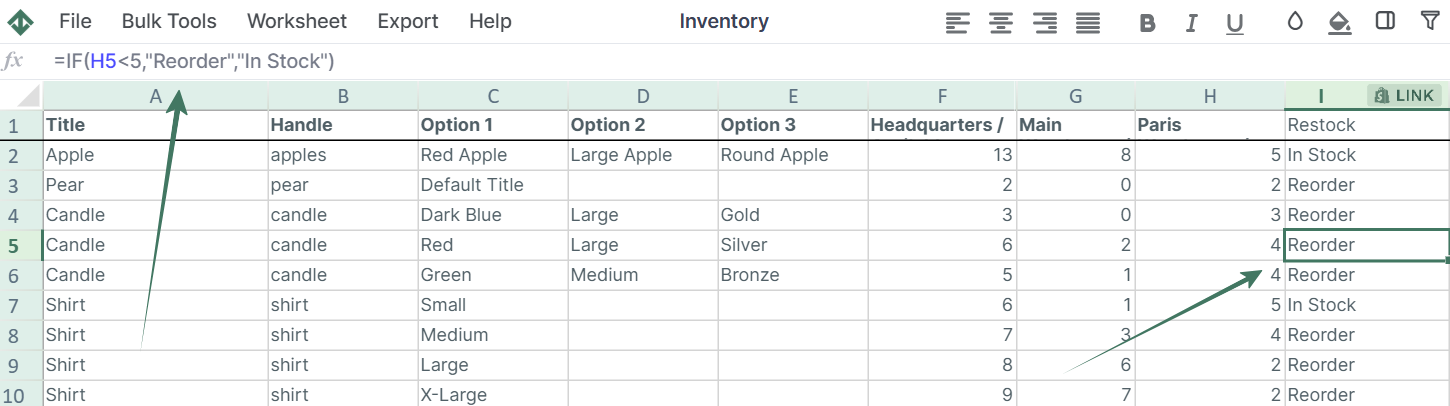
Sort or filter on that column and your reorder list writes itself. The same trick flags overstock, using a high threshold instead of a low one. For stock that isn’t selling at all, the dead stock metrics in Mixtable Analytics Spreadsheet do the counting for you. See sell-through, turnover, and dead stock.
To color the stock cells themselves, use conditional formatting. Right-click the stock column’s letter, choose Conditional formatting…, and add a rule such as is less than 5 with a red fill. The colors update whenever the numbers change, including when new stock levels come in from Shopify. See Conditional formatting.
Turn on tracking and set the inventory policy
Turn on inventory tracking for many products at once
Shopify will not hold a quantity for a variant unless tracking is on. Doing that product by product in the admin is exactly the sort of job that eats an afternoon. There are two ways to handle it in bulk.
Just set the quantity. If you enter a stock number for a variant that is not currently tracked, Mixtable turns tracking on for you during the sync, then sets the value. This works for both inventory columns and adjustment columns, so most of the time you do not need to think about tracking at all.
Set the tracking field directly. Map a column to the variant field Track quantity and set it to true or false. This is the option to use when you want to audit tracking across the catalog, or turn it off for products that should always be sellable.
Full detail is in Enable Shopify inventory tracking for multiple products.
Set the inventory policy: continue selling when out of stock
Tracking stock is only half the decision. The other half is what your store should do at zero, which Shopify calls the inventory policy (the Variant Inventory Policy column in a Shopify product CSV).
Map a column to the variant field Continue selling when out of stock and you can set it in bulk, for every variant at once, with no CSV to export and re-import. A value of deny stops customers ordering once stock is gone, and continue lets them keep buying, which is what you want for made to order goods, pre-orders, and dropshipped lines. Setting this across a category is a one column edit rather than a hundred visits to the product page.
Import stock counts from a file or another system
Import inventory from a CSV
When your stock counts arrive as a file, from a supplier, a warehouse system, or a stocktake app, you can bring them straight in.
- Click Import & Export and choose Import CSV file
- Upload the file
- Match the CSV rows to your worksheet rows on a shared key such as SKU or barcode
- Choose whether to update matching rows only, or to update and add new rows
- Select only the inventory columns you want to change, review the preview, and run the import
The fourth and fifth steps are the ones that matter. Because you choose which columns the import is allowed to touch, an inventory file cannot quietly overwrite your prices, titles, or descriptions. That is the failure mode that makes generic CSV import apps risky, and it is designed out here.
The import updates your worksheet, not your store. Click Sync when you are ready. The full walkthrough is in Import CSV to update or add Shopify data.
Sync inventory from an external system
If your stock lives in an ERP, a warehouse system, or a POS, the same matching mechanism becomes a repeatable routine: export from your system, import into the worksheet on a shared key, update only the inventory cells, sync. It takes minutes once the worksheet is set up, and the worksheet is reusable, so the second time is faster than the first.
Sync inventory from an external inventory management system walks through the whole routine step by step.
Work safely and keep the sheet current
Narrow the sheet to the products you care about
A worksheet with every variant in the store is the right starting point, and the wrong thing to work in when you are handling one supplier’s delivery.
Conditional Worksheets fix that. Set criteria and the worksheet only ever contains matching rows, kept up to date as products change. A worksheet of one vendor’s products, or one product type, or items carrying a particular tag, gives you a focused grid where every row is relevant and bulk edits are safe to apply to the whole column. See How to filter Shopify data.
Changes in Shopify flow back into the sheet
Inventory moves while you are looking at it. Orders come in, staff pick stock, other apps write updates.
Mixtable keeps up. When a quantity changes in Shopify, the new number comes into your worksheet automatically, and the cell briefly shows a green border so you can see what changed.
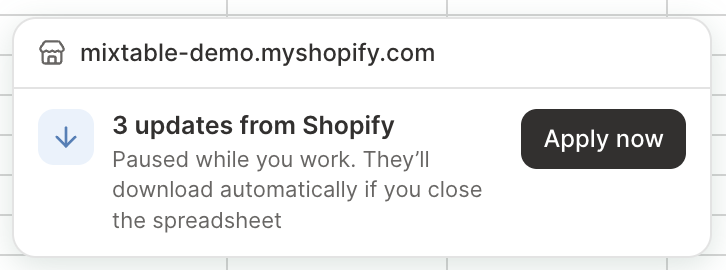
If you have the spreadsheet open when changes arrive from Shopify, Mixtable holds them so nothing shifts around while you're working. The sync control at the top right of the spreadsheet shows how many are waiting, for example Apply 3 updates. Click it to bring them in right away, or close the spreadsheet and they'll come in on their own.
This is the difference between a spreadsheet that reflects your store and an export that started going stale the moment it downloaded.
Preview every change before it reaches Shopify
Before syncing, you can see the complete list of what is about to be sent: which variants, which fields, old value and new value. On a large inventory edit this is the cheapest insurance available, and it is the step that catches a stray paste or a formula that filled further than you intended. See Preview Shopify changes before syncing.
Share and export your inventory
The worksheet can be shared with the people who need it, so a warehouse manager can work in the same live grid as your merchandiser instead of emailing versions of a file back and forth.
When someone needs a file, Import & Export exports the worksheet to Excel or CSV with the inventory columns exactly as you arranged them. See Export Shopify data to Excel.
Everything you can do with inventory in Mixtable
The short version of this guide:
- Load stock levels for every variant and location into one grid
- Show any of the eight Shopify quantity states as columns
- Set Available and On hand quantities and sync them back
- Adjust quantities up or down without race conditions
- Edit thousands of cells with bulk number operations, copy and paste, and fill
- Drive stock levels from spreadsheet formulas
- Flag low stock with formulas or conditional formatting
- Turn inventory tracking on or off across the catalog
- Set the out of stock policy in bulk
- Import stock counts from a CSV without touching other fields
- Sync from an external inventory system on a repeatable routine
- Filter to a vendor, product type, or tag with Conditional Worksheets
- See Shopify stock changes come into the sheet automatically
- Preview every change before it is sent
- Share the sheet with your team and export to Excel or CSV
Mixtable or the Shopify admin?
You’ll still use the Shopify admin for one-off changes, and the contrast shows when a spreadsheet is the better tool.
In the admin, Products > Inventory lists your variants, with a dropdown to show a single location, and lets you set a new total or add an adjustment. A product’s Inventory section holds Track quantity and Continue selling when out of stock. For bigger changes, the bulk editor gives you a grid for the variants you select, with a column for each location, a fill handle for copying a value into nearby cells, and a check of before and after values when you save. It has no formulas or percentage operations, though. The inventory CSV export and import handles volume, but the file starts going stale the moment it downloads, and mistakes show up after the import rather than before.
Two admin tools are still the right choice for their jobs:
- Transfers move stock between locations when goods are physically traveling, so incoming quantities reflect the journey
- View adjustment history, in a variant’s Inventory section, lists the last 180 days of changes for that one variant, with what caused each
| Job | Shopify admin | Mixtable |
|---|---|---|
| Change stock for one variant | Fine | Fine |
| See stock at every location side by side | Bulk editor, for the variants you select | Every variant, with a column per location |
| Update hundreds of variants | Bulk editor or a CSV round trip | Edit and sync in one pass |
| Apply a percentage change to a column | Not available | Bulk number changes |
| Drive stock from a formula | Not available | Standard spreadsheet formulas |
| Import a supplier file safely | CSV import, whole file | Match on SKU, update chosen columns only |
| Review changes before they apply | Before and after values, then a confirmation | A preview of every pending change before you sync |
| See live changes from your store | Refresh the page | Cells update as they change |
None of this makes the admin the wrong tool. It makes it a tool for a different size of job, and knowing which job you have is most of the skill.
Go further: inventory value and stock history
Managing stock is about the numbers you hold today. When you need to know what that stock is worth, or how it has moved over time, these articles pick up where this one stops:
- What your stock is worth: add the variant field Cost per item beside a stock column, or the Inventory value related data field on a worksheet where each row is a product, which multiplies quantity by unit cost across its variants. See Cost per item in Shopify and Related data fields
- Sales next to stock: analytics columns add Net Quantity Sold, Net Sales, and Gross Profit to the same rows, so sell-through and weeks of cover become simple formulas. See Add analytics columns to a Shopify data worksheet
- Stock on a past day: Mixtable Analytics Spreadsheet downloads your store’s day-by-day stock history from Shopify, so you can see how much of each variant you held at the end of last month and what it was worth. See Shopify inventory history
- Stockouts, sell-through, and dead stock: see Shopify inventory reports, which covers every inventory metric and where you can add it
Stock quantities aren’t part of Cell history, so on an inventory cell it says “Mixtable doesn’t keep history for this field.” The inventory metrics above are the place to look for stock over time.
Frequently asked questions
Does Shopify track inventory on products or variants? On variants. Shopify creates a variant for every product even when you have not defined any options, so inventory is always held against a variant. This is why inventory work happens on worksheets where each row is a variant.
Can I update inventory at several locations at the same time? Yes. Map a column per location and each row shows that variant’s stock everywhere. Edit as many cells across as many locations as you like, then sync once.
What is the difference between setting inventory and adjusting it? Setting states the total the quantity should become. Adjusting states the change to apply to whatever the current total is. Adjustments are safer when stock is moving, because a sale between your edit and the sync is accounted for rather than overwritten.
Which quantity states can Mixtable write back to Shopify? Available and On hand. The others, including Committed, Incoming, Reserved, Damaged, Safety stock, and Quantity control, can be brought into the spreadsheet to look at but are maintained by Shopify.
Do I have to turn on inventory tracking before I can set quantities? No. If you set a quantity for a variant that is not tracked, Mixtable turns tracking on during the sync and then applies your value. You can also set the tracking field directly if you want to control it explicitly.
Does editing a cell change my store straight away? No. Edited cells turn yellow and stay in Mixtable until you click Sync. You can preview the full set of pending changes before sending them.
Can I update inventory from a file my supplier sends? Yes. Import the CSV, match rows on SKU, barcode, or option values, and select only the inventory columns you want changed. Nothing outside those columns is touched.