
Mark Shopify orders as paid in bulk
 Spreadsheet Editor Updated October 21, 2026
 On this page
If you manage Shopify orders in Mixtable, you can mark multiple orders as paid at once using an Action column. Just select the orders in your spreadsheet, then sync the changes back to Shopify.
Before you start
Make sure you have:
- An Orders (no line items) worksheet connected to Shopify
- A column that uniquely identifies each order (like Shopify ID or Order Name)
Add the “Mark order as paid” Action column
- Open your Orders (no line items) worksheet
- To load more Shopify data, click + Shopify data in the header row of an empty column, such as the one right after your last column. You can also choose Column > Add Shopify data… from the menu bar. The field picker opens and asks What should column E show?, with your column's letter in place of E. It lists everything the worksheet can show from Shopify, grouped into sections the way your Shopify admin groups them. Type in the search box at the top, or click a section on the left, to find the field you want.

- Click Action columns in the list of sections on the left
- Click Mark order as paid
- Click Save Column. The new column’s header starts with ✦, so it reads ✦ Mark order as paid
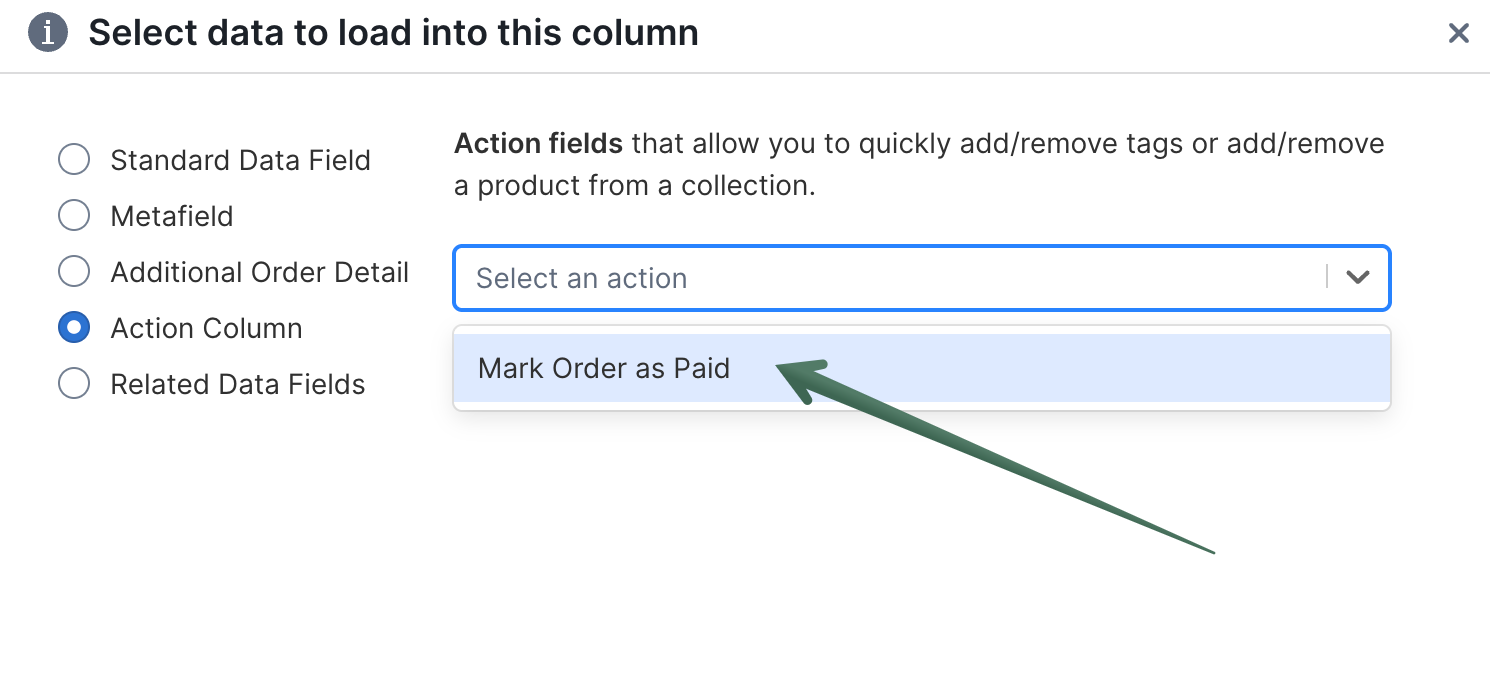
Choose which orders to mark as paid
In the ✦ Mark order as paid column, enter true for each order you want to mark as paid in Shopify.
Tips:
- You can copy and paste
trueinto multiple rows at once - Leave cells blank for orders you don’t want to change
Sync your changes to Shopify
- Click Sync at the top right of the spreadsheet, review your changes in the preview that opens, then click Sync again
- Mixtable will mark the orders as paid for every row where you entered
true
After syncing successfully, Mixtable automatically clears the true values from the Action column.
Troubleshooting
Nothing happened
Make sure you entered true exactly (lowercase). Any other value will be ignored and may cause a sync error.
Shopify sync error
Some orders can’t be marked as paid due to Shopify restrictions or the order’s current status. The sync control at the top right of the spreadsheet shows how many sync errors there are. Open them to see which orders failed and why, then try again.