
Bulk edit Shopify blog posts
 Spreadsheet Editor Updated October 21, 2026
 On this page
 Bulk edit and add Shopify blog postsVideo walkthrough
 Mixtable is a powerful spreadsheet tool designed to streamline the management of your Shopify store. While it’s commonly used for tasks like inventory management and order tracking, it can also be a valuable asset for managing your Shopify blog posts.
This guide will walk you through the steps to set up Mixtable for bulk editing your Shopify blog posts.
If you publish in more than one language, you can also translate your blog content, including titles, body, summaries, and SEO fields, and sync the translations to Shopify.
Setting up a blog posts worksheet in Mixtable
Step 1: Create a Blogs and Blog Posts spreadsheet
Open your Mixtable dashboard and click Create spreadsheet at the top of the page. If you haven't created a spreadsheet yet, click Browse all templates below the dashboard's suggestions instead. In the Create spreadsheet window, find Blogs and Blog Posts under Content, or type its name in the search box, and click it. Mixtable creates the spreadsheet and fills it with data from your Shopify store.
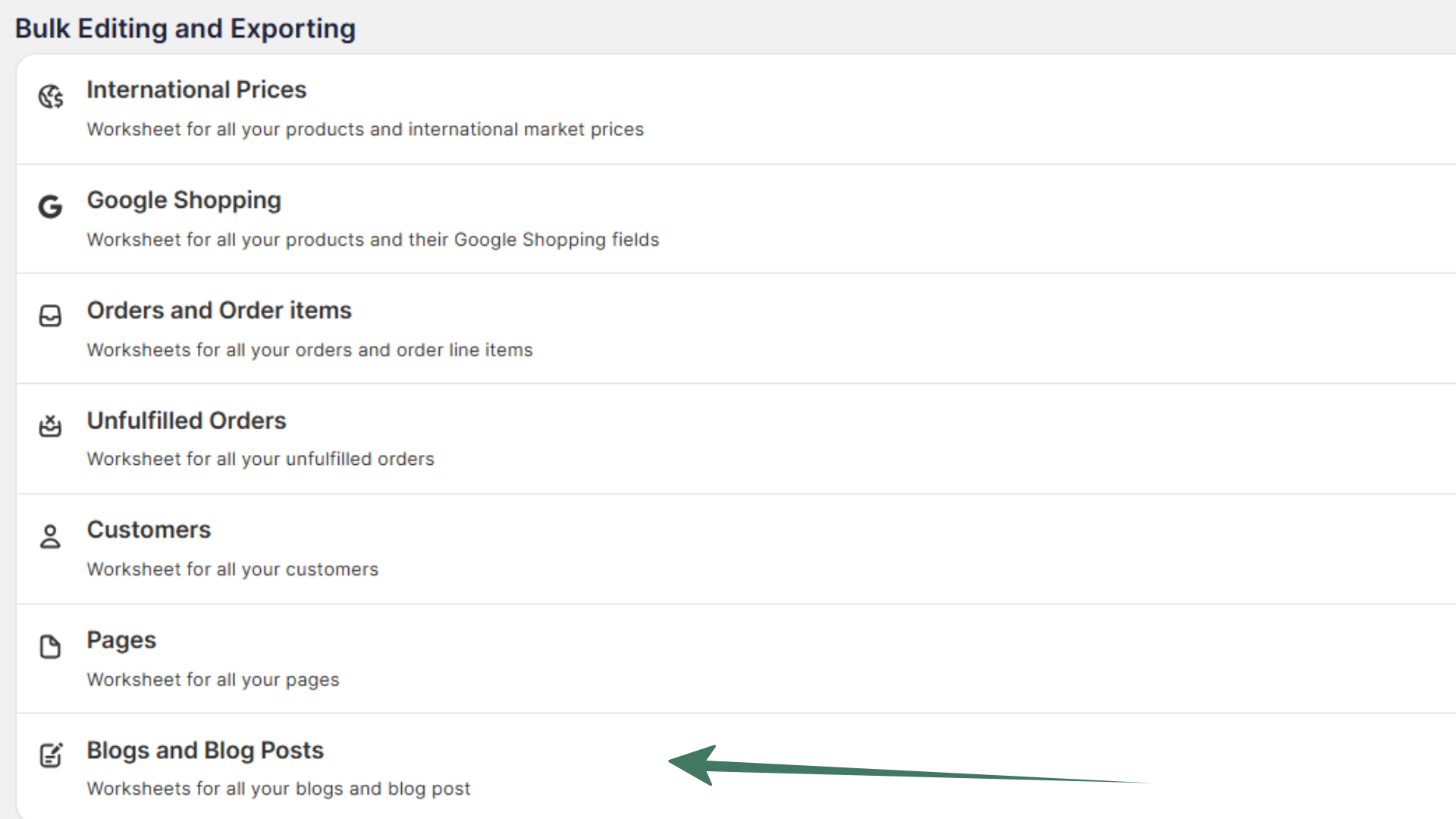
If you’ve already installed Mixtable Spreadsheet Editor from the Shopify App Store, Mixtable has already started downloading your Shopify blog posts.
The Blogs and Blog posts spreadsheet has two worksheets:
- One is called Blogs, where you see the Title, Handle, Shopify ID, Tags, and Comment Policy of the blogs you have on your Shopify store.
- The other is called Blog Posts and has the following columns: Title, Handle, Content, Author, Tags, Shopify ID, Blog ID.
Step 2: Add a new blog posts worksheet (optional)
- To add blog posts to an existing spreadsheet, click the + at the end of the worksheet tabs (or choose Worksheet > Add worksheet…)
- Select Shopify data worksheet, click Continue, and then choose Blog Posts
- On the Choose your columns step, Mixtable selects the most used blog post fields, such as the title, content, and tags. Add any other blog post fields you want to manage, then click Continue
- Leave Load everything selected (or choose Only rows that match rules, see the optional step below), then click Create Worksheet. Mixtable fills the worksheet with your existing blog posts from Shopify
Shopify doesn't send changes to blog posts on its own, so download them when you need the latest. Click Download latest in the sync control at the top right of the spreadsheet (or choose Shopify Sync > Sync with Shopify…) to open the sync card. Under Download latest from Shopify, click Download next to Blog posts.
On a Blogs worksheet, click Download next to Blogs instead.
Optional Step 3: Set up a Conditional Worksheet
If you wish to edit only specific blog posts or a range of posts, you can set up a Conditional Worksheet. This feature allows you to specify the criteria for the blog posts that should be included in the worksheet. To set one up, choose Only rows that match rules when you add the worksheet, then add your rules. To change them later, click Change worksheet conditions to the left of Share, or choose Worksheet > Change worksheet conditions….
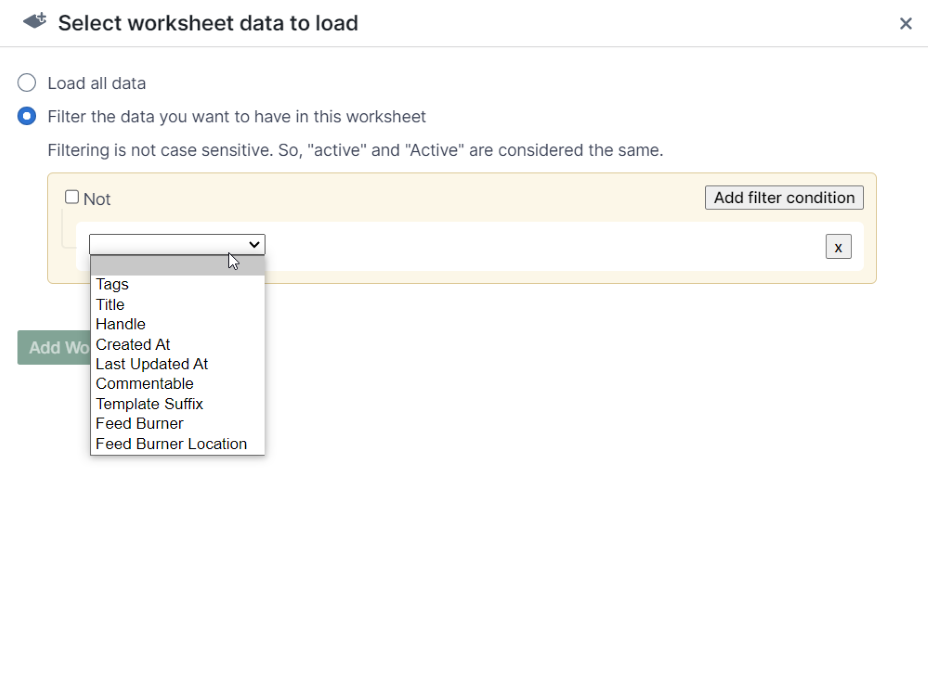
If a blog post later stops matching the Conditional Worksheet criteria, its row may become empty. To clean up those empty rows, click the Worksheet menu and select Remove Empty Rows.
Editing existing blog posts
- Navigate to the worksheet containing your Shopify blog posts
- Locate the cells corresponding to the blog posts you wish to edit
- Modify the existing cells to change the blog post title, content, tags, or any other metadata. The Content column holds each post’s body as HTML: change the text between the tags (such as
<p>and</p>) and leave the tags in place, so the post keeps its formatting. To format a post without touching the HTML, click Edit at the right edge of its Content or Excerpt cell to open the rich text editor, then click Update cell - To see everything Mixtable has saved for a post, including its search engine listing, metafields, and translations, select its row and click Details in the toolbar. The Details panel is view only, so you make your changes in the cells
- When you’re done, click Sync at the top right of the spreadsheet, review your changes in the preview that opens, then click Sync again to update the blog posts in Shopify
Adding new blog posts
- Navigate to the worksheet containing your Shopify blog posts
- Scroll down to find a blank row
- Fill in the blank row with the new blog post data, including the title, content, author, tags, and the Blog ID of the blog the post belongs to. You’ll find each blog’s ID in the Shopify ID column of the Blogs worksheet
- Click Sync at the top right of the spreadsheet, review the new posts in the preview that opens, then click Sync again to create them in Shopify