
Unfulfilled Orders Template
 Spreadsheet EditorExport: Excel & CSV Updated October 15, 2026
 On this page
 Unfulfilled Orders TemplateVideo walkthrough
 The Unfulfilled Orders template in Mixtable shows every Shopify order that’s still waiting to be fulfilled, all in one spreadsheet. It helps you:
- Review pending orders and ship them on time
- Spot delays early, for example with conditional formatting that highlights orders that have been waiting too long
- See which products and how many of each you need to pick and pack
- Keep customers informed about delayed orders before they have to ask
How to load the Unfulfilled Orders template
- Open your Mixtable dashboard and click Create spreadsheet at the top of the page. If you haven’t created a spreadsheet yet, click Browse all templates below the dashboard’s suggestions instead
- In the Create spreadsheet window, find Unfulfilled Orders under Orders & Customers, or type its name in the search box
- The template’s card has a start-date drop-down set to Since 1 month ago. If you have older orders that are still unfulfilled, choose an earlier date, or All orders
- Click the template. Mixtable creates the spreadsheet and fills it with your unfulfilled orders
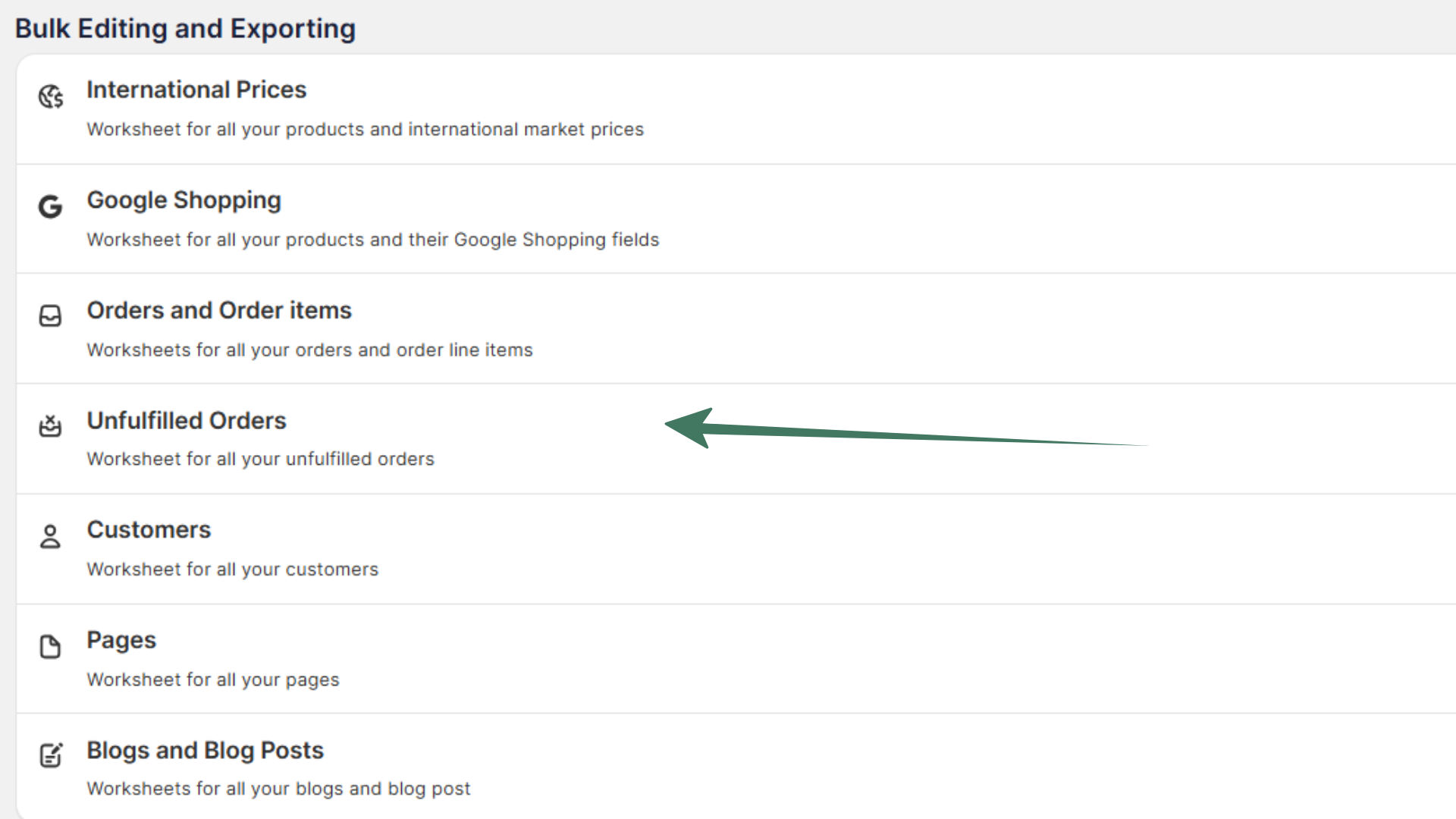
The list stays up to date: new unfulfilled orders are added as they come in from Shopify. When an order is fulfilled, its row may become empty. To tidy up, choose Worksheet > Remove Empty Rows from the menu bar. Only orders whose fulfillment status is Unfulfilled are included, so partially fulfilled orders don’t appear.
Shopify data included in the Unfulfilled Orders template
The template creates two worksheets.
The Unfulfilled Orders worksheet has one row per order. It starts with these columns:
- Order Name (the order number, such as #1001)
- Shopify ID
- Customer Email Address
- Created At
- Tags and Note
- Total Price, Total Order Discounts, and Total Order Tax Amount
- Fulfillment Status and Order Financial Status
After those come many more order details, such as discount codes, payment gateways, payment terms, customer details, and shipping and billing addresses.
The Line Items from unfulfilled orders worksheet has one row for each item in those orders, with the order name, customer email, product title, variant title, SKU, vendor, price, and quantity.
Spot orders that have been waiting too long
Conditional formatting can color your orders by age, so delays stand out:
- In the Unfulfilled Orders worksheet, right-click the letter of the Created At column and choose Conditional formatting…
- Click Add rule, choose is in the last 7 days as the condition, and change the rule’s colors to green
- Click Add rule again and choose is not empty. Keep the red colors this rule starts with
- Click Save
The top matching rule wins, so orders from the past week turn green and anything older turns red. The colors update as orders come in and get fulfilled.
Print a pick list
To take your unfulfilled orders to the warehouse on paper, open either worksheet and choose File > Print…. Mixtable starts with just the columns a pick list needs ticked, such as Order Name, Quantity, and SKU on the line items worksheet, and adds a tick box to each row so your team can check items off as they pick them. See Print Shopify orders, pick lists, and other worksheets for every setting.
Add extra data to the Unfulfilled Orders spreadsheet
Need something that isn’t there yet, such as an order metafield or a detail the customer entered at checkout? Add a column for it:
To load more Shopify data, click + Shopify data in the header row of an empty column, such as the one right after your last column. You can also choose Column > Add Shopify data… from the menu bar. The field picker opens and asks What should column E show?, with your column's letter in place of E. It lists everything the worksheet can show from Shopify, grouped into sections the way your Shopify admin groups them. Type in the search box at the top, or click a section on the left, to find the field you want.

Click the field you want, such as an order metafield in the Custom data section, or Additional order detail in the Additional details section (then choose the detail under Select a detail). Click Save Column, and Mixtable fills the column with data from your Shopify orders.