
Full Product Info Template
 Spreadsheet Editor Updated October 21, 2026
 On this page
Need to update your Shopify products in bulk? The Full Product Info template in Mixtable puts your products and their variants into one spreadsheet, with one row for each variant. You edit prices, SKUs, options, SEO text, and stock levels the same way you would in Excel, then sync the changes back to Shopify when you’re ready.
Here’s what you can use it for:
- Bulk editing products and variants: change many fields across many products at once, instead of opening each product page in the Shopify admin
- Adding new products and variants: add rows for new products and their variants, then sync them to your store
- Finding gaps: spot missing SKUs, prices, or SEO descriptions and fill them in
- Changing prices in bulk: raise or lower prices with a few clicks or a formula, and add columns for your international market prices when you sell in more than one market
- Updating stock levels: each of your Shopify locations has its own inventory column
- Planning a sale: prepare a sale campaign by calculating sale prices with a formula and keeping the original price as the compare-at price
How to load the Full Product Info template
After installing the Mixtable Spreadsheet Editor app, create a spreadsheet from the template:
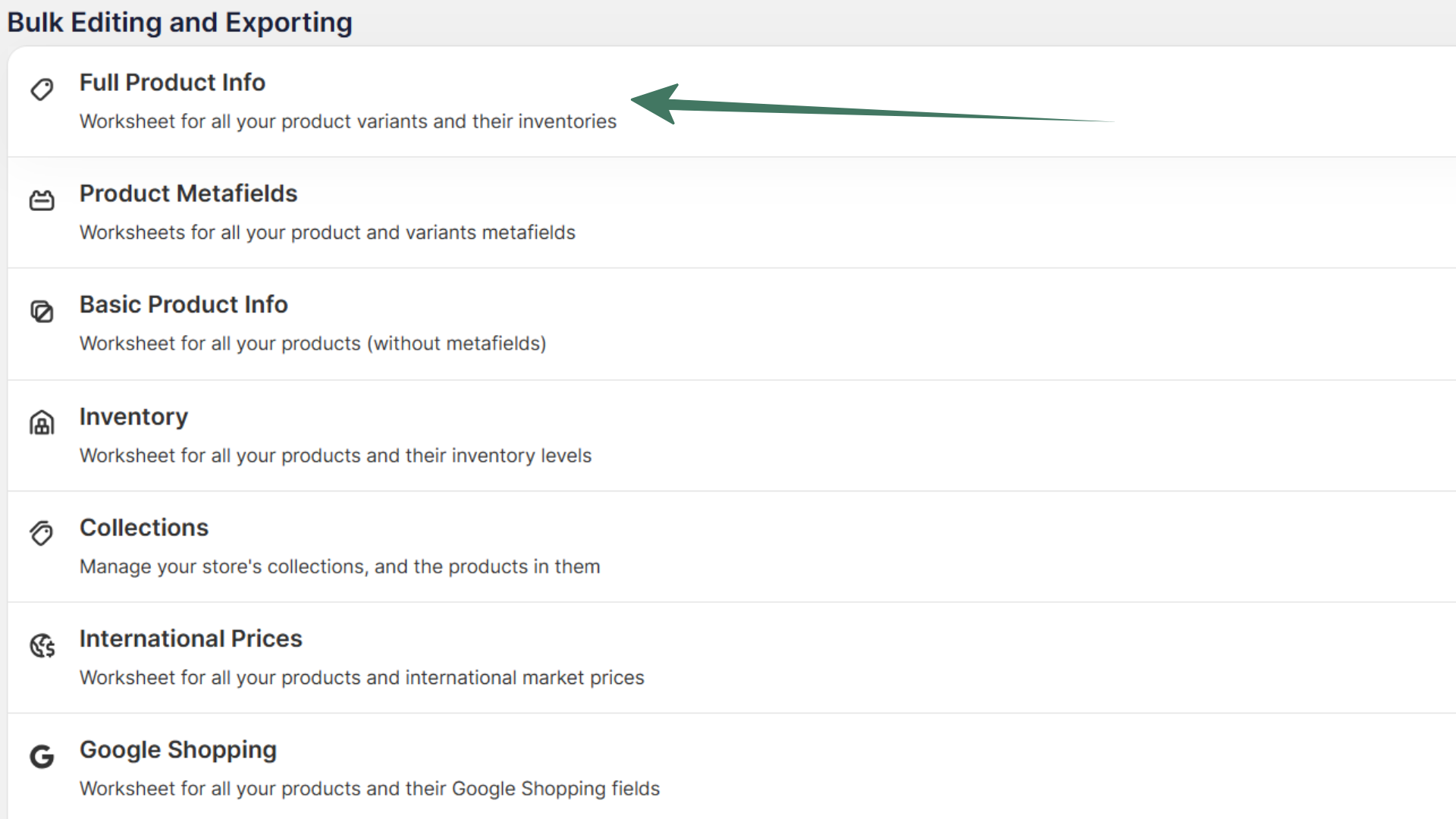
Open your Mixtable dashboard and click Create spreadsheet at the top of the page. If you haven't created a spreadsheet yet, click Browse all templates below the dashboard's suggestions instead. In the Create spreadsheet window, find Full Product Info under Products, or type its name in the search box, and click it. Mixtable creates the spreadsheet and fills it with data from your Shopify store.
On your first visit, the Edit products and prices card on the dashboard creates the same template in one click.
What data is included in the Full Product Info template
The template creates a Products (with variants) worksheet with these columns:
- Handle
- Title
- Tags
- Vendor
- Option 1 Name, Option 2 Name, and Option 3 Name
- Option 1, Option 2, and Option 3
- SKU
- Price
- Product SEO Page Title
- Product SEO Meta Description
- One inventory column for each of your Shopify locations, such as Main Warehouse / Available
Product details such as the title, tags, and vendor appear on every variant row of that product, so you can see them next to each variant’s price and SKU.
Add more product data
The template is a starting point. You can add a column for almost any other product or variant detail, such as the compare-at price, barcode, product type, metafields, or images.
To load more Shopify data, click + Shopify data in the header row of an empty column, such as the one right after your last column. You can also choose Column > Add Shopify data… from the menu bar. The field picker opens and asks What should column E show?, with your column's letter in place of E. It lists everything the worksheet can show from Shopify, grouped into sections the way your Shopify admin groups them. Type in the search box at the top, or click a section on the left, to find the field you want.

Click the field you want, such as Compare-at price, Barcode, or one of your metafields in the Custom data section. The panel on the right explains the field and shows an example from your worksheet. Then click Save Column.
Send your changes to Shopify
When you are ready, look at the sync control at the top right of the spreadsheet, next to Share. It shows how many edits are waiting, for example Sync 12 changes. Click Sync to open the Preview changes window and review them, then click Sync in the window. Mixtable sends the updated product data to Shopify. It may take a few seconds for the changes to appear in your store.