
How to bulk edit your Shopify store with a spreadsheet
 Spreadsheet Editor Updated October 21, 2026
 On this page
With the Mixtable Spreadsheet Editor, you bulk edit your Shopify store the way you’d edit a spreadsheet in Excel. Products, variants, prices, inventory, orders, customers, metafields, collections, translations, and much more load into worksheets that stay up to date with Shopify. You change as many cells as you like, review them, and send them to Shopify when you’re ready.
Bulk editing in Mixtable comes down to four steps:
- Create a spreadsheet linked to your Shopify store
- Add the Shopify fields you want to change as columns
- Edit the cells: type, paste from Excel, fill down, use formulas, or use the Bulk Edit menu
- Click Sync to check your changes in the preview that opens, then click Sync again to send them to Shopify
Unlike Shopify’s own bulk editor, where your changes go live as soon as you click Save, every edit stays pending in the spreadsheet until you choose to sync it. You also get Excel-style formulas, which Shopify’s bulk editor doesn’t have. Mixtable spreadsheets look, feel, and behave almost exactly like Excel. They just run in your browser.
Create a spreadsheet linked to your Shopify store
On your Mixtable dashboard, click Create spreadsheet at the top of the page. If you haven’t created a spreadsheet yet, click Browse all templates below the dashboard’s suggestions instead. The Create spreadsheet window opens, and you have two paths to start:
- Start from a template. Mixtable’s ready-made templates are grouped into Products, Inventory & Pricing, Orders & Customers, Organization, Content, Integrations, and Analytics & Reporting. Each one gives you worksheets with columns already set up for the data merchants edit most. Full Product Info, marked Recommended, is a good place to start. Click a template to create the spreadsheet
- Start from scratch. Under Start From Scratch, choose Blank Excel-like Spreadsheet. It looks and feels exactly like a new spreadsheet you would create in Excel, with one empty worksheet. After the spreadsheet is created, you are free to add worksheets for only the data that you need to sync
Note: Not all data is automatically populated into these template worksheets, just the most commonly used ones. You are free to add more data as needed.
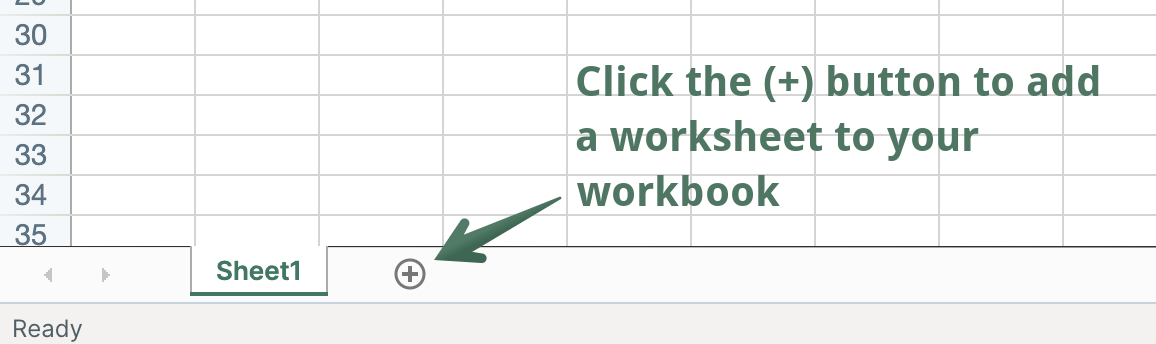
In an existing Mixtable spreadsheet, click the + button at the end of the worksheet tabs, at the bottom of the screen, to add a new worksheet.
Add the Shopify fields you want to edit as columns
Columns in Mixtable can either be standard ones, i.e., work just like in Excel, or they can be linked to a particular data field in Shopify.
To load more Shopify data, click + Shopify data in the header row of an empty column, such as the one right after your last column. You can also choose Column > Add Shopify data… from the menu bar. The field picker opens and asks What should column E show?, with your column's letter in place of E. It lists everything the worksheet can show from Shopify, grouped into sections the way your Shopify admin groups them. Type in the search box at the top, or click a section on the left, to find the field you want.

The field picker lists everything the worksheet can show from Shopify, one row per field, grouped into sections modeled on the record’s page in your Shopify admin. The sections change depending on what data (e.g., products) the worksheet holds. Type in the search box to find a field quickly (it understands everyday words too, so “stock” finds inventory and “UPC” finds barcodes), or click a section on the left. When you click a row, the panel on the right explains the field, asks any choice that’s left, and shows an example from your worksheet. Then click Save Column. Here’s some of what you can add:
- Shopify’s standard fields, such as Description for products or Customer email for orders, in sections such as Title & description, Organization, or Customer. Your product category is in Organization too, as Category and Category path (and Category ID under IDs & dates), so you can change Shopify product categories in bulk
- Metafields, in the Custom data section: one row for each of your store’s metafield definitions. The last row, Add a metafield that isn’t listed, is there for a metafield that has no definition in Shopify
- Product images and Variant image, in Images: the images on your products and variants
- SEO title and SEO description, in Search engine listing: the search engine listing for products, pages, and blog posts
- Collections, in Organization: the manual collections a product belongs to, so you can add products to manual collections or take them out
- Sales channels, in Status & channels (Sales channels on Collections worksheets): one row per channel, such as Online Store, showing where a product or collection is published. On Products (with variants) worksheets, the panel asks whether the column shows the product’s publishing or the variant’s
- Google Shopping fields, in the Google Shopping section: the fields Google uses to list your products, such as Condition, Color, and Size. On Products (with variants) worksheets, most fields let you choose the product’s value or each variant’s
- Stock at a location (Products (with variants) worksheets only), in Inventory: a stock count at one location, such as Available or On hand, which you can update and sync back to Shopify
- Add or remove stock at a location (Products (with variants) worksheets only), in Inventory: adjust stock up or down by a number of units at one location
- Price in a market or B2B catalog (Products (with variants) worksheets only), in Pricing: fixed prices and compare-at prices for your international markets and B2B catalogs, so you can change them in bulk
- Translations: your store’s translated content for a language, and optionally a market
- Action columns: per-row actions, such as adding or removing product tags, adding products to collections or removing them, adding product images, or, on Orders worksheets, marking orders as paid
- Sales & analytics: sales and performance metrics that Mixtable calculates from your Shopify store data
- Related data fields: details from related Shopify records, such as the vendors of the products in each order. They sit in the section they belong to, such as Products in the order on Orders worksheets
- Additional order detail (Orders (no line items) worksheets only), in Additional details: extra details your orders carry, one field per column
- Line item property (Orders (with line items) worksheets only), in Additional details: line item customizations, such as engravings, one property per column
When a column is added to a worksheet, whether that is during worksheet creation or by you afterward, the column immediately begins populating with data. This might take a bit of time, depending on how much data you have. For example, if you are trying to populate the product title for 100,000 products, that will take considerably longer than if you have 1,000 products. So please be patient while your data loads. While it does, an amber bar takes the place of the formula bar and tools and says “This worksheet is locked while your Shopify data loads.” You can still scroll and browse the data, but you can’t make changes until it’s done. Once the bar goes away, you can begin to bulk edit your content.
Edit, preview, and sync your changes to Shopify
This part is fairly straightforward: find the cell that contains the existing data you want to update and change its value. To change many cells at once, paste a whole column from Excel or Google Sheets, drag a value down the column to fill it, or write a formula such as =ROUND(B2*0.9, 2) and fill it down. The sync control at the top right of the spreadsheet, next to Share, keeps count of your pending edits, for example Sync 12 changes. When you are ready, click Sync at the top right of the spreadsheet, review your changes in the preview that opens, then click Sync again. Nothing reaches Shopify until you do.
Please note that data is synchronized to Shopify on a per-worksheet basis. So when you click Sync, Mixtable syncs the changed cells in the worksheet you have open. Any changes in other worksheets will not be touched. This allows you to modify multiple worksheets and trigger their sync to Shopify one at a time as you see fit.
Make bulk changes even faster with the Bulk Edit menu
You don’t have to change cells one at a time. The Bulk Edit menu in the menu bar has four tools that update a whole column in one go: Bulk number changes (for example, raise every price by 10%), Find and Replace, Add tags, and Remove tags. You can also right-click a column’s letter and choose Bulk number changes… or Find and replace… to open the tool with that column already chosen. Learn how each one works in Bulk actions and Find and replace.