
Preview Shopify changes before syncing
 Spreadsheet Editor Updated October 20, 2026
 On this page
When you’re editing Shopify data in Mixtable, it’s helpful to double-check your changes before they go live. The Preview changes dialog makes this easy by listing every pending Shopify edit in one place, so you can confirm exactly what will update before anything reaches Shopify.
This is especially useful before syncing updates to Shopify product prices, inventory quantities, tags, metafields, and order details.
When Preview opens
Every sync starts with the preview. As soon as you edit a Shopify-linked cell, the To Shopify side of the sync control, at the top right of the spreadsheet next to Share, shows how many changes are ready, for example Sync 5 changes. Clicking it opens Preview changes first, so you always see your edits before anything reaches Shopify. Nothing is sent until you click the sync button inside the preview. The count and the preview cover the worksheet you have open.
The sync card has Preview and Sync buttons too, and both open the same window. To open the card, click the ▾ on the sync control, or choose Shopify Sync > Sync with Shopify… from the menu bar. Its To Shopify section shows the same count, for example “5 changes to sync”. For a full tour of the control, see our guide to the sync control.
What the preview shows
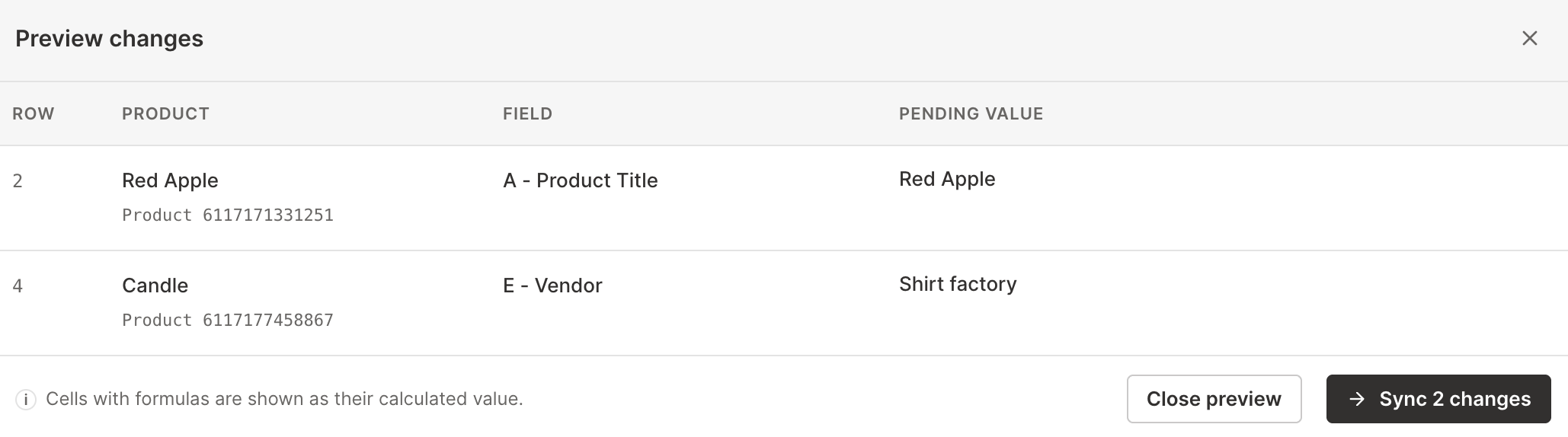
When you open Preview changes, Mixtable lists each pending Shopify edit as its own line, grouped by the row it belongs to. The dialog has four columns:
- Row: the worksheet row number where the change was made
- The object column, named after the worksheet’s data (for example, Product, Product Variant, Customer, or Order): the Shopify object that row maps to, shown by its title. Rows that aren’t in Shopify yet appear as a new object, like
(new product) - Field: the column being changed, shown by its column letter and header name (like
C - Price) - Pending value: the value Mixtable will send to Shopify
Cells with formulas are shown as their calculated value, so you see the actual value that will sync rather than the formula text.
Preview your changes
- Open the Shopify data worksheet you want to sync (like Products, Inventory, Customers, or Orders (no line items))
- Make your edits in the spreadsheet
- Look at the sync control at the top right of the spreadsheet. It shows how many changes are ready, for example Sync 5 changes
- Click it. The Preview changes window opens
- Review the list to confirm what will update in Shopify
- When everything looks good, click the sync button at the bottom of the window, which shows the count (for example, Sync 5 changes). To go back and keep editing instead, click Close preview. Nothing is sent until you click the sync button in the window
Spotted an edit you don’t want? Click Close preview, select the cell, then right-click it and choose Revert to Shopify value to put back the value from Shopify. See Undo unsynced edits with Revert to Shopify value.
Tips for better reviews
- Review in stages: if you’re making lots of updates, click Sync after each batch to see it in the preview, and close the preview if something needs fixing
- Start small: when syncing a worksheet to Shopify for the first time, test with a few rows, preview them, then sync
- Check formula results: if you used formulas to generate updates, the pending value column is a quick way to spot unexpected values before they go to Shopify
Troubleshooting
I don’t see the Sync button
There are a few reasons this can happen:
- You haven’t edited anything yet: before your first edit, the sync control shows To Shopify with a check mark. The sync button appears as soon as you change a Shopify-linked cell
- A sync is running: while Mixtable sends your changes, the sync control shows “Syncing to Shopify…“. The sync button comes back when the sync finishes. Edits you make in the meantime are counted on the ▾ next to it, ready for your next sync
- Your store needs the app or a plan: syncing to Shopify needs the Mixtable Spreadsheet Editor app and an active plan, and your store’s first plan starts with a free seven-day trial. Without them, the sync control shows Install app to sync, Start your free trial to sync, or Upgrade to sync in place of the sync button. Click it to install the app or choose a plan. With Install app to sync, a Preview button stays beside it, so you can still check your edits before you install
- The worksheet doesn’t sync to Shopify: syncing and the preview are only on Shopify data worksheets. Reporting worksheets and Basic worksheets have nothing to send to Shopify
- You can only view the spreadsheet: on a spreadsheet someone shared with you with Can view access, View only takes the place of the sync control, since you have nothing to sync
There’s Preview but no Sync button
On a spreadsheet someone shared with you with Can edit access, the owner reviews your changes and syncs them. The sync control counts your changes, e.g., 12 unsynced changes, and Preview shows them, but there’s no Sync. If you should sync them yourself, ask the owner for Can edit and sync access. See Open a spreadsheet someone shared with you for details.
The preview is empty
If you don’t have any pending Shopify changes in the worksheet, the dialog shows that no pending Shopify changes were found. Make some edits first, then reopen the preview.