
Give your team, agency, or vendors access to Shopify data
 All Mixtable apps
Updated October 21, 2026
All Mixtable apps
Updated October 21, 2026 On this page
Other people often need to work with your Shopify data. A teammate keeps your product listings up to date, an agency rewrites your descriptions, a vendor checks stock and prices for their products, or your accountant looks through last month’s orders. With Mixtable, you give each of them access to just the data they need, to look at or to change, without adding them as staff or letting them into your Shopify admin.
You do it by sharing a Mixtable spreadsheet with them. You choose which worksheets each person sees, which ones they can change, and whether their changes go to Shopify with or without your review. They don’t need a Shopify account of their own.
Common ways to share Shopify data
- Your team: a teammate who looks after your product listings edits titles, descriptions, and tags, and you review their changes before they reach Shopify. Someone who only needs to look up orders gets Can view
- An agency or freelancer: set up a worksheet with the columns they work on, such as SEO titles and descriptions, and give them Can edit. You review and sync their changes, or let them sync on their own with Can edit and sync
- A vendor or supplier: give them a worksheet with only their products, such as a worksheet filtered to their vendor name, and invite them with Can view so they can check stock and prices. An invite includes every worksheet, so untick the others in Customize
- Your accountant or bookkeeper: Can view on an Orders worksheet lets them look through your orders and download them to Excel
Note: Anyone who can edit a conditional worksheet can also change its conditions, and with them which products it shows. To keep someone to the products you picked, give them only See and download on that worksheet.
If someone needs your Shopify admin itself, for example to work on your theme or store settings, add them as staff or a collaborator in Shopify instead. Mixtable sharing covers your store’s data, not the admin.
How spreadsheet sharing works
The person who creates a spreadsheet is its owner, and only the owner can share it. You share with each person by email, and give them one of three access levels:
- Can view: they can look through the data and download it, but can’t change anything
- Can edit: they can change cells. Their changes wait in the spreadsheet until you review them and sync them to Shopify
- Can edit and sync: they can change cells and sync their changes to Shopify without your review
You also choose how they open the spreadsheet:
- Mixtable login: they sign up with the email address you invited and a password of their own, then find the spreadsheet under Shared with you on their Mixtable home page. The login is free, and they don’t have to connect a Shopify store
- Private link: Mixtable emails them a personal link, and you give them its password another way, e.g., by text message. There’s no sign-up: the link and the password are their login for this one spreadsheet
The access level is a starting point. With Customize, you can decide what each person can do in each worksheet, so a teammate can edit your Products worksheet, only look at Orders, and not see Customers at all.
A few more things to know:
- People you share with see you and themselves, but never each other
- Some things stay with you as the owner: sharing, renaming or deleting the spreadsheet, adding or deleting worksheets, deleting items in Shopify, and Details, which shows a row’s whole Shopify record, including fields that aren’t columns in the worksheet
- Reporting worksheets (Pivot Table and Time Series worksheets) are always view only for the people you share with
- Worksheets you add later stay hidden from everyone you’ve shared with until you give them access in Customize
Open a spreadsheet someone shared with you covers what the people you invite see, from the invite email to the spreadsheet itself.
Invite someone to your spreadsheet
- Open the spreadsheet and click Share at the top right
- Under Invite people, type or paste the person’s email address. To invite several people with a Mixtable login, separate their addresses with commas or spaces
- In the menu next to the email addresses, pick their access: Can view, Can edit, or Can edit and sync
- Under How they open it, choose Mixtable login or Private link
- If you like, write a note in Add a message (optional). It appears in their invite email
- Click Send invite, or Send link for a private link
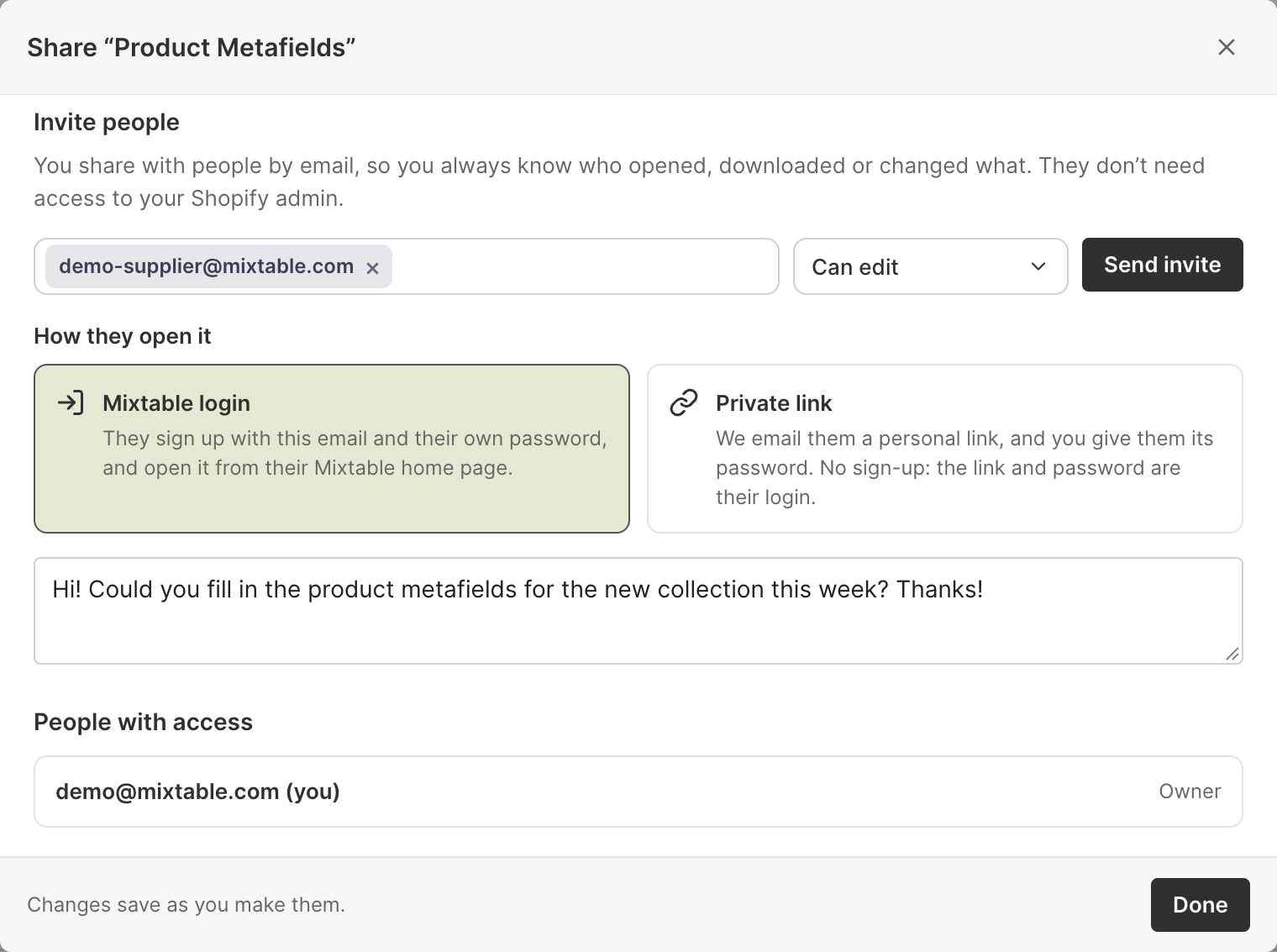
Mixtable emails each person an invite with an Open the spreadsheet button. The email, and every page they see afterwards, names you by your email address, or by your store’s name if you use Mixtable inside your Shopify admin.
A new person can see every worksheet. Unless you picked Can view, they can also edit every worksheet except Reporting worksheets. Nobody gets Add Shopify data from an invite. To leave out some worksheets, or to let someone add Shopify data, use Customize after you invite them (see below).
Share with a private link
When you choose Private link, Mixtable suggests a password right away. Click Change to type your own instead (it needs at least 10 characters), or Copy password to copy it.
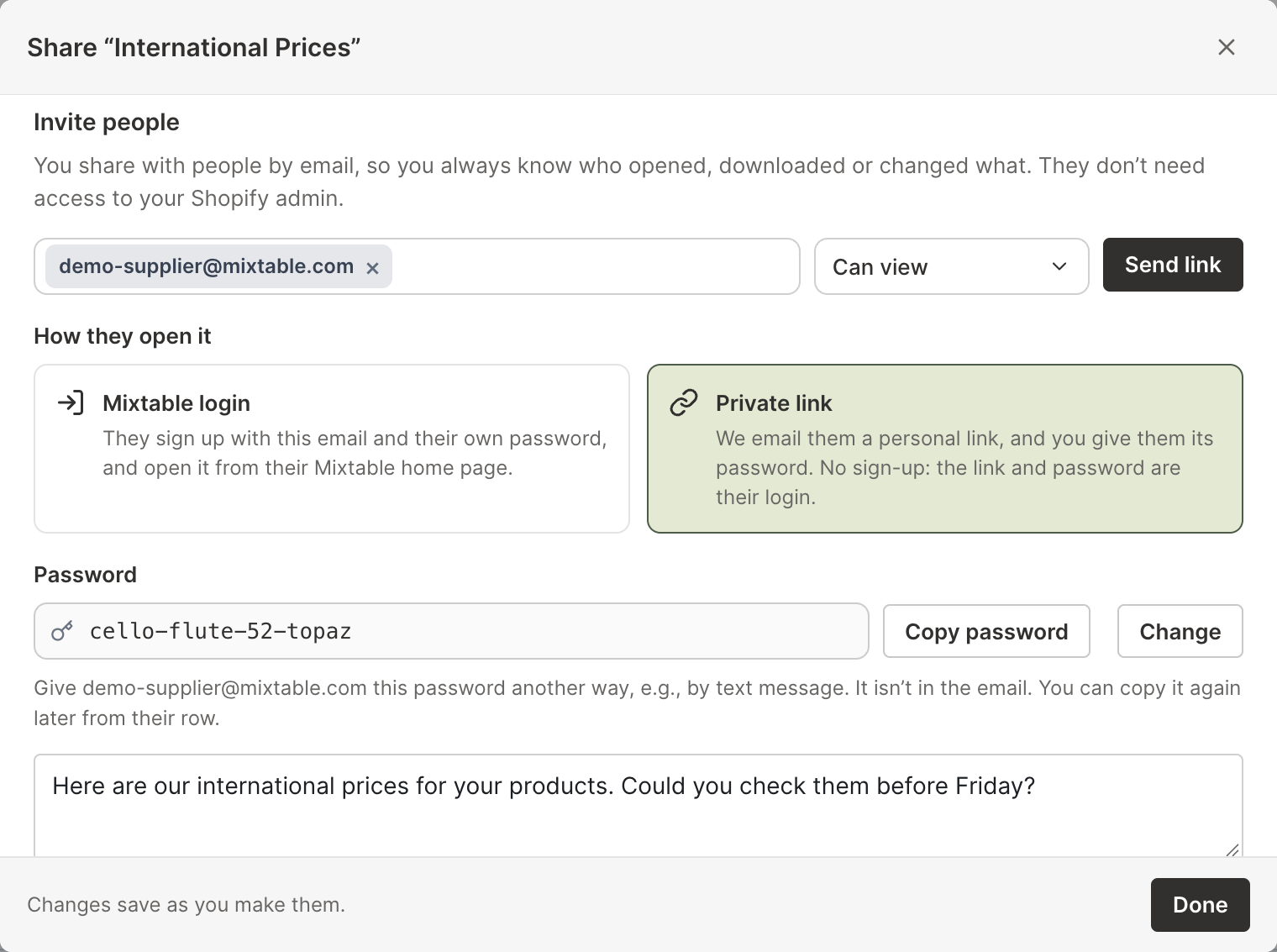
A private link is for one person, so invite one email address at a time. After you click Send link, Mixtable shows Link sent to their email address, with the password once more. Give them the password another way, such as a text message or a phone call. The invite email doesn’t include it, so someone who gets into their inbox still can’t open your spreadsheet.
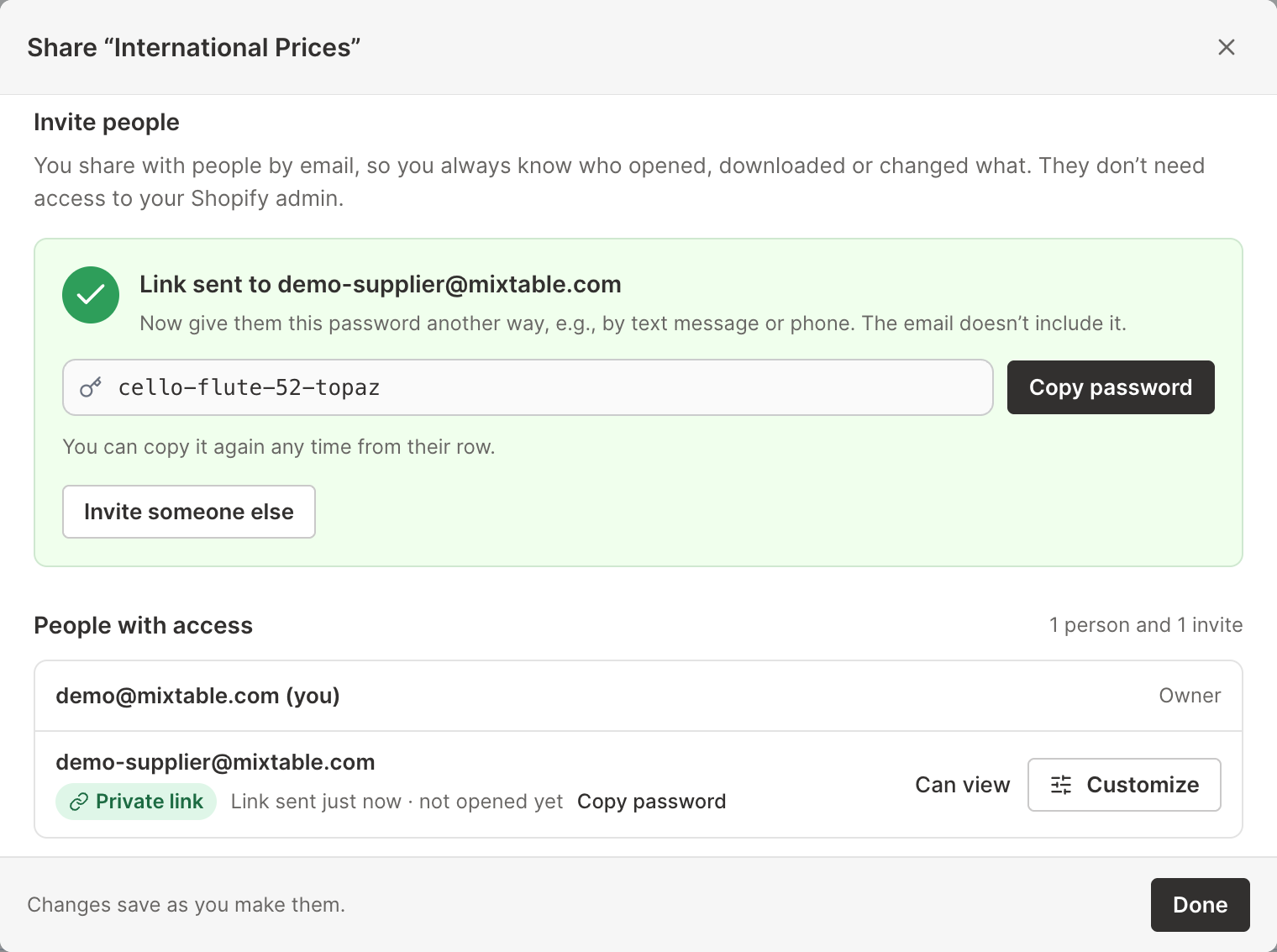
You can copy the password again at any time with Copy password in their row.
Tip: A private link works well for people who’d rather not create another login, such as a supplier who checks their prices now and then.
See who has access
People with access in the Share window lists you as the owner, then each person by email address. Each row shows:
- How they open the spreadsheet: Mixtable login or Private link
- What has happened so far, e.g., “Invite sent 2 hours ago”, “Last opened yesterday”, or “Hasn’t opened it yet”
- Their access level, with a Customize button
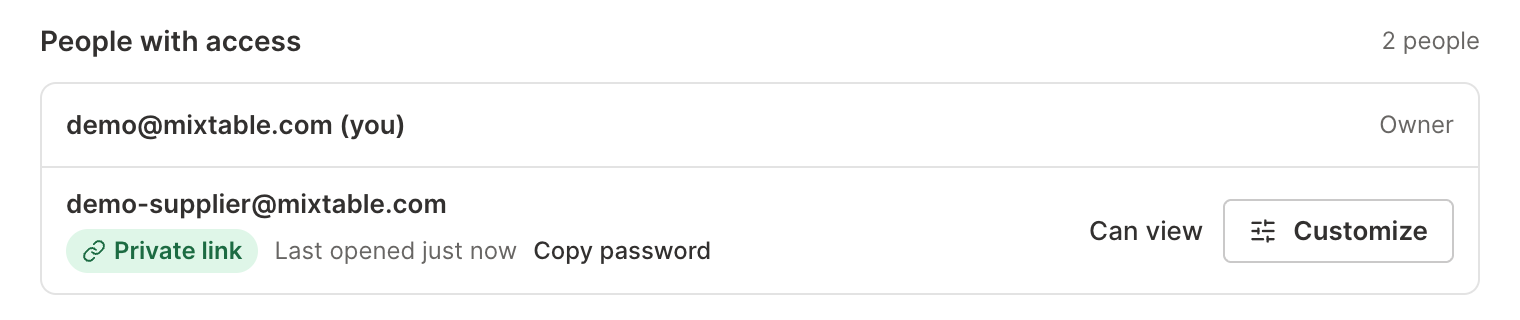
While a Mixtable login invite waits for an answer, its row has Resend, which emails the invite again, and Cancel invite, which takes the access back. Private link rows have Copy password.
Choose what someone can do in each worksheet
Click Customize next to the person. For someone with a private link, this opens their private link details, which have the same choices under Access.
Every worksheet has three boxes:
- See and download: the worksheet shows up for them, and they can download it. Without this tick, the worksheet is hidden from them
- Edit cells: they can change the worksheet’s cells
- Add Shopify data: they can fill empty columns with more of your store’s data, e.g., Cost per item or a metafield
Edit cells and Add Shopify data need See and download. The All worksheets row at the top ticks or clears a whole column at once. On Reporting worksheets, only See and download can be ticked.
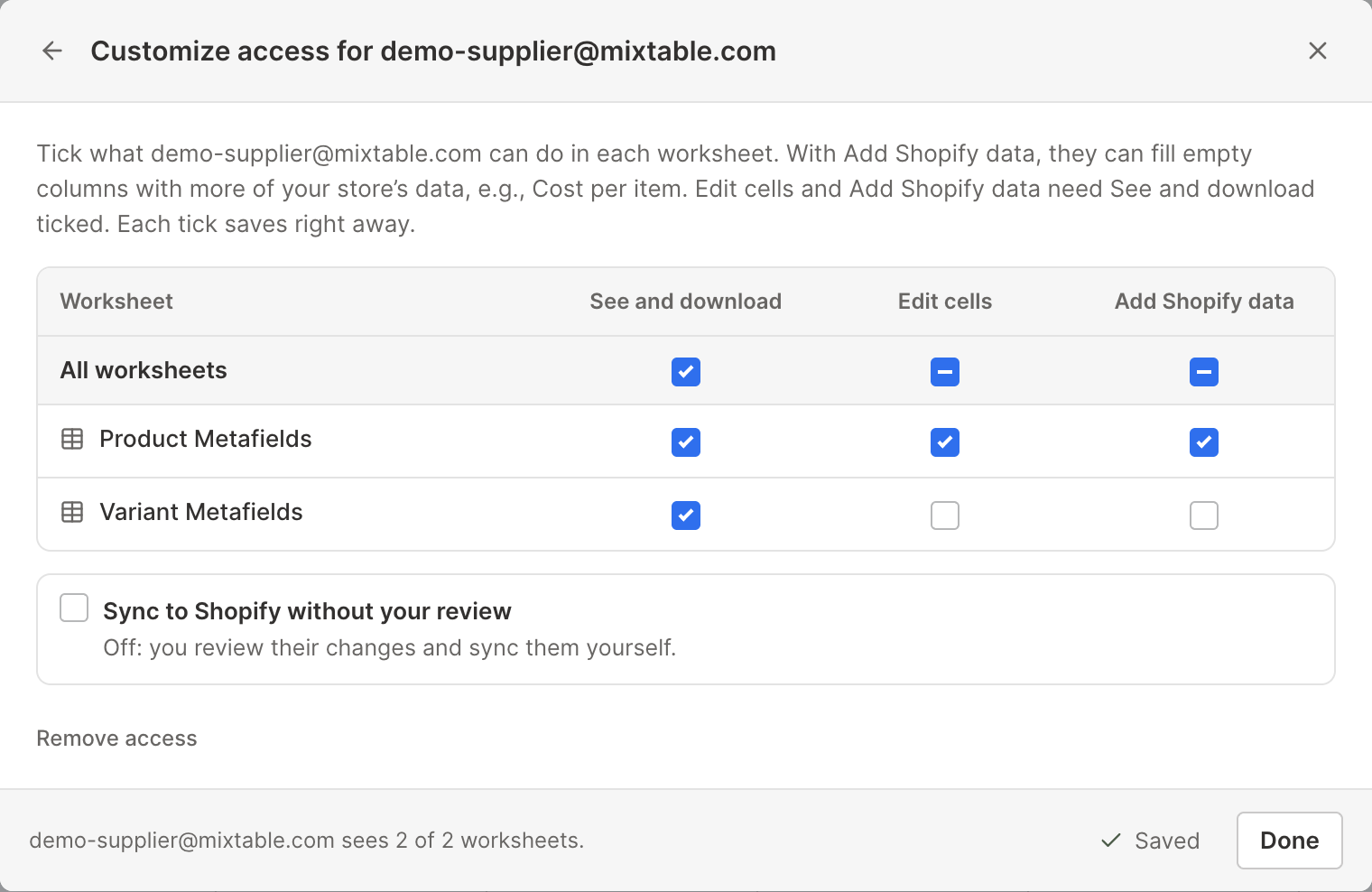
Below the worksheets, Sync to Shopify without your review decides who sends this person’s changes to Shopify:
- On: they sync their own changes, like you do
- Off: you review their changes and sync them yourself
It needs Edit cells on at least one worksheet.
Each tick saves right away, and Saved appears next to Done. The bottom of the window says how many of the worksheets the person sees, e.g., 2 of 3. Their access level in People with access follows your ticks: Can edit and sync when syncing is on, Can edit when they can edit at least one worksheet, and Can view otherwise. If they have the spreadsheet open, Mixtable asks them to reload it, so they see their new access straight away.
For example, a spreadsheet has Products, Orders, and Customers worksheets. For a teammate who looks after your product listings, tick See and download and Edit cells on Products, only See and download on Orders, and nothing on Customers. They can update products, look up orders, and never see your customer list.
Note: People you shared spreadsheets with through the earlier Share window keep what they could see and edit, and keep signing in with their Mixtable login. Like everyone you invite now, they start without Add Shopify data, so tick it for anyone who should add columns.
Review and sync changes from people who can edit
When someone with Can edit changes cells, their changes stay in the spreadsheet as unsynced edits, just like yours before you sync. Nothing reaches your Shopify store until you sync.
When you open the spreadsheet, a notice titled Changes not synced to Shopify yet lists each person by email address, with how many changes they made and where, e.g., “made 12 changes in Products and Variants.” It stays until you close it, and comes back each time you open the spreadsheet while those changes are still unsynced.
To review the changes and send them to Shopify:
- Open the worksheet with the changes
- In the sync control at the top right, click Sync. The preview opens and lists every pending change in the worksheet
- Click Sync again in the preview
Sync sends all of the worksheet’s pending changes to Shopify, yours and theirs. Preview Shopify changes before syncing explains the preview in detail.
Manage a private link
Click the email address of someone with a private link, or Customize in their row, to open Private link for their email address. It has three parts:
- Link and password: the link, with Copy link, and the password, with Copy password, Change, and a button that shows or hides it. Changing the password signs them out everywhere, so remember to give them the new one
- Access: the same worksheet boxes as Customize
- Activity: when they signed in and from which browser, when they opened or downloaded the spreadsheet or a worksheet, and any wrong passwords
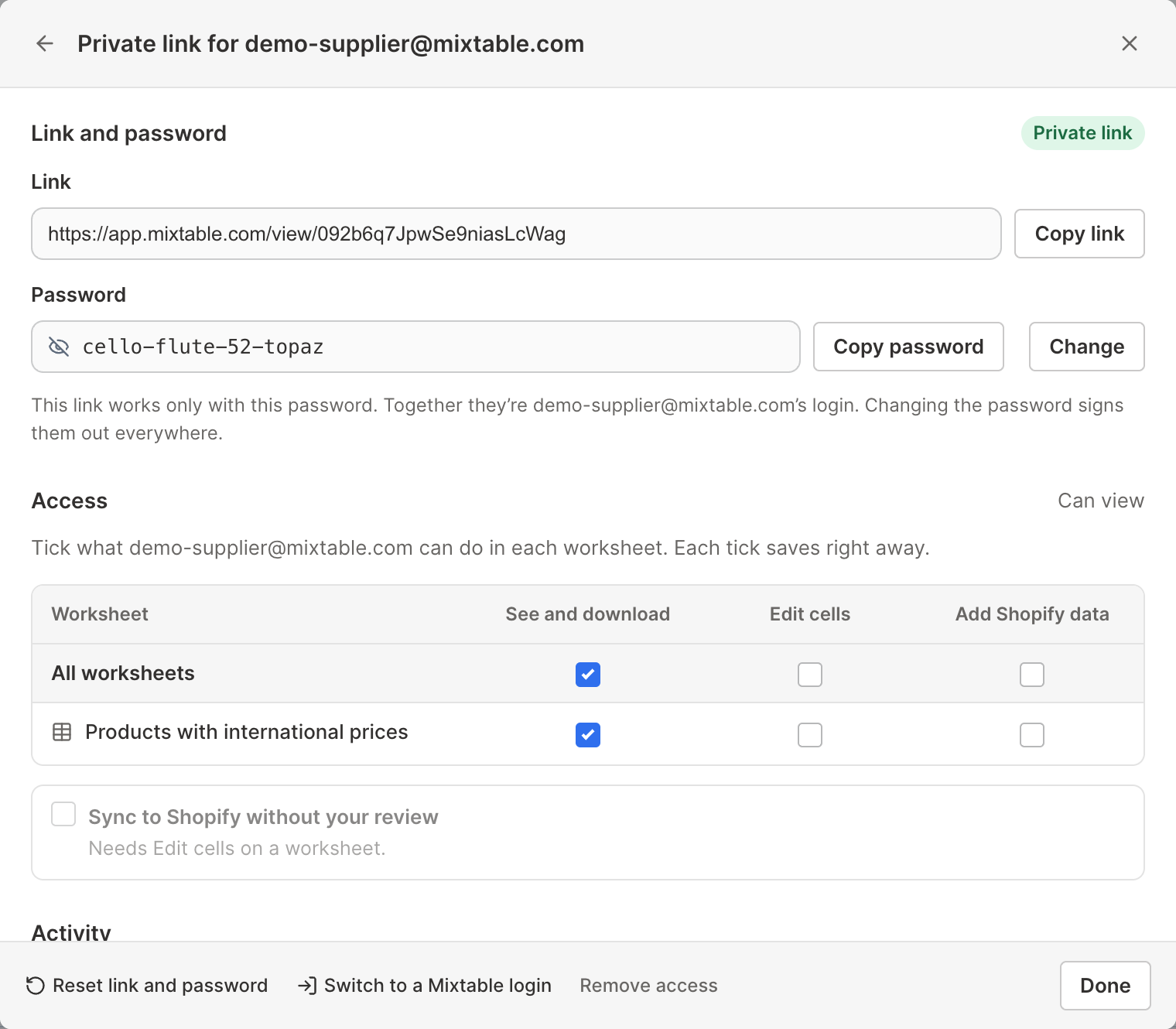
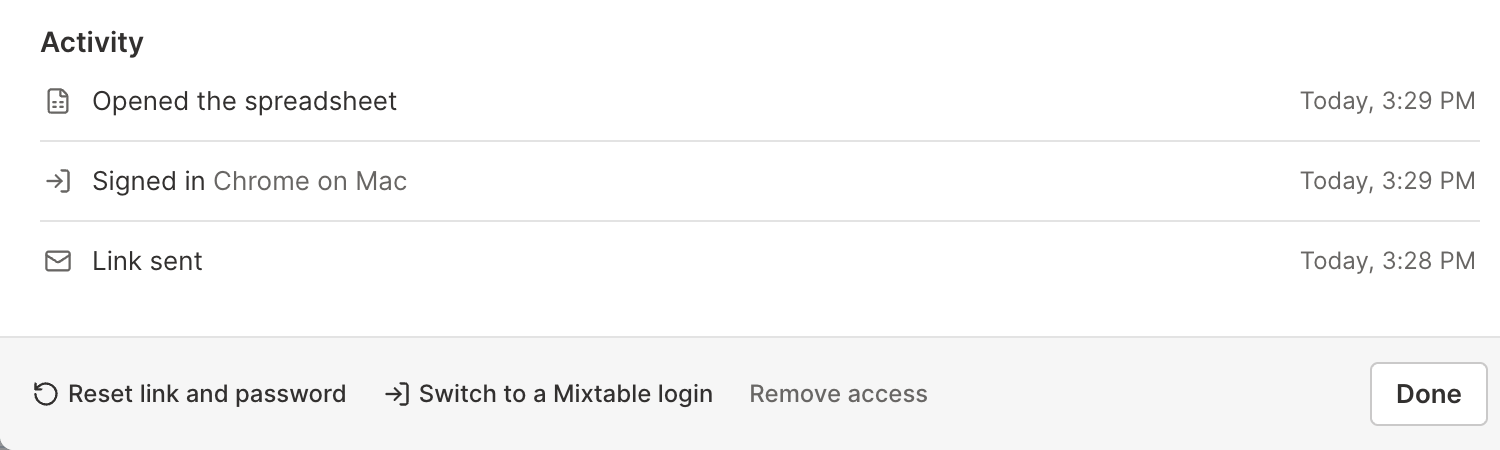
At the bottom of the window, you’ll find three more actions:
- Reset link and password: the old link and password stop working, they’re signed out, and Mixtable emails them a new link. The new password appears so you can give it to them
- Switch to a Mixtable login: the link stops working, and Mixtable emails them an invite to sign up with the same email address. They keep the same access
- Remove access: they can’t open the spreadsheet anymore
If a private link turns off
To keep your spreadsheet safe, a private link turns off after 5 wrong passwords in a row. Their row in People with access then says “Link turned off after 5 wrong passwords”. To turn it back on:
- Click Set a new password in their row
- Click Change, type a new password, and click Done
- Give them the new password
You can also click Reset to send them a new link and password instead.
Remove someone’s access
- Click Share at the top right of the spreadsheet
- Click Customize next to the person
- Click Remove access at the bottom, then Remove access again to confirm
For someone with a private link, Remove access is at the bottom of their private link window. Either way, they can’t open the spreadsheet anymore. If they have it open right then, it stops updating and asks them to reload.