
Shopify Net Quantity Sold Analytics
 Analytics Spreadsheet Updated October 8, 2026
 On this page
Net Quantity Sold is the number of units your customers ordered and kept: quantity ordered, minus quantity returned.
How Shopify Net Quantity Sold is calculated
Net Quantity Sold = Gross Quantity Sold - Returned quantity
It counts units rather than orders. Use Net Quantity Sold when you want to know how much product customers actually kept, and Gross Quantity Sold when you want original demand.
Why unit counts matter as much as revenue
Sales figures are shaped by price. Two products with identical Net Sales can be very different businesses if one sold ten units at $100 and the other sold a thousand at $1. Net Quantity Sold strips price out and tells you how much product actually moved and stayed sold.
That makes it the right metric for the decisions that involve physical goods:
- Reordering and purchasing, where you buy units rather than dollars
- Sizing and color assortment, where you need to know which options customers keep
- Warehouse and packing capacity planning
- Judging whether a discount grew real volume or just moved the same units at a lower price
Compare it with Gross Quantity Sold and Refunded Quantity to separate original demand from returns. A large gap between the two is worth investigating before you reorder, since fit, quality, and product descriptions are common explanations but the metrics do not identify which applies.
Add Net Quantity Sold to a Shopify data worksheet
-
Open a supported Shopify data worksheet
-
Click + Shopify data in the header row of an empty column, or choose Column > Add Shopify data… from the menu bar. The field picker opens
-
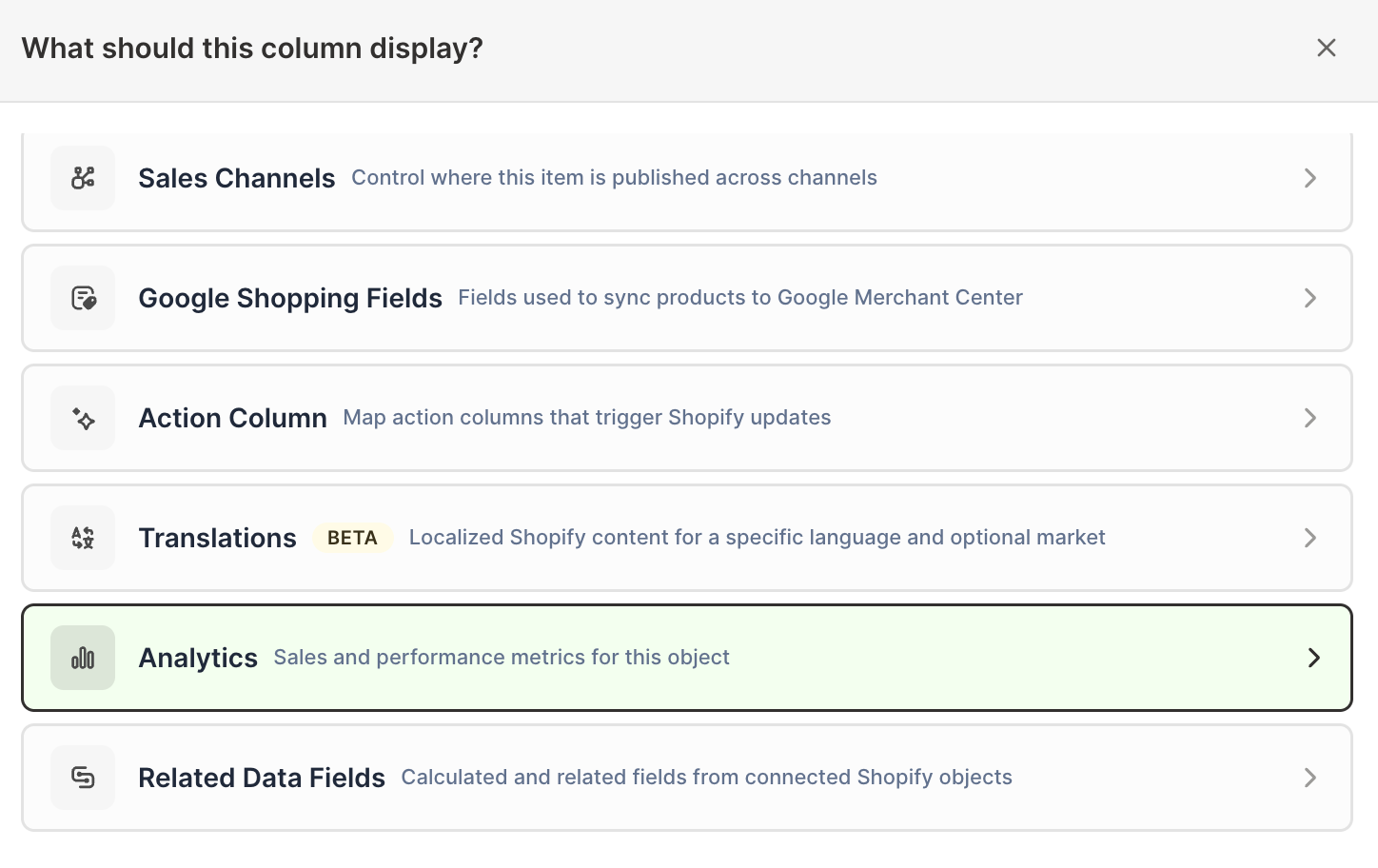
Click Sales & analytics in the list of sections on the left, or type the metric's name in the search box
-
Click Net Quantity Sold. The metric's settings open with it already chosen under Which metric?
-
Under Over what time period?, choose All time, Fixed dates, Rolling period, Calendar year, or Calendar month
-
Under Limit which orders count, add any optional filters supported by the metric
-
Click Save Column
Mixtable calculates the metric for each row, so you can keep Shopify fields such as product title, variant SKU, vendor, category, price, cost, and inventory beside the result. Units sold next to units in stock is the pairing that makes a reorder decision obvious. On a Products (with variants) worksheet, the Days of Stock Left and Sell-Through Rate inventory metrics turn that pairing into a single number per variant. See Shopify sell-through, inventory turnover, and dead stock analytics.
Compare Net Quantity Sold with a Pivot Table worksheet
- Click the + at the end of the worksheet tabs, or choose Worksheet > Add worksheet…
- Select Reporting worksheet, then click Continue
- Select a ready-made Pivot Table report, or choose Blank pivot table, then click Continue
- Under Break down by, choose a breakdown such as vendor, product type, product category, product tag, market, or customer segment
- Add Net Quantity Sold under Metrics
- Choose the timeframe under Time period
- Click Create Worksheet
This produces one row per selected dimension, which makes it easy to rank groups by retained unit volume rather than by revenue. The builder creates its columns without filters. To count only some orders, add a column once the worksheet exists with + Analytics data in the header row of an empty column, and add filters under Limit which orders count.
Track Net Quantity Sold over time
Seasonality shows up in units long before it shows up in your bank balance. A Time Series worksheet gives you the week-by-week or month-by-month pattern you need for buying decisions.
- Click the + at the end of the worksheet tabs, select Reporting worksheet, and click Continue
- Choose a Time Series report, or select Blank time series, then click Continue
- Select the breakdown under Break down by
- Choose Net Quantity Sold under Measure (with Store rows, select it under Metrics)
- Under Time periods, choose By day, By week, By month, or By year, then choose how many periods to include next to for the last
- Click Create Worksheet
Read negative values correctly
Net Quantity Sold can drop below zero for a period when more units are returned in that period than were sold during it, which typically happens after a big month followed by a wave of returns. Check the result against Gross Quantity Sold and Refunded Quantity before treating a negative number as a data problem.