
Shopify Analytics Timeframes and Date Ranges
 Analytics Spreadsheet Updated October 16, 2026
 On this page
The timeframe controls which Shopify order activity (or, for inventory metrics, which days of stock history) contributes to an analytics metric. Choosing the right option matters because last month, past month, and last 30 days can describe different dates even though they sound similar.
Why the timeframe is the setting to get right
Picking the wrong dates is the easiest way to reach a confident, wrong conclusion. Two reports on the same metric can disagree completely, and the reason is usually the dates rather than the data.
Two traps catch people most often.
Comparing a partial period with a complete one. On the 8th of the month, “this month” holds eight days of sales. Put it next to a full prior month and every product looks like it collapsed. Nothing collapsed; you compared eight days with thirty.
Ignoring seasonality. Comparing December with January will tell you sales fell off a cliff at almost any store. Comparing this December with last December tells you something real. When seasonality is in play, the same period last year is nearly always the fairer comparison.
Getting the timeframe right also decides whether a report keeps working. A rolling period stays current on its own, so a dashboard you check weekly never needs touching. A fixed range stays frozen, which is what you want for a month-end report that has to keep matching the number you already reported.
Mixtable uses the same five timeframe types for order-based analytics columns and Pivot Table worksheet metric columns. Inventory metrics follow slightly different rules, covered in inventory metric dates. Time Series worksheets use time-period columns, which are explained separately below.
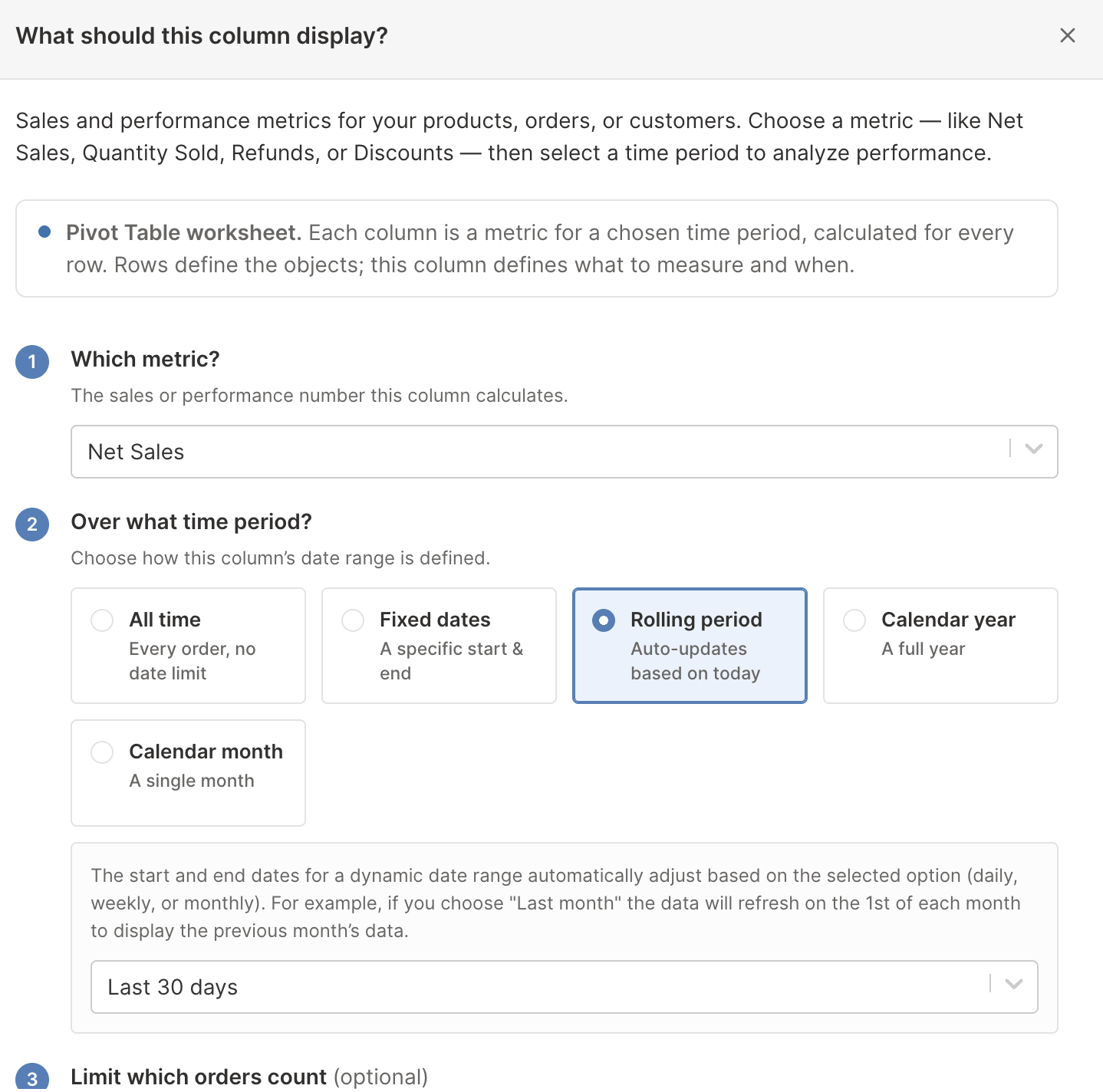
All time
All time includes the full Shopify order history available to Mixtable analytics.
Use it for:
- Lifetime product, variant, customer, or collection rankings
- Long-term customer purchase value
- Overall vendor or product-category contribution
- A baseline beside a shorter recent period
All time is useful for context, but it can hide a recent decline. Add the same metric with a recent rolling or calendar timeframe when current momentum matters.
Fixed dates
Fixed dates keeps the selected start and end dates unchanged. The end date shown in the interface is included in the calculation.
Use fixed dates for:
- A promotion or advertising campaign
- Black Friday and Cyber Monday
- A product launch
- A trade show or retail event
- Comparing identical date ranges across years
Mixtable offers shortcuts such as Today, Yesterday, Past week, Past month, Past 3 months, Past 6 months, Past year, Past 2 years, and Since Shopify Launch Date. You can also select custom dates.
Fixed dates are best when the historical boundaries must never move.
Rolling period
Rolling period moves automatically based on today. Available rolling choices include:
- Today
- Yesterday
- Current Week (Sun - Today)
- Last Week (Sun - Sat)
- Current month
- Last month
- Last 30 days
- Last 60 days
- Last 6 months
Use a rolling period for a report that should stay current without editing its date settings. For example, a Last 30 days Net Sales column always describes the most recent rolling window.
Rolling periods that sound similar
- Last month means the previous complete calendar month
- Current month means the current calendar month through today
- Last 30 days means a moving 30-day window ending today
- Past month is a shortcut in Fixed dates, based on the dates selected when the column is configured
Choose a complete calendar period for accounting-style comparisons. Choose a rolling window for operational monitoring.
Calendar year
Calendar year uses January 1 through December 31 of the selected year.
Use it for:
- Year-over-year sales comparisons
- Annual vendor or collection reviews
- Annual refund and discount analysis
- Adding this-year and last-year columns to the same worksheet
A current-year column includes the year through the latest available data. When comparing it with a completed prior year, remember that the periods are not equal until the current year ends. For a like-for-like comparison during the year, use matching fixed date ranges.
Calendar month
Calendar month uses the first through the final day of the selected month.
Use it for:
- Month-over-month sales comparisons
- Promotion analysis tied to a complete month
- Monthly vendor, Market, or segment reporting
- Comparing the same month across years
Calendar month is different from Last 30 days. February, March, and April contain different numbers of days, while a rolling 30-day period always follows its moving boundary.
Time Series daily, weekly, monthly, and yearly columns
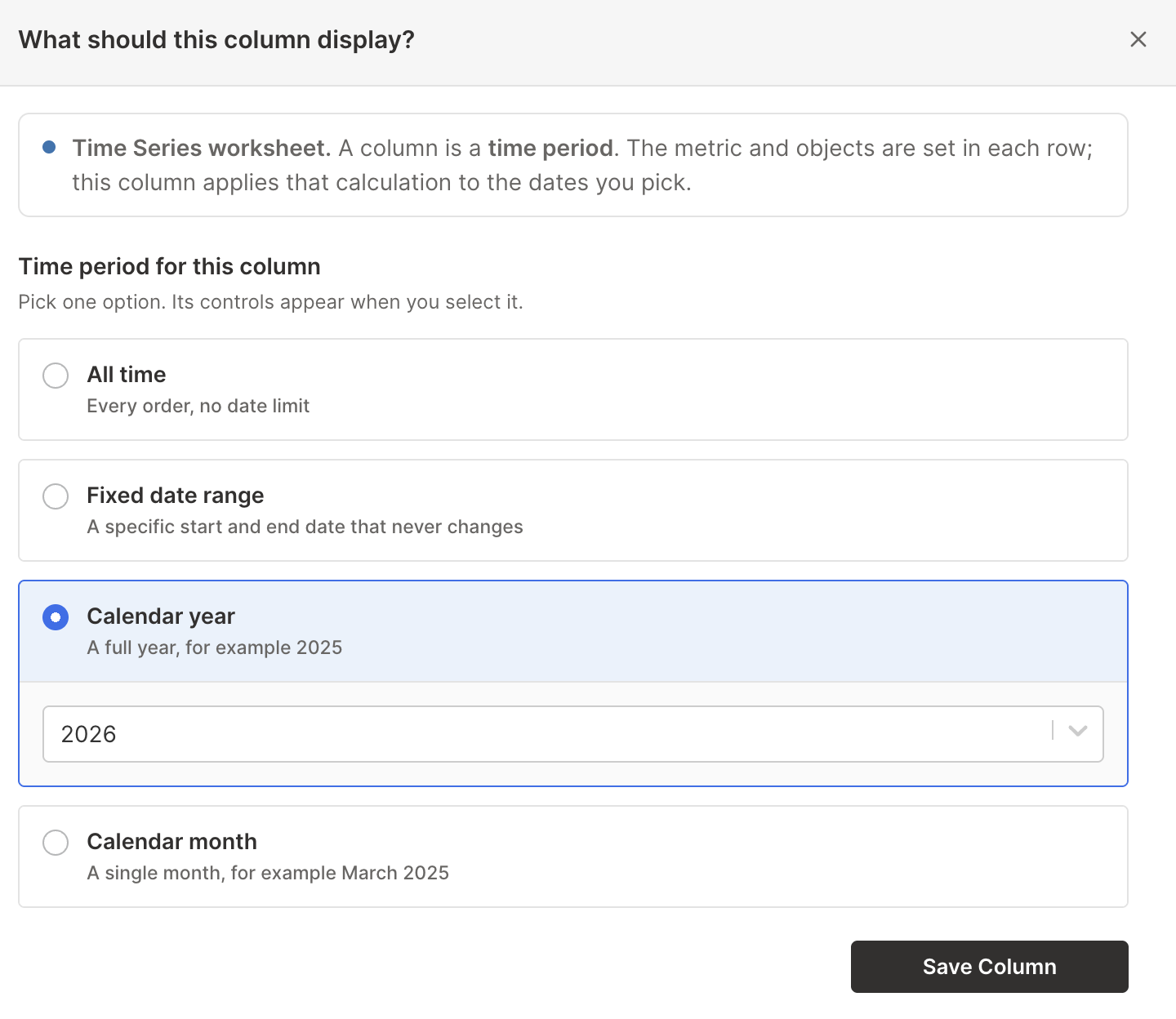
A Time Series worksheet stores the metric and Shopify object group in each row. Each analytics column supplies the dates for that row’s calculation.
The builder can create:
- Between 1 and 90 recent daily columns (30 by default), ending yesterday
- Between 1 and 52 recent weekly columns (12 by default), each running Sunday to Saturday and ending with last week
- Between 1 and 36 recent monthly columns
- Between 1 and 10 recent yearly columns
Choose By day to watch short-term movement, such as a sale or a product launch. Choose By week to follow recent trends without day-to-day noise. Choose By month for detailed seasonality and recent movement. Choose By year for longer-term direction and a more compact worksheet.
Daily and weekly columns stop at yesterday and last week, so each one covers a complete period. Monthly and yearly columns start with the current month or year, which is still in progress, so the newest column covers only the period so far. Keep that in mind before you compare it with a complete one.
Each generated column is headed by its period: 2026-09-30 for a day, Week of 2026-09-20 for a week, 2026-09 for a month, and 2026 for a year.
You can add another time-period column after creation. Click + Analytics data in the header row of an empty column (or choose Column > Add Shopify data…), and the time period settings open right away. Choose the dates under Time period for this column, then click Save Column. A Time Series column offers All time, Fixed date range, Calendar year, or Calendar month, because the metric itself is stored in the row.
Inventory metric dates
Inventory metrics, such as Closing Stock or Sell-Through Rate, read your store’s stock history instead of its orders, so their dates follow Shopify’s inventory records:
- History starts on October 1, 2023, the earliest date Shopify keeps, and ends yesterday. Today is never included, because today’s stock isn’t final until the day ends. Opening Stock and Stock Change start a day later, on October 2, 2023
- There is no All time, and the Today, Current Week (Sun - Today), and Current month rolling periods aren’t offered. A rolling period such as Last 30 days covers the 30 days before today
- Under Fixed dates, a Since October 1, 2023 shortcut replaces Since Shopify Launch Date, and shortcuts that would end today end yesterday instead
- Seven metrics show stock on a single day: Opening Stock, Closing Stock, Closing Value at Cost, Closing Value at Retail, Units Without Cost, Out-of-Stock Variants, and Last In-Stock Date. Instead of Over what time period?, they ask On what date? and offer Fixed date, Rolling date (such as Yesterday or End of last month), Calendar year (such as End of 2025), and Calendar month
A period that starts before October 2023 can show “No inventory history”. To learn what each inventory metric tells you, see the Shopify inventory analytics guide.
Change the time period of every column at once
Each column keeps its own timeframe, but you don’t have to change them one by one. On a Shopify data worksheet with analytics columns, or on a Pivot Table worksheet, Change all time periods at the top right, next to Share, gives several columns the same timeframe in one step. For example, a ready-made report that starts on All time can show the last 30 days instead.

- Click Change all time periods at the top right of the spreadsheet
- Under Over what time period?, choose the timeframe, the same way as for a single column
- Under Which columns?, untick any column that should keep its current timeframe. Every analytics column starts ticked, and the Now column shows the timeframe it has today
- Click the button that names how many columns change, such as Change 6 columns
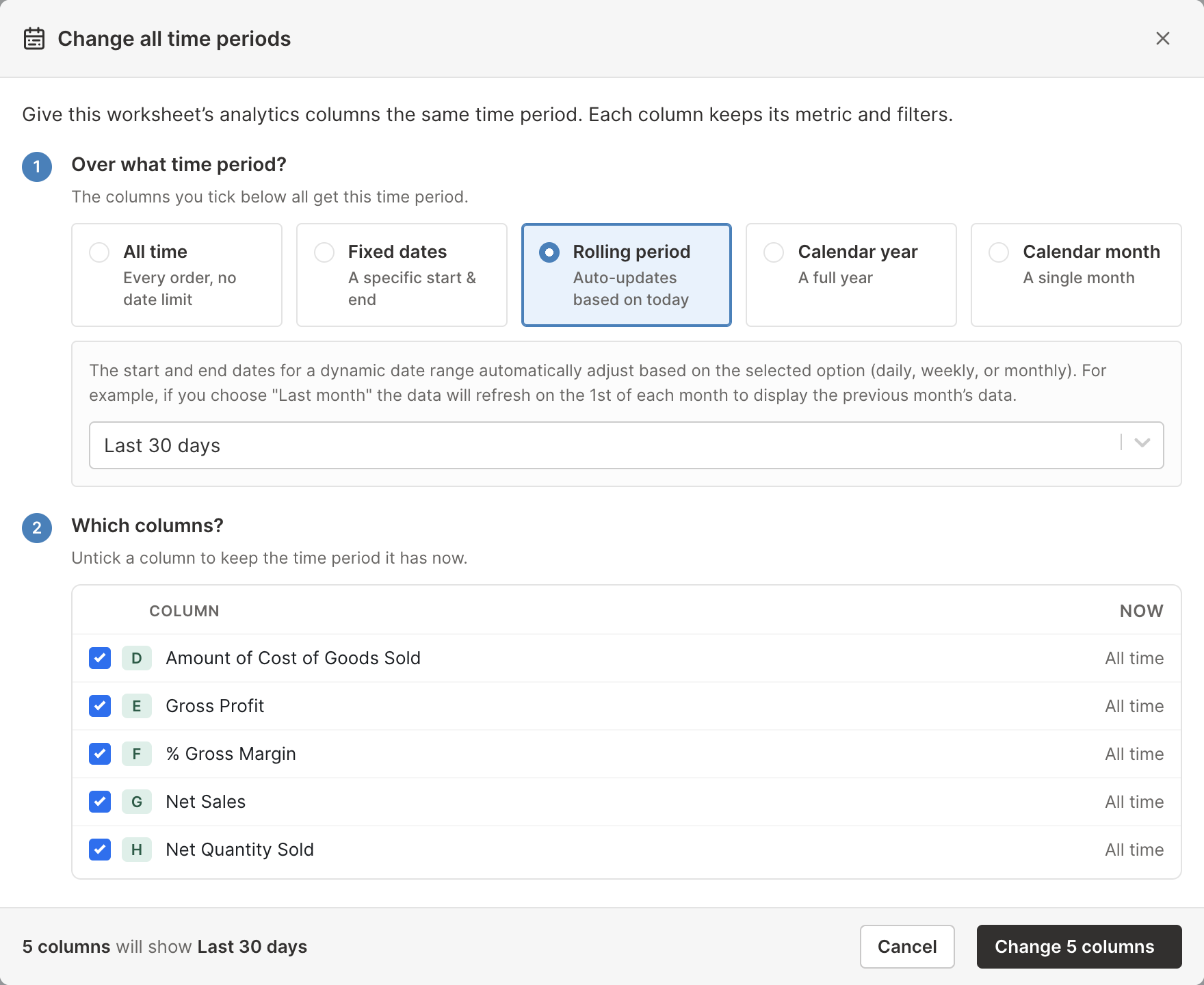
Each ticked column keeps its metric and order filters and gets the new timeframe. Its header changes to the metric, the new timeframe, and its filters, such as Net Sales · Last 30 days, which replaces a name you typed yourself, and the column widens to fit it. The cells show “Calculating…” until the new numbers are ready, which can take a moment on a large store.
Untick a column to keep a deliberate comparison, such as units sold over the last 30 days next to the last 6 months. Some columns stay as they are and are greyed out with the reason:
- Inventory metrics that show stock on a single day, such as Closing Stock, keep their own date
- Other inventory metrics are left out when the timeframe is one they don’t offer, such as All time
Time Series worksheets don’t have the button, because their columns are the time periods. Like adding an analytics column, changing time periods needs Mixtable Analytics Spreadsheet. If it isn’t installed, or its trial has ended without a plan, the dialog explains what’s needed instead.
Build fair comparisons
For a reliable Shopify analytics comparison:
- Keep the metric the same
- Keep the order filters the same
- Use periods with comparable lengths and seasonal context
- Label the columns clearly
- Add a formula for the absolute or percentage difference
For example, compare September 1 through December 31 this year with the same dates last year, rather than comparing an incomplete holiday season with a completed one.
Name date-based columns clearly
Useful names include:
Net Sales · All timeNet Sales · Last 30 daysOrders Count · 2026Refund Amount · 2026 MarchNet Sales · BFCM 2025
When a filter also matters, add it to the name, such as Net Sales · 2026 · B2B. Change all time periods names the columns it changes this way for you.
Next, see how to filter Shopify analytics reports without changing the timeframe.