
Bulk edit Shopify product SEO titles and meta descriptions
 Spreadsheet Editor Updated October 21, 2026
 On this page
 Bulk edit Shopify product SEO titles and meta descriptionsVideo walkthrough
 Shopify gives each product an SEO page title and meta description. These fields help search engines understand the page and can influence how the product appears in search results.
Mixtable Spreadsheet Editor lets you audit and update those fields across the whole Shopify catalog with a spreadsheet. Each product sits on one row, so you can find gaps, paste improved copy, use formulas or Find and Replace, review every pending edit, and sync the approved changes to Shopify.
Note: Google creates search-result title links and snippets automatically. A clear SEO title and useful meta description provide good source material, but Google may show different text when it better matches a search. See Google’s guidance for title links and search snippets.
Create a product worksheet with SEO fields
The easiest starting point is Mixtable’s Basic Product Info template. It creates a Products (no variants) worksheet with one row per Shopify product and includes the SEO columns automatically.
-
Install Mixtable Spreadsheet Editor
-
Open your Mixtable dashboard and click Create spreadsheet at the top of the page. If you haven't created a spreadsheet yet, click Browse all templates below the dashboard's suggestions instead. In the Create spreadsheet window, find Basic Product Info under Products, or type its name in the search box, and click it. Mixtable creates the spreadsheet and fills it with data from your Shopify store.
If you have more than one Shopify store connected, choose the store at the top of the window before you click the template
-
Open the Products (no variants) worksheet
Look for SEO Page Title and SEO Meta Description beside the other product fields.
Add SEO columns to an existing Products worksheet
If you already have a product worksheet, add the two fields as new columns:
- Click + Shopify data in the header row of an empty column, or choose Column > Add Shopify data… from the menu bar. The field picker opens and asks What should column E show?, with your column’s letter in place of E
- Type SEO title in the search box, or click Search engine listing in the list of sections on the left
- Click SEO title. The panel on the right explains the field and shows an example from your worksheet
- Click Save Column
- Click + Shopify data in the next empty column
- Click SEO description in the same section, then click Save Column again
Mixtable labels the new columns SEO title and SEO description, then loads the current Shopify values.
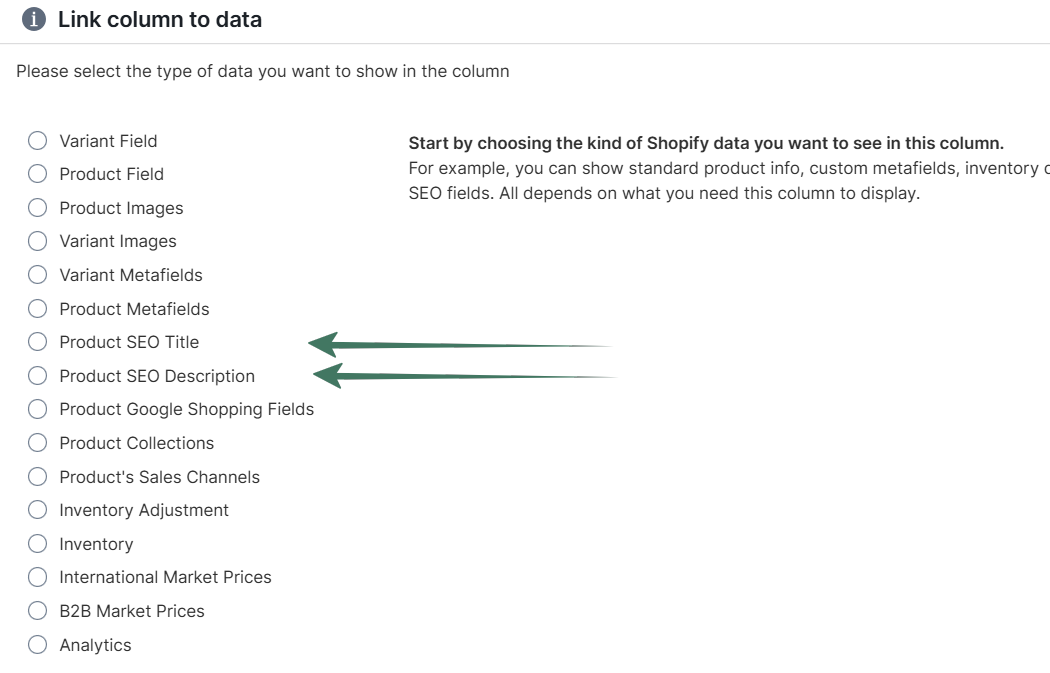
You can also add these parent-product fields to a Products (with variants) worksheet, where the field picker marks them with a Product tag. Because the values belong to the product, they repeat on its variant rows. A Products (no variants) worksheet is usually safer for an SEO audit because each product appears only once.
Audit Shopify product SEO at a glance
Before rewriting anything, scan the two SEO columns for:
- Empty titles or descriptions
- Repeated text used across unrelated products
- Titles that do not clearly identify the product
- Descriptions that do not explain the specific page or its useful product details
- Old brand names, offers, or product information
- Keyword lists that read unnaturally
Google recommends descriptive, concise, distinct title text instead of vague wording, unnecessary repetition, or keyword stuffing. For meta descriptions, it recommends accurate, page-specific summaries rather than using the same generic description everywhere.
To make empty SEO cells easy to spot, right-click the SEO column’s letter, choose Conditional formatting…, and add a rule that colors a cell when its value is empty. See conditional formatting for more ways to highlight cells.
Edit product SEO titles and descriptions in bulk
Type directly into a cell, paste a range from Excel, drag a value or formula down, or use spreadsheet formulas to assemble copy from fields such as product title, vendor, product type, or other page-specific details.
Keep each result natural and useful to a shopper. A repeatable formula can provide a first draft for a large catalog, but review the generated text so products do not end up with awkward or misleading titles and descriptions.
If you only want to update part of the catalog, turn on Filter and narrow the visible rows first.
Use Find and Replace for repeated SEO changes
Find and Replace is useful for a controlled change such as replacing an old brand name or correcting the same capitalization issue across many visible products.
- Right-click the column letter of your SEO title or SEO description column and choose Find and replace…. The dialog opens with that column already chosen
- Enter the text under Find this
- Enter the new text under Replace with this
- Choose whether the match is case-sensitive or must match whole words with the Case-sensitive match and Match whole words only switches (both start on)
- Check the Before and After values in the preview (Preview first 10 rows is on by default)
- Click Update Spreadsheet
You can also open Bulk Edit > Find and Replace from the menu bar and choose the column in the dialog. The tool updates the currently visible data rows in the selected column. It changes the spreadsheet first, not Shopify, so you still have a chance to review the results.
Preview and sync the SEO changes to Shopify
Mixtable does not silently push your cell edits to Shopify.
- Click Sync at the top right of the spreadsheet. The preview opens
- Review the affected products, SEO fields, and pending values
- If something is unexpected, click Close preview and correct it in the worksheet
- Click Sync in the preview when it is correct
After syncing, Shopify holds the new SEO values. Search engines still need to recrawl the product pages before their results can change, and Google may generate a different title link or snippet for a particular search.
Product SEO troubleshooting
The SEO columns are not available
Confirm that the active tab is a Products (no variants) or Products (with variants) worksheet. The SEO title and SEO description rows are in the Search engine listing section of the field picker on those worksheet types.
The same SEO value appears on several variant rows
That is expected on a Products (with variants) worksheet. Product SEO fields belong to the parent product. Use a Products (no variants) worksheet when you want one editable row per product.
The edits appear in Mixtable but not Shopify
They are draft changes. Click Sync at the top right of the spreadsheet, review the pending values in the preview that opens, then click Sync again.
Google still shows the old title or description
First confirm that the new value reached Shopify. Google must then recrawl the page, and its systems may choose a different title link or snippet based on the page and the search query.
Can I bulk edit SEO fields for other Shopify content?
Yes. Mixtable also supports SEO fields on supported Shopify collection, page, and article worksheets. See the guides for collection SEO, page SEO, and blog-post SEO.
If you sell in several languages, you can also bulk edit supported Shopify translations for product SEO titles and descriptions.
Tip: For a large catalog, add a Net Sales analytics column beside the SEO fields, sort by revenue, and start with the products that matter most to the business.