
Collection Sales Template
 Analytics Spreadsheet Updated October 15, 2026
 On this page
The Collection Sales template creates one row per Shopify collection with lifetime sales metrics. Use it to compare the groups behind your merchandising, navigation, campaigns, and seasonal assortments.
What this template tells you
Collections are how you group products for merchandising, but most merchants never see how each group performs as a whole. This template puts them side by side so you can compare assortments rather than individual products:
- Which collections account for most of your sales, and which contribute very little
- Where to point homepage space, email campaigns, and ad budget
- Which collections carry the most discount value relative to their sales
- Which seasonal collections are worth rebuilding next year
These metrics aggregate order activity for the products in each collection. They do not include page views or navigation data, so they show how a collection’s products sold rather than how many shoppers browsed it.
Create the Collection Sales spreadsheet
-
Install Mixtable Analytics Spreadsheet
-
Open your Mixtable dashboard and click Create spreadsheet at the top of the page. If you haven't created a spreadsheet yet, click Browse all templates below the dashboard's suggestions instead. In the Create spreadsheet window, find Collection Sales under Analytics & Reporting, or type its name in the search box, and click it. Mixtable creates the spreadsheet and fills it with data from your Shopify store.
On your first visit to Mixtable Analytics Spreadsheet, you can also click Which collections sell best? on the dashboard to create this template in one step.
Columns included in the template
The template creates a Collection Sales worksheet with:
- Collection Title
- Total Order Count
- Gross Quantity Sold
- Net Quantity Sold
- Returns
- Discounts
- Net Sales
The Returns column is Refund Count, meaning the number of distinct refunded orders associated with the collection.

How to use the template
- Sort by Net Sales to find the collections contributing the most retained product sales
- Compare Total Order Count with Net Sales to tell high-order-volume collections from high-value ones
- Compare Gross Quantity Sold with Net Quantity Sold to see how much returns reduce each collection’s unit volume
- Review Discounts beside Net Sales to find collections whose sales lean heavily on discounted orders
- Add collection handle, product count, collection type, and sort order for merchandising context
Product count is worth adding early. A collection holding 400 products and producing very little sales tells you the group is not pulling its weight, which is a prompt to review how it is built and where it appears.
Add more metrics or a different timeframe
-
Open your Collection Sales worksheet
-
Click + Shopify data in the header row of an empty column, or choose Column > Add Shopify data… from the menu bar. The field picker opens
-
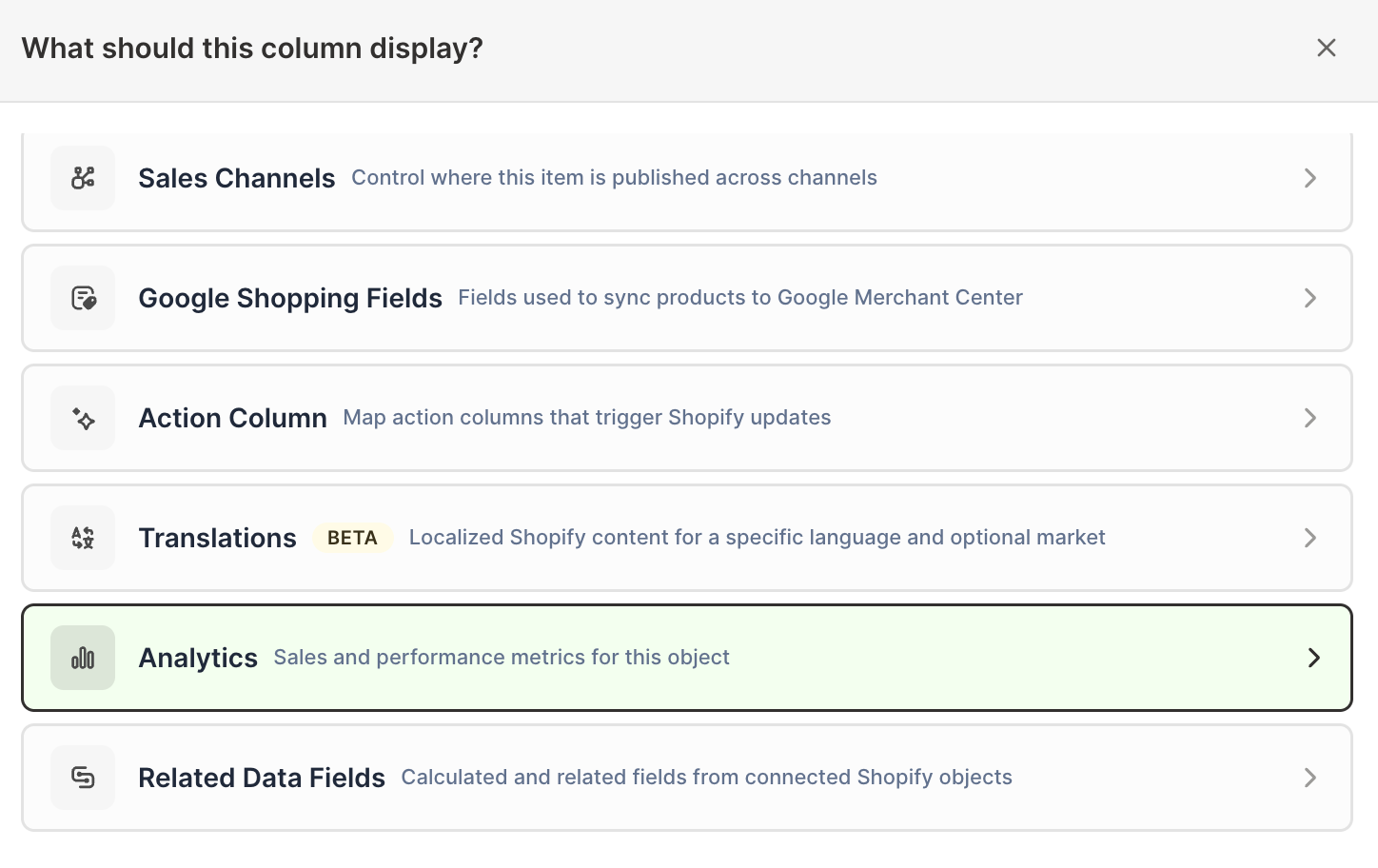
Click Sales & analytics in the list of sections on the left, or type the metric's name in the search box
-
Click the metric you want. The metric's settings open with it already chosen under Which metric?
-
Under Over what time period?, choose All time, Fixed dates, Rolling period, Calendar year, or Calendar month
-
Under Limit which orders count, add any optional filters supported by the metric
-
Click Save Column
Adding the same metric over a recent window, beside the template’s lifetime figures, is what turns this into a seasonal comparison rather than a static ranking.
You can also add a worksheet, choose Reporting worksheet, and pick Collection sales & refund rate under Shopify data worksheet with analytics columns. It creates a ready-made Collections worksheet with collection details, Net Sales, Gross Sales, Net Quantity Sold, Orders Count, and Percent of Orders Refunded.
Understand overlapping collections
A Shopify product can belong to more than one collection, so its sales can contribute to more than one collection row. Use this template to compare collections against each other, not to reconcile against your store total.
For more reporting options, see Shopify Collection Analytics.