
Change the order of Shopify product variants
 Spreadsheet Editor Updated October 21, 2026
 On this page
Changing the display order of your Shopify product variants is quite simple using Mixtable’s Excel-like spreadsheet. The display order of your variants is stored in their position field. Every variant of your product has a value in its position field, and Shopify orders the variants on your product pages based on the value of this field.
So, to change the display order of your variants you need to map a column to the position field on a worksheet that syncs your store’s variant data. Here’s how:
Mapping variant position to a column
-
In a spreadsheet, create a worksheet that integrates with your Shopify Product Variants, such as a Products (with variants) worksheet
-
To load more Shopify data, click + Shopify data in the header row of an empty column, such as the one right after your last column. You can also choose Column > Add Shopify data… from the menu bar. The field picker opens and asks What should column E show?, with your column's letter in place of E. It lists everything the worksheet can show from Shopify, grouped into sections the way your Shopify admin groups them. Type in the search box at the top, or click a section on the left, to find the field you want.

-
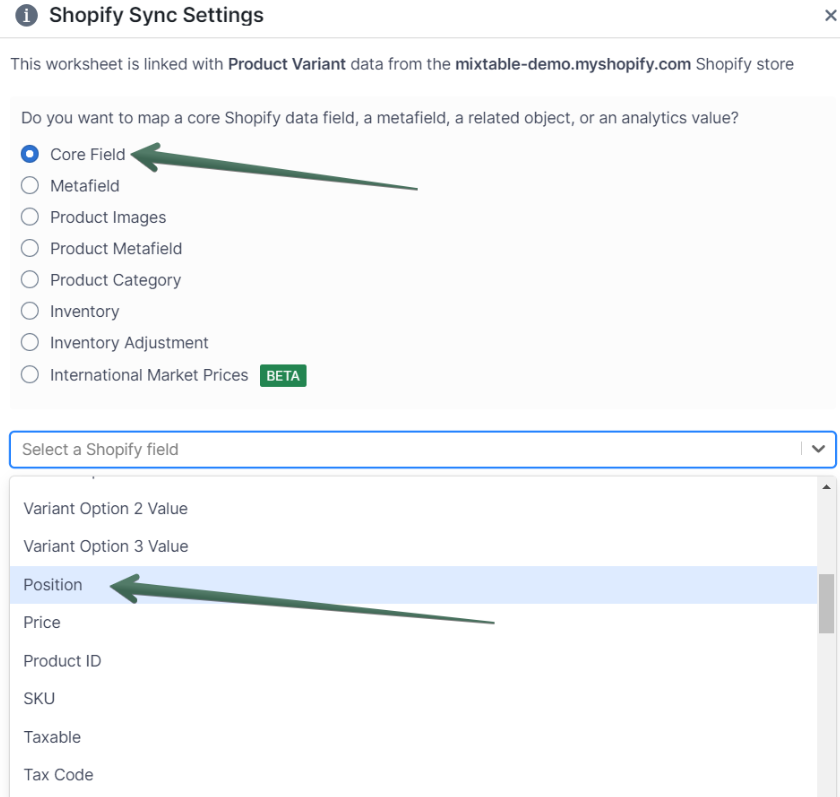
Type Variant position in the search box, or click Variants & options in the list of sections on the left. Click Variant position, then click Save Column
- You’ll now see the column populate with the existing display order positions for your variants
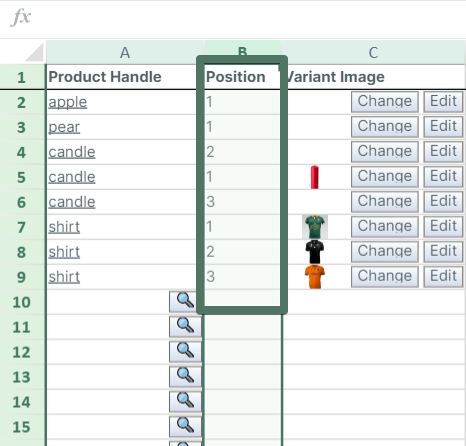
Changing the display order and syncing positions back to Shopify
Now that you have the position field mapped to a column, change the cell values, then click Sync at the top right of the spreadsheet, review your changes in the preview that opens, and click Sync again to send them back to Shopify. It’s up to you how to change the cell values as, depending on your process, you have a few options.
- You can manually change some variants’ position in order to force a particular variant to show up at the top. This can be your best seller, for example
- You can also use Mixtable’s sort functionality to rearrange the rows in the variants-syncing worksheet based on some logic
Then update the position cell values after the sort is done with the order of the rows.
- You can do this manually, or by dragging cell values as you can in Excel
- You can also use the Excel ROW() function to populate the cells with their current row number
Mixtable’s Cell history and Row history don’t record Variant position. If you might want to go back to the current order later, copy the Variant position column into an empty column before you change it.