
Image ALT Tags in Shopify: Add and Edit with Mixtable spreadsheet
 Spreadsheet Editor Updated October 21, 2026
 Image alt tags are vital for Shopify stores because they improve accessibility for visually impaired customers, boost SEO by providing search engines with image descriptions, and enhance user experience by displaying text if images fail to load. Well-written alt tags improve search rankings, increase traffic, and provide a more inclusive shopping experience.
If you first need to add new product images by URL in bulk, use this guide: Add Shopify product images in bulk with an Action Column
Best practices for ALT tags SEO
- Describe the image accurately and concisely. Avoid generic terms like “image” or “picture.” Instead, detail what’s in the photo, for example, instead of “red dress,” use “flowing red maxi dress with spaghetti straps”
- Aim for 125 characters or less. Screen readers may cut off longer descriptions
- For decorative images, use a null alt tag (alt=""): This tells screen readers to skip the image since it doesn’t add informational value
- Try to have descriptive names for the image files as well, e.g. red_dress_maxi_straps.jpg
How to add alt tags with the Mixtable spreadsheet app?
Using a spreadsheet app makes adding and editing alt tags much easier. Mixtable Spreadsheet Editor offers such an interface, so you can change the ALT tags of hundreds of images at once.
Your images live in a Media Images worksheet, which you add to a Mixtable spreadsheet. If you don’t have a spreadsheet yet, install the Mixtable Spreadsheet Editor app and create one first, for example from the Basic Product Info template:
Open your Mixtable dashboard and click Create spreadsheet at the top of the page. If you haven't created a spreadsheet yet, click Browse all templates below the dashboard's suggestions instead. In the Create spreadsheet window, find Basic Product Info under Products, or type its name in the search box, and click it. Mixtable creates the spreadsheet and fills it with data from your Shopify store.
Then add the Media Images worksheet:
- In your spreadsheet, click the + at the end of the worksheet tabs, or choose Worksheet > Add worksheet… from the menu bar
- Choose Shopify data worksheet and click Continue, then select Media Images
- Click Continue to keep the suggested columns, then click Create Worksheet
- You’ll see a new worksheet added to your spreadsheet, and your existing product images from Shopify will start loading into it
- The Media Images worksheet comes pre-loaded with an Alt text column (called Image ALT tag in older worksheets) displaying any existing ALT tags on your images. If you remove it, you can add it back anytime: click + Shopify data in the header row of an empty column. The field picker opens and asks What should column E show?, with your column’s letter in place of E. Click Alt text in the Image section, then click Save Column
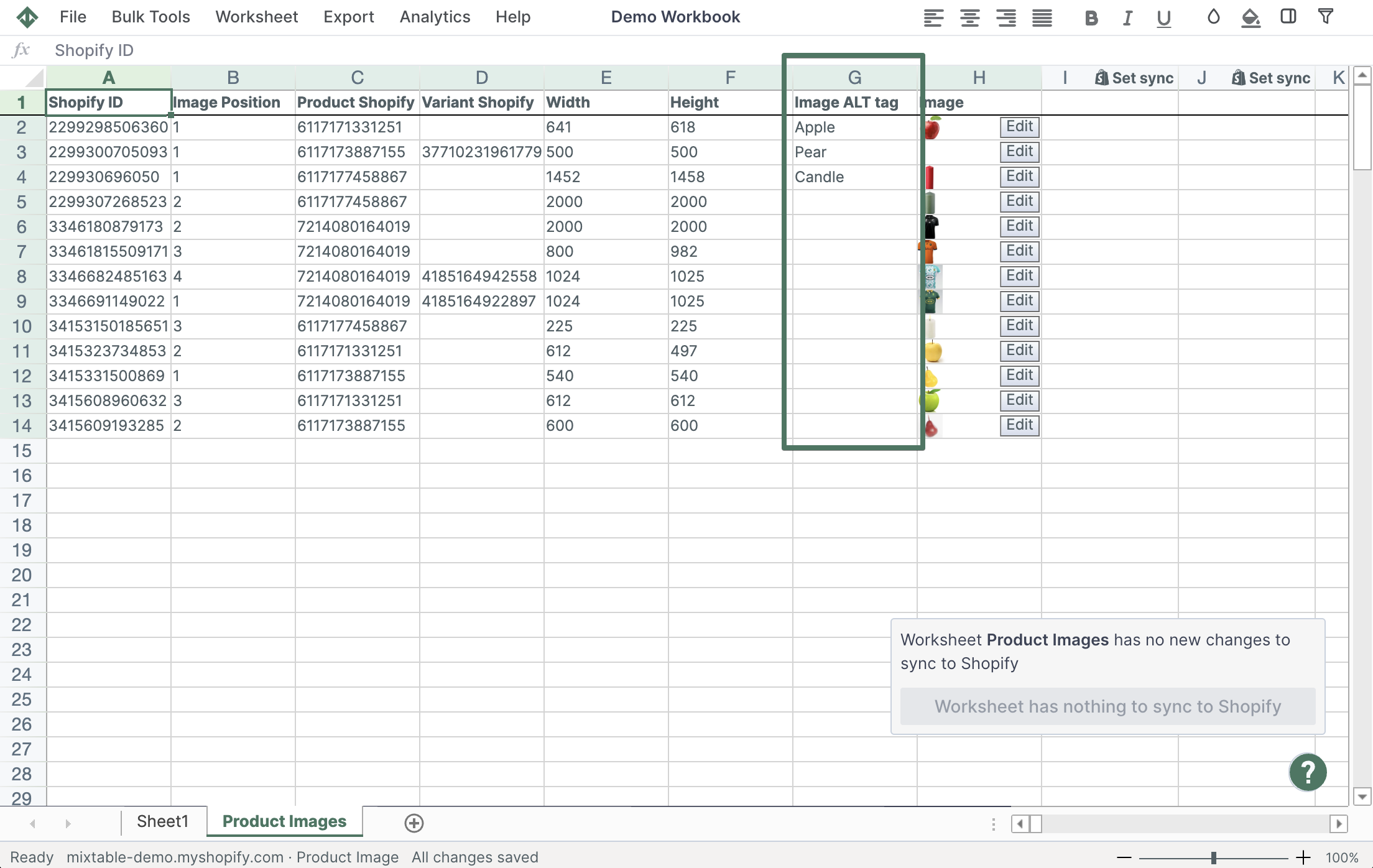
- Change the cells in the Alt text column, then click Sync at the top right of the spreadsheet, review your changes in the preview that opens, and click Sync again. The ALT tag for the image shown in each changed row is updated in Shopify
To see which product an image belongs to while you write its alt text, add Related Data Fields columns such as product titles or handles. The Media Images section of the product images guide shows how.
Shopify doesn't send changes to media images on its own, so download them when you need the latest. Click Download latest in the sync control at the top right of the spreadsheet (or choose Shopify Sync > Sync with Shopify…) to open the sync card. Under Download latest from Shopify, click Download next to Media images.