
Bulk Edit Product Descriptions in Shopify
 Spreadsheet Editor Updated October 21, 2026
 On this page
Mixtable’s spreadsheet interface allows you to easily view and edit the descriptions of your Shopify products. Here’s how.
In a spreadsheet, create a worksheet that shows your Shopify Product data.
-
Click + Shopify data in the header row of an empty column, or choose Column > Add Shopify data… from the menu bar. The field picker opens so you can choose the data you want to pull in

-
Type the field's name in the search box at the top, then click Description in the list. The panel on the right explains the field and shows an example value from your worksheet
-
Click Save Column. The column fills with the Description values from Shopify
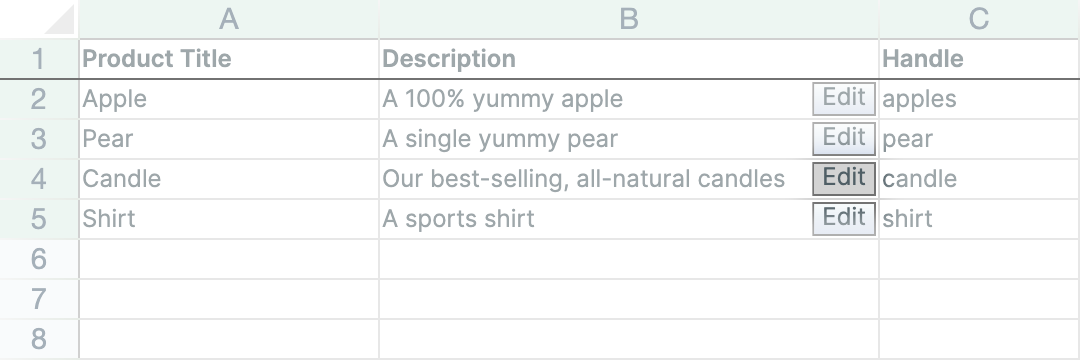
Now, change the description content as needed. Be aware that Mixtable will display the raw description value, as Shopify stores it. This is in HTML format and not plain text. To format a description without touching the HTML, click Edit at the right edge of its cell to open the rich text editor.
Selling in more than one language? You can also translate your product descriptions into each language and sync them to Shopify, all from the same kind of spreadsheet.
Edit and format descriptions as HTML
Each Description cell holds the product’s description as HTML, the same code Shopify uses to format it on your storefront. You can work with it in a few ways:
- Format it with the rich text editor. Click Edit at the right edge of a Description cell to see the description the way your store shows it. Use the toolbar for headings, bold, lists and links, then click Update cell. See Format Shopify product descriptions with a rich text editor for the full walkthrough
- Edit in the cell or the formula bar. Click a cell and type, or edit the HTML in the formula bar above the grid, where long descriptions are easier to read
- Paste prepared HTML. Write and format a description in another tool, copy its HTML, and paste it into the cell
- Build descriptions with formulas. Combine text from other columns with Excel-style formulas. For example, if column B holds an intro and column C a key feature,
="<p>"&B2&"</p><ul><li>"&C2&"</li></ul>"builds a paragraph followed by a bulleted list. Fill the formula down to apply it to every product - Change many descriptions at once with Find and Replace, described below
Here’s the HTML for the most common formatting:
| To show | Use |
|---|---|
| A paragraph | <p>Your text</p> |
| Bold text | <strong>Your text</strong> |
| Italic text | <em>Your text</em> |
| A heading | <h2>Your heading</h2> |
| A bulleted list | <ul><li>First item</li><li>Second item</li></ul> |
| A link | <a href="https://example.com">Link text</a> |
To read a description without the HTML tags, click Edit in its cell; if you change nothing, Cancel closes the editor and leaves the cell as it was. The Details panel also shows the description, as plain text, but it’s view only.
When your descriptions are ready, click Sync at the top right of the spreadsheet, review your changes in the preview that opens, then click Sync again to send them to Shopify.
Find and replace content in your product descriptions
The Find and Replace feature allows you to find and replace specific text in bulk within a specific column. Yes, you can modify descriptions by editing cells directly, but if you need to do the same find+replace update for a number of products the dedicated Find and Replace feature will be faster. Because the cells hold HTML, you can also use it to fix markup across many products, for example replacing <b> with <strong>.
Choose Bulk Edit > Find and Replace from the menu bar. Or right-click the Description column’s letter and choose Find and replace…, which opens the dialog with that column already chosen. In the dialog that opens you’ll see a few inputs:
- Select column: this is how you choose the column in the currently active worksheet the Find and Replace will work on. Here, select the column that stores your products’ descriptions
- Find this: this is where you enter the word(s) that you are looking to replace
- Replace with this: this is where you enter the word(s) you want to replace with
- Case-sensitive match: whether you want to match words in a case sensitive manner. For example, whether a search value of “Organic Apple” should be strict about the capitalization of O and A, or whether it should also match “organic apple” (lowercase)
- Match whole words only: whether you want to only replace whole words that match your “Find this” value, or whether you also want to match parts of words. For example, whether replacing “butter” should only replace the specific word “butter”, or whether it should also replace the “butter” in “butterscotch”
- Preview first 10 rows: if turned on, this will preview the Find and Replace action on the first 10 visible rows in the active worksheet. This way you can preview what the output will be before you make it real
When the preview looks right, click Update Spreadsheet. This changes the cells in the spreadsheet only. To send the new descriptions to Shopify, click Sync at the top right of the spreadsheet, review your changes in the preview that opens, then click Sync again.