
Related data fields in your Shopify spreadsheet
 Spreadsheet Editor Updated October 8, 2026
 On this page
 Related data fields in your Shopify spreadsheetVideo walkthrough
 Mixtable’s related data fields pull details out of related Shopify records and show them right in the worksheet you are already using. An Orders worksheet can show the vendors you shipped and the tracking number for each parcel, a Products worksheet can total up your inventory value, and a Media Images worksheet can show which products use each image. No formulas, no VLOOKUPs, and no jumping between worksheets.
Each one becomes an ordinary spreadsheet column. Mixtable fills it in for you, refreshes it as your Shopify data changes, and includes it when you sort, filter, or export.
Where you can use related data fields
Related data fields don’t have a section of their own. When you add a column, you’ll find each one in the section where it belongs, next to the worksheet’s other Shopify fields.
| Worksheet | What you can pull in | Where to find them |
|---|---|---|
| Orders (no line items) | Product, variant, fulfillment, and discount details for everything in the order | Products in the order, Fulfillment, and Discounts |
| Orders (with line items) | Product and variant details for the item on each line | Products in the order |
| Products (no variants) | Variant stock and inventory value across a product’s variants | Inventory |
| Customers | The dates of the customer’s first and last order | Orders & spending |
| Media Images | The products and variants that use each image | Used by |
Adding one works the same way everywhere:
- Click + Shopify data in the header row of an empty column, or choose Column > Add Shopify data… from the menu bar. The field picker opens and asks What should column E show?, with your column’s letter in place of E
- Click the section that holds the field in the list of sections on the left, such as Products in the order, or type the field’s name in the search box
- Click the field you want. The panel on the right explains what it shows
- If the panel asks How should the values be combined?, choose an option. Metafield fields also ask Which metafield?
- Click Save Column
Mixtable then fills the column in for the rows already in the worksheet. The rest of this guide covers what each worksheet can pull in.
How Mixtable combines related values
One order can hold many products, and one product can have many variants, so a related data field often has more than one value to fit into a single cell. That is what step 4 above is asking about.
| Option | What the cell shows |
|---|---|
| List them | Every related value, separated by commas, repeats included |
| List them once | The same list with duplicates removed |
| Add them up | All the values added together |
| Average | The average of the values |
| Count | How many related records there are |
| Smallest | The smallest value, which for dates means the earliest |
| Largest | The largest value, which for dates means the latest |
Mixtable only offers the options that make sense for the field you picked, and some fields skip the question entirely. A cell stays blank when there is nothing to show. Count is the exception, since it shows 0.
Your choice is recorded in the column header, so a SKU column set to List them once reads Variant SKUs (List them once). To change your mind later, add the field again in a new column with a different option.
Related data fields for Orders
An Orders (no line items) worksheet gives every order a single row, which keeps the list readable but hides what was actually in each order. Related data fields put that detail back on the order row, so you can filter orders by vendor, spot split shipments, or check which discount was used.
Product and variant details
You’ll find these in the Products in the order section of the field picker.
| Field | What the column shows |
|---|---|
| Product vendors | The vendors of the products in the order |
| Product category names | The Shopify product categories of those products |
| Product types | The product types of those products |
| Product SEO titles | The SEO titles of those products |
| Product SEO descriptions | The SEO descriptions of those products |
| Variant SKUs | The SKUs of the exact variants sold |
| Variant barcodes | The barcodes of those variants |
| Product metafields | The value of one product metafield that you choose |
| Variant metafields | The value of one variant metafield that you choose |
The two metafield fields ask Which metafield? before you save, so add one column per metafield you want to see. Because metafields often hold numbers, these fields also offer Add them up, Average, Smallest, and Largest.
Fulfillment and delivery
You’ll find these in the Fulfillment section of the field picker.
| Field | What the column shows |
|---|---|
| Fulfillment count | How many fulfillments the order has, which is how you spot split shipments |
| First fulfillment date | When the order was first fulfilled |
| In-transit date | When the shipment entered transit |
| Estimated delivery | The estimated delivery date carried by the fulfillment |
| Delivery date | When delivery was completed |
| Fulfillment service | The service that handled the fulfillment |
| Fulfillment locations | The locations the order shipped from |
| Origin location | The full shipping origin address, falling back to the location name when Shopify has no address |
| Fulfillment tracking carriers | The carriers handling the shipment |
| Fulfillment tracking numbers | The tracking numbers for the shipment |
New Orders (no line items) worksheets already include the fulfillment summaries most merchants want: Fulfillment count, First fulfillment date, In-transit date, Estimated delivery, Delivery date, Fulfillment service, and Fulfillment tracking carriers. Add the rest whenever you need them.
Tip: An unfulfilled order shows 0 in Fulfillment count and blanks in the date columns, so filtering on those two columns is a quick way to find orders that still need attention.
Discounts
You’ll find these in the Discounts section of the field picker, next to Discount codes.
| Field | What the column shows |
|---|---|
| Discount type | The kind of Shopify discount that was applied |
| Value type | Whether the discount takes off a fixed amount or a percentage |
| Value amount | The fixed amount the discount takes off |
| Value percentage | The percentage the discount takes off |
How to add related data to your Shopify Orders (no line items) worksheet
To use related data fields for orders, you’ll need a Mixtable spreadsheet that contains a worksheet with your Shopify Order data. If you haven’t created one yet, start by installing the Mixtable Spreadsheet Editor app from the Shopify App Store. Once that’s done, you can quickly create a spreadsheet and start pulling in related data with just a few clicks.
Note: You can either add an Orders (no line items) worksheet to an existing spreadsheet, or create a new one using our Orders and Order Items template to get started quickly.
To load more Shopify data, click + Shopify data in the header row of an empty column, such as the one right after your last column. You can also choose Column > Add Shopify data… from the menu bar. The field picker opens and asks What should column E show?, with your column's letter in place of E. It lists everything the worksheet can show from Shopify, grouped into sections the way your Shopify admin groups them. Type in the search box at the top, or click a section on the left, to find the field you want.

Click Products in the order in the list of sections on the left. For fulfillment or discount details, click Fulfillment or Discounts instead.
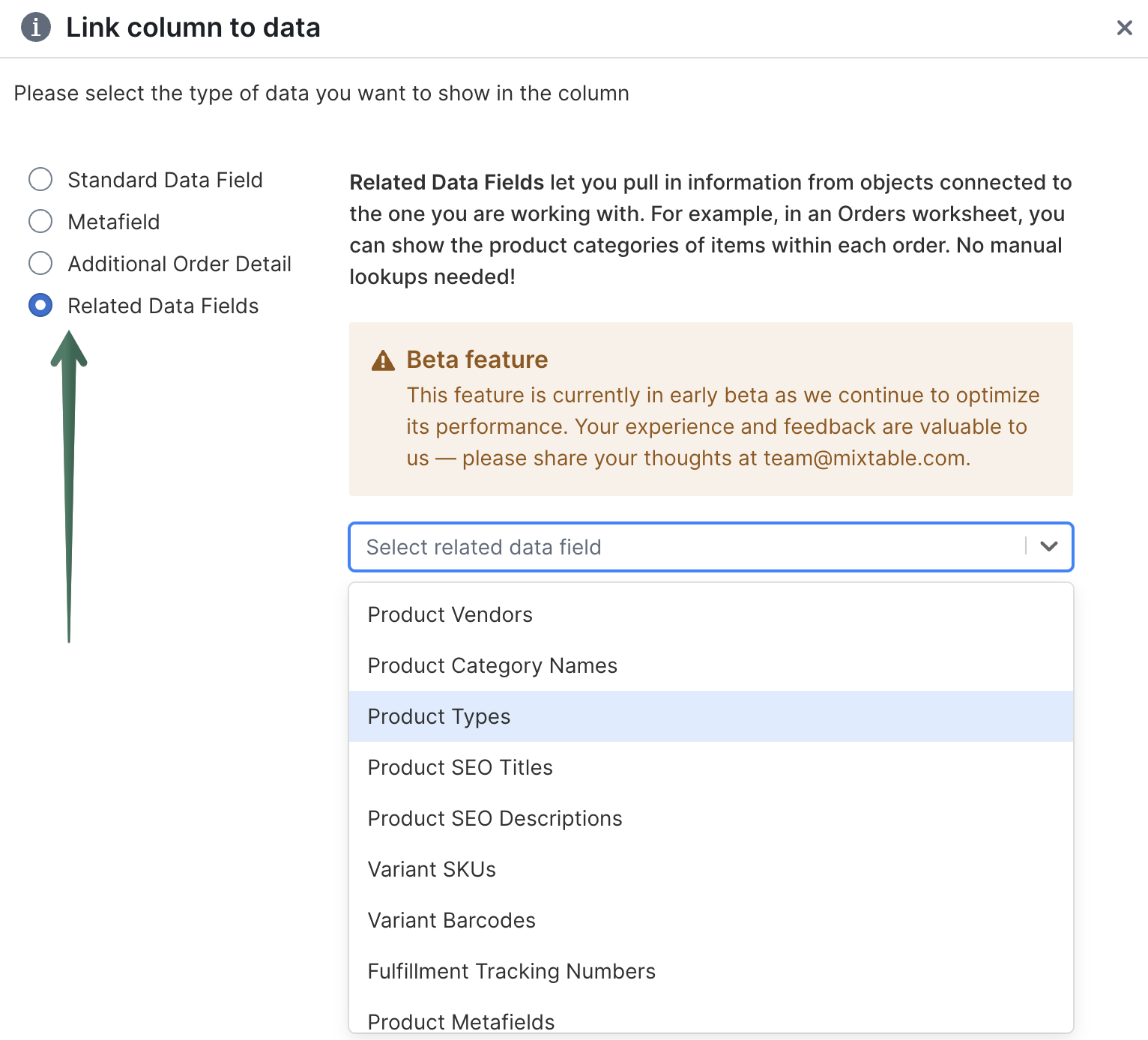
Then click the field you want, choose an option under How should the values be combined?, and click Save Column. Text fields such as vendors and SKUs usually read best with List them once, date fields show the earliest or latest date, and Fulfillment count uses Count.
Related data fields for order line items
An Orders (with line items) worksheet gives every item in an order its own row. Each row already knows its product and variant, so these fields fill in the details Shopify keeps on the product record rather than on the order:
- Product vendor
- Product category name
- Product type
- Product SEO title
- Product SEO description
- Variant SKU
- Variant barcode
- Product metafield, for one product metafield that you choose
- Variant metafield, for one variant metafield that you choose
Add them the same way you would on an Orders worksheet: click + Shopify data in the header row of an empty column (or choose Column > Add Shopify data…), click Products in the order in the list of sections on the left, pick a field, and click Save Column. For the two metafield fields, choose the metafield under Which metafield? first. There is no combining step here, because a line item points at a single product and variant.
Tip: This is the quickest way to group order history by vendor, product type, or category. Add the field as a column, then sort or filter the worksheet by it.
Related data fields for Products
With related data fields, you can pull related inventory information directly into your Products worksheet. No more VLOOKUPs or linking across sheets.
To use related data fields for products, make sure you have a Mixtable spreadsheet with a worksheet that contains your Shopify Product data. If you haven’t set one up yet, install the Mixtable Spreadsheet Editor app from the Shopify App Store. Once installed, you can easily create a spreadsheet and start linking related product data into your spreadsheet.
Note: The worksheet needs to show product information. You can create one using our Basic Product Info template, or add a Products (no variants) worksheet to an existing spreadsheet.
To load more Shopify data, click + Shopify data in the header row of an empty column, such as the one right after your last column. You can also choose Column > Add Shopify data… from the menu bar. The field picker opens and asks What should column E show?, with your column's letter in place of E. It lists everything the worksheet can show from Shopify, grouped into sections the way your Shopify admin groups them. Type in the search box at the top, or click a section on the left, to find the field you want.
Click Inventory in the list of sections on the left.
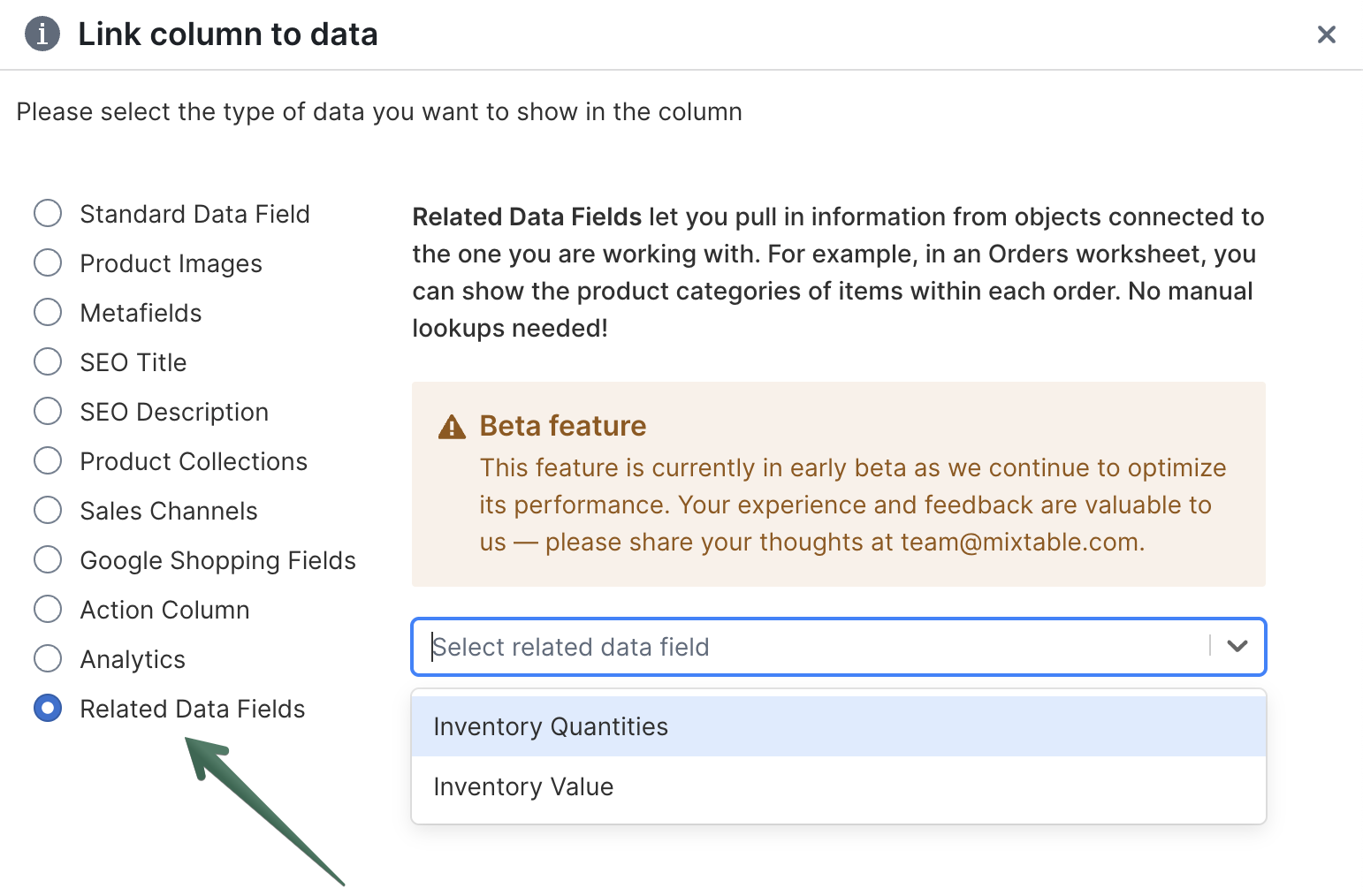
It holds two related data fields:
Variant stock shows the stock levels across all variants of a product. Under How should the values be combined?, choose List them (for example, 6, 11), List them once, Add them up, Average, Smallest, or Largest. Add them up is the fastest way to see how many units of a product you hold in total, and Smallest is a good early warning that one variant is about to sell out.

Inventory value works out what a product’s stock is worth by multiplying each variant’s inventory quantity by its cost per item. Choose Add them up for the product’s total value, or Average, Smallest, or Largest to summarize the variants another way. Variants with no cost recorded in Shopify are left out of the calculation, so fill in cost per item first if a total looks lower than you expect.
Related data fields for Customers
A Customers worksheet can show when each customer bought from you, without opening a single order:
- First order date, the date of the customer’s earliest order
- Last order date, the date of their most recent order
Click + Shopify data in the header row of an empty column (or choose Column > Add Shopify data…), click Orders & spending in the list of sections on the left, pick the field, and click Save Column. There is no combining step, since each field returns one date.
Tip: Put both columns side by side to see a customer’s whole lifespan at a glance. Sorting by Last order date brings the customers who have gone quiet to the top of the worksheet.
Related data fields for Media Images
A Media Images worksheet lists the images in your Shopify store, one image per row. That is great for editing ALT text or tidying up your media, but the row itself does not tell you where the image is actually used.
Related data fields answer that question. They add columns showing the products and variants each image belongs to, so you can tell near-identical images apart and see what an image is attached to before you change or delete it. You’ll find them in the Used by section of the field picker.
| Field you can add | What the column shows |
|---|---|
| Product titles | Titles of the products using the image |
| Product handles | URL handles of those products |
| Product IDs | Shopify IDs of those products |
| Variant IDs | Shopify IDs of the variants using the image |
| Variant SKUs | SKUs of those variants |
| Variant barcodes | Barcodes of those variants |
Add product or variant details to a Media Images worksheet
Start in a Media Images worksheet. If your spreadsheet does not have one yet, click the (+) button beside your worksheet tabs to add it.
To load more Shopify data, click + Shopify data in the header row of an empty column, such as the one right after your last column. You can also choose Column > Add Shopify data… from the menu bar. The field picker opens and asks What should column E show?, with your column's letter in place of E. It lists everything the worksheet can show from Shopify, grouped into sections the way your Shopify admin groups them. Type in the search box at the top, or click a section on the left, to find the field you want.
In the field picker:
- Click Used by in the list of sections on the left
- Click the field you want to show, for example Variant SKUs
- Under How should the values be combined?, keep List them, the only option for these fields
- Click Save Column
Mixtable fills in the column for the images already in the worksheet. Larger stores take a little longer to finish.
What you will see in the column
An image can belong to more than one product or variant, so Mixtable lists every related value in a single cell, separated by commas, for example Blue Hoodie, Blue Hoodie Sample. Repeated values are kept rather than merged, so two variants that share one SKU show that SKU twice.
If the columns come up blank
A blank cell usually means one of two things:
- The image is not attached to any product or variant, which is normal for files you uploaded to Shopify but never used on a product
- Mixtable has not mapped the links between your images, products, and variants yet, which happens on stores that were connected before these fields existed
For the second case, re-download all Shopify product data. That rebuilds the links between your Shopify images, products, and variants, and the columns fill in as the download progresses.
Good to know about related data columns
- Related data columns are for reference, so you cannot type into them and sync the change back to Shopify. Edit the underlying product, variant, or order field instead, and the related column catches up on its own
- Values come from Shopify, so a blank cell nearly always means Shopify has nothing to show for that record yet
- You can add the same field more than once with different options, for example Variant stock with both Add them up and Smallest
- These columns behave like any other column when you sort, filter, use them in formulas, or export your Shopify data to Excel or CSV