
Shopify Analytics Metrics Reference
 Analytics Spreadsheet Updated October 8, 2026
 On this page
- Shopify sales metrics
- Quantity metrics
- Refund metrics
- Discount metrics
- Tax, shipping, duties, and fee metrics
- Profitability metrics
- Customer purchase metrics
- Customer Journey attribution metrics
- Fulfillment metrics
- Return request metrics
- Inventory metrics
- Where metric availability differs
- Choose a useful supporting metric
This reference explains the Shopify analytics metrics available in Mixtable. Metric availability depends on the worksheet target and report type. Products, variants, customers, collections, B2B companies, orders, and store-level reports do not all offer the same calculations.
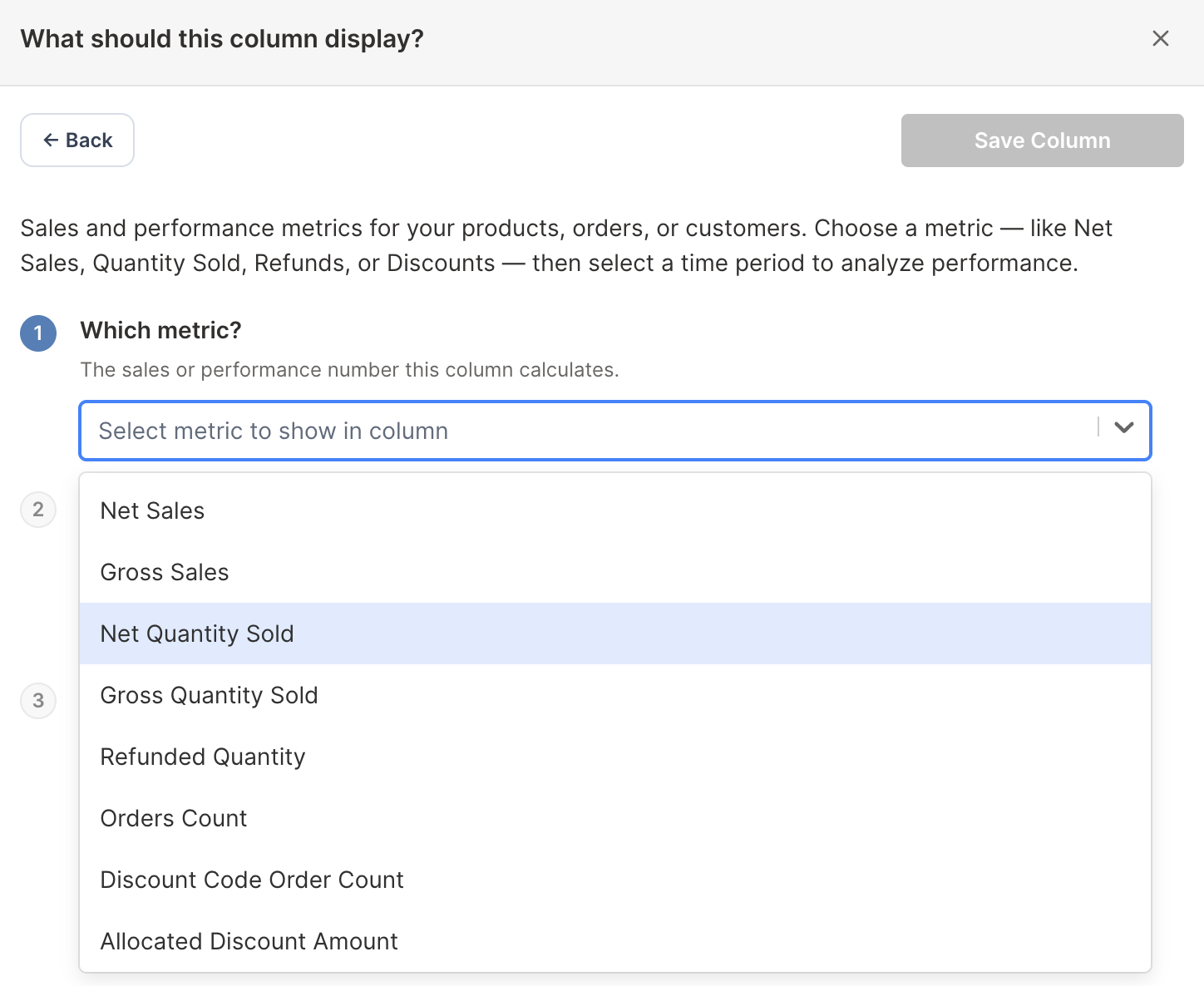
When you add an analytics column, the Sales & analytics section of the field picker lists the metrics supported for that worksheet. The Pivot Table worksheet and Time Series worksheet builders show a focused subset designed for those report layouts, and each report row can only calculate some of them (see what a report row can show).
A few metric names vary slightly by worksheet. The tables below use the names shown on Products worksheets and store-level reports. Customer, Company, and Company Location worksheets say Order Count, Total Refunded Excluding Tax, and Total Refunded Including Tax. Customers worksheets also say Average Ordered Quantity Net and Average Ordered Quantity Gross, while Company and Company Location worksheets say Average Order Quantity (Net) and Average Order Quantity (Gross).
Shopify sales metrics
| Metric | What it measures | Useful comparison |
|---|---|---|
| Net Sales | Merchandise sales after discounts and returns, excluding tax | Gross Sales, discounts, and refunds |
| Gross Sales | Original merchandise value before discounts and returns | Net Sales |
| Total Sales | The broader order total, including applicable order charges and adjustments | Net Sales and the charge metrics |
| Orders Count | Distinct Shopify orders associated with the row | Average Order Value and quantities |
| Average Order Value | Sales value divided by the relevant order count | Orders Count and Net Sales |
Net Sales is the best general ranking metric when you want merchandise revenue after discounts and returns. Total Sales is better when the wider amount paid on the order matters. See:
- Shopify Net Sales analytics
- Shopify Gross Sales analytics
- Shopify Total Sales analytics
- Shopify Average Order Value analytics
Quantity metrics
| Metric | What it measures |
|---|---|
| Gross Quantity Sold | Units originally sold before returned or refunded quantities reduce the result |
| Net Quantity Sold | Units remaining after the quantity reductions included in the metric |
| Refunded Quantity | Units associated with Shopify refund activity |
| Average Order Quantity Gross | Average gross units per relevant order |
| Average Order Quantity Net | Average net units per relevant order |
Quantity metrics answer a different question from Orders Count. One Shopify order can contain several units and several products. See Shopify Refunded Quantity analytics.
Refund metrics
| Metric | What it measures |
|---|---|
| Total Refund Amount Excluding Tax | Money refunded without the refunded tax component |
| Total Refund Amount Including Tax | Refunded value including tax, where the target supports this metric |
| Refund Count | Distinct orders with refund activity associated with the row |
| Percent of Orders Refunded | Refunded-order count divided by the relevant order count |
Refund Count is not the number of refund transactions, returned units, or return requests. Shopify returns and refunds represent different parts of the post-purchase workflow.
See:
Discount metrics
| Metric | What it measures | Main availability |
|---|---|---|
| Total Discount Amount | Discount value allocated to the relevant Shopify sales | Products, variants, collections, customers, B2B targets, and store reporting where supported |
| Discount Code Order Count | Distinct orders associated with discount-code allocations | Product and product-variant analytics |
| Allocated Discount Amount | Discount value allocated to the relevant product or variant | Product and product-variant analytics |
Use the parent Shopify discount campaign filter when you need Gross Sales, Net Sales, Orders Count, quantities, or refunds for one promotion. See Shopify discount analytics.
Tax, shipping, duties, and fee metrics
| Metric | What it measures |
|---|---|
| Total Tax Amount | Shopify tax amount associated with the relevant orders |
| Total Shipping Amount | Shipping amount associated with the relevant orders |
| Total Duties | Duties associated with the relevant orders |
| Total Additional Fees | Additional order fees associated with the relevant orders |
These values help explain the difference between merchandise-focused sales metrics and broader order totals. See Shopify tax, shipping, duties, and fee analytics.
Profitability metrics
| Metric | What it measures |
|---|---|
| Orders Net Profit | Net line-item value minus current variant cost, multiplied by current quantity |
| Gross Profit | Supported sold value minus the current cost assigned to the relevant variant quantities |
| % Gross Margin | Gross Profit expressed as a share of the supported sales basis |
| Amount of Cost of Goods Sold | Current variant cost multiplied by the relevant sold quantity |
Profitability metrics depend on Shopify Cost per item. Shopify does not provide the historical cost per item from the moment an order was placed, so Mixtable uses the current variant cost. Variants without a cost cannot contribute normally to these calculations. Because they are worked out variant by variant, these metrics are available on Product Variant worksheets and, in reports, on custom rows that analyze Product Variants.
See Shopify profit, Gross Margin, and Cost of Goods Sold analytics.
Customer purchase metrics
| Metric | What it measures |
|---|---|
| Customer Lifetime Value | Net Sales excluding tax minus the estimated cost of the goods the customer bought, so it measures the profit that customer has produced |
| Average Orders Count | Distinct orders divided by distinct customers in the calculation |
| Product Categories Bought | Distinct Shopify standardized product categories purchased by the customer |
| Product Types Bought | Distinct custom Shopify product types purchased by the customer |
| Segments Customer Is In | Shopify customer segments associated with the customer |
Customer Lifetime Value follows the timeframe set on the column, so choose All time when you want a full lifetime figure. Because it subtracts cost, it depends on Cost per item for every variant the customer bought. If any purchased variant is missing a cost, the result shows N/A instead of a partial number. To rank customers by revenue rather than profit, use Total Sales or Net Sales.
See Shopify Customer Analytics.
Customer Journey attribution metrics
| Metric | What it measures |
|---|---|
| Orders With Attribution | Relevant Shopify orders that contain Customer Journey attribution data |
| Orders Without Attribution | Relevant Shopify orders without Customer Journey attribution data |
| Attribution Coverage Rate | Share of relevant orders that contain attribution data |
| Average Days To Conversion | Average time from the tracked customer journey to conversion |
| Median Days To Conversion | Middle conversion-time value, which reduces the influence of unusually long journeys |
Attribution metrics describe the Shopify journey data available on orders. Missing attribution does not prove that no marketing influenced the order.
See Shopify Customer Journey and marketing attribution analytics.
Fulfillment metrics
| Metric | What it measures |
|---|---|
| Fulfillment Count | Fulfillment records associated with the row |
| Fulfilled Quantity | Quantity included in the relevant fulfillments |
| Average Hours To First Fulfillment | Average time from the order to its first fulfillment |
| Average Hours To Delivery | Average time from the order to recorded delivery |
Fulfillment filters can narrow results by fulfillment status, service, location, and tracking company. See Shopify fulfillment and delivery analytics.
Return request metrics
| Metric | What it measures |
|---|---|
| Return Request Count | Shopify return requests associated with the row |
| Return Request Rate | Return requests relative to the metric’s eligible order activity |
| Return Quantity | Quantity on returned line items |
| Return Reason Count | Returned-line-item reason occurrences associated with the row |
| Open Return Count | Return requests that remain open |
| Average Hours To Close A Return | Average time between return creation and closing |
Return metrics can be filtered by return status and return reason. See Shopify return request analytics.
Inventory metrics
Inventory metrics come from your store’s stock history rather than from orders. In the field picker, they sit in the Inventory history group at the end of Sales & analytics. In the Which metric? list, they sit at the end under an Inventory heading.
| Metric | What it measures |
|---|---|
| Opening Stock | Units in stock at the start of the chosen day |
| Closing Stock | Units in stock at the end of the chosen day |
| Stock Change | Closing stock minus opening stock over the period |
| Average Daily Stock | Average number of units in stock per day over the period |
| Closing Value at Cost | Units in stock at the end of the chosen day, valued at their cost per item. Units without a cost are left out |
| Closing Value at Retail | Units in stock at the end of the chosen day, valued at their selling price |
| Units Without Cost | Units in stock at the end of the chosen day that have no cost per item, which Closing Value at Cost leaves out |
| Days In Stock | Days in the period when the variant had stock |
| Days Out of Stock | Days in the period when the variant had none |
| In-Stock Rate | Share of the period’s days with stock, across the item’s variants |
| Out-of-Stock Variants | Variants with no stock at the end of the chosen day |
| Last In-Stock Date | The last day the item had stock, up to the chosen day, or “In stock” if it still has stock |
| Days of Stock Left | How many days the stock left at the end of the period would last, at the pace the variant sold on its in-stock days |
| Estimated Lost Sales | Net sales the item likely missed while out of stock, based on what it sold per day while in stock |
| Sell-Through Rate | Units sold, as a share of units sold plus the stock left at the end of the period |
| Inventory Turnover | Units sold divided by the average daily stock over the period |
| Dead Stock Units | Units left at the end of the period on variants that sold nothing during it |
| Dead Stock Value at Cost | The cost value of those dead stock units |
Inventory metrics differ from the order-based metrics in a few ways:
- Where they appear: Product Variant worksheets, which Mixtable calls Products (with variants), offer 17, every one except Out-of-Stock Variants. Product worksheets, called Products (no variants), offer 15, without Days In Stock, Days Out of Stock, and Days of Stock Left. Collection worksheets offer 14, also without Last In-Stock Date. Pivot Table worksheets and Time Series worksheets offer the same 14 as Collections. Customer, Order, Company, and Company Location worksheets have none
- Dates: history runs from October 1, 2023 (October 2 for Opening Stock and Stock Change) through yesterday, so there is no All time. See inventory metric dates
- One day or a period: Opening Stock, Closing Stock, Closing Value at Cost, Closing Value at Retail, Units Without Cost, Out-of-Stock Variants, and Last In-Stock Date describe a single day, so their settings ask On what date? instead of Over what time period?
- Filter: instead of order filters, they take one optional filter, Stock location, and you can pick several locations. Days of Stock Left, Estimated Lost Sales, Sell-Through Rate, and Inventory Turnover always count every location
- Cell messages: “Waiting for inventory history” means your store’s history is still downloading. “No inventory history” means there is no stock record for that item and period, such as a period before October 2023. “No sales” (Days of Stock Left), “No stock” (Inventory Turnover), and “No sales or stock” (Sell-Through Rate) mean there was nothing to divide by
To put these metrics to work, see the Shopify inventory analytics guide, plus the guides to stock levels and inventory value, stockouts and in-stock rate, and sell-through, turnover, and dead stock.
Where metric availability differs
Examples of target-specific availability include:
- Product Variant analytics includes profit, margin, COGS, and Orders Net Profit, plus 17 inventory metrics
- Product analytics includes 15 inventory metrics beside its sales, refund, fulfillment, and return metrics
- Customer analytics includes purchase-interest, segment, attribution, and return metrics
- Order analytics focuses on fulfillment, delivery, and return timing
- Company and Company Location analytics includes B2B sales, quantities, refunds, charges, and averages
- Collection analytics focuses on sales, quantities, discounts, refunds, refunded-order percentage, and 14 inventory metrics
- Store reporting includes the broadest storewide sales, attribution, fulfillment, and return totals, plus 14 inventory metrics
Always use the metric menu on the selected worksheet as the final availability reference.
What a report row can show
In a Pivot Table worksheet or Time Series worksheet, the metric lists offer more than every row can calculate. Each row only calculates the metrics that fit its group, and a cell shows “N/A” when it can’t:
- Vendor, product type, product category, and product tag rows group products. They show sales, quantity, order count, discount, refund, tax, fulfillment, return, and inventory metrics, but not Average Order Value, Total Sales, shipping, duties, additional fees, average order quantities, attribution, or profit metrics
- Store, Market, customer segment, and marketing channel rows show the order metrics, including Average Order Value and Total Sales, but no profit metrics. Market, customer segment, and marketing channel rows show no inventory metrics
- Location rows show inventory metrics only, and not Estimated Lost Sales, Sell-Through Rate, or Inventory Turnover
- Profit metrics (Gross Profit, % Gross Margin, Amount of Cost of Goods Sold, and Orders Net Profit) are calculated per variant, so in a report they only work on custom rows that analyze Product Variants. To compare margins across many products, add them as analytics columns on a Product Variant worksheet instead
Choose a useful supporting metric
A metric is easier to interpret when paired with its denominator or bridge:
- Net Sales with Gross Sales, discounts, and refunds
- Average Order Value with Orders Count
- Refunded Quantity with Gross Quantity Sold
- Percent of Orders Refunded with Refund Count and Orders Count
- % Gross Margin with Gross Profit and Amount of Cost of Goods Sold
- Attribution Coverage Rate with Orders With and Without Attribution
- Average delivery time with Fulfillment Count
- Return Request Rate with Return Request Count and sold quantity
- Sell-Through Rate with Net Quantity Sold and Closing Stock
- Dead Stock Units with Dead Stock Value at Cost
- Closing Value at Cost with Units Without Cost, which shows how much stock the value leaves out
Use analytics columns to place these combinations beside Shopify records, or a Pivot Table worksheet to compare the ones a report row can show across business groups.