
Action columns for editing Shopify products in bulk
 Spreadsheet Editor Updated October 21, 2026
 On this page
Action columns let you make specific changes to many Shopify products at once, right from a spreadsheet. With them, you can add or remove tags, add products to or remove them from manual collections, and add product images, without opening each product in the Shopify admin.
Unlike a regular column, an Action column doesn’t show a value from Shopify. Each cell is an instruction for the product on that row, such as “add these tags”. You leave a cell empty when that product doesn’t need the change, then send all the instructions to Shopify in one sync.
How to set up an Action column
You’ll need a Mixtable spreadsheet with a Products (no variants) or Products (with variants) worksheet. If you don’t have one yet, install the Mixtable Spreadsheet Editor app from the Shopify App Store, then create a spreadsheet with your products.
-
To load more Shopify data, click + Shopify data in the header row of an empty column, such as the one right after your last column. You can also choose Column > Add Shopify data… from the menu bar. The field picker opens and asks What should column E show?, with your column's letter in place of E. It lists everything the worksheet can show from Shopify, grouped into sections the way your Shopify admin groups them. Type in the search box at the top, or click a section on the left, to find the field you want.

-
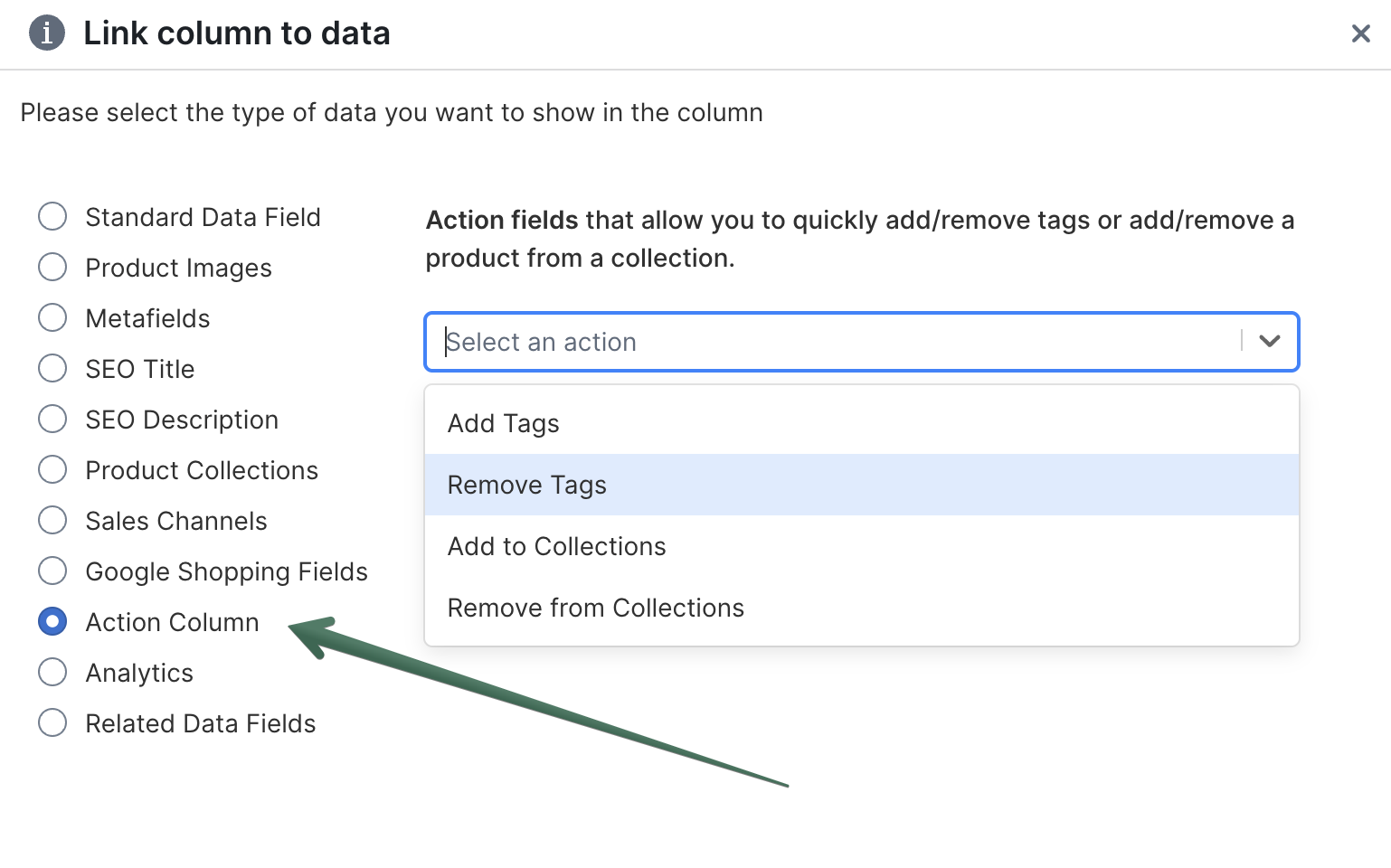
Click Action columns in the list of sections on the left
-
Click what the column should do. The panel on the right explains what to type in each cell:
- Add tags
- Remove tags
- Add to collections
- Remove from collections
- Add product images
-
Click Save Column
The new column’s header starts with ✦, such as ✦ Add tags, so you can tell it apart from columns that show Shopify data.
On a Products (with variants) worksheet, these actions change the parent product of each variant row. On an Orders worksheet, the Action columns section offers Mark order as paid instead (see Mark orders as paid in bulk).
Add or remove Shopify tags from products
Once you’ve added an Add tags or Remove tags column (or both):
- In an Add tags cell, type the tags to add to that product. Separate several tags with commas, for example
summer, sale. The product keeps its other tags - In a Remove tags cell, type the tags to remove from that product
- Click Sync at the top right of the spreadsheet, review your changes in the preview that opens, then click Sync again
- Give Shopify a moment to apply the changes
Note: If you have automated collections with rules based on tags, adding a tag can add a product to an automated collection, and removing a tag can remove it from one.
Add or remove Shopify products from manual collections
Once you’ve added an Add to collections or Remove from collections column (or both):
- Click the + button in a cell, check the manual collections to add the product to (or remove it from), and click Update cell with selected collections
- To make the same change for other products, copy the cell and paste it into their rows. Filtering first can help you find the right rows
- Click Sync at the top right of the spreadsheet, review your changes in the preview that opens, then click Sync again
- Give Shopify a moment to apply the changes
Only manual collections appear in the list. Shopify decides which products belong to automated collections based on the collection’s rules.
Add Shopify product images from URLs
You can also use an Action column to add product images in bulk from image links (URLs):
- Add an Add product images Action column
- In each product’s cell, enter one image URL, or several URLs separated with semicolons (
;) - Click Sync at the top right of the spreadsheet, review your changes in the preview that opens, then click Sync again
For full step-by-step instructions, see Add Shopify product images in bulk with an Action column.