
Create a Pivot Table Worksheet for Shopify Data
 Analytics Spreadsheet Updated October 16, 2026
 On this page
- What you can break the report down by
- Start with a ready-made Pivot Table report
- Create a Pivot Table worksheet
- Choose useful metric combinations
- Choose a timeframe
- Add a metric column after creation
- Add a custom reporting row
- Understand overlapping rows and totals
- Make the worksheet easier to act on
A Pivot Table worksheet summarizes Shopify performance with one row per business group and one column per metric. It is the fastest Mixtable report for questions such as which vendor drives the most Net Sales, which product categories absorb the most discounts, or which customer segments place the highest-value orders.
Unlike a Shopify data worksheet, a Pivot Table worksheet does not need one row for every record. It groups the records by the breakdown you choose and calculates the selected metrics for each group.
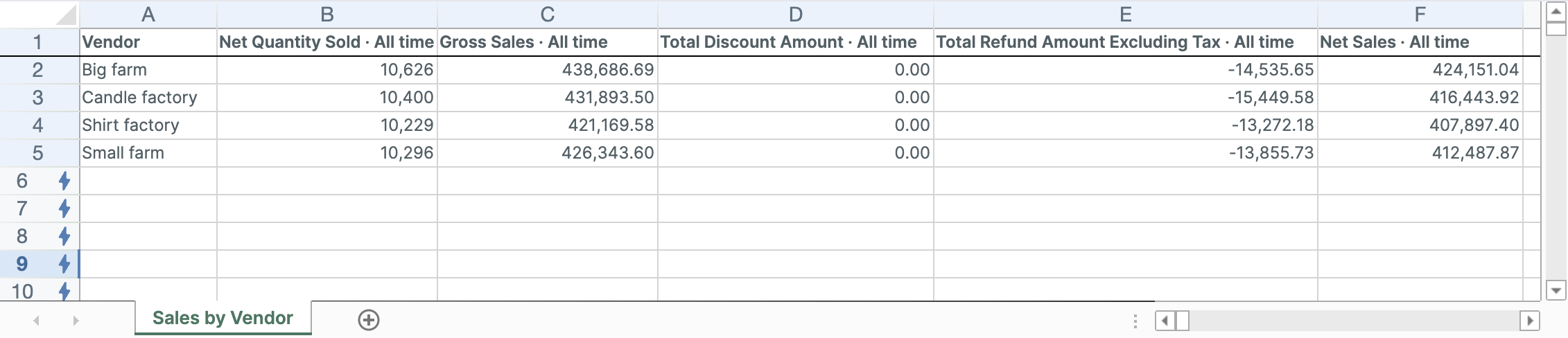
The result is an ordinary worksheet. Each column header records the metric and the timeframe it covers. To add a row of your own, right-click an empty row’s number below the report and click Choose what to analyze…. To add another metric, click + Analytics data in the header row of an empty column.
What you can break the report down by
Choosing a breakdown generates every row for you in one step, which is why most reports start there. It is not the only way to get rows, though: you can also define rows yourself with your own conditions, covered under add a custom reporting row below.
The Pivot Table builder supports these breakdowns:
- Vendor: one row per Shopify product vendor
- Product type: one row per custom product type in Shopify
- Product category: one row per standardized Shopify product category, plus Uncategorized
- Product tag: one row per product tag
- Market: one row per Shopify Market where orders were placed
- Customer segment: one row per segment defined in Shopify
- Location: one row per stock location, for inventory metrics only
Choose the dimension that matches the decision you are making. Vendor reporting helps with supplier decisions, product category and tag reporting are usually better for assortment and merchandising decisions, and location reporting shows where your stock sits. If none of them groups your data the way you need, build the rows yourself instead.
Start with a ready-made Pivot Table report
Mixtable includes five ready-made Pivot Table reports:
- Vendor sales leaderboard
- Market sales mix
- Category sales breakdown
- Product tag scorecard
- Customer segment contribution
Each report opens the builder with a suggested breakdown, metrics, and timeframe. You can change those settings before creating the worksheet.
Create a Pivot Table worksheet
- Click the + button beside the worksheet tabs, or choose Worksheet > Add worksheet…
- Select Reporting worksheet, then click Continue
- Under Pivot table, select a ready-made report, or choose Blank pivot table under Start from scratch
- Click Continue
- Under Break down by, select the group that should become the rows
- Under Metrics, select one or more calculated values for the columns
- Under Time period, choose the dates the metrics should cover
- Review the sample preview
- Click Create Worksheet
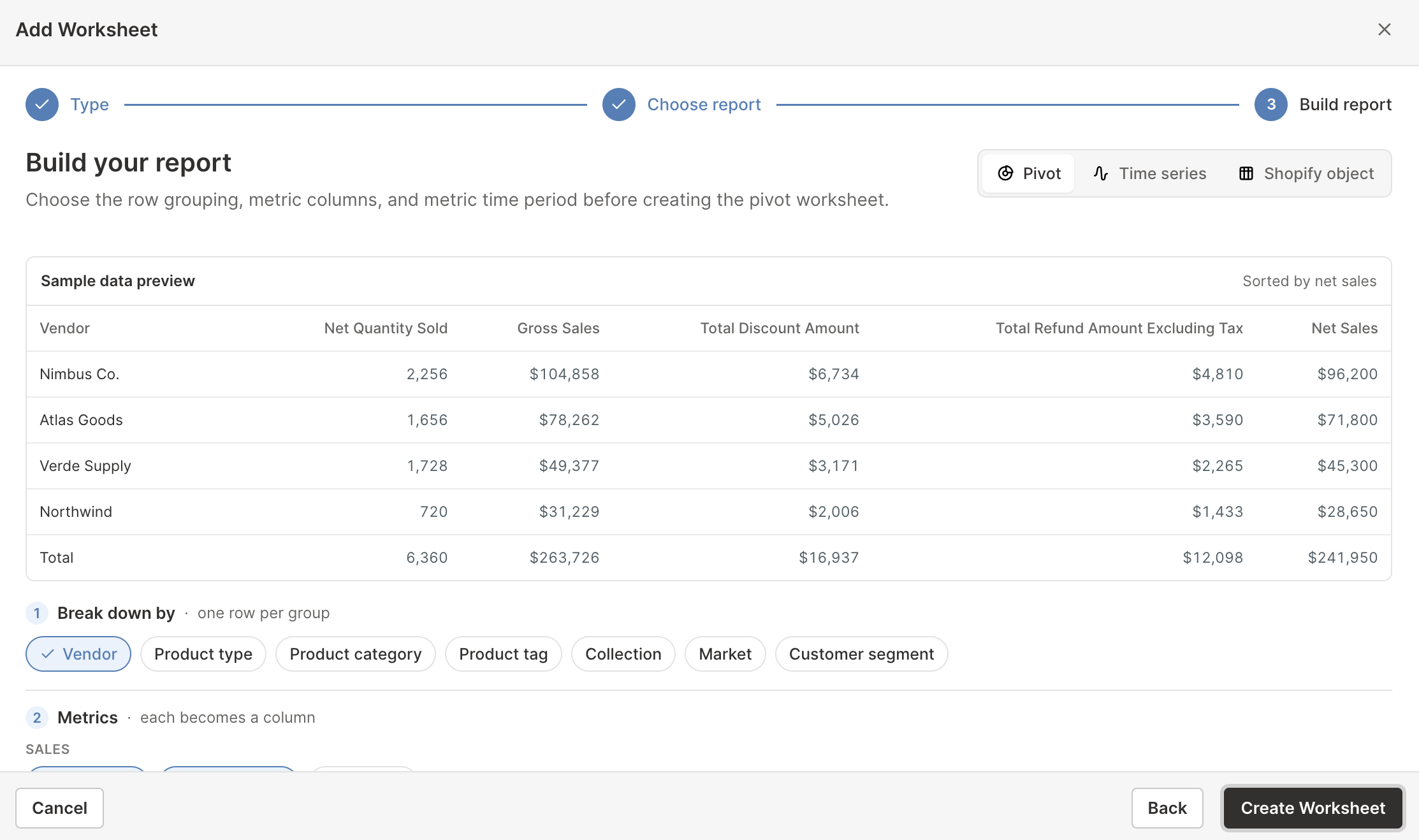
The builder requires a breakdown, at least one metric, and a valid timeframe unless you are creating a completely blank Pivot Table worksheet.
The Metrics list adapts to some breakdowns: Location lists only inventory metrics, and Market and Customer segment leave them out. Other limits still apply. Vendor, product type, product category, and product tag rows can’t calculate Average Order Value, Total Sales, shipping, duties, additional fees, average order quantities, or profit metrics, so those cells show “N/A”. See what a report row can show.
Choose useful metric combinations
A single metric ranks the rows, but a small set of supporting metrics explains the result. Useful combinations include:
Sales quality
- Gross Sales
- Total Discount Amount
- Total Refund Amount Excluding Tax
- Net Sales
This set shows how much of the original merchandise value survived discounts and refunds.
Demand and basket activity
- Net Quantity Sold
- Gross Quantity Sold
- Refunded Quantity
- Orders Count
- Average Order Value, on Market and Customer segment rows
This separates a high-volume group from one driven by a small number of large orders. Vendor, product type, category, and tag rows show “N/A” for Average Order Value, so compare their quantities with Orders Count instead.
Profitability
- Gross Profit
- % Gross Margin
- Amount of Cost of Goods Sold
- Net Sales
Profit metrics are calculated variant by variant, so in a Pivot Table worksheet they only show on custom rows that analyze Product Variants, such as variants above a cost threshold beside those below it (see add a custom reporting row). Every breakdown row, such as a vendor or category row, shows “N/A” for them. They also need cost-per-item data and are most useful when your Shopify variant costs are complete. To compare margins product by product, add these metrics as analytics columns on a Products (with variants) worksheet. See Shopify profit, margin, and COGS analytics.
Stock position
- Closing Stock
- Closing Value at Cost
- Sell-Through Rate
- Dead Stock Units
This set shows how much stock each group holds, what it is worth, how quickly it sells, and how much of it isn’t moving. The Inventory metric group shows on Vendor, Product type, Product category, Product tag, and Location rows, but not on Market or Customer segment rows. Location rows leave out Sell-Through Rate, Inventory Turnover, and Estimated Lost Sales, because sales aren’t split by stock location. See the Shopify inventory analytics guide.

Choose a timeframe
Every metric column created by the Pivot Table builder uses the same initial timeframe. Choose:
- All time for the complete Shopify analytics history
- Rolling period for a date range that moves with today
- Fixed dates for a campaign, event, or custom comparison period
- Calendar year for a selected year
- Calendar month for a selected month
Once you select an Inventory metric, All time disappears, and the builder notes that Shopify keeps inventory history from October 1, 2023 and that periods end yesterday.
After creating the worksheet, you can add another metric column with a different timeframe. For example, add Net Sales for this year and Net Sales for last year, then calculate the percentage change in a formula column.
See Shopify analytics timeframes for the difference between rolling and calendar periods.
Add a metric column after creation
In a Pivot Table worksheet, rows define what is being analyzed and columns define what is measured.
A Pivot Table worksheet is a Reporting worksheet, so its linked column letters and row numbers are blue rather than the green used on Shopify data worksheets.
- Click + Analytics data in the header row of an empty column, or choose Column > Add Shopify data… from the menu bar. The analytics settings open right away
- Under Which metric?, select the metric
- Under Over what time period?, choose the timeframe
- Under Limit which orders count, add any optional filters
- Click Save Column
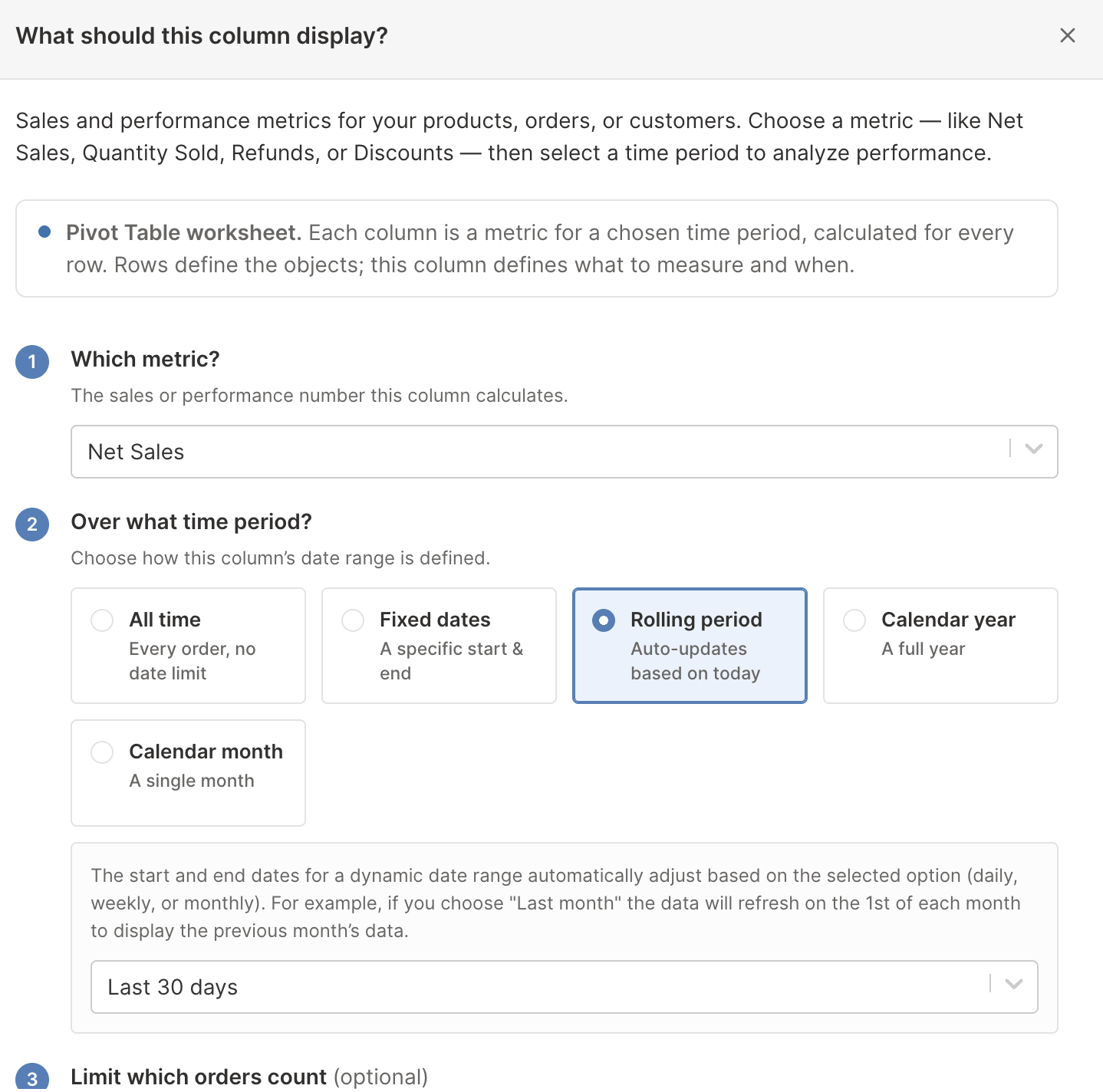
Each column is independent. You can add the same metric several times with different dates or order filters.
To change the dates of the whole report later, for example from All time to Last 30 days, click Change all time periods at the top right of the spreadsheet. It gives the columns you tick the same timeframe in one step; see Change the time period of every column at once.
Inventory metrics sit at the end of the list, under an Inventory heading, and they change two steps. Metrics that show stock on a single day, such as Closing Stock, ask On what date? instead of Over what time period?, and the last step becomes Which stock locations count (optional).
Add a custom reporting row
Breakdowns cover the common groupings, but a row can be anything you can describe with a rule. Build your own when the group you care about does not match a single Shopify field.
You can do this in any Pivot Table worksheet, whether you started from a breakdown, a ready-made report, or a blank one. Custom rows sit alongside generated rows in the same report.
- Right-click an empty row’s number and click Choose what to analyze… at the top of the menu. You can also select an empty row and choose Row > Choose what to analyze… from the menu bar. The Analytics Row Settings window opens
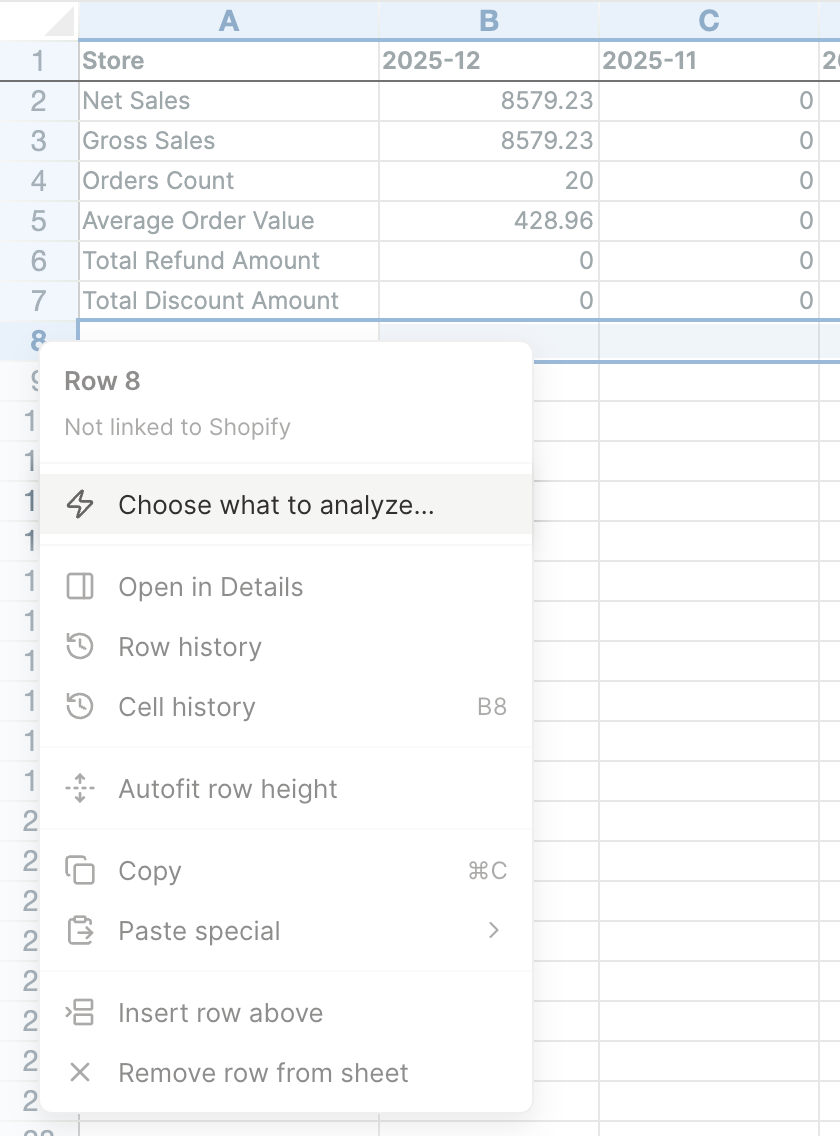
- Under What do you want to analyze?, choose Products, Product Variants, Collections, Customers, or Store
- Under Which products should this row include?, keep All products for every record, or choose Only matching products to narrow the group
- If you chose matching records, add the conditions. By default the row includes the records that match all of them. You can switch the sentence above the conditions to any, or switch Include to Exclude to leave the matching records out
- Under Row label, keep the automatic name or type your own
- Click Save Row
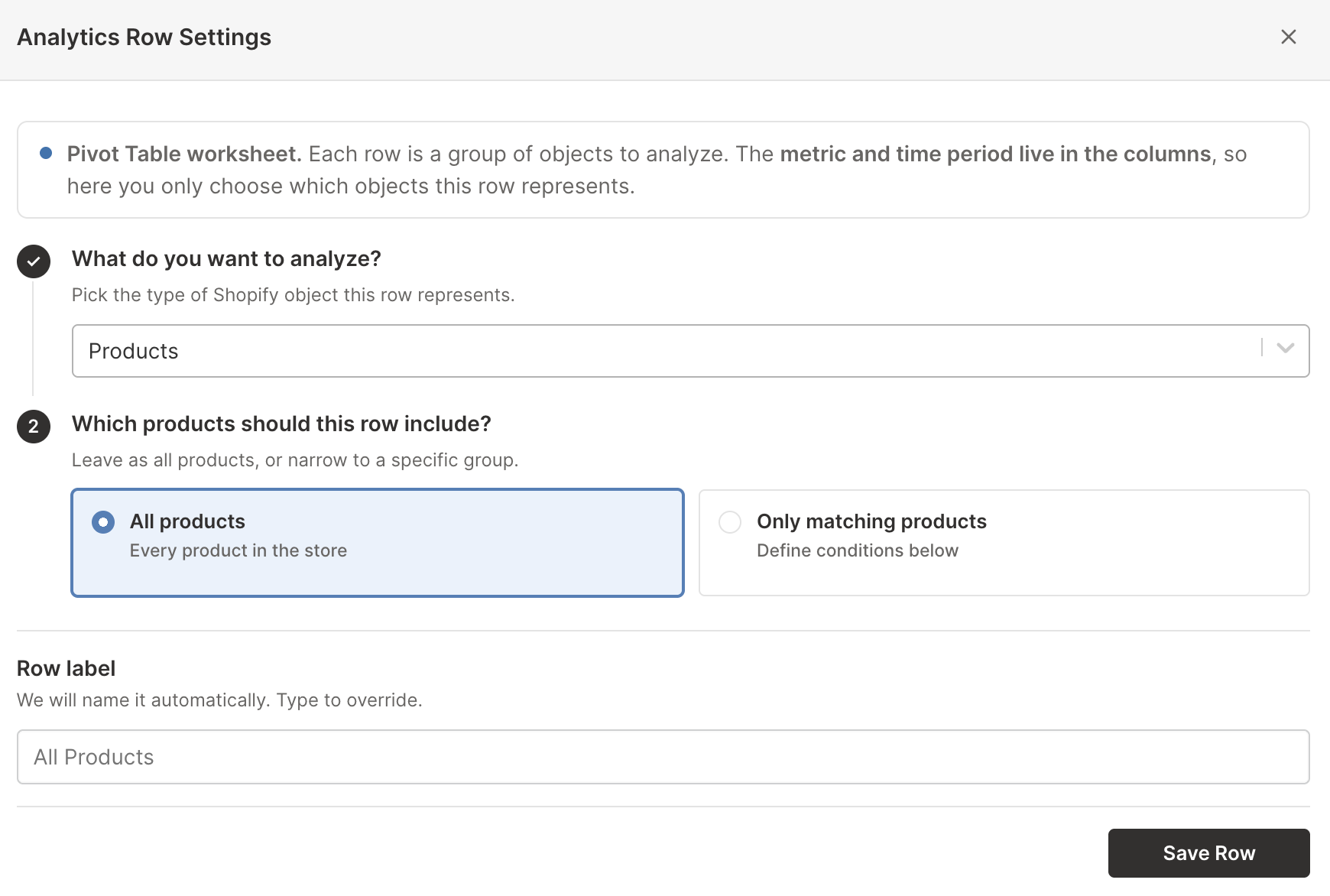
Step 3 adapts to the object you picked, so a Collections row asks which collections to include, and a Customers row asks which customers.
When you choose Only matching products, the row keeps just the records that meet the conditions you write, such as a single vendor’s products.
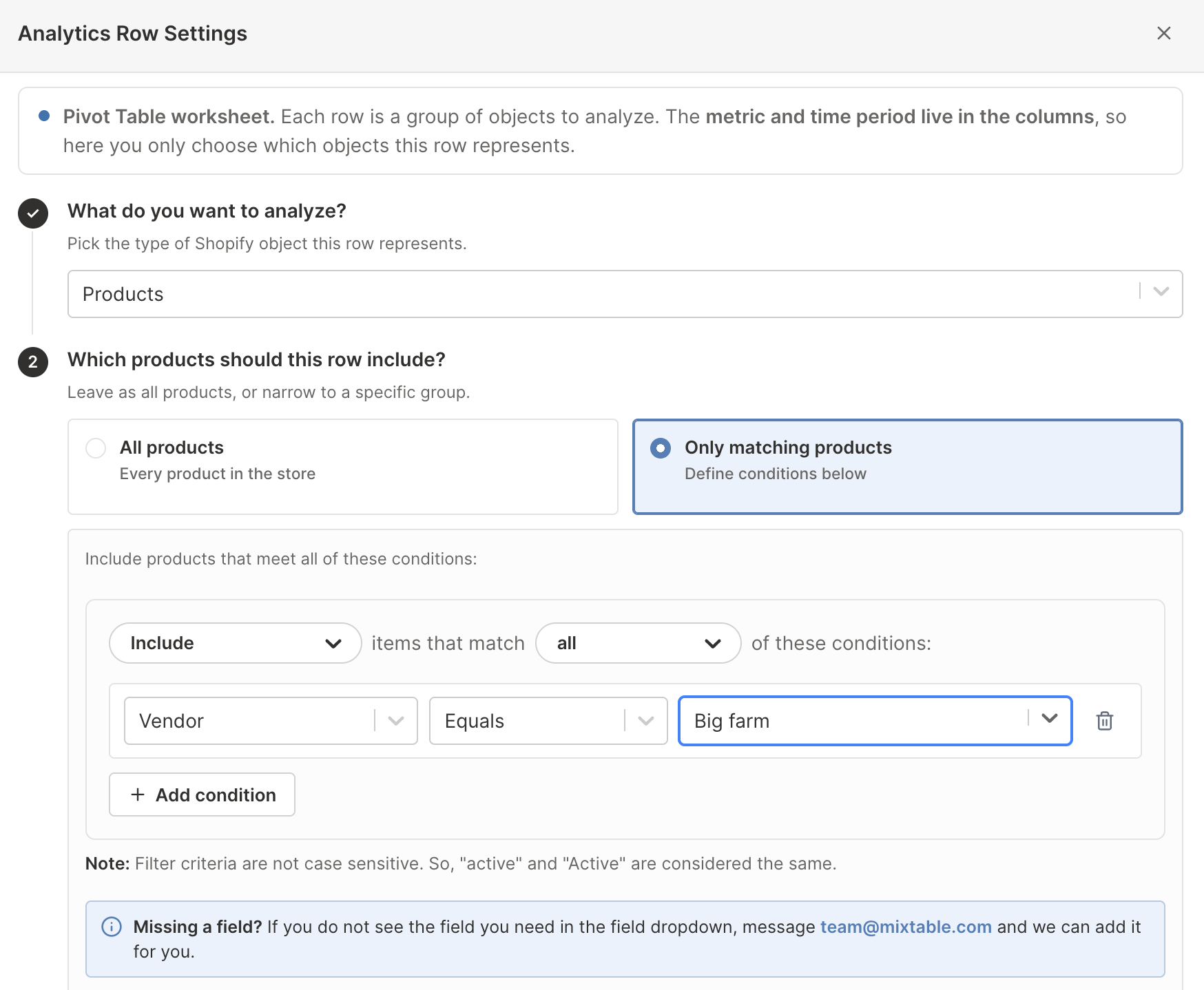
This is where a report stops being a fixed list and starts answering your question. Rows worth building this way include:
- Products from one vendor that also carry a given tag, beside that vendor’s other products
- Variants with a cost above a threshold, beside those below it, to compare your price tiers
- Products created this year, beside everything older
- Customers above a lifetime spend or order count, or in one country
- Products with no category assigned, or variants with no cost recorded
Add one row per group you want to compare, and give each a clear label so the report explains itself.
Conditions use the fields Mixtable stores for analytics: vendor, product type, product category, product tag, and created or updated dates for products; SKU, cost, and dates for variants; the collection and its published or updated dates for collections; and total spent, order count, and default address country or city for customers.
The metric and timeframe still come from the Pivot Table worksheet’s analytics columns. A row only defines the Shopify records included in that group.
Note: A Store row always covers the full Shopify store, so it does not accept record conditions. Use the analytics column’s own filters to narrow a store row.
Understand overlapping rows and totals
Not every Pivot Table breakdown divides the store into exclusive groups:
- One product can have several tags
- One customer can qualify for several Shopify segments
The same Shopify order activity can therefore contribute to more than one row. Adding every product-tag or segment row together may produce more than the store total. Custom rows you build for collections can overlap the same way, because one product can belong to several collections. Treat those reports as comparisons between groups, not as an accounting reconciliation.
Vendor, product type, and standardized product category are generally closer to mutually exclusive product groupings because each product has one value for those fields.
Make the worksheet easier to act on
After Mixtable creates the report:
- Sort by Net Sales, refund rate, or another decision metric
- Add formula columns for growth, discount rate, or refund share
- Rename columns so the metric and timeframe are obvious
- Add notes beside rows that need investigation
- Export the worksheet to CSV or the spreadsheet to Excel
For changes over time rather than a single ranked period, create a Time Series worksheet.