
Bulk edit Shopify prices
 Spreadsheet Editor Updated October 21, 2026
 On this page
 Bulk edit product prices in ShopifyMixtable’s spreadsheet interface makes it trivial to change the prices of products in your Shopify store. You can do this by setting prices to a specific value or by using Excel-style formulas. You can also change prices individually or in bulk. Here’s how.
 To bulk edit Shopify prices with Mixtable, add a Price column to a worksheet of your product variants and change the prices there. Type or paste new prices, write an Excel-style formula and fill it down, or use Bulk number changes to raise or lower every price by a percentage or a fixed amount. Nothing changes in your store until you preview the new prices and click Sync.
Note: In Shopify, prices live with Variants, not Products.
- If you use Variants in your store, you’ll change the prices from a worksheet that shows your Variants
- If you don’t use Variants, Shopify will nevertheless create a single variant for your products. It needs this as variants store prices, SKUs, inventory, and more
So, depending on which setup you have, follow the steps below.
Map product prices to a column
In a spreadsheet, open a Products (with variants) worksheet, which shows one row for each of your Shopify product variants.
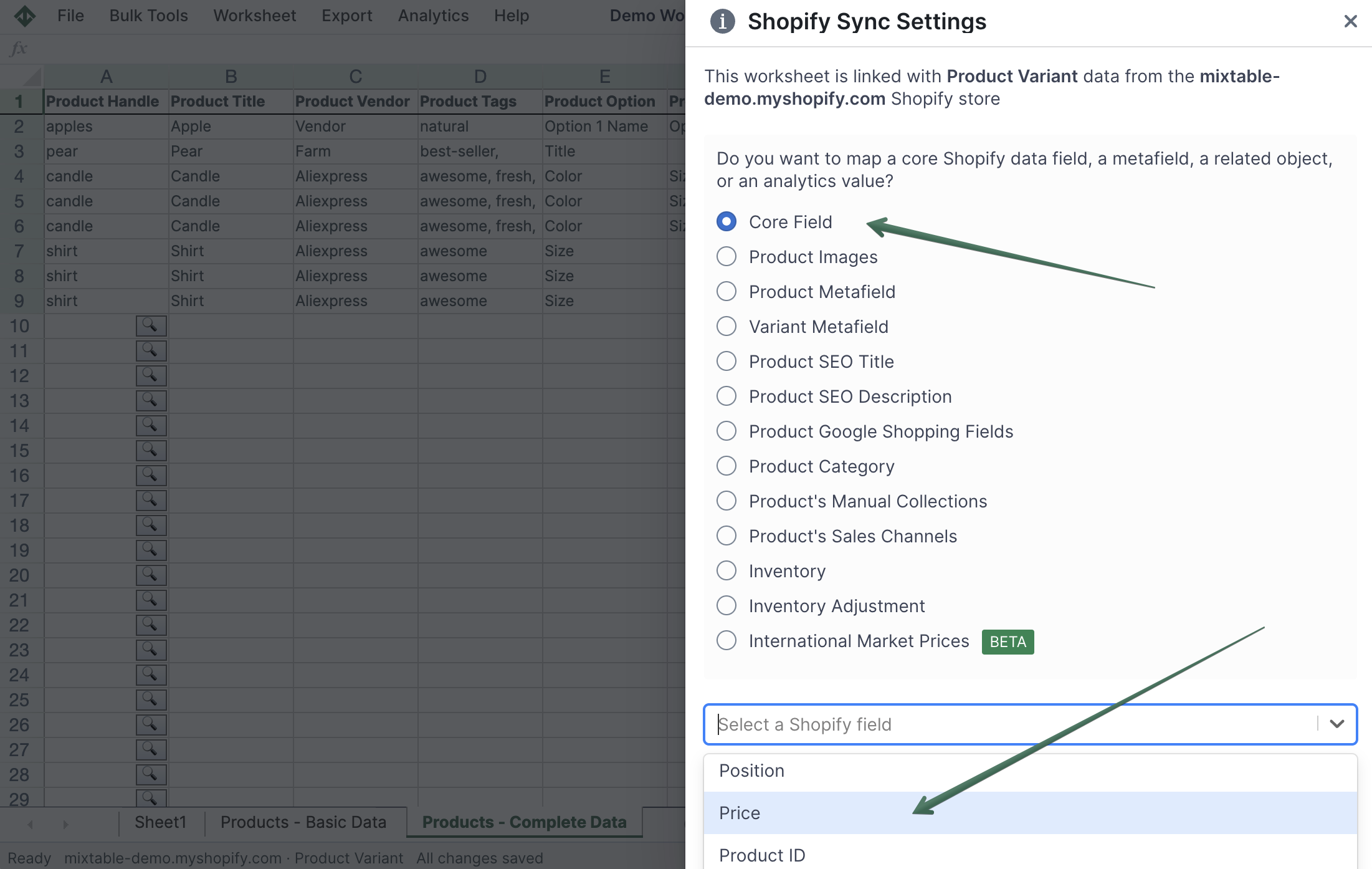
- To load more Shopify data, click + Shopify data in the header row of an empty column, such as the one right after your last column. You can also choose Column > Add Shopify data… from the menu bar. The field picker opens and asks What should column E show?, with your column's letter in place of E. It lists everything the worksheet can show from Shopify, grouped into sections the way your Shopify admin groups them. Type in the search box at the top, or click a section on the left, to find the field you want.

- Type Price in the search box, or click Pricing in the list of sections on the left. Click Price, then click Save Column
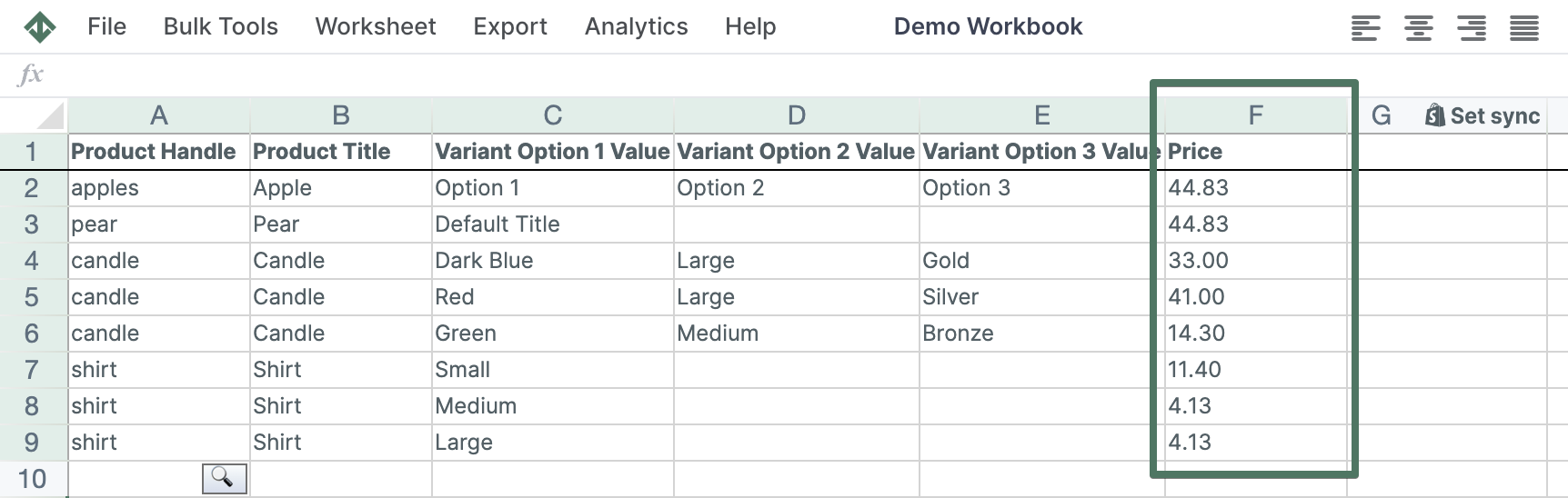
- You’ll now see the column populate with the prices for your variants
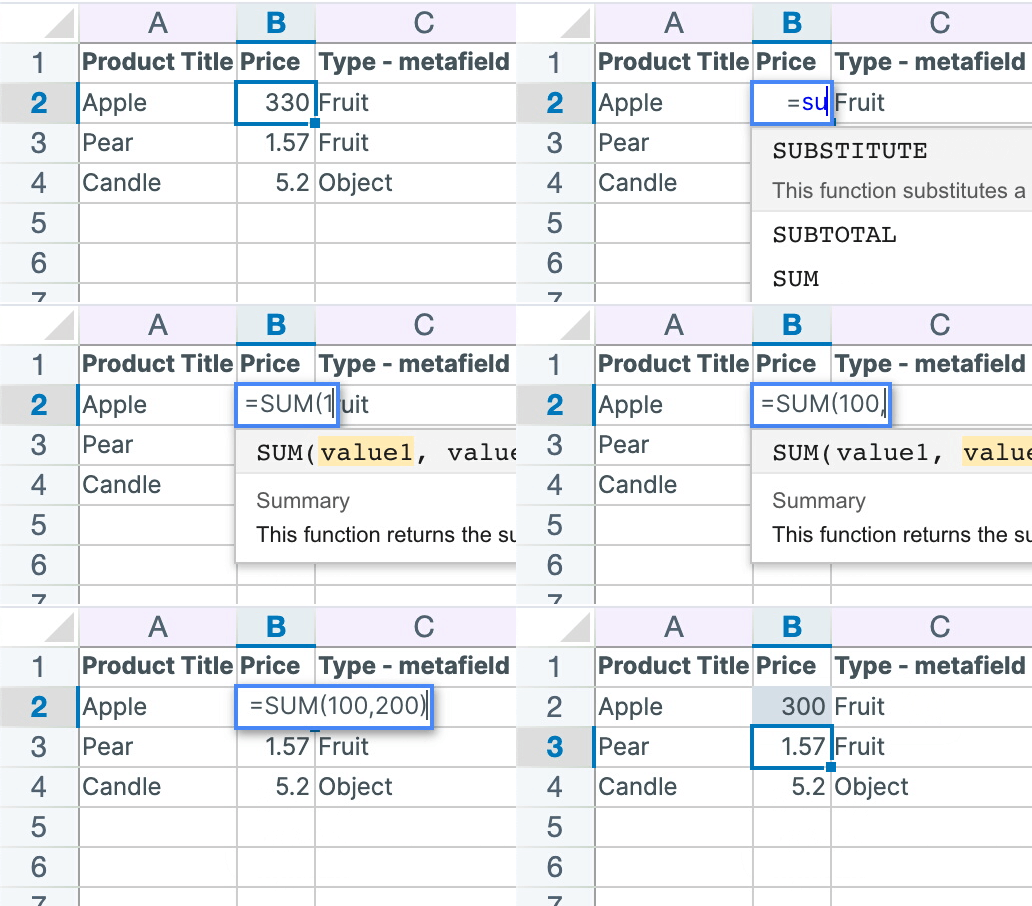
- Now, find the variant whose price you’d like to change, and update it to either a value (e.g., 10.99) or by using an Excel-style formula
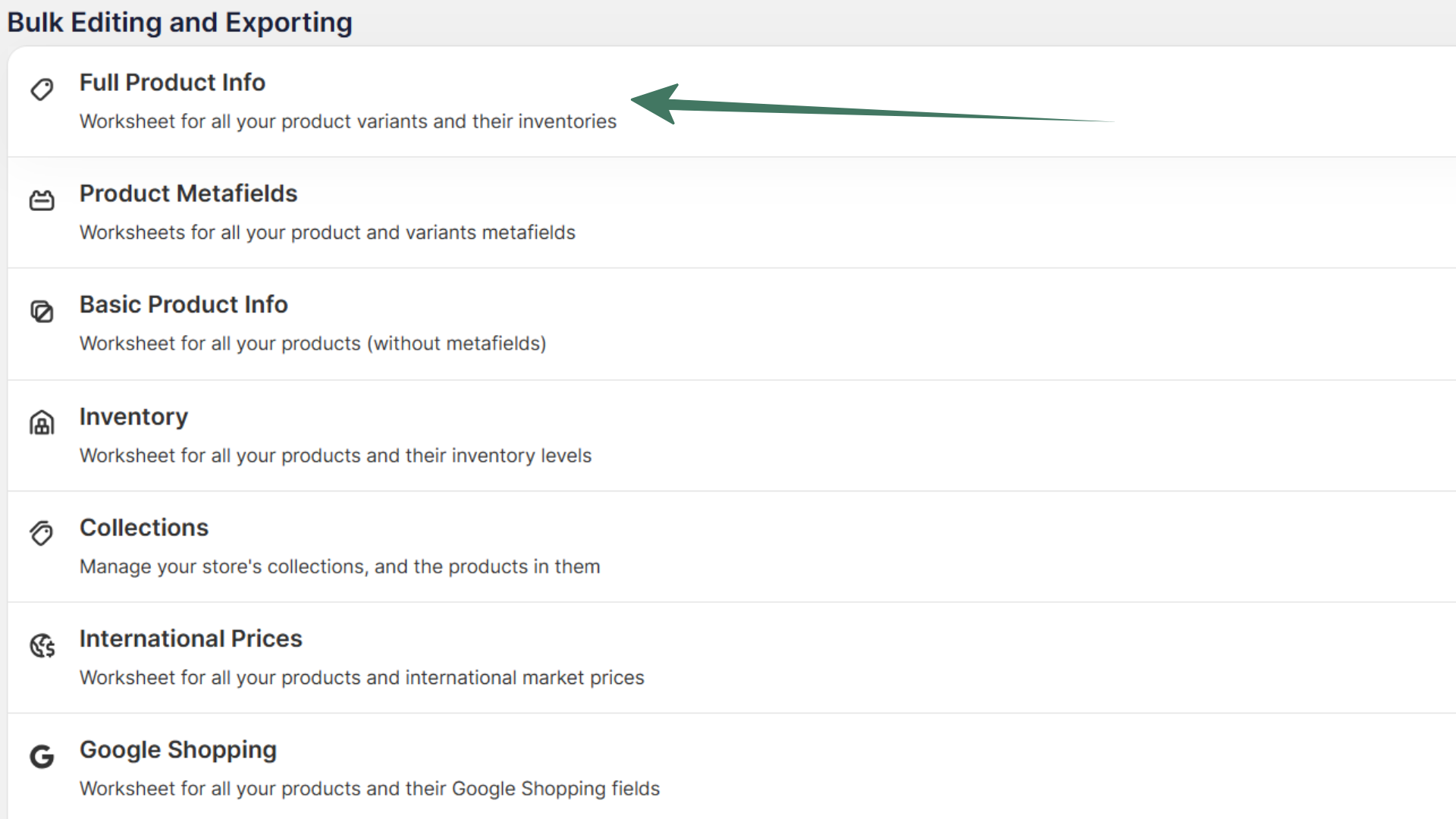
Optional: Use the Full Product Info template
You can create a spreadsheet from the Full Product Info template, which creates a Products (with variants) worksheet that already includes the Price column:
Update prices using the Bulk number changes tool
There are cases where you need to make the same change, in bulk, to the prices of several products. For example, you need to decrease the price by 10% for Black Friday/Cyber Monday. Or you need to add $1.50 to the price of every product due to a corresponding increase in wholesale prices. This is where the Bulk number changes tool comes in very handy.
The Bulk number changes tool performs mathematical changes, and so it will only update cells that have a number in them. You specify the type of calculation to perform, and the updater will do it for you. If a column has a mix of numbers and text values, only the cells with number values will be updated.
To open the Bulk number changes tool, choose Bulk Edit > Bulk number changes in the menu bar. Or right-click your price column’s letter and choose Bulk number changes…, which opens the tool with that column already chosen. In the Bulk Edit Numbers window that opens, you’ll see a few inputs:
-
Select column - this is how you choose which column in the current worksheet the change will work on. Choose the price column you added above. The change applies to every visible row in that column, so filter the worksheet first if you only want to change some prices
-
Select operation - this is where you select what type of mathematical operation will be performed on your Shopify prices. The options are:
- Add - Adds the value you’ve given to every number, e.g., add $1.50 to every price
- Subtract - Subtracts the value you’ve given from every number
- Increase by % - Takes each number and increases it by the specified percent, e.g., increase every price by 5%
- Decrease by % - Takes each number and decreases it by the specified percent
- Multiply - Multiplies each number by the specified value
- Divide - Divides each number by the specified value
-
Value - The actual value you want to use in the mathematical update
-
Preview first 10 rows - if enabled, this will preview the numerical operation on the first 10 visible rows in the active worksheet. This way, you can preview what the output will be before you make it real
-
Round results - rounds every result to a whole number, which removes the cents from your prices: 19.99 increased by 10% becomes 22 instead of 21.989. Leave it off for prices with cents. To round prices to the nearest cent, use a formula with
ROUNDinstead, as shown in Increase Shopify prices in bulk
When the preview looks right, click Update Spreadsheet. The changed cells turn light yellow, which means they’re ready to sync but haven’t reached Shopify yet.
Paste prices from a supplier’s price list
If your new prices come from a supplier or a pricing spreadsheet, you don’t have to retype them. Paste a column of prices straight into the Price column, as long as the rows are in the same order. If they aren’t, add the price list as another worksheet and pull each price in with a formula such as =VLOOKUP(B2, Costs!A:C, 3, FALSE), matched by SKU. You can also import a CSV and match its rows to your variants by SKU, handle, or ID.
Sync the new prices to Shopify
When you are ready, look at the sync control at the top right of the spreadsheet, next to Share. It shows how many edits are waiting, for example Sync 12 changes. Click Sync to open the Preview changes window and review them, then click Sync in the window. Mixtable sends the updated price data to Shopify. It may take a few seconds for the changes to appear in your store.
Tip: Mixtable records each variant’s price, cost, and fixed market and B2B prices, and Cell history shows the changes, so you can look back at what a price was before a bulk change. Right-click a price cell and choose View cell history. See Shopify product price history.
Tip: Before you reprice, it helps to see what each variant currently earns. Mixtable Analytics Spreadsheet can add net sales, units sold, and gross margin columns beside your price column, so you set the new number with the old results in view.
Bulk edit your other Shopify prices
The same spreadsheet handles the rest of your pricing. Each kind of price gets its own column, and they all sync the same way:
- Compare-at prices, for sales that show the original price crossed out
- Cost per item, which Shopify uses for profit reports
- International market prices, including market compare-at prices
- B2B catalog prices for your wholesale customers