
Filter Shopify Data
 Spreadsheet EditorExport: Excel & CSV Updated October 15, 2026
 On this page
 Filter Shopify DataVideo walkthrough
 Filtering hides the rows you don’t need, so you can focus on just the products, orders, or customers you’re working with. It works much like filtering in Excel: you set a filter on a column, and Mixtable shows only the rows that match. Here’s how to set it up.
1. Open a spreadsheet with your Shopify data
If you already have a Mixtable spreadsheet with the data you want to filter, open it and skip to step 3.
Otherwise, open your Mixtable dashboard and click Create spreadsheet at the top of the page. If you haven’t created a spreadsheet yet, the dashboard suggests a few spreadsheets to start with instead: click one to create it right away, or click Browse all templates to see them all. In the Create spreadsheet window, you can pick a ready-made template, grouped by category (Products, Inventory & Pricing, Orders & Customers, and more), or start with a Blank Excel-like Spreadsheet and add the data you need.
2. Add a worksheet for your Shopify data
If your spreadsheet doesn’t have a worksheet with the data you need yet, add one:
- Click the + button at the end of the worksheet tabs at the bottom of the screen, or choose Worksheet > Add worksheet… from the menu bar
- Select Shopify data worksheet and click Continue
- Choose the data you want to work with, such as Customers, Orders (no line items), Orders (with line items), Products (no variants), or Products (with variants)
- Pick your columns and click Continue, then choose which rows to load and click Create Worksheet
3. Turn on filtering
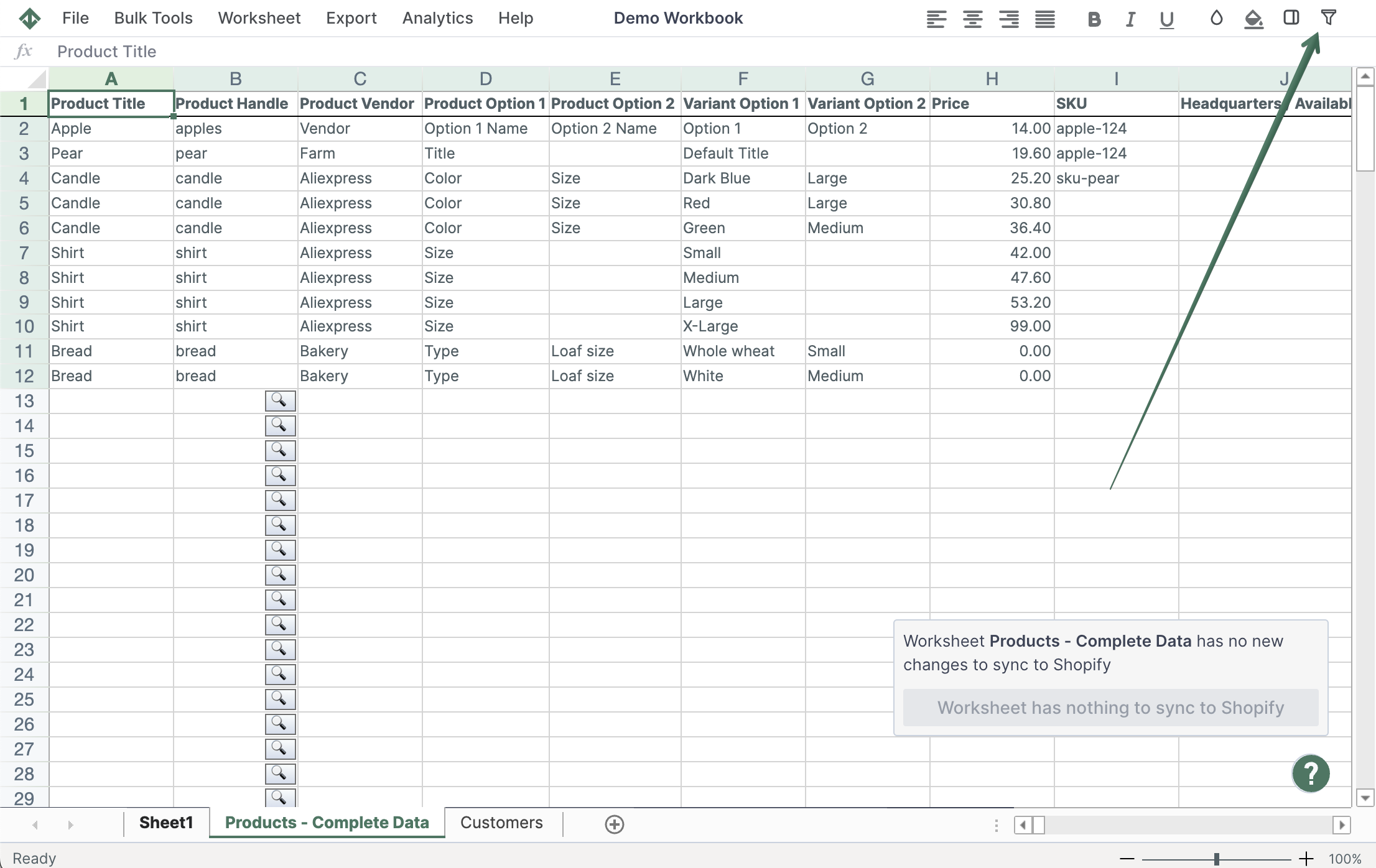
Click the Filter button in the toolbar, next to Find and Sort. You can also choose Worksheet > Filter from the menu bar. A ▼ button appears in each cell of the worksheet’s header row.
4. Set up your filter
Click the ▼ button of the column you want to filter. A menu opens with filter options similar to Excel’s. For example, you can show only the rows where the column contains a word, matches a word exactly, or doesn’t contain a word.

You can filter several columns at once, for example customers from one country who also have a certain tag. To show all your rows again, click Filter in the toolbar to turn filtering off.
In the example below, we’re filtering a Shopify Customers worksheet, but it works the same way on every type of worksheet.
Tip: A filter only hides rows on your screen, and you can change it anytime. To load only certain products, orders, or customers into a worksheet in the first place, use a conditional worksheet instead.