
Inventory Template
 Spreadsheet Editor Updated October 15, 2026
 On this page
The Inventory template in Mixtable shows the stock for every product variant at every Shopify location, all in one spreadsheet. It helps you see what you have and where, so you can restock on time, move slow sellers, and keep customers happy.
After installing the Mixtable Spreadsheet Editor app, here’s how to load the Inventory template:
Open your Mixtable dashboard and click Create spreadsheet at the top of the page. If you haven't created a spreadsheet yet, click Browse all templates below the dashboard's suggestions instead. In the Create spreadsheet window, find Inventory under Inventory & Pricing, or type its name in the search box, and click it. Mixtable creates the spreadsheet and fills it with data from your Shopify store.
On your first visit, clicking Update stock levels on the dashboard creates the same template in one click.
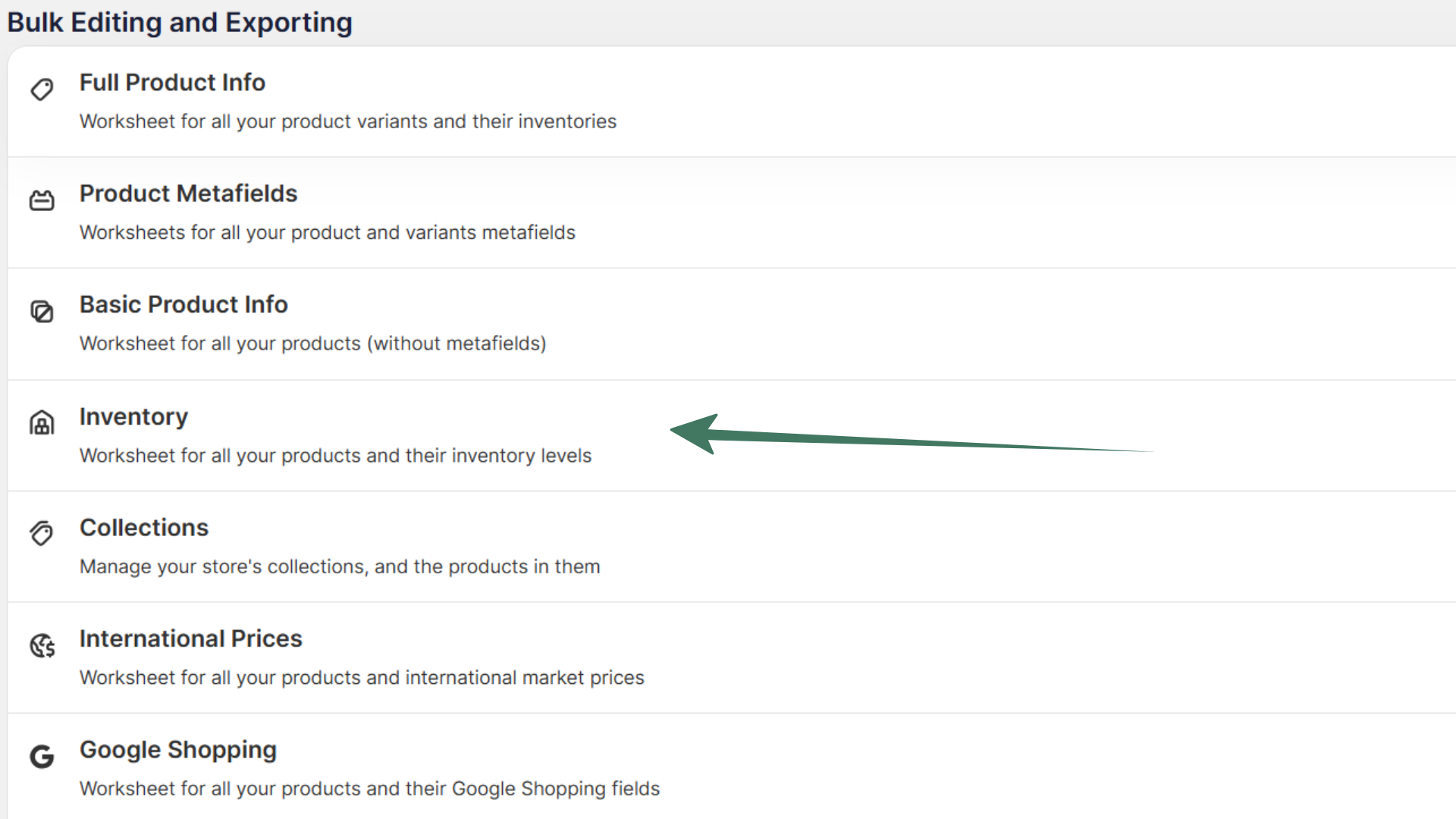
How to use the Inventory template to make better decisions
Here’s what you can use the Inventory template for:
- Restock planning: if a best-selling product is running low in several locations, restock it or move stock between locations before it sells out (see how to load the data)
- Slow-moving products: if a product has plenty of stock but few orders in the last month or so, try a promotion or discount to move it (see how to load the data)
- Dead stock: if a product has high stock everywhere but no sales in the last three months, treat it as dead stock. Bundle it with other items, offer a bigger discount, or return it to the supplier to cut storage costs
- Discontinued products: products with low or zero stock at every location for a long time may be outdated, so consider removing them from your catalog
- Seasonal products: keep stock lower in quiet seasons and build it up ahead of busy periods such as the holidays
- Trending products: if a product’s stock drops quickly over a short time, such as a week, demand may be rising. Order more from your supplier or move stock from slower locations
- Opening a new location: see your stock at every location side by side when you move inventory to a new warehouse
- Stock over time: the template shows today’s stock. To look back, add inventory history metrics with Mixtable Analytics Spreadsheet, such as Closing Stock on a past date, Stock Change, Last In-Stock Date, or Dead Stock Units (see the inventory analytics guide)
Shopify data included in the Inventory template
The template creates a Products with inventory worksheet, with one row per variant and these columns:
- Title
- Handle
- Option 1, Option 2, and Option 3
- One Available column for each of your Shopify locations, such as Main Warehouse / Available

Beyond the default columns, you can add more data to the template, such as Net Sales and inventory adjustments. Here’s how:
How to add Net Sales data to your Inventory spreadsheet
Seeing Net Sales next to your stock levels shows which products sell quickly and which ones sit on the shelf, so you know what to restock first and what to clear out.
Note: To add Net Sales data to your Inventory spreadsheet, you need to install the Mixtable Analytics Spreadsheet app.
Here’s how to do it:
-
Open your Products with inventory worksheet
-
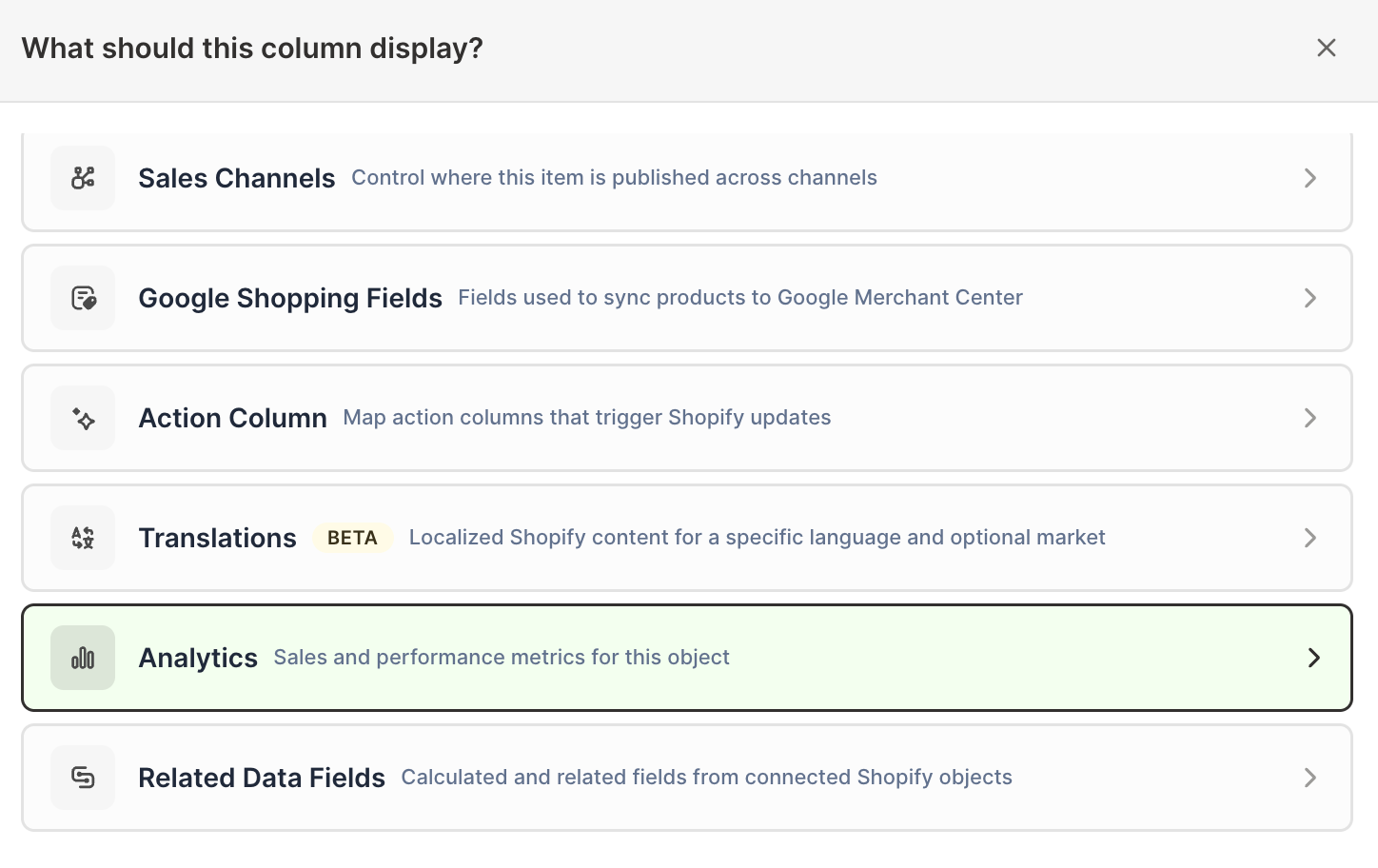
Click + Shopify data in the header row of an empty column, or choose Column > Add Shopify data… from the menu bar. The field picker opens
-
Click Sales & analytics in the list of sections on the left, or type the metric's name in the search box
-
Click Net Sales. The metric's settings open with it already chosen under Which metric?
-
Under Over what time period?, choose All time, Fixed dates, Rolling period, Calendar year, or Calendar month
-
Under Limit which orders count, add any optional filters supported by the metric
-
Click Save Column
For the time period, Rolling period with Last 30 days always covers the most recent 30 days, so the column stays current on its own. For a different window, such as the last 7 or 90 days, choose Fixed dates and pick your own start and end dates. A fixed range stays exactly as you set it.
Tip: Mixtable Analytics Spreadsheet also has inventory metrics made for these questions, such as Days of Stock Left, Sell-Through Rate, and Dead Stock Units. You’ll find them in the Inventory history group at the end of the Sales & analytics section in the field picker. See the Shopify inventory analytics guide for what each one tells you.
How to add an inventory adjustment column to your spreadsheet
An inventory adjustment column lets you add or subtract stock at a location instead of typing the new total, for example 10 when a delivery of 10 units arrives, or -2 for damaged items. Because you enter the change rather than the final number, you won’t overwrite updates that other people or apps make at the same time. Learn more about adjusting Shopify inventory quantities.
Here’s how to do it:
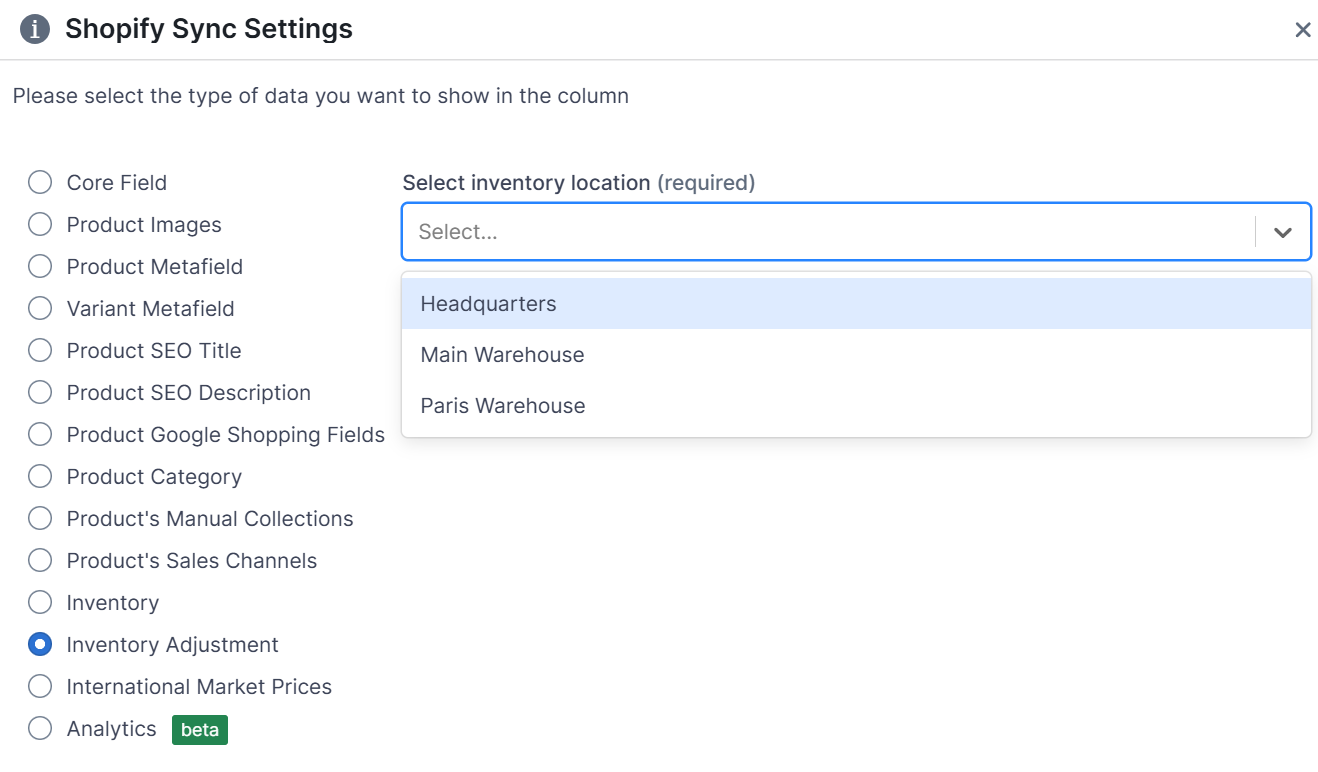
- In your Products with inventory worksheet, click + Shopify data in the header row of an empty column, or choose Column > Add Shopify data… from the menu bar. The field picker opens and asks What should column E show?, with your column’s letter in place of E
- Click Inventory in the list of sections on the left, then click Add or remove stock at followed by the warehouse you want to adjust, such as Add or remove stock at Main Warehouse. Click Save Column
- To adjust more than one warehouse, repeat these steps for each location
Analyze inventory data with spreadsheet tools
Because your inventory is in a spreadsheet, you can use familiar tools to work with it:
- Sort in ascending or descending order
- Find and replace text across a column
- Filter to show only the rows you need
- Use formulas, for example to total your stock across locations
Here are some examples:
Predict restocking
- In your Inventory worksheet, add a column for Net Sales for the last 7 or 30 days (see above)
- Sort the Net Sales column in descending order to see your best-selling products at the top
- Check whether your stock can keep up with demand, or whether you need to restock sooner so you don’t lose sales or keep customers waiting
- To spot low stock at a glance, add conditional formatting to a location’s inventory column, for example to color a cell red when its value is less than 5
Identify slow-moving products or dead stock
- In your Inventory worksheet, add a column for Net Sales for the last 90 days (see above)
- Sort the Net Sales column in ascending order to see your slowest-selling products at the top
- Look for products with lots of stock and low or zero sales for the period
- Plan discounts or bundles to clear these products and free up warehouse space
- With Mixtable Analytics Spreadsheet, a Dead Stock Units or Sell-Through Rate column finds these products directly. See sell-through and dead stock
Frequently asked questions
Can I see inventory locations in a spreadsheet?
Yes. The Inventory template loads the available quantity at every Shopify location and keeps it up to date automatically.
- Load the Inventory template as described at the top of this page
- The last columns in the worksheet are your Shopify locations, one column each. Here’s how that looks for our demo store:
Can I see how much stock I had on a past date?
Yes, with Mixtable Analytics Spreadsheet. It downloads your store’s day-by-day stock history from Shopify, so you can add Closing Stock or Closing Value at Cost for any finished day. See Shopify stock levels and inventory value.