
Export Shopify Customers
 Export: Excel & CSV Updated October 8, 2026
 On this page
 Export Shopify CustomersVideo walkthrough
 Need a list of your Shopify customers in Excel or CSV, with exactly the fields you want? Mixtable Export: Excel & CSV loads your customers into a spreadsheet that runs in your browser. You pick the columns, narrow down the list if you like, and download the file. Here’s how.
Step 1: Load your Shopify customers
You can start a new spreadsheet from the Customers template, or add a Customers worksheet to a spreadsheet you already have.
Option A: Use the Customers template
Open the Mixtable Export: Excel & CSV app and create a spreadsheet from the Customers template:
Open your Mixtable dashboard and click Create spreadsheet at the top of the page. If you haven't created a spreadsheet yet, click Browse all templates below the dashboard's suggestions instead. In the Create spreadsheet window, find Customers under Orders & Customers, or type its name in the search box, and click it. Mixtable creates the spreadsheet and fills it with data from your Shopify store.
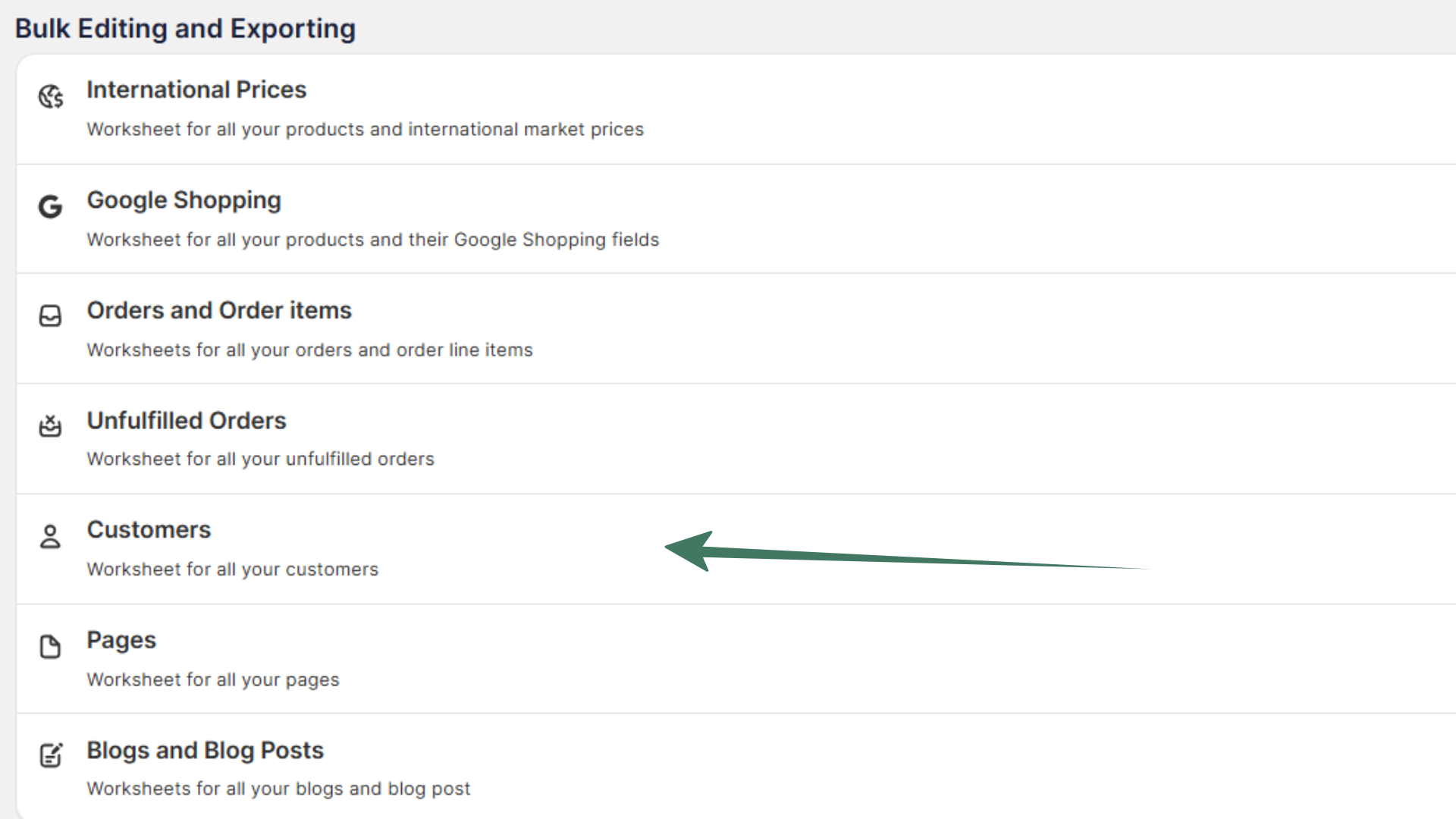
The template creates a Customers worksheet with these columns:
- Shopify ID
- First Name
- Last Name
- Language
- Total Orders
- Tags
Option B: Add a Customers worksheet to an existing spreadsheet
-
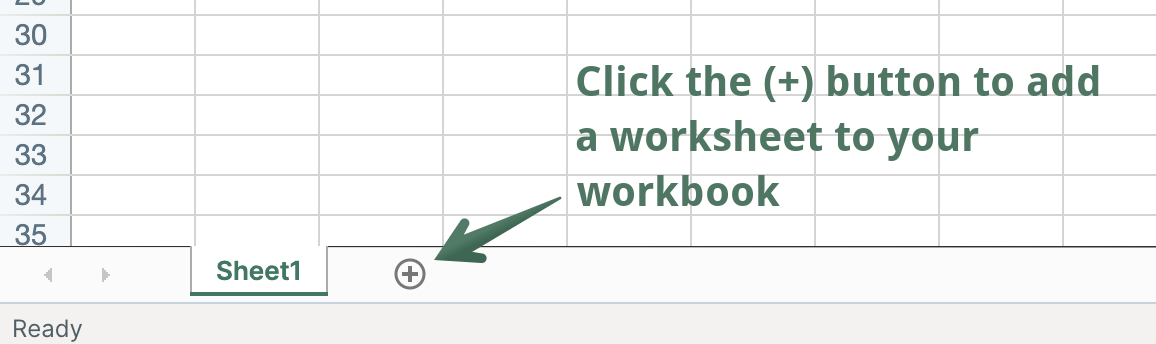
In an existing Mixtable spreadsheet, click the + button at the end of the worksheet tabs, at the bottom of the screen, to add a new worksheet.
-
Choose Shopify data worksheet and click Continue
-
Choose Customers, pick the columns you want, and click Continue
-
Choose Load everything to include every customer, or Only rows that match rules to export only some of them (see Step 3), then click Create Worksheet
Mixtable fills the worksheet with the customer data from your Shopify store.
Step 2: Add the customer fields you need
To load more Shopify data, click + Shopify data in the header row of an empty column, such as the one right after your last column. You can also choose Column > Add Shopify data… from the menu bar. The field picker opens and asks What should column E show?, with your column's letter in place of E. It lists everything the worksheet can show from Shopify, grouped into sections the way your Shopify admin groups them. Type in the search box at the top, or click a section on the left, to find the field you want.

Click the field you want, such as Phone or Note in the Customer section, Default address city in Default address, or Email marketing consent state in Marketing consent, and click Save Column. Repeat for each field you want in your file.
Step 3 (optional): Export only some customers
To export a specific group of customers, such as everyone with a certain tag or from one country, choose Only rows that match rules when you add the Customers worksheet in Option B, and set your rules. This creates a conditional worksheet that only loads the customers who match.
If a customer later stops matching your rules, their row may become empty. To clean up empty rows before you export, choose Worksheet > Remove Empty Rows from the menu bar.
Step 4: Export to Excel or CSV
Before you export, check that the worksheet has all the data you want. If the sync control at the top right shows updates waiting from Shopify, for example Apply 3 updates, click it first so your export includes them.
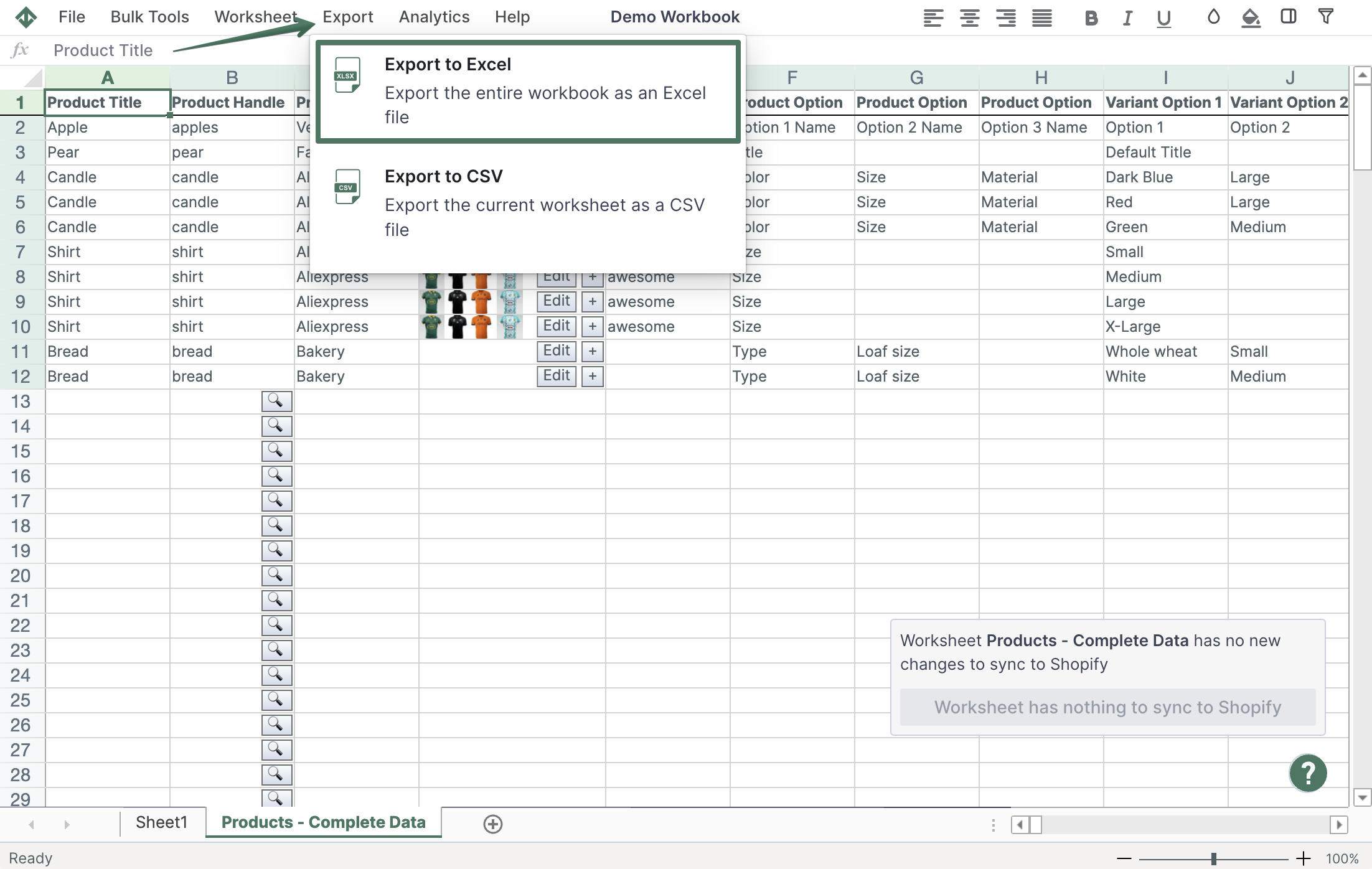
- Excel: click Import & Export in the menu bar and choose Export to Excel. Your browser downloads an Excel (.xlsx) file named after your spreadsheet, with every worksheet in it
- CSV: click Import & Export and choose Export to CSV. Your browser downloads a CSV file of the worksheet you’re looking at
Tip: Exporting customers so you can segment them elsewhere? Mixtable Analytics Spreadsheet can add spend, order count, and Customer Lifetime Value columns to the same Customers worksheet before you export, so your file includes those numbers too.