
Shopify Reporting Templates
 Analytics Spreadsheet Updated October 6, 2026
 On this page
Mixtable’s Shopify reporting templates create complete spreadsheets with the worksheets, Shopify fields, analytics metrics, and timeframes already configured. They are useful when you want a repeatable starting point and do not need to add a report to an existing spreadsheet.
Create a spreadsheet from a reporting template
- Install Mixtable Analytics Spreadsheet
- Open your Mixtable dashboard and click Create spreadsheet at the top of the page. If you haven't created a spreadsheet yet, click Browse all templates below the dashboard's suggestions instead. In the Create spreadsheet window, find a template such as Monthly Store Performance under Analytics & Reporting, or type its name in the search box, and click it. Mixtable creates the spreadsheet and fills it with data from your Shopify store.
The template adds its configured worksheets and begins loading the Shopify data and analytics metrics needed for the report.
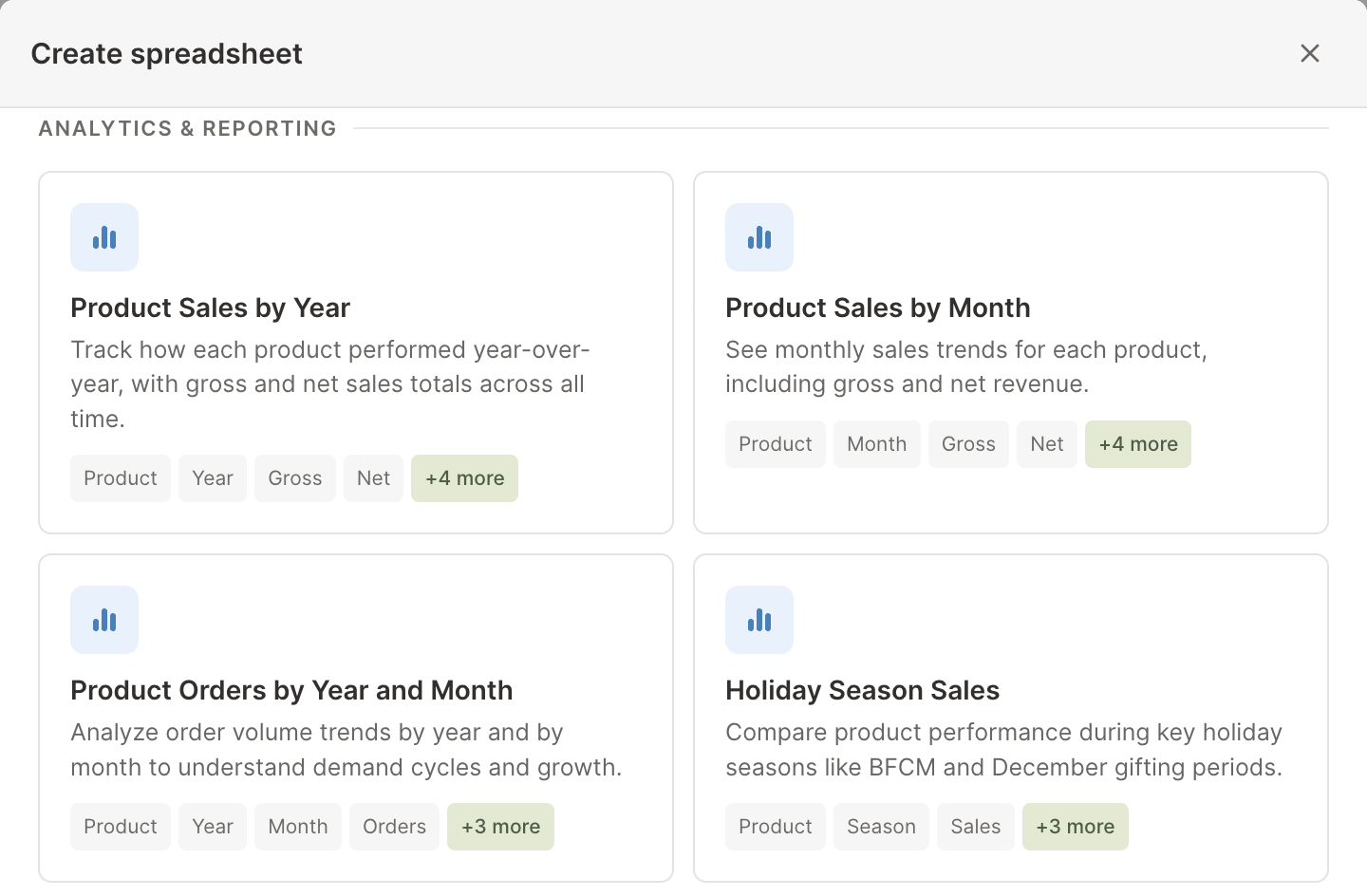
Product sales over time templates
| Template | What it creates | Best for |
|---|---|---|
| Product Sales by Year | Product Net Sales and Gross Sales worksheets with all-time and annual columns | Year-over-year product trends |
| Product Sales by Month | Product Net Sales and Gross Sales worksheets with all-time and recent monthly columns | Seasonality and recent momentum |
| Product Orders by Year and Month | Annual and monthly product Orders Count worksheets | Demand cycles and order frequency |
| Holiday Season Sales | Product Net Sales and Gross Sales for recent September-to-December holiday seasons | Comparing holiday performance |
These templates can create many analytics columns. They are most useful when the same product-by-period structure is needed regularly.
Product, variant, and collection templates
| Template | Main metrics |
|---|---|
| Product Sales Metrics | Orders, gross and net quantities, refunds, discounts, and Net Sales |
| Product Variant Sales Metrics | The same core sales metrics at SKU and variant level |
| Collection Sales | Orders, quantities, refunds, discounts, and Net Sales by collection |
| Product Returns | Gross Quantity Sold, Refunded Quantity, and refunded-order percentage by product |
Use these templates when individual Shopify records should remain in the rows. Use a Pivot Table worksheet when you need grouped rows such as vendor, category, tag, or Market.
Store and product-breakdown templates
| Template | What it compares |
|---|---|
| Monthly Store Performance | Store sales, orders, refunds, discounts, taxes, shipping, duties, fees, and order value over recent months |
| Sales by Vendor | Standard sales metrics by Shopify vendor |
| Sales by Product Type | Standard sales metrics by custom product type |
| Sales by Product Category | Standard sales metrics by Shopify’s taxonomy, including Uncategorized |
| Sales by Product Tag | Standard sales metrics for each product tag |
| Sales by Market | Orders, sales, discounts, refunds, and Average Order Value by Shopify Market |
These templates create reporting worksheets rather than ordinary product rows. Product-tag totals can overlap because one product can use several tags.
Customer templates
| Template | What it creates |
|---|---|
| Sales by Customer | Customer contact fields, orders, sales, discounts, refunds, Average Order Value, product interests, and segments |
| Sales by Customer Segments | Orders, sales, discounts, refunds, and Average Order Value by Shopify segment |
| One Time Customers | Customers with exactly one Shopify order, plus gross order value |
| Customers with No Orders | Customer accounts with zero orders |
The one-time and no-order templates are filtered customer worksheets. They are useful for retention and conversion lists, but they do not replace a customer segment strategy in Shopify.
Operations templates
The Order Fulfillment template tracks the monthly count of fulfilled Shopify orders. For shipment timing, carrier, location, delivery speed, and return details, use the newer Order fulfillment & delivery speed report from the Reporting worksheet library.
Customize a template after creation
Templates are starting points. After the spreadsheet is created, you can:
- Add Shopify fields for more record context
- Add analytics columns with different dates or filters
- Insert formula columns for growth, rates, targets, or rankings
- Sort and filter the worksheet
- Rename worksheets and columns
- Export the current worksheet to CSV or the full spreadsheet to Excel
See add analytics columns to a Shopify data worksheet when you want to extend a template.
Template or ready-made report?
Choose a spreadsheet template when you are starting a new reporting file and want the entire setup created for you. Choose a ready-made Reporting worksheet report when you already have a spreadsheet open and want to add one focused analysis.