
Bulk edit the Google Shopping fields for your Shopify products and variants
 Spreadsheet Editor Updated October 21, 2026
 On this page
Mixtable’s spreadsheet interface makes it easy to edit the Google Shopping fields on your Shopify products and variants, one at a time or in bulk. This page walks you through adding Google Shopping fields as spreadsheet columns, choosing between product and variant fields, and syncing your changes back to Shopify.
Google Shopping fields in a spreadsheet
-
After installing Mixtable Spreadsheet Editor, create a spreadsheet with a Products (no variants) or Products (with variants) worksheet. Choose Products (with variants) if you want to set different values for each variant
-
To load more Shopify data, click + Shopify data in the header row of an empty column, such as the one right after your last column. You can also choose Column > Add Shopify data… from the menu bar. The field picker opens and asks What should column E show?, with your column's letter in place of E. It lists everything the worksheet can show from Shopify, grouped into sections the way your Shopify admin groups them. Type in the search box at the top, or click a section on the left, to find the field you want.

-
Click Google Shopping in the list of sections on the left. It has one row for each Google Shopping field, such as Condition, Color, and Custom Label 0
-
Click the field you’d like to display and edit in the column. Here, we are going to pick Condition
-
On a Products (with variants) worksheet, the panel on the right asks Whose value? Choose Product (all variants) to edit the value for the whole product, or This variant to give each variant its own value. This is a custom product is only available for the product, so it skips this question
-
Click Save Column
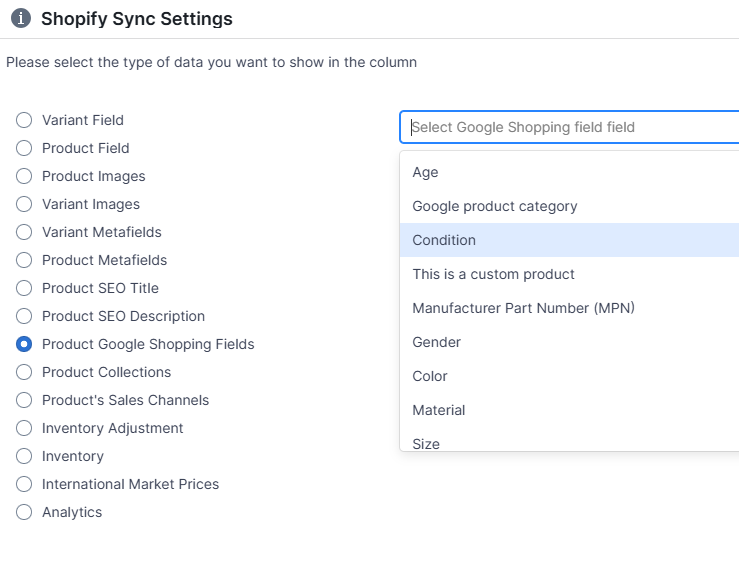
- Mixtable sets up the new column with a heading (which you are free to change) and fills each cell with the field’s current value from Shopify. If the field only accepts certain values, such as Condition, which can be new, refurbished, or used, Mixtable adds a drop-down to each cell to make picking a value easier. You can also type a value into the cell, like you would in Excel. On a Products (with variants) worksheet, the heading shows whose value the column holds, such as Condition (Product) or Condition (Variant)

Product or variant fields?
Shopify can store Google Shopping fields on a product or on each of its variants:
- Product fields (Product (all variants) in the field picker) suit values that every variant shares, such as Google product category, condition, age group, or gender
- Variant fields (This variant in the field picker) suit values that change from one variant to the next, such as color, size, or MPN
Tip: For each product, fill in a field in one place, either on the product or on its variants. Different values in both places make it hard to tell which one ends up in your Google listing.
Optional: Use the pre-built Google Shopping spreadsheet
If you are starting a brand-new spreadsheet, the Google Shopping template sets up both levels for you: a Google Shopping Products worksheet with the product fields and a Google Shopping Variants worksheet with the variant fields. After installing Mixtable Spreadsheet Editor, here’s how to load it:
Open your Mixtable dashboard and click Create spreadsheet at the top of the page. If you haven't created a spreadsheet yet, click Browse all templates below the dashboard's suggestions instead. In the Create spreadsheet window, find Google Shopping under Integrations, or type its name in the search box, and click it. Mixtable creates the spreadsheet and fills it with data from your Shopify store.
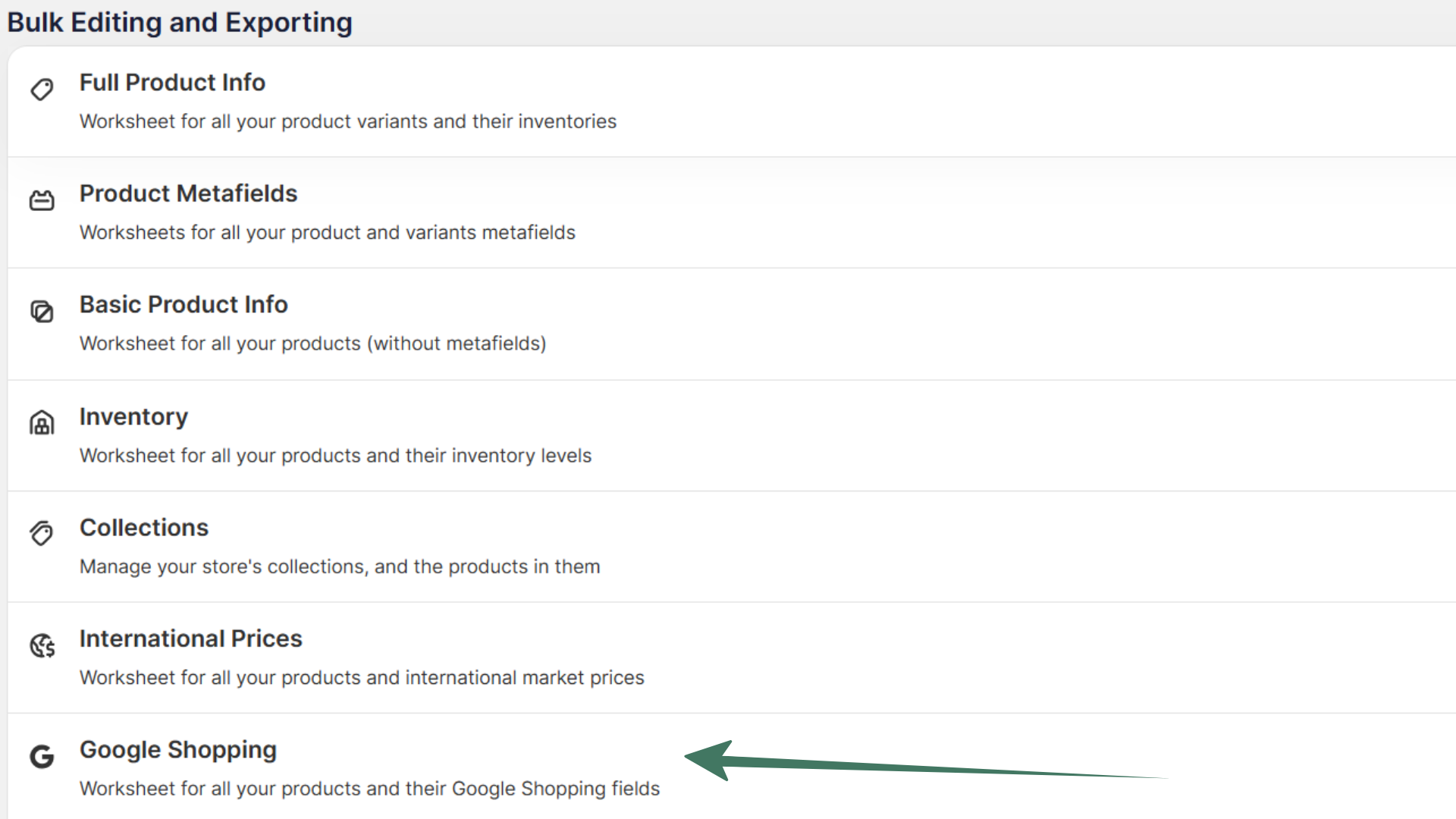
The Google Shopping template guide lists every column in both worksheets.
Which Google Shopping fields can you edit?
Here are the Google Shopping fields you can add as columns, with the values Google accepts for each. Enter fixed values exactly as shown.
| Field | Values Google accepts |
|---|---|
| Age | newborn, infant, toddler, kids, adult |
| Google product category | A category ID or full category name from Google’s product taxonomy |
| Condition | new, refurbished, used |
| This is a custom product | true or false, set on the product only. Use true for custom-made or one-of-a-kind products that have no GTIN or MPN |
| Manufacturer Part Number (MPN) | The part number the manufacturer assigned |
| Gender | male, female, unisex |
| Color | A color name, or up to three separated by a slash, such as Red/Yellow/Green |
| Material | The main material, such as cotton or leather |
| Size | The size shoppers choose, such as M or 32 |
| Size system | AU, BR, CN, DE, EU, FR, IT, JP, MEX, UK, US |
| Size type | regular, petite, plus, tall, big, maternity |
| Unit pricing measure and Unit pricing base measure | A number, with its unit in the matching unit column: oz, lb, mg, g, kg, floz, pt, qt, gal, ml, cl, l, cbm, in, ft, yd, cm, m, sqft, sqm, ct |
| Custom Label 0 to Custom Label 4 | Your own text, used to group products in your Google Ads campaigns |
Edit Google Shopping fields and sync changes to Shopify
- Now that you have one or more Google Shopping fields as columns, change any cells you want. In the example above, we are changing the Condition of our product to “used”
- When you are done, click Sync at the top right of the spreadsheet, review your changes in the preview that opens, then click Sync again. Mixtable sends the Google Shopping fields that changed to your Shopify products and variants. It may take a few seconds to see your store’s new information
Mixtable doesn’t submit a product feed to Google itself. Your Google & YouTube sales channel, or the feed app you use, picks up the updated values from Shopify and sends them to Google Merchant Center.