

 Bulk Editor
 Excel & CSV Exporter
Mixtable is an online spreadsheet, designed from the ground up to bulk edit and analyze Shopify data.
Got a question? We're here to help! Reach out at team@mixtable.com, and we'll get back
to you promptly.

Shopify admin does not allow for direct .xlsx file export. However, you can export most Shopify data to a format that Excel can open, primarily as a CSV (Comma Separated Values) file, from the Shopify admin. While direct .xlsx export is often not available for all data types, CSV files can be opened and manipulated in Excel.
With the Mixtable Spreadsheet app you can easily export your entire workbook to an Excel .xlsx file whenever you want. All your data, including raw values, formulas, images, and formatting, will be seamlessly retained during the transition from Mixtable to Excel.
After you install the Mixtable Spreadsheet Editor you can build your own workbook from scratch, but the easiest way to start is with one of our pre-made templates. In this example we want to export our product information. So we’ll start with the Full Product Info template. To use it click on Create Spreadsheet and select it from the template list. Mixtable will create the workbook and automatically populate it with your Shopify store product data.
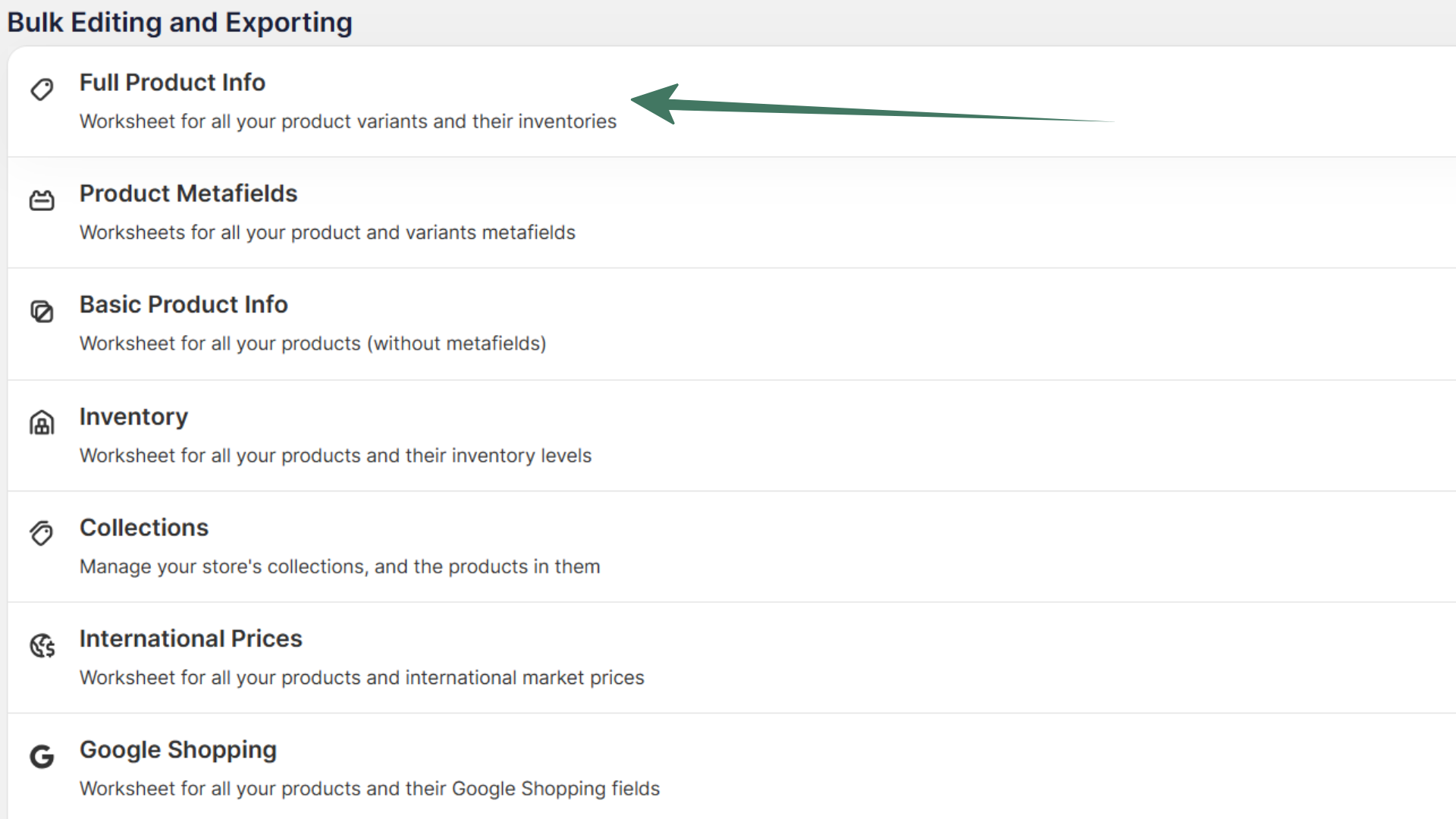
Note: Export-to-Excel functions are included in the free Mixtable app plan.
The templates are loaded with columns for the information that our users use the most. You can customize the columns in your worksheet to suit your needs, by adding and removing them.
To load new Shopify data, start by selecting an empty column — any column with a non-green header (green headers mean the column is already linked to Shopify data). Then, click the ⚡️ button in the column header to open the selection window to choose the data you want to pull in.

You can choose to add a variety of Shopify data, from Shopify data fields to metafields, inventory, and related data columns. If you have our Mixtable Analytics app installed you can also add columns that show analytical information for your products and store.
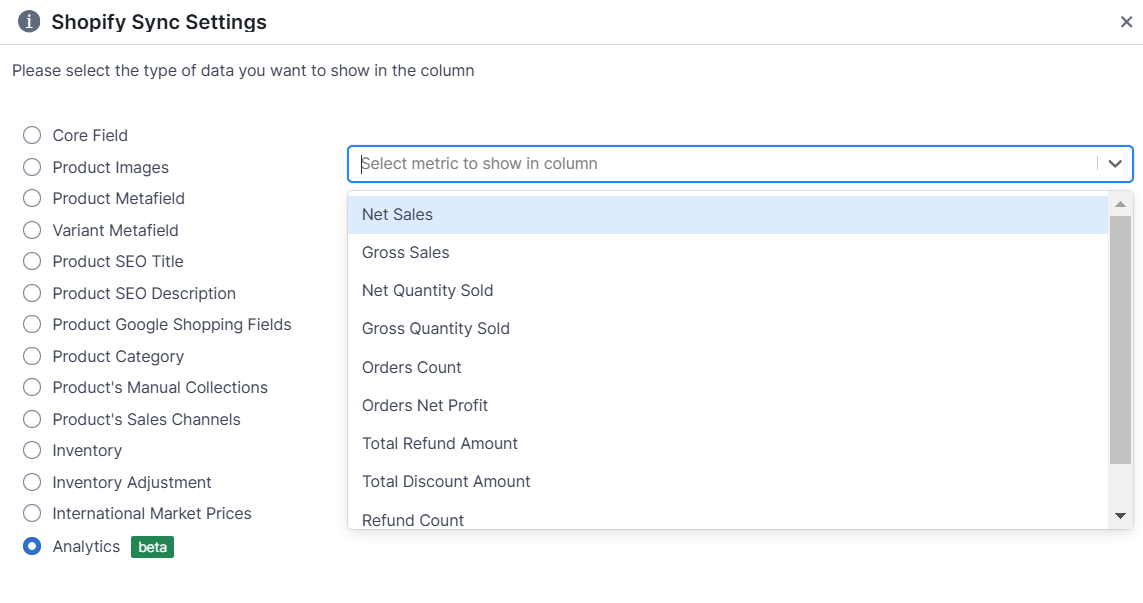
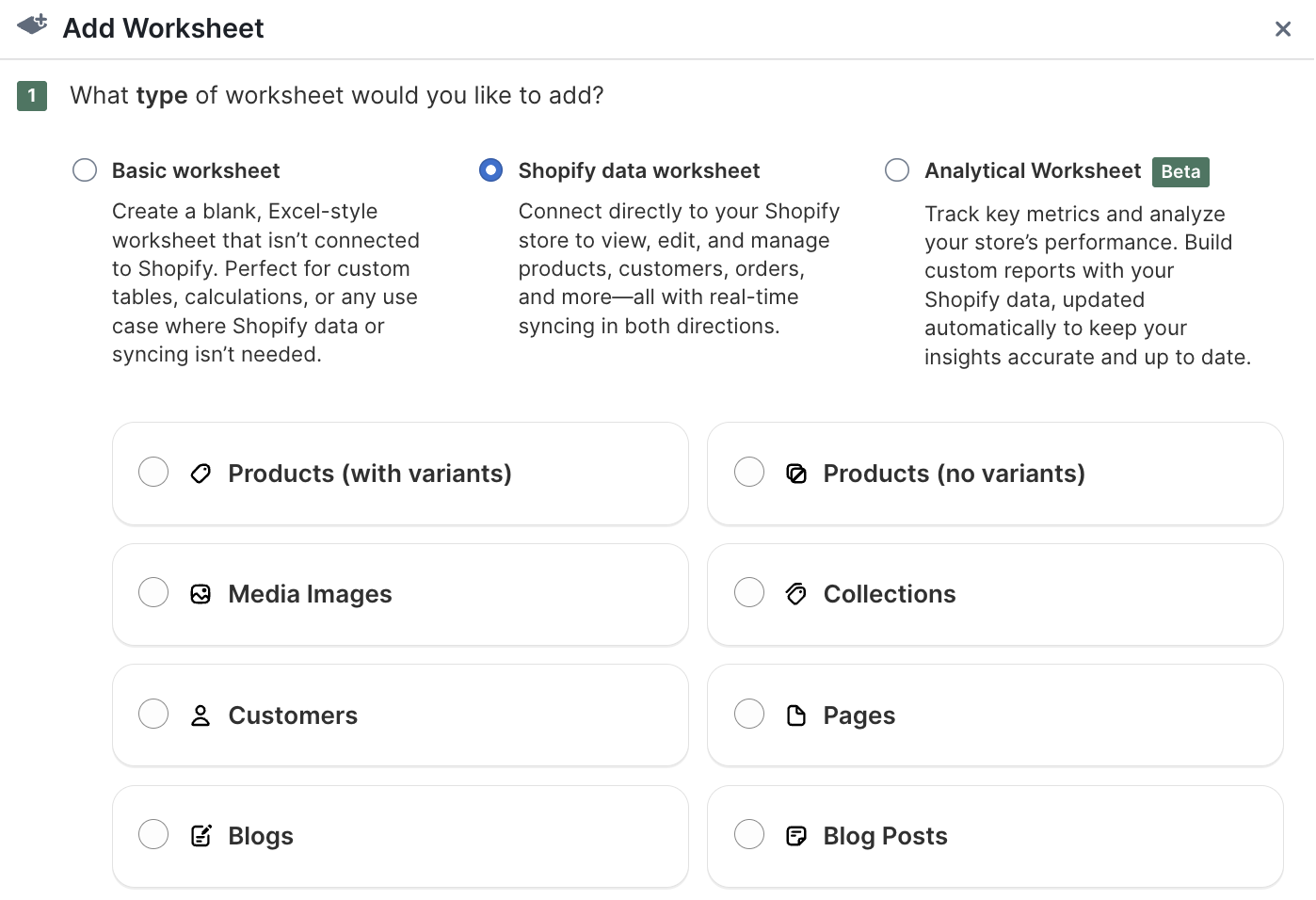
You can also add other worksheets with a different dataset, such as Orders (no line items) or Customers. With Mixtable export to Excel, you will get a single .xlsx file containing all worksheets in your workbook, and the data will be kept up to date for future exports.
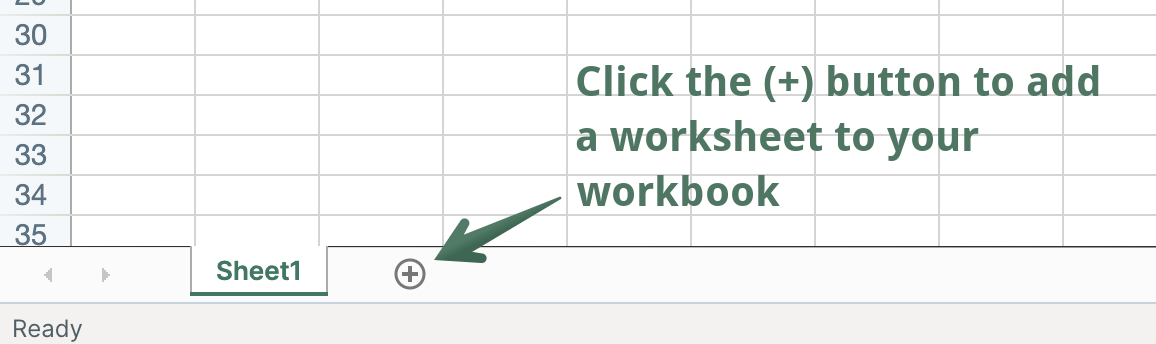
In an existing Mixtable workbook, click the (+) button to add a new worksheet.
Choose from a list of existing sheets or build a custom one.
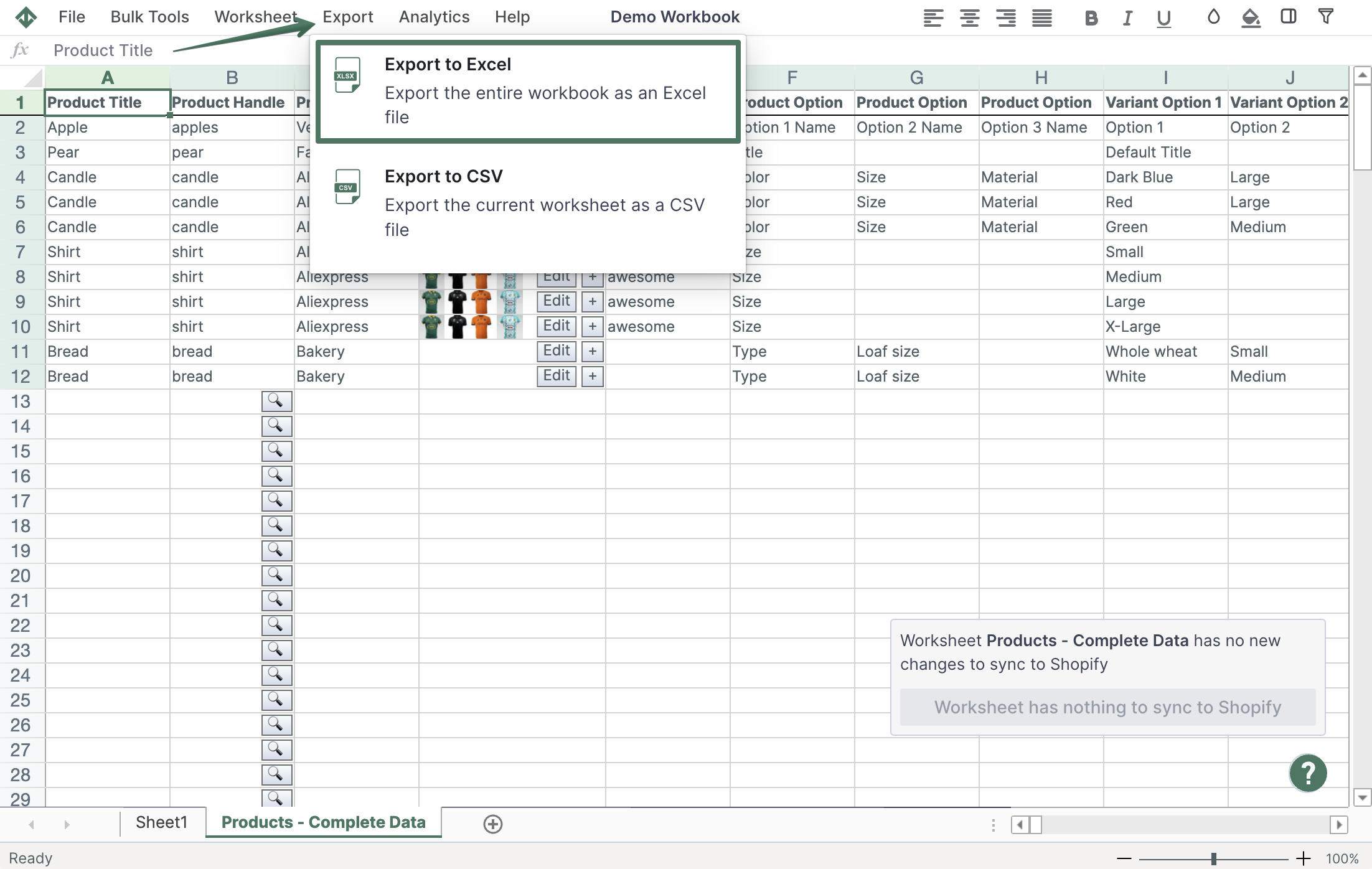
Once the workbook is set up, click Import & Export in the top toolbar and choose the Export to Excel option. A prompt will then guide you to select a save location for your file.
You're ready!
Mixtable is an online spreadsheet designed to sync data with Shopify. It looks, feels, and behaves like Excel (including formulas), but runs in your browser. With Mixtable you can:
Best of all, you can sync changes back to Shopify with a single click. Find out more about the Mixtable suite of products here.