

 Bulk Editor
 Excel & CSV Exporter
Mixtable is an online spreadsheet, designed from the ground up to bulk edit and analyze Shopify data.
Got a question? We're here to help! Reach out at team@mixtable.com, and we'll get back
to you promptly.

To export your Shopify products along with the list of collections the products are in you’ll need to perform two quick steps. First, have a worksheet that shows your Shopify products. Second, map the products’ manual collections to be shown in a column. Once this is done, just export the workbook and you’ll be able to download all your products with their collections data as an Excel file. Below are more details on each step.
In an existing Mixtable workbook, click the (+) button to add a new worksheet.
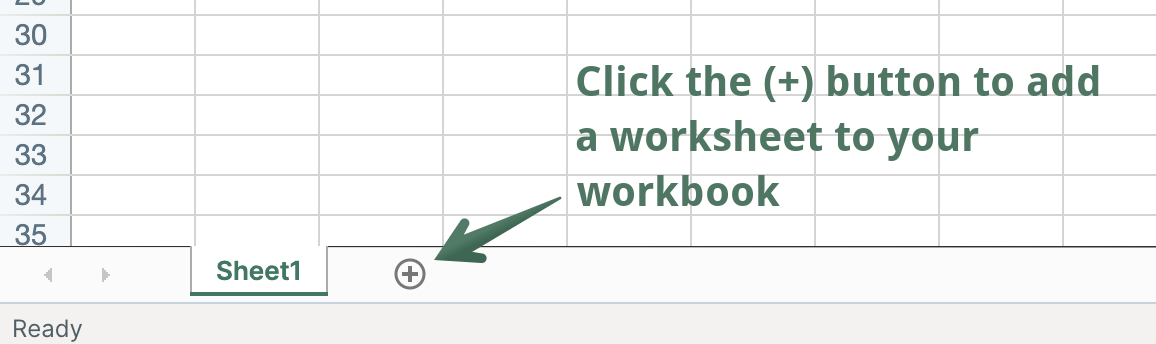
You’ll now be presented with a list of what Shopify data you’d like to sync to the new worksheet - products, orders, customers, etc. Select the Products (no variants) option. The new worksheet will be added, and you’ll see your Shopify Products data starting to populate in it.
To show your products’ manual collections, you first need to map a column in your Products-linked worksheet.
To load new Shopify data, start by selecting an empty column — any column with a non-green header (green headers mean the column is already linked to Shopify data). Then, click the ⚡️ button in the column header to open the selection window to choose the data you want to pull in.

From the column options you see, select the Product Collections radio button, and then click on the Save button.
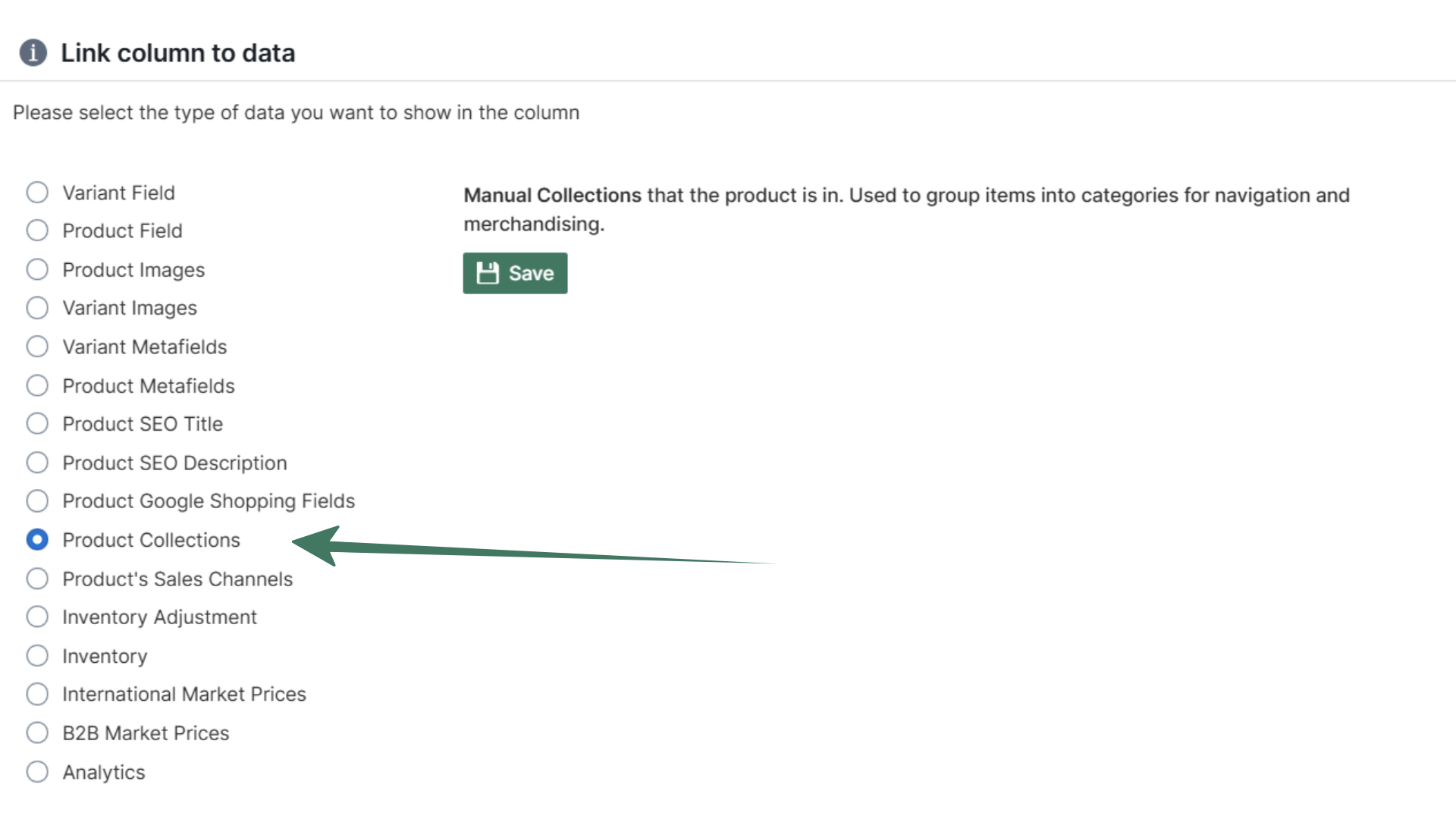
You’ll now see that the new column is set up to show each product’s Manual Collections, and it will begin to populate with the handles of any existing Manual Collections that each product is in.
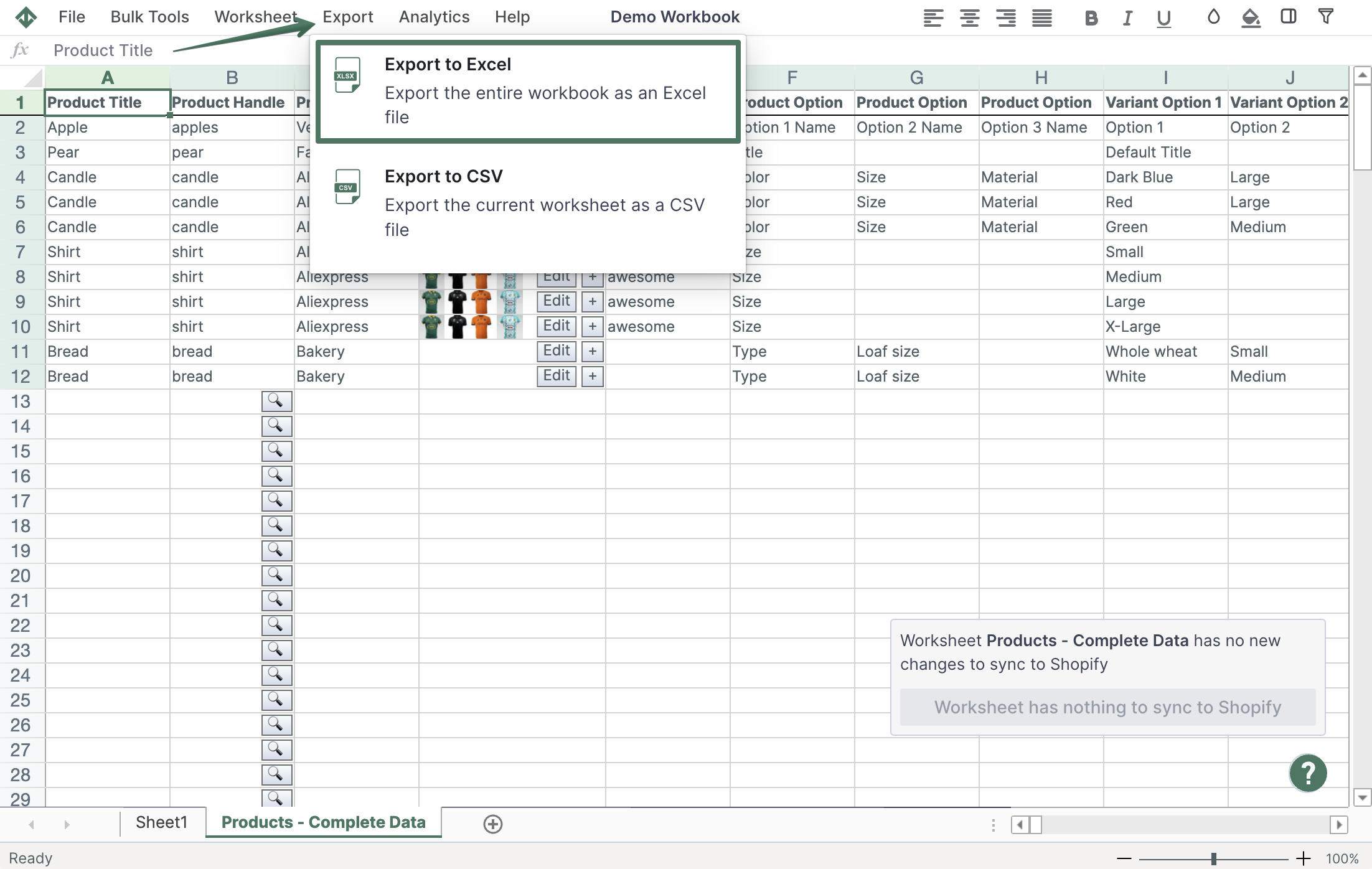
Now that we have our Products’ collections data in our worksheet, let’s export everything to an Excel file. Click Import & Export in the top toolbar, then select Export to .xlsx. You’ll be immediately prompted with the location where to save the Excel file on your computer. And that’s it!
Well done!
Mixtable Excel and CSV Exporter is an Excel-like app built to sync data with Shopify automatically. It looks, feels, and behaves like Excel (including formulas), but runs in your browser. Find here:
Because Mixtable keeps your workbook updated automatically as your Shopify data changes, there’s no need to wait for manual syncs — just open and export.